
Introduction
Welcome to the user manual for the ZEBRONICS H310 D4M2 Micro-ATX Motherboard. This guide provides essential information for the proper installation, configuration, and maintenance of your motherboard. Please read these instructions carefully before beginning the installation process to ensure correct setup and optimal performance.
Product Overview
The ZEBRONICS H310 D4M2 is a Micro-ATX motherboard designed for Intel 8th and 9th Generation processors using the LGA 1151 socket. It supports DDR4 memory, features an NVMe M.2 slot, 5.1 channel audio, and a variety of connectivity options including USB 3.0, HDMI, and DisplayPort.
Key Features
- DDR4 Memory Support: Compatible with memory modules offering speeds between 2133MHz and 2666MHz.
- LGA 1151 Socket: Designed to support Intel 8th & 9th Generation Processors.
- 5.1 Channel Audio: Provides an immersive audio experience.
- LAN Support: Ensures fast and reliable internet connectivity with speeds of 10/100 Mbps.
- PCIe 16x Slot: Facilitates seamless data transfer for graphics cards and other expansion cards.
- 3 SATA Ports: Allows connection of multiple storage devices.
- SATA M.2 Slot: Supports M.2 (NVMe and NGFF) drives for high-speed storage.
- USB 3.0 Ports: Offers swifter and more effective connectivity for external devices.
Motherboard Layout

This diagram illustrates the main components and connectors on the ZEBRONICS H310 D4M2 motherboard. Refer to this layout for component identification during installation.

Visual representation of the motherboard's core features including DDR4 support, M.2 slot, H310 chipset, and PCIe x16.
Setup and Installation
Before starting, ensure your system is powered off and disconnected from the power source. Handle the motherboard by its edges to avoid static discharge. It is recommended to wear an anti-static wrist strap.
CPU Installation
- Locate the LGA 1151 CPU socket on the motherboard.
- Open the CPU socket lever and lift the metal load plate.
- Carefully align the CPU with the socket, matching the golden triangle indicator on the CPU to the corresponding mark on the socket. Do not force the CPU into the socket; it should sit naturally.
- Close the load plate and secure it by pushing down the lever until it clicks into place.
- Apply a thin, even layer of thermal paste to the CPU's integrated heat spreader (IHS) and install the CPU cooler according to its manufacturer's instructions.
RAM (Memory) Installation
- Locate the two DDR4 DIMM slots on the motherboard.
- Open the clips at both ends of the DIMM slot by pushing them outwards.
- Align the memory module with the slot, ensuring the notch on the module matches the key in the slot.
- Press down firmly on both ends of the memory module until the clips snap into place, securing the module.
Storage Device Installation
This motherboard supports both SATA and M.2 storage devices.
SATA Drives
- Connect one end of a SATA data cable to an available SATA port on the motherboard (SATA1, SATA2, or SATA3).
- Connect the other end of the SATA data cable to your SATA hard drive or SSD.
- Connect a SATA power cable from your power supply unit (PSU) to the SATA drive.
M.2 Drive
- Locate the M.2 slot on the motherboard.
- Insert the M.2 drive into the slot at approximately a 30-degree angle.
- Gently push down the M.2 drive and secure it with the provided screw into the standoff.

Image showing included SATA cables and I/O shield, essential for storage and case installation.
Power Connections
- Connect the 24-pin ATX power connector from your PSU to the main power socket on the motherboard. Ensure it is fully seated.
- Connect the 8-pin CPU power connector (EPS 12V) from your PSU to the CPU power socket located near the CPU.
Peripheral Connections (Front Panel, USB, Audio, LAN)
Refer to the Motherboard Layout diagram in the Product Overview section for exact locations of these headers and ports.
- Connect front panel headers (Power SW, Reset SW, HDD LED, Power LED) to the corresponding pins on the motherboard's front panel header block.
- Connect front panel USB 2.0 and USB 3.0 headers from your PC case to the respective headers on the motherboard.
- Connect the front panel audio header from your PC case to the motherboard's audio header.
- Install the I/O shield into your PC case's rear opening before mounting the motherboard.
- Connect external peripherals such as keyboard, mouse, monitor, and network cable to the rear I/O ports.
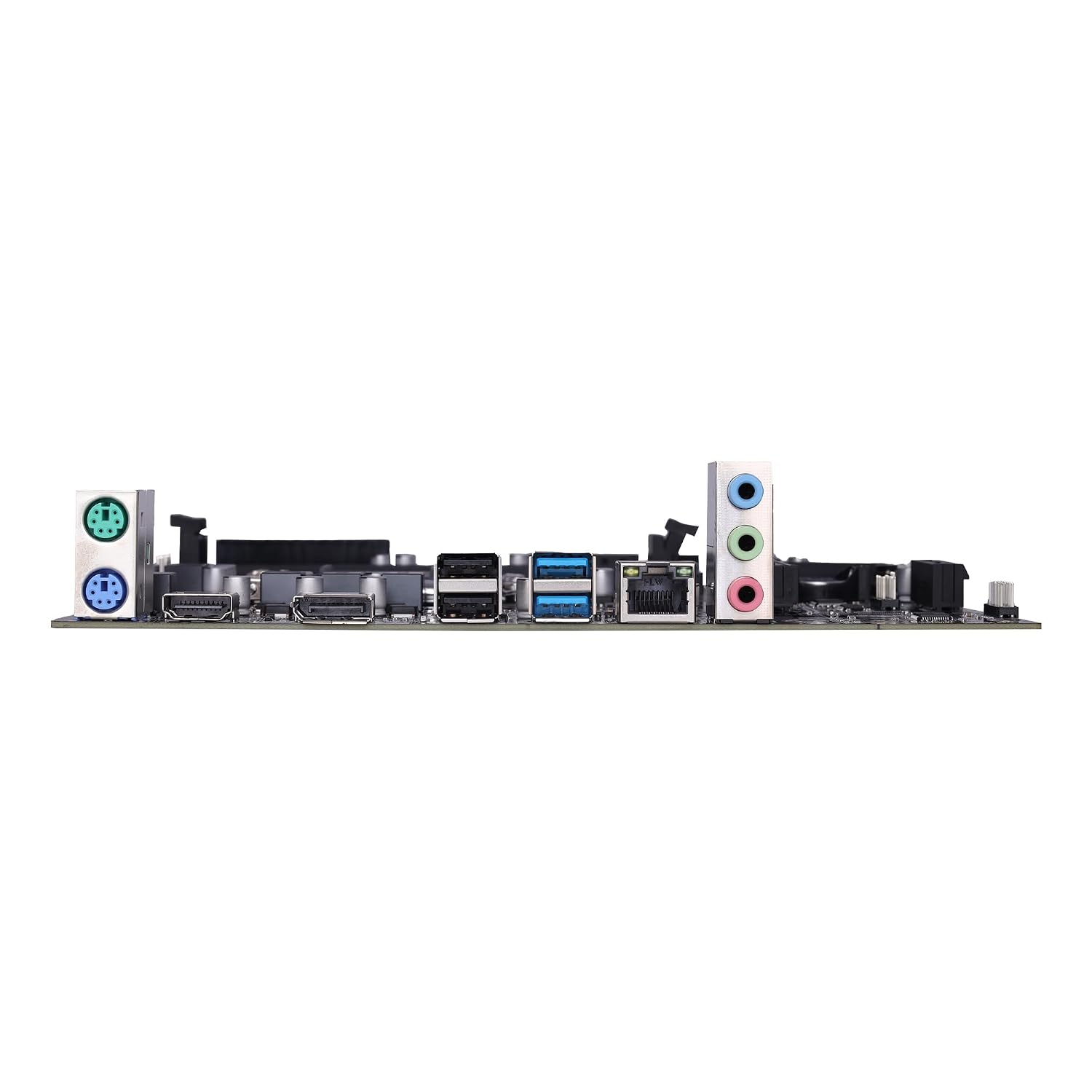
This image displays the rear input/output ports available on the motherboard, including USB, video outputs (HDMI, DP), and audio jacks.
Operating System and Drivers
First Boot and BIOS Setup
After assembling your system, power it on. During the initial startup sequence, press the designated key (commonly DEL or F2) repeatedly to enter the BIOS/UEFI setup utility. Here you can configure boot order, system time, and other advanced settings necessary for your operating system installation.
Driver Installation
For optimal performance and stability, it is crucial to install all necessary drivers after installing your operating system.
- Use the included driver CD (if applicable) to install chipset, audio, LAN, and other essential drivers.
- Alternatively, download the latest drivers from the official ZEBRONICS website by navigating to the support section and searching for the H310 D4M2 model.
Maintenance
Regular maintenance helps ensure the longevity and stable operation of your motherboard and overall system.
- Keep the system clean: Periodically clean dust from the motherboard and components using compressed air. Ensure all fans and heatsinks are free of obstructions to maintain efficient cooling.
- Ensure proper airflow: Maintain good ventilation within your PC case by ensuring proper cable management and fan placement to prevent overheating.
- Software updates: Keep your operating system, device drivers, and BIOS/UEFI firmware updated to the latest versions for improved performance, security, and compatibility.
Troubleshooting
If you encounter issues with your system, refer to the following common troubleshooting steps:
- No Power: Check all power connections, including the 24-pin ATX and 8-pin CPU power cables, the power supply unit (PSU) switch, and the wall outlet.
- No Display: Ensure the monitor is connected to the correct video output port (HDMI or DisplayPort) on the motherboard or dedicated graphics card. Verify that RAM modules and any installed graphics card are properly seated.
- System Instability/Crashes: Verify that all RAM modules are correctly installed. Check CPU and GPU temperatures to ensure they are within safe operating limits. Update all system drivers.
- Device Not Detected: Ensure the device (e.g., hard drive, SSD, USB device) is properly connected and powered. Check BIOS settings to confirm the device is detected and enabled.
- BIOS Reset: If the system becomes unbootable due to incorrect BIOS settings, locate the CMOS reset pins on the motherboard and short them briefly, or remove the CMOS battery for a few minutes to reset BIOS to default settings.
Specifications
| Feature | Detail |
|---|---|
| Brand | ZEBRONICS |
| Model Name | ZEBRONICS H310 D4M2 |
| CPU Socket | LGA 1151 |
| Compatible Processors | Intel 8th & 9th Generation Processors |
| Chipset Type | Intel H310 |
| RAM Memory Technology | DDR4 |
| Memory Clock Speed | 2133 MHz - 2666 MHz |
| Memory Slots Available | 2 |
| Max Drive Memory Storage Capacity | 32 GB |
| Total SATA Ports | 3 |
| Graphics Card Interface | PCI Express (PCIe 16x) |
| Total PCIe Ports | 1 (PCIe 16x) |
| Total USB Ports | 4 (Rear I/O, plus internal headers) |
| Total HDMI Port | 1 |
| Number of Ethernet Ports | 1 (10/100 Mbps LAN) |
| Main Power Connector Type | 24-Pin |
| Item Dimensions L x W x H | 22L x 5.5W x 27H Centimeters |
| Item Weight | 800 Grams |
Warranty and Support
Warranty Information
This ZEBRONICS H310 D4M2 Motherboard comes with a 1-year carry-in warranty. For warranty claims, please retain your proof of purchase and contact the authorized ZEBRONICS service center.
Technical Support
For further assistance, technical support, or detailed product information, please visit the official ZEBRONICS website or contact their customer service department.