
SAPLOS GTX 750 Ti
SAPLOS Geforce GTX 750 Ti 4GB Graphics Card User Manual
Model: GTX 750 Ti
1. Introduction
This manual provides detailed instructions for the installation, operation, maintenance, and troubleshooting of your SAPLOS Geforce GTX 750 Ti 4GB Graphics Card. Please read this manual thoroughly before installation and retain it for future reference.
2. Key Features
- Gaming Performance: Powered by Maxwell architecture, designed for entry-level gaming in 1080 HD resolution.
- Easy Installation: ITX design for mainstream desktop tower cases, supports PCI Express x16 interface. No additional power connector required; maximum power draw is 60 W.
- HDCP Support: Enables high-definition streaming video and photo playback on compatible displays.
- Broad Compatibility: Compatible with Windows 7, 8, 10, XP, and 11. Supports a maximum of two monitors simultaneously via DVI + HDMI or DVI + VGA.
- Budget-Friendly Performance: Offers superior performance compared to GT 730 and GT 710, suitable for daily use, IT work, office software, and basic computer assembly.
3. What's in the Box
Verify that all items are present upon unpacking:
- SAPLOS Geforce GTX 750 Ti 4GB Graphics Card
- Low profile bracket

4. Setup and Installation
4.1 Hardware Installation
- Power Off System: Ensure your computer is completely powered off and unplugged from the wall outlet.
- Open PC Case: Remove the side panel of your computer case to access the motherboard.
- Locate PCIe Slot: Identify an available PCI Express x16 slot on your motherboard.
- Remove Slot Cover: Remove the corresponding metal slot cover from the back of your PC case.
- Install Graphics Card: Carefully align the graphics card with the PCIe x16 slot and press down firmly until it is securely seated. The retention clip on the slot should engage.
- Secure Card: Fasten the graphics card to the PC case using the screw or latch mechanism.
- Low Profile Bracket (Optional): If installing into a small form factor (SFF) case, replace the standard bracket with the included low profile bracket. This involves unscrewing the standard bracket from the card and attaching the smaller one.
- Close PC Case: Reattach the side panel of your computer case.

4.2 Driver Installation
Proper driver installation is critical for optimal performance and compatibility. Follow these steps:
- Download Driver: Before starting, download the specific driver for the Geforce GTX 750 Ti from the official NVIDIA Support website.
- Clean Previous Drivers: If you have a previous graphics card installed, use a Display Driver Uninstaller (DDU) in Windows Safe Mode to thoroughly remove all old drivers. This prevents conflicts.
- BIOS Settings (if needed): If you encounter a black screen during or after installation, access your computer's BIOS/UEFI settings. Enable 'CSM' (Compatibility Support Module) and disable 'Secure Boot'. Save changes and exit.
- Install New Driver: Run the downloaded NVIDIA driver installer. Choose 'Custom installation' and select 'Perform a clean installation' to ensure all previous driver remnants are removed and a fresh installation occurs.
- Prevent Automatic Updates: Go to 'Device installation settings' in Windows and select 'No' to prevent Windows from automatically overwriting your installed driver with a potentially incompatible version.
5. Operating the Graphics Card
5.1 Display Connections
The SAPLOS Geforce GTX 750 Ti supports multiple display outputs:
- DVI: Digital Visual Interface for digital displays.
- HDMI: High-Definition Multimedia Interface for digital audio and video.
- VGA: Video Graphics Array for analog displays.
You can connect up to two monitors simultaneously using a combination of DVI + HDMI or DVI + VGA.

5.2 General Usage
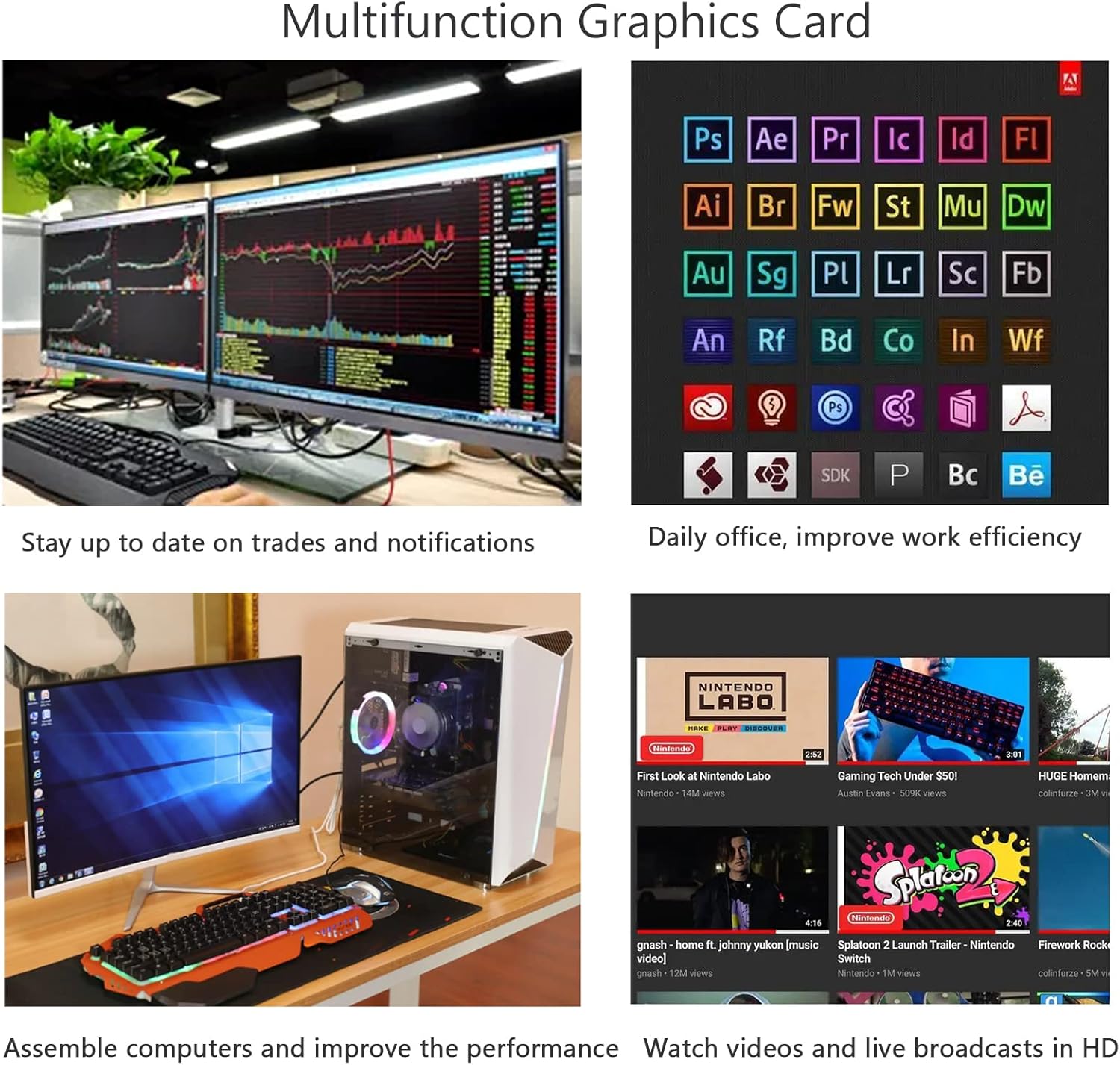
Once installed and drivers are configured, the graphics card will enhance your system's visual performance. It is compatible with Windows 7, 8, 10, XP, and 11. The card is suitable for various applications, including:
- Daily computing tasks
- Office software applications
- Entry-level gaming
- Multimedia consumption (watching videos, streaming)
6. Maintenance
To ensure the longevity and optimal performance of your graphics card, follow these maintenance guidelines:
- Dust Removal: Periodically clean dust from the graphics card's fan and heatsink using compressed air. Ensure the system is powered off and unplugged before cleaning.
- Airflow: Ensure your PC case has adequate airflow to prevent overheating. Keep the area around your computer clear of obstructions.
- Driver Updates: Regularly check the official NVIDIA website for the latest stable driver updates. While automatic updates are discouraged, manual updates can provide performance improvements and bug fixes.
7. Troubleshooting
This section addresses common issues you might encounter.
7.1 No Display / Black Screen
- Check Connections: Ensure the graphics card is fully seated in the PCIe slot and display cables are securely connected to both the card and the monitor.
- Power Supply: Verify your power supply unit (PSU) meets the minimum requirements for your system, although this card has a low power draw.
- BIOS Settings: As mentioned in Section 4.2, ensure 'CSM' is enabled and 'Secure Boot' is disabled in your BIOS/UEFI settings.
- Monitor Input: Confirm your monitor is set to the correct input source (e.g., HDMI, DVI, VGA).
7.2 Driver Issues / Performance Problems
- Reinstall Drivers: Follow the driver installation steps in Section 4.2 carefully, ensuring a clean installation.
- Latest Drivers: Download the latest stable drivers directly from the NVIDIA website.
- System Compatibility: Ensure your operating system is one of the supported versions (Windows 7, 8, 10, XP, 11).
7.3 Overheating
- Clean Fan/Heatsink: Remove any dust buildup from the graphics card's fan and heatsink.
- Case Airflow: Improve airflow within your PC case by ensuring fans are properly oriented and cables are managed.
- Monitor Temperatures: Use monitoring software to check the GPU temperature during operation. If temperatures are consistently high, further investigation into cooling solutions may be necessary.
8. Specifications
| Feature | Specification |
|---|---|
| Graphics Coprocessor | NVIDIA GeForce GTX 750 TI |
| Brand | SAPLOS |
| Graphics RAM Size | 4 GB |
| GPU Clock Speed | 1020 MHz |
| Video Output Interface | DVI, HDMI, VGA |
| Product Dimensions | 6.9 x 4.3 x 0.04 inches |
| Item Weight | 7.7 ounces |
| Manufacturer | SAPLOS |
| ASIN | B0CW9GJWP3 |
9. Warranty and Support
For warranty information or technical support, please contact SAPLOS directly through their official channels. Specific warranty terms may vary by region and retailer. Please retain your proof of purchase for any warranty claims.
Ask a question about this manual
Ask about setup, troubleshooting, compatibility, parts, safety, or missing instructions. Manuals+ will review the question and use this page’s manual context to help answer it.