
1. Product Overview
The Lemorele 6-in-1 USB C Docking Station (Model TC122) is a versatile adapter designed to expand the connectivity of your USB-C enabled devices. It integrates multiple essential ports into a single compact unit, providing dual display output, high-speed data transfer, and power delivery.
Key Features:
- Dual HDMI Output: Connect up to two external monitors for extended or mirrored displays. Supports 4K@30Hz for a single display and 1080P@60Hz for dual displays.
- 100W Power Delivery (PD): Charge your host device with up to 85W while using the hub. Requires a 100W PD charger (sold separately).
- High-Speed Data Transfer: One USB 3.0 port offers data transfer speeds up to 5Gbps.
- Additional USB Ports: Two USB 2.0 ports for connecting peripherals like keyboards, mice, or USB memory sticks.
- Plug and Play: No driver installation required for most compatible operating systems.
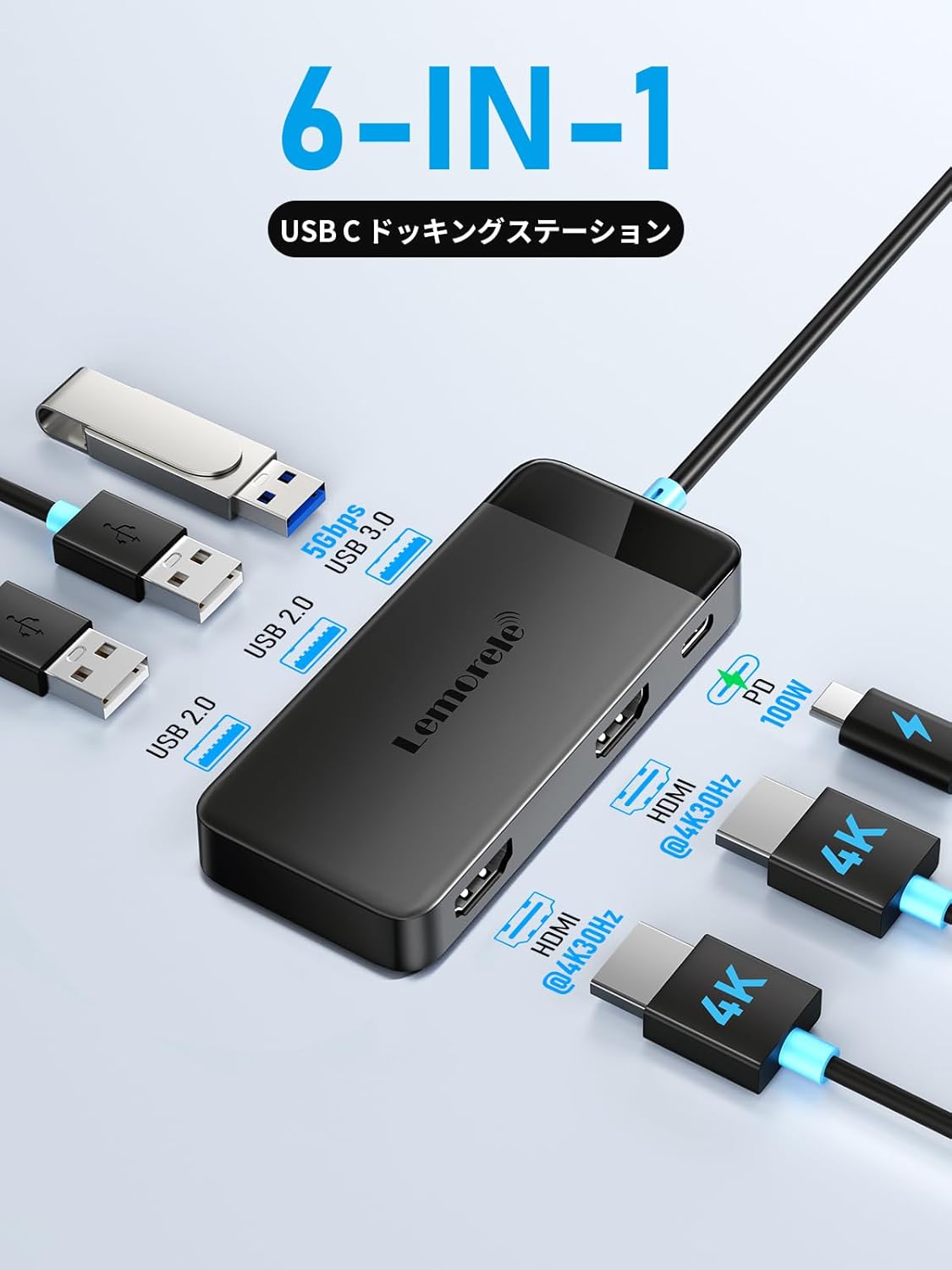
Image: Overview of the Lemorele 6-in-1 USB C Docking Station showing its various ports.
2. Compatibility
This docking station is compatible with devices featuring a Thunderbolt 3/4, USB-C, or Type-C port that supports video output (DisplayPort Alternate Mode). Ensure your device's USB-C port supports video output for display functionality.
Supported Devices:
- MacBook Pro/MacBook Air (2019, 2020 models and newer)
- iPad Pro (2018, 2020 models and newer)
- Nintendo Switch
- Microsoft Surface Go/Book 2/Pro 7/Laptop 3
- Samsung Galaxy S20 series
- Huawei MateBook series
- Chromebooks
- Google Pixel Book
- Dell XPS 15/13, Dell Latitude, Dell Inspiron, Dell Vostro
- Lenovo Yoga, ThinkPad
Note for MacBook Users:
Due to Apple's limitations, when extending displays with a MacBook, both external monitors will display the same content (mirror mode). True extended multi-display (different content on each external screen) is not supported for two external monitors on MacBooks.

Image: Guide to checking your laptop's USB-C port for video output compatibility.
3. Setup Instructions
The Lemorele 6-in-1 USB C Docking Station is designed for plug-and-play functionality, requiring no additional driver installation for most compatible operating systems.
Connecting the Docking Station:
- Connect to Host Device: Plug the integrated USB-C cable of the docking station into a compatible USB-C port on your laptop, tablet, or smartphone.
- Connect External Displays (Optional): Use HDMI cables to connect your monitors to the two HDMI ports on the docking station.
- Connect USB Peripherals (Optional): Plug your USB devices (e.g., mouse, keyboard, USB drive) into the USB 3.0 or USB 2.0 ports.
- Connect Power Adapter (Recommended): For stable operation and charging your host device, connect your laptop's USB-C power adapter to the PD USB-C port on the docking station. This allows up to 85W power delivery to your host device.

Image: The docking station connected to a laptop, external monitors, and USB devices.
4. Operating Instructions
Display Modes:
The docking station supports various display configurations depending on your operating system.
- Mirror Mode (AAA): All displays (host and external) show the same content. This is the default mode for MacBooks with two external monitors.
- Extend Mode (ABB/ABC): External displays show different content from the host display, or different content from each other (Windows only).
Windows Multi-Display Configuration:
Windows operating systems support both mirror and extended display modes across multiple monitors. You can configure your display settings via the Windows Display Settings to arrange monitors as needed (e.g., A-B-B for laptop + two mirrored external displays, or A-B-C for laptop + two extended external displays).
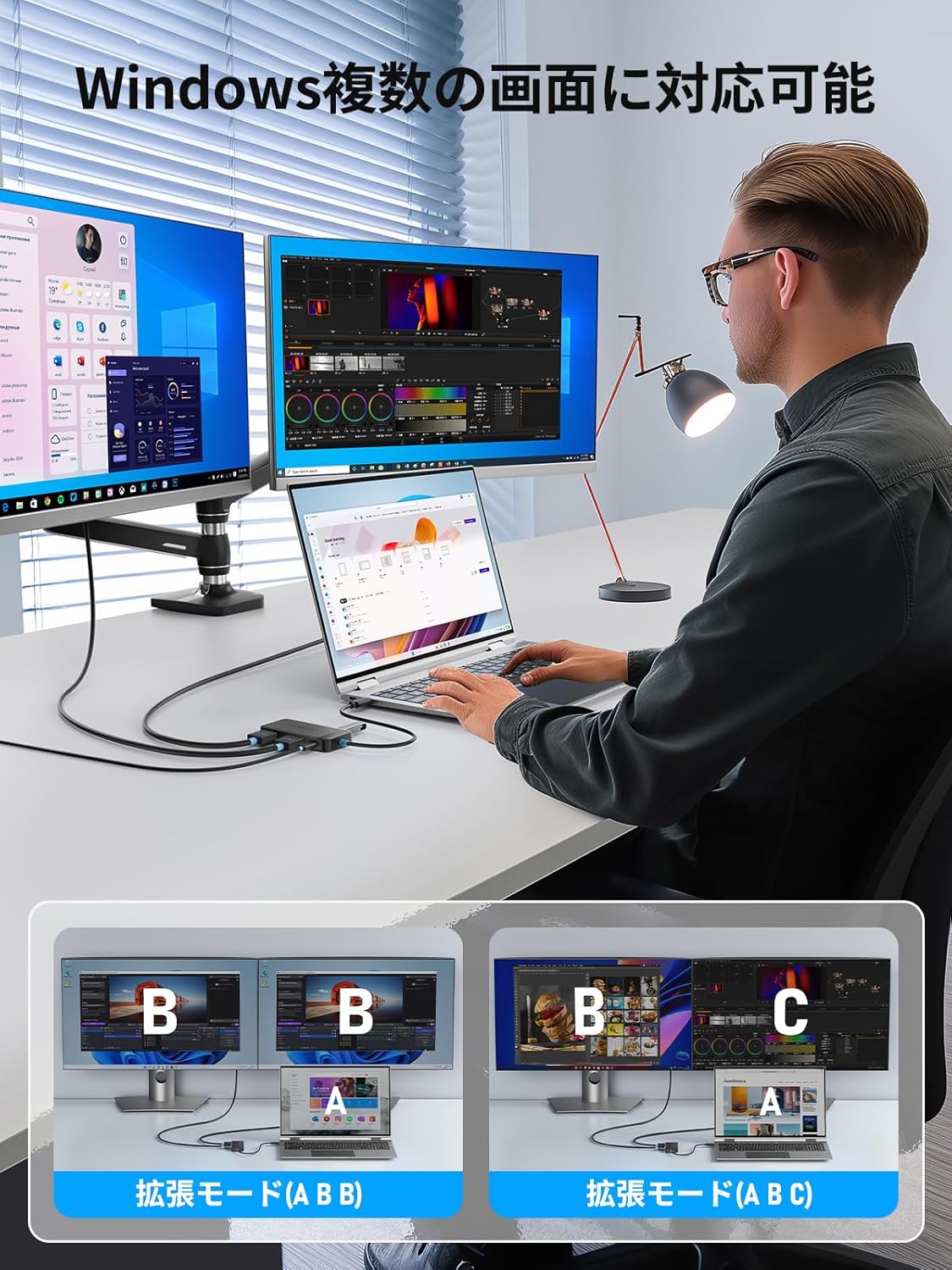
Image: Visual representation of Windows multi-display configurations.
Mac OS Multi-Display Configuration:
Mac OS supports mirror mode (AAA) and extended mode (AB) for a single external display. When two external monitors are connected, they will mirror each other (AAA mode) due to Apple's system limitations.

Image: Visual representation of Mac OS multi-display configurations.
Data Transfer:
The USB 3.0 port allows for rapid data transfer up to 5Gbps, ideal for external hard drives, SSDs, and large file transfers. The USB 2.0 ports are suitable for standard peripherals.

Image: High-speed data transfer via the USB 3.0 port.
Power Delivery:
Connect a 100W USB-C PD power adapter to the docking station's PD port to provide up to 85W of power to your connected laptop or device. This ensures your device remains charged during use.
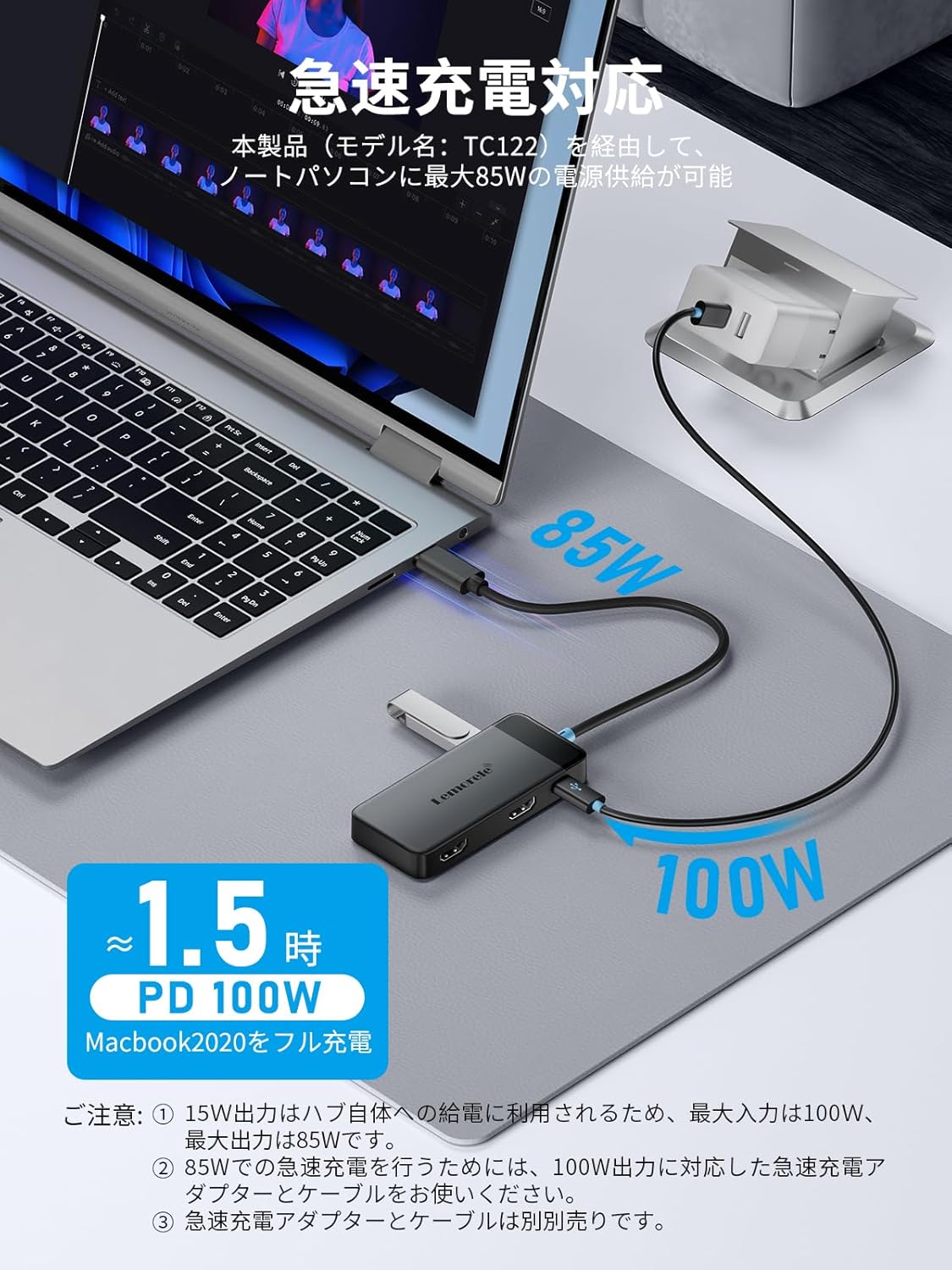
Image: Power flow diagram illustrating 100W input and 85W output to the host device.
5. Maintenance
- Cleaning: Use a soft, dry cloth to clean the surface of the docking station. Avoid liquid cleaners or abrasive materials.
- Storage: Store the device in a cool, dry place away from direct sunlight and extreme temperatures.
- Handling: Avoid dropping or subjecting the device to strong impacts. Do not attempt to disassemble the unit.
6. Troubleshooting
Common Issues and Solutions:
| Issue | Possible Cause | Solution |
|---|---|---|
| No display or flickering screen |
|
|
| USB devices not recognized |
|
|
| Slow charging or no charging |
|
|
| Hub feels warm during use | Normal operation, especially under heavy load. | This is generally normal. If it becomes excessively hot or emits smoke/smell, disconnect immediately and contact support. |
7. Specifications
| Feature | Detail |
|---|---|
| Model Number | TC122 |
| Ports | 2 x HDMI (4K@30Hz single, 1080P@60Hz dual) 1 x USB 3.0 (5Gbps) 2 x USB 2.0 1 x USB-C PD (Max 100W input, 85W output to host) |
| Color | Black |
| Dimensions | 9.4 x 4.1 x 1.1 cm |
| Weight | 44 g |
| Operating System Compatibility | Chrome OS, Linux, Mac OS, Windows |
| Special Features | Pass-through charging, Portable, Heat resistant, High-speed data transfer, Fast charging |
8. Warranty and Support
This Lemorele product comes with a 1-year manufacturer's warranty from the date of purchase. This warranty covers defects in materials and workmanship under normal use.
For any questions, concerns, or warranty claims, please contact the seller directly:
Seller: Lemorele-LSJB-JP
You can typically find contact information for the seller through your purchase platform (e.g., Amazon order history).