
MePadKey SM-X210/X215/X216
MePadKey Touchpad Keyboard Case User Manual
For Samsung Galaxy Tab A9 Plus 11 inch (Models SM-X210, SM-X215, SM-X216, SM-X218)
1. Introduction
This manual provides detailed instructions for the MePadKey Touchpad Keyboard Case, designed to enhance the functionality and protection of your Samsung Galaxy Tab A9 Plus 11 inch tablet. Please read this manual thoroughly before use to ensure proper operation and longevity of the product.
1.1 Compatibility
This keyboard case is specifically designed for the Samsung Galaxy Tab A9 Plus 11.0 inch 2023 models, including SM-X210, SM-X215, SM-X216, and SM-X218. It is not compatible with other tablet models. Please verify your tablet's model number (SM-X***) in your tablet's 'Settings' before attempting installation.

Image 1.1: Compatibility check for Samsung Galaxy Tab A9 Plus 11 inch.

Image 1.2: MePadKey Touchpad Keyboard Case with tablet.
2. Package Contents
Please check the package for the following items:
- Tablet Case x 1
- Rainbow Backlight Touchpad Keyboard x 1
- USB-C Charging Cable x 1
- User Manual x 1
3. Setup Instructions
3.1 Installing the Tablet into the Case
- Gently align your Samsung Galaxy Tab A9 Plus 11 inch tablet with the protective frame of the case.
- Press the tablet firmly into the case, ensuring all corners and edges are securely seated. The case features thickened convex edges for enhanced protection.
- Ensure the camera cutout and all ports align correctly with your tablet.
- The case includes a pen holder for convenient storage of your stylus.

Image 3.1: Tablet installation and case features.
3.2 Charging the Keyboard
The keyboard has a built-in rechargeable battery. Use the provided USB-C charging cable to charge the keyboard. Connect one end to the keyboard's charging port and the other end to a USB power adapter (not included).
3.3 Bluetooth Pairing
- Ensure the keyboard is charged.
- Turn on the keyboard using the power switch, usually located on the side or top edge.
- On the keyboard, press the Fn key simultaneously with the C key (Fn+C) to enable Bluetooth pairing mode. The Bluetooth indicator light on the keyboard will flash.
- On your Samsung Galaxy Tab A9 Plus, go to Settings > Connected devices > Bluetooth.
- Turn on Bluetooth and search for available devices.
- Select the keyboard (e.g., "Bluetooth Keyboard") from the list of available devices.
- Follow any on-screen prompts to complete the pairing process. The indicator light on the keyboard will stop flashing once successfully paired.
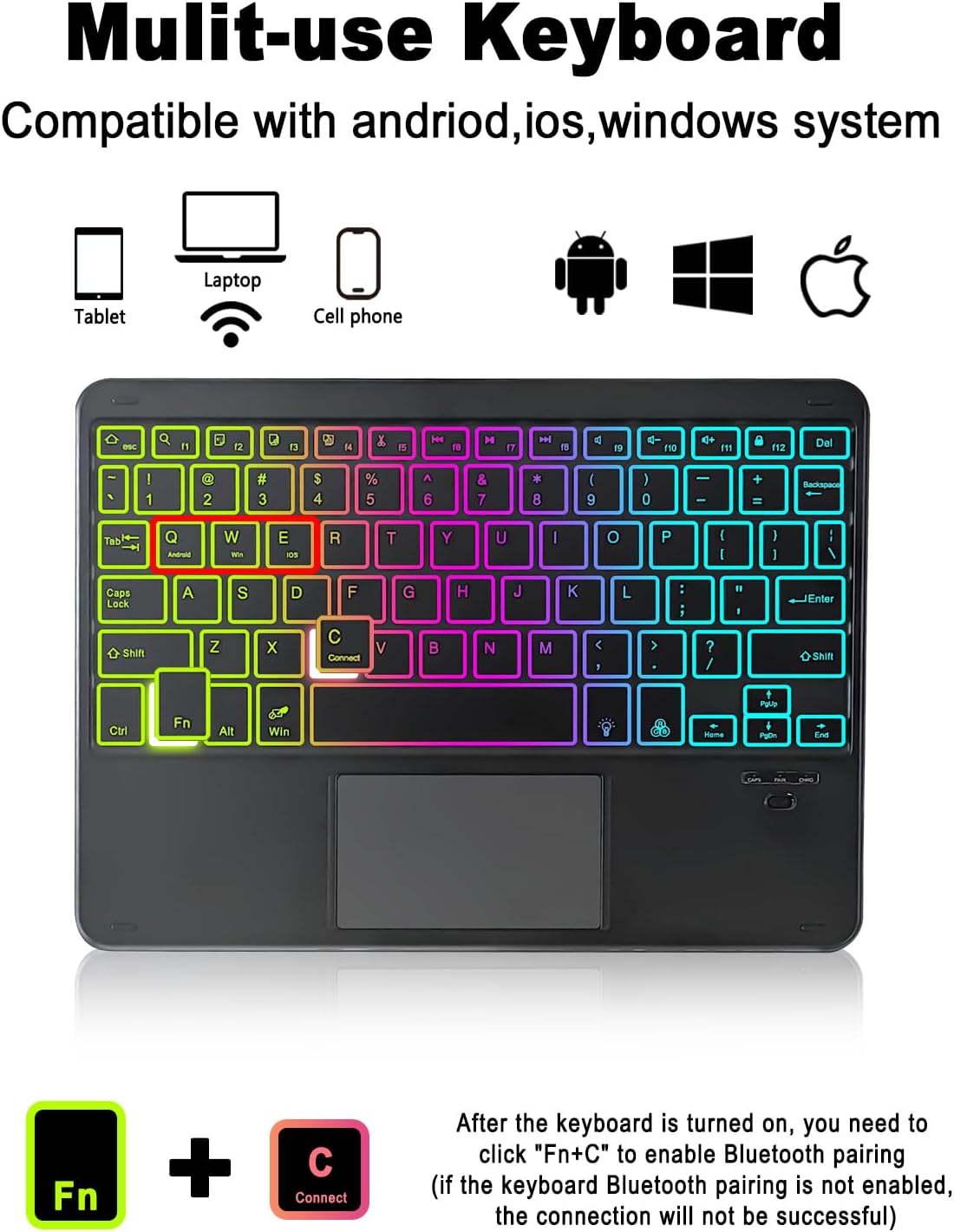
Image 3.2: Bluetooth pairing using Fn+C.
4. Operating Instructions
4.1 Keyboard Functions
The keyboard features a full set of keys, including a dedicated row of functional shortcut keys to improve efficiency. These keys can be used for various tablet functions such as media control, volume adjustment, and more.
4.2 Backlight Control
The keyboard includes a rainbow backlight with multiple color options and a breathing light mode. Use the dedicated backlight key (often depicted as a light bulb icon) to cycle through colors and modes, or to turn the backlight on/off. This allows for comfortable typing in low-light environments.
4.3 Touchpad Gestures
The integrated touchpad supports multi-finger gestures for enhanced navigation:
- Single-finger swipe: Moves the cursor.
- Single-finger click: Selects the target.
- Two-finger swipe: Scrolls pages, opens/shrinks pictures.
- Three-finger swipe down: Takes a screenshot.
- Three-finger swipe up: Enters the main interface.

Image 4.1: Touchpad multi-gesture functions.
4.4 System Switching
The keyboard is compatible with Android, iOS, and Windows operating systems. To switch between systems, press the Fn key simultaneously with one of the following keys:
- Fn + Q: Switch to Android system.
- Fn + W: Switch to Windows system.
- Fn + E: Switch to iOS system.

Image 4.2: Removable keyboard and multi-system support.
4.5 360-Degree Rotation and Viewing Angles
The protective case allows for 360-degree rotation of your tablet, providing versatile viewing angles for work, entertainment, or web browsing. Non-slip grooves ensure stability in various positions.

Image 4.3: 360-degree rotation feature.
5. Maintenance
5.1 Cleaning
- To clean the case, gently wipe it with a soft, damp cloth. Avoid harsh chemicals or abrasive cleaners.
- For the keyboard, use a soft, dry cloth. A can of compressed air can be used to remove debris from between the keys.
5.2 Battery Care
- To prolong battery life, avoid fully discharging the keyboard battery frequently.
- Charge the keyboard regularly, even if not in constant use.
- Store the keyboard in a cool, dry place when not in use for extended periods.
6. Troubleshooting
6.1 Keyboard Not Connecting/Pairing
- Check Battery: Ensure the keyboard is sufficiently charged.
- Re-enable Bluetooth: Turn off and then on the keyboard's power. Repeat the Bluetooth pairing steps (Fn+C).
- Tablet Bluetooth: Ensure Bluetooth is enabled on your tablet and try restarting your tablet's Bluetooth function.
- Forget Device: If previously paired, try 'forgetting' the keyboard in your tablet's Bluetooth settings and then re-pairing.
6.2 Keyboard Not Responding
- Check Connection: Verify the keyboard is still connected via Bluetooth.
- System Mode: Ensure the keyboard is set to the correct operating system mode (Fn+Q for Android).
- Recharge: The battery might be low.
6.3 Touchpad Issues
- Clean Touchpad: Ensure the touchpad surface is clean and free of debris.
- Restart: Turn the keyboard off and on again.
- Re-pair: If issues persist, try re-pairing the keyboard.
7. Specifications
| Brand | MePadKey |
| Compatible Devices | Samsung Galaxy Tab A9 Plus/A9+ 2023 11.0 inch (SM-X210, SM-X215, SM-X216, SM-X218) |
| Connectivity Technology | Bluetooth, USB-C (charging) |
| Keyboard Description | Multi Functional |
| Special Features | Backlit, Detachable, Hotkeys and Media Keys, Rechargeable, Trackpad |
| Keyboard Backlighting | RGB (Rainbow Backlight) |
| Color | Black |
| Product Dimensions | 10.35 x 7.79 x 0.7 inches (26.29 x 19.79 x 1.78 cm) |
| Item Weight | 1.32 pounds (0.6 kg) |
| Batteries | 1 Lithium Polymer battery (included) |
8. Warranty and Support
For warranty information or technical support, please refer to the contact details provided with your purchase or visit the official MePadKey website. Keep your purchase receipt as proof of purchase for any warranty claims.