
1. Introduction
This manual provides essential information for the setup, operation, and maintenance of your Innosilicon T2 Turbo (T2T) Bitcoin Miner. The T2T is a high-performance ASIC miner designed for cryptocurrency mining, specifically supporting SHA-256 algorithms for currencies like Bitcoin (BTC) and Bitcoin Cash (BCH).
Please read this manual thoroughly before operating the device to ensure proper functionality and longevity.

Figure 1: Front-side view of the Innosilicon T2 Turbo (T2T) Bitcoin Miner, showing the power supply unit on top and the main mining unit below with a large cooling fan at the front.
2. Setup Guide
Follow these steps to set up your Innosilicon T2 Turbo miner:
- Unpacking: Carefully remove the miner from its packaging. Inspect for any visible damage.
- Placement: Place the miner in a well-ventilated area with stable temperature and humidity. Ensure adequate space around the device for airflow. Avoid dusty environments.
- Power Connection: Connect the provided power cable to the miner's power input port. Ensure the power source meets the miner's requirements (2050W, 12V). Use a dedicated power circuit if possible due to high power consumption.
- Network Connection: Connect an Ethernet cable from your router or network switch to the miner's Ethernet port. A stable internet connection is crucial for mining operations.
- Initial Power On: Once power and network are connected, switch on the miner. The fans will start, and indicator lights will illuminate.
- IP Address Discovery: Use an IP scanner tool on your network to find the miner's assigned IP address. Alternatively, some miners have a default IP or a button to announce their IP.
- Web Interface Access: Open a web browser and enter the miner's IP address to access its web-based configuration interface.
- Configuration: Log in using the default credentials (refer to manufacturer's documentation if not provided). Configure your mining pool settings, worker name, and password. Save the settings.
3. Operating Instructions
Once configured, the Innosilicon T2T miner will begin hashing. Monitor its performance through the web interface.
- Monitoring Hashrate: The web interface displays the current hashrate. The expected hashrate for this model is approximately 25 TH/s. Fluctuations are normal, but a significant drop may indicate an issue.
- Temperature Monitoring: Keep an eye on the chip temperatures displayed in the interface. Excessive temperatures can lead to performance degradation or damage. The recommended operating temperature range is 5-45 °C (41-113 °F).
- Fan Speed: The miner's fans will adjust speed automatically based on temperature. Ensure fans are spinning freely and not obstructed. The noise level can reach up to 75dB during operation.
- Status Indicators: Observe the LED indicators on the miner for quick status checks (e.g., network activity, error status).
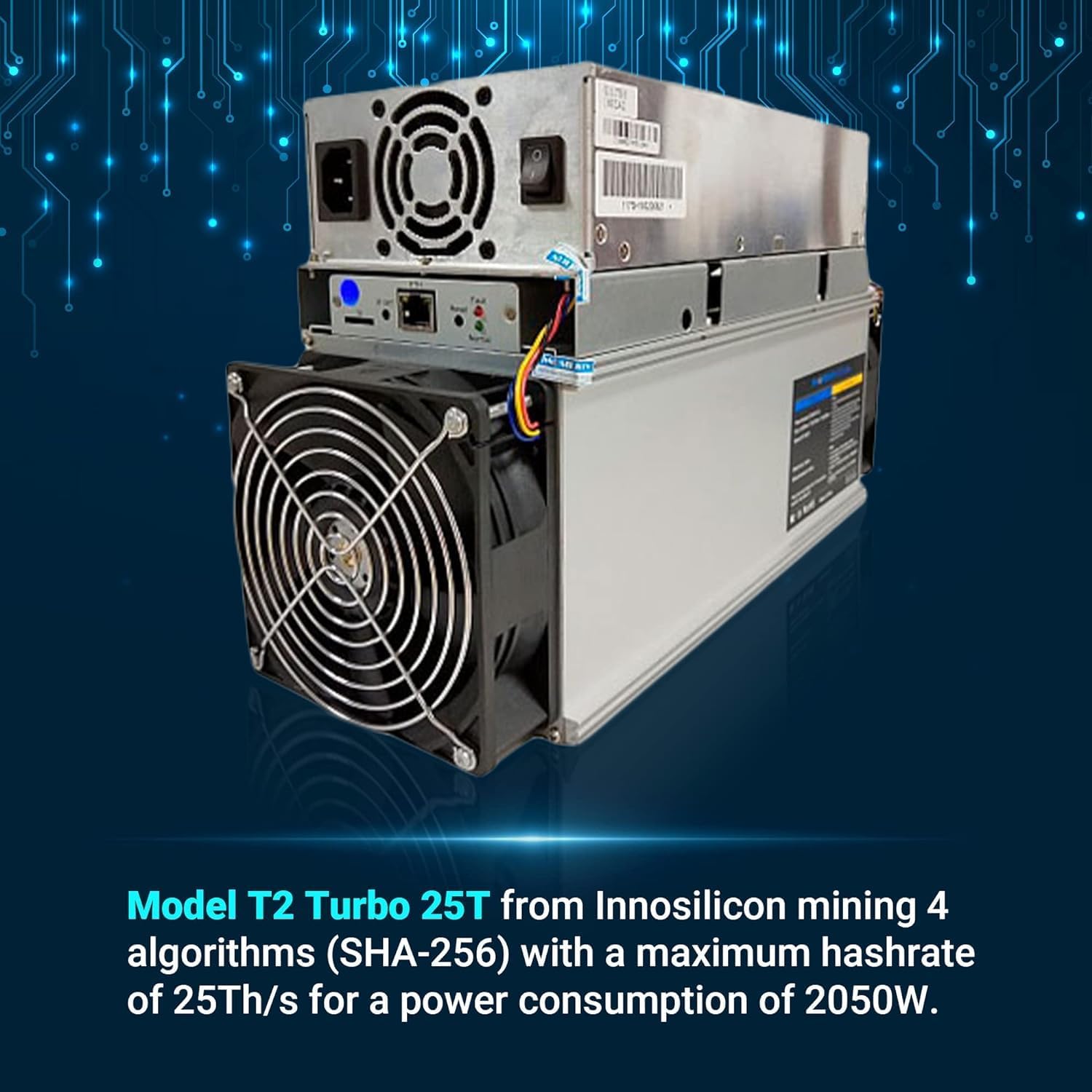
Figure 2: The Innosilicon T2 Turbo (T2T) miner, highlighting its capability to mine SHA-256 algorithms with a maximum hashrate of 25 TH/s and a power consumption of 2050W.
4. Maintenance
Regular maintenance ensures optimal performance and extends the lifespan of your miner.
- Dust Removal: Periodically clean dust from the fans and heatsinks using compressed air. Ensure the miner is powered off and unplugged before cleaning.
- Environmental Control: Maintain the operating environment within the specified temperature (5-45 °C) and humidity (5-95%) ranges. High humidity can cause corrosion, while low humidity can increase static electricity.
- Cable Inspection: Regularly check all power and network cables for wear, damage, or loose connections.
- Firmware Updates: Check the official Innosilicon website for any available firmware updates. Apply updates as recommended by the manufacturer to improve performance or address issues.
5. Troubleshooting
This section addresses common issues you might encounter.
- Miner Not Powering On:
- Check power cable connections at both the miner and the outlet.
- Verify the power source is active and providing sufficient wattage.
- Ensure the power switch on the miner is in the 'On' position.
- No Network Connection:
- Verify the Ethernet cable is securely connected to both the miner and the router/switch.
- Check your router/switch for network activity on the port connected to the miner.
- Restart your router/switch and the miner.
- Confirm the miner's IP address is correct and not conflicting with other devices.
- Low Hashrate or No Hashing:
- Check your mining pool settings in the web interface for correctness (URL, worker name, password).
- Ensure your internet connection is stable and not experiencing high latency.
- Monitor chip temperatures; overheating can cause throttling.
- Check for any error messages in the miner's log within the web interface.
- Consider a factory reset if configuration issues persist (note: this will erase all settings).
- Excessive Noise:
- While 75dB is normal, excessive or unusual noise may indicate a fan issue. Inspect fans for obstructions or damage.
6. Specifications
Detailed technical specifications for the Innosilicon T2 Turbo (T2T) miner:
| Specification | Value |
|---|---|
| Manufacturer | Innosilicon |
| Model | T2 Turbo (T2T) |
| Release Date | October 2018 |
| Hashrate | 25 TH/s (SHA-256) |
| Power Consumption | 2050W |
| Voltage | 12V |
| Interface | Ethernet |
| Noise Level | 75 dB |
| Cooling Method | Air (2 fans) |
| Dimensions (L x W x H) | 141 x 220 x 391mm (5.6" x 8.7" x 15.4") |
| Weight | 9 kg (19.8 lbs) |
| Operating Temperature | 5-45 °C (41-113 °F) |
| Operating Humidity | 5-95 % (non-condensing) |
7. Warranty and Support
For warranty information and technical support, please refer to the terms and conditions provided by your point of purchase or contact the seller directly. Specific warranty periods and support procedures may vary.
Manufacturer: Innosilicon
Seller/Brand: Bitcoin Merch