
1. Introduction
This user manual provides comprehensive instructions for the installation, operation, and maintenance of your WLK Automotive WK70F 7-inch Universal Multimedia Center. Please read this manual thoroughly before installation and use to ensure proper function and to maximize your experience with the device. Keep this manual for future reference.
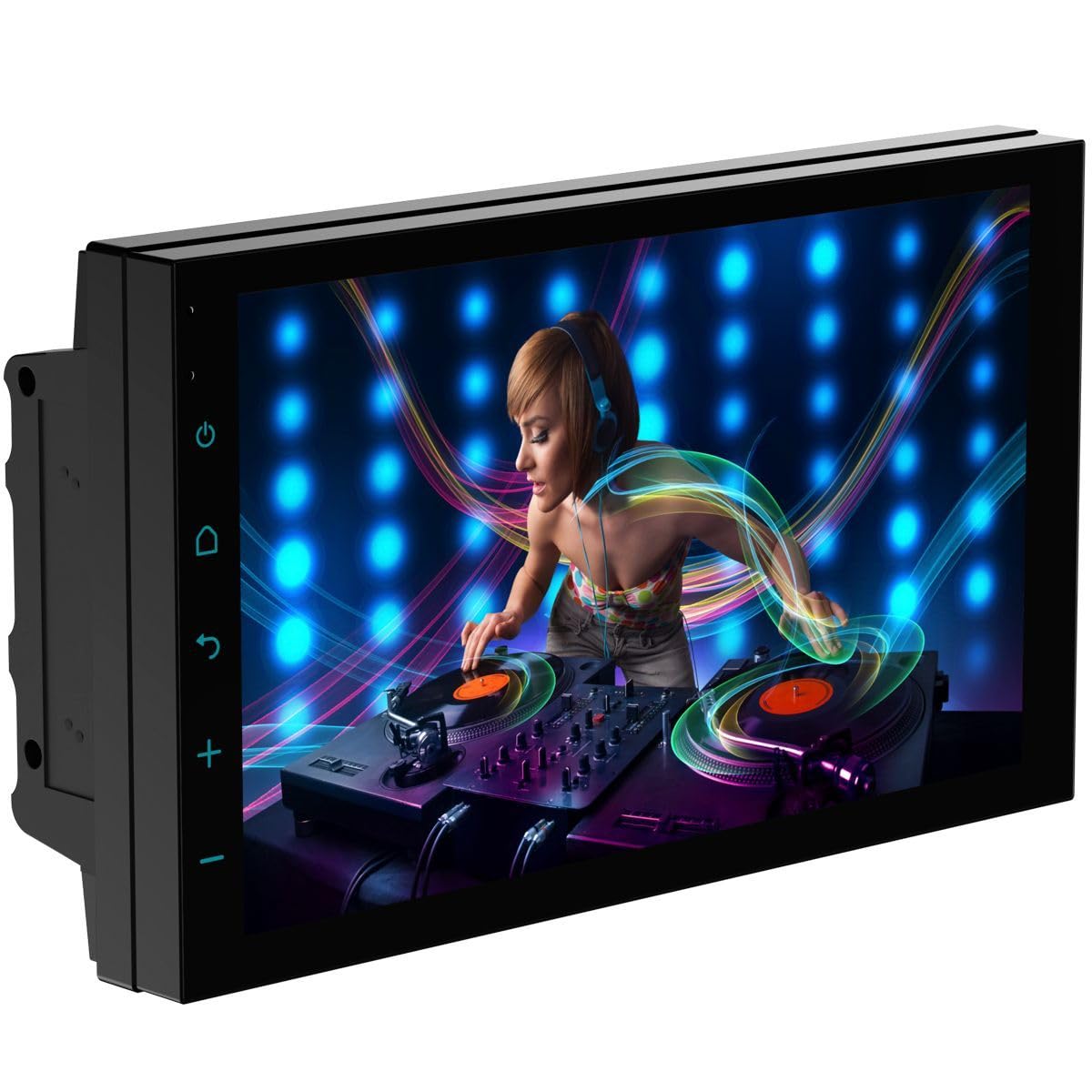
Image 1.1: WLK Automotive WK70F Multimedia Center, showing the main unit, wiring harnesses, mounting bracket, and product packaging.
2. Package Contents
Verify that all items listed below are included in your package:
- 1x WK70F 7-inch Universal Multimedia Center
- 1x ISO Standard Wiring Harness
- 2x USB Extension Harnesses
- 1x Camera Input Harness
- 1x Various RCA Connectivity Harness
- 1x Mounting Bracket
3. Technical Specifications
| Display | 7-inch LCD, 1024x600 Resolution, Capacitive Touch, 16:9 Aspect Ratio |
| Audio Output | 4 x 50W, 4 Ohms Impedance, Subwoofer Output |
| Radio | FM 87.50MHz-107.9MHz |
| Bluetooth | Version 5.4 (HFP+A2DP), Audio Streaming, Hands-Free Calls |
| Wired Connectivity | CarPlay, Android Auto, Android Mirroring |
| Inputs | 2x Rear USB, Rear Camera, Front AV/Camera, Resistive Steering Wheel Control, Radio Antenna |
| Outputs | Rear Video for external screens, RCA (Front, Rear, Subwoofer) |
| Supported Video Formats | MP4, AVI, DIVX, VOB, FLV, MKV, MPG, RM, RMVB, DAT, MP2, 3GP |
| Supported Audio Formats | MP3, WMA, AAC, FLAC, WAV |
| Supported Image Formats | BMP, JPEG, GIF, PNG |
| Operating Voltage | 10.5-16V |
| Standby Consumption | 2mA |
| Operating Temperature | -20°C to 70°C (-4°F to 158°F) |
| Storage Temperature | -40°C to 85°C (-40°F to 185°F) |
| Button Illumination | RGB |
| Dimensions (W x H x D) | 17.8 cm x 10.2 cm x 16 cm (approximate, 2-DIN standard) |
| Weight | 1.8 kg |

Image 3.1: Physical dimensions of the WK70F unit, indicating a width of 17.8 cm and a height of 10.2 cm.
4. Setup and Installation
Important: Professional installation is highly recommended for this product. Incorrect wiring can cause damage to the unit or your vehicle's electrical system. Disconnect the vehicle's battery before beginning installation.
4.1 Wiring Connections
Use the provided ISO standard wiring harness to connect the multimedia center to your vehicle's power, ground, and speaker wires. Refer to your vehicle's wiring diagram for specific connections. Ensure all connections are secure to prevent short circuits.
- Power (Yellow): Connect to constant 12V power.
- Accessory (Red): Connect to switched 12V power (ignition).
- Ground (Black): Connect to vehicle chassis ground.
- Speaker Wires: Connect to your vehicle's speakers, ensuring correct polarity.
- Remote Turn-On (Blue): If applicable, connect to an amplifier or power antenna.
4.2 External Device Connections

Image 4.1: Overview of the various connection harnesses for the WK70F, detailing inputs for USB, cameras, and RCA outputs.
- USB Inputs: Use the two rear USB extension harnesses for connecting USB drives or for wired CarPlay/Android Auto/Mirroring.
- Rear Camera Input: Connect your rear view camera to the dedicated input harness. Ensure the reverse trigger wire is connected to your vehicle's reverse light circuit for automatic camera activation.
- Front AV/Camera Input: Connect an optional front camera or other AV source.
- RCA Outputs: Use the RCA harness for connecting external amplifiers (Front, Rear, Subwoofer) or rear video monitors.
- Steering Wheel Control: If your vehicle has resistive steering wheel controls, connect the appropriate wire from the multimedia center to your vehicle's steering wheel control interface. Configuration may be required in the unit's settings.
- Radio Antenna: Connect your vehicle's radio antenna to the designated input.
5. Operating Instructions
5.1 Basic Operation

Image 5.1: Main interface of the WK70F, showing icons for various functions and applications.
- Power On/Off: Press and hold the power button (usually on the left side) to turn the unit on or off. A short press may mute/unmute.
- Volume Control: Use the volume buttons or on-screen controls to adjust the audio level.
- Main Menu: Tap the home icon or swipe to access the main application menu.
- Touch Screen: The 7-inch capacitive touch screen responds to finger gestures for navigation and selection.
5.2 Radio Function
Select the "Radio" icon from the main menu. You can scan for stations, save presets, and manually tune to frequencies within the FM 87.50MHz-107.9MHz range.
5.3 Bluetooth Connectivity

Image 5.2: Bluetooth function display on the WK70F, illustrating music playback and call management capabilities.
To connect your smartphone via Bluetooth:
- Go to the "BT Phone" or "BT Audio" application on the multimedia center.
- Enable Bluetooth on your smartphone and search for available devices.
- Select "WK70F" (or similar name) from the list on your phone.
- Confirm the pairing code if prompted.
Once connected, you can stream audio and make/receive hands-free phone calls.
5.4 Wired CarPlay and Android Auto

Image 5.3: The WK70F screen showing the CarPlay interface, providing access to navigation, music, and communication apps.
The WK70F supports CarPlay and Android Auto via a wired USB connection. To use these features:
- Connect your smartphone to one of the rear USB ports using a high-quality USB cable.
- The multimedia center should automatically detect your phone and launch CarPlay or Android Auto. If not, select the "PhoneLink" or corresponding icon from the main menu.
Note: Ensure your phone's operating system is up to date and that CarPlay/Android Auto is enabled in your phone's settings.
5.5 Android Mirroring (Wired)
For Android devices, the unit also supports wired screen mirroring. Connect your Android smartphone to a USB port. Follow the on-screen prompts or instructions in the "PhoneLink" application to enable mirroring. This allows your phone's screen to be displayed on the multimedia center.
5.6 USB Media Playback
Insert a USB flash drive containing compatible media files (audio, video, images) into one of the USB ports. Select the "USB" icon from the main menu to browse and play your media.
5.7 Camera Display
When a rear camera is properly installed and connected, the display will automatically switch to the rear camera view when the vehicle is put into reverse. You can manually access front or rear camera views via the "AV Input" application if connected.
6. Maintenance
6.1 Cleaning the Unit
To clean the screen and unit, use a soft, dry, lint-free cloth. For stubborn marks, lightly dampen the cloth with water or a screen-safe cleaning solution. Avoid using abrasive cleaners, solvents, or harsh chemicals, as these can damage the screen and finish.
6.2 General Care
- Avoid exposing the unit to extreme temperatures, direct sunlight for prolonged periods, or high humidity.
- Do not block ventilation openings on the unit.
- Ensure all cables are securely connected and not pinched.
7. Troubleshooting
If you encounter issues with your multimedia center, refer to the following common problems and solutions:
7.1 No Power
- Check the vehicle's fuse box for blown fuses related to the radio or accessory power.
- Ensure all power and ground wires are correctly and securely connected.
- Verify that the vehicle's battery has sufficient charge.
7.2 No Sound
- Check the volume level and ensure the unit is not muted.
- Verify all speaker wires are correctly connected and not shorted.
- If using external amplifiers, ensure they are powered on and correctly wired.
- Note: Some users have reported sound distortion or interference at high volumes. If this occurs, reduce the volume or check your speaker connections and impedance.
7.3 Bluetooth Connection Issues
- Ensure Bluetooth is enabled on both the multimedia center and your smartphone.
- Delete previous pairings from both devices and attempt to pair again.
- Move your smartphone closer to the unit.
- Restart both the multimedia center and your smartphone.
7.4 CarPlay / Android Auto / Mirroring Not Working
- Ensure you are using a high-quality USB cable. Faulty cables are a common cause of connection issues.
- Verify that your smartphone's operating system is up to date.
- Check your phone's settings to ensure CarPlay or Android Auto is enabled.
- Try disconnecting and reconnecting the USB cable. Some users have reported that CarPlay may occasionally freeze and require reconnection.
- For Android Mirroring, ensure USB debugging is enabled on your Android phone if required by the "PhoneLink" app.
7.5 Rear Camera Not Displaying
- Check the camera's power and video signal connections.
- Ensure the reverse trigger wire is correctly connected to the vehicle's reverse light circuit.
- Verify camera settings in the multimedia center's menu.
8. Warranty and Support
8.1 Warranty Information
The WLK Automotive WK70F Multimedia Center typically comes with a manufacturer's warranty. Please refer to your purchase documentation or contact your retailer for specific warranty terms and duration. Keep your proof of purchase for any warranty claims.
8.2 Customer Support
For technical assistance, troubleshooting beyond this manual, or warranty inquiries, please contact WLK Automotive customer support or your authorized dealer. Contact details can usually be found on the manufacturer's website or your product packaging.