
1. Introduction
The ONINCE Wireless CarPlay Adapter (Model Z1) is designed to seamlessly convert your vehicle's existing wired CarPlay system into a wireless experience. This adapter allows you to enjoy all standard CarPlay functions, including navigation, music playback, Siri assistance, and phone calls, without the need for a physical cable connection to your iPhone. Featuring a compact design and dynamic RGB ambient lighting, the Model Z1 enhances your driving experience with convenience and style.
2. Package Contents
- 1 x Wireless CarPlay Adapter (Model Z1)
- 1 x USB A to C Adapter
- 1 x USB C to C Adapter
- 1 x User Manual

Figure 2.1: Contents of the ONINCE Wireless CarPlay Adapter package.
3. Compatibility
This Wireless CarPlay Adapter is compatible with over 800 car models and supports iPhone 6 and later iPhone models. It is crucial that your vehicle has a factory-installed wired Apple CarPlay system for this adapter to function.
Important Compatibility Notes:
- Not compatible with vehicles manufactured before 2016.
- Not compatible with Tesla or BMW vehicles.
- Not compatible with aftermarket CarPlay systems.
- Not compatible with vehicles that only support wireless CarPlay natively.

Figure 3.1: Vehicle compatibility overview for the ONINCE Wireless CarPlay Adapter.
4. Setup Instructions
The ONINCE Wireless CarPlay Adapter features a simple plug-and-play setup. Follow these steps for initial connection:
- Plug In: Connect the Wireless CarPlay Adapter to your vehicle's USB port that supports wired Apple CarPlay. Use the appropriate USB A to C or USB C to C adapter cable if needed.
- Pair Bluetooth & WiFi: On your iPhone, go to Bluetooth settings and search for the adapter's Bluetooth name (e.g., "AIBox-BT-F3F6"). Pair your iPhone with the adapter. Once paired, your iPhone will automatically connect to the adapter's WiFi network.
- Confirm CarPlay: Your car's display should now show the CarPlay interface.
After the first setup, the adapter will automatically connect to your CarPlay system every time you start your car, provided your iPhone's Bluetooth and Wi-Fi are enabled.

Figure 4.1: Step-by-step guide for connecting the Wireless CarPlay Adapter.
Video 4.1: A demonstration of the easy setup process for the ONINCE Wireless CarPlay Adapter.
5. Operating Instructions
Once connected, the ONINCE Wireless CarPlay Adapter provides full access to your iPhone's CarPlay features on your car's display.
5.1 Core CarPlay Functions
Enjoy seamless integration of your iPhone's essential functions:
- Navigation: Use Apple Maps, Google Maps, or other compatible navigation apps directly on your car's screen.
- Music & Audio: Stream music, podcasts, and audiobooks from your favorite apps.
- Phone Calls: Make and receive calls hands-free.
- Messaging: Send and receive text messages using voice commands or the car's interface.
- Siri Assistant: Activate Siri for voice commands to control various functions.

Figure 5.1: Overview of CarPlay functions available through the adapter.
Video 5.1: Demonstration of original car controls (volume, music, Siri, phone calls) working with the Wireless CarPlay Adapter.
5.2 Control Methods
You can control CarPlay using your vehicle's native input methods:
- Touchscreen Control: Interact directly with the car's display.
- Steering Wheel Button Control: Use your vehicle's steering wheel buttons for audio, calls, and voice commands.
- Knob Control: Utilize the car's control knob for navigation and selection.
- Voice Control (Siri): Activate Siri by pressing the voice command button on your steering wheel or saying "Hey Siri."

Figure 5.2: Various control methods for CarPlay, including voice, touchscreen, steering wheel, and knob controls.
5.3 Dynamic RGB Ambient Lighting
The adapter features dynamic RGB lighting that cycles through three rainbow colors every 30 seconds, creating an ambient effect. This lighting can be turned off at any time via the adapter's settings (refer to the Troubleshooting section for accessing adapter settings).
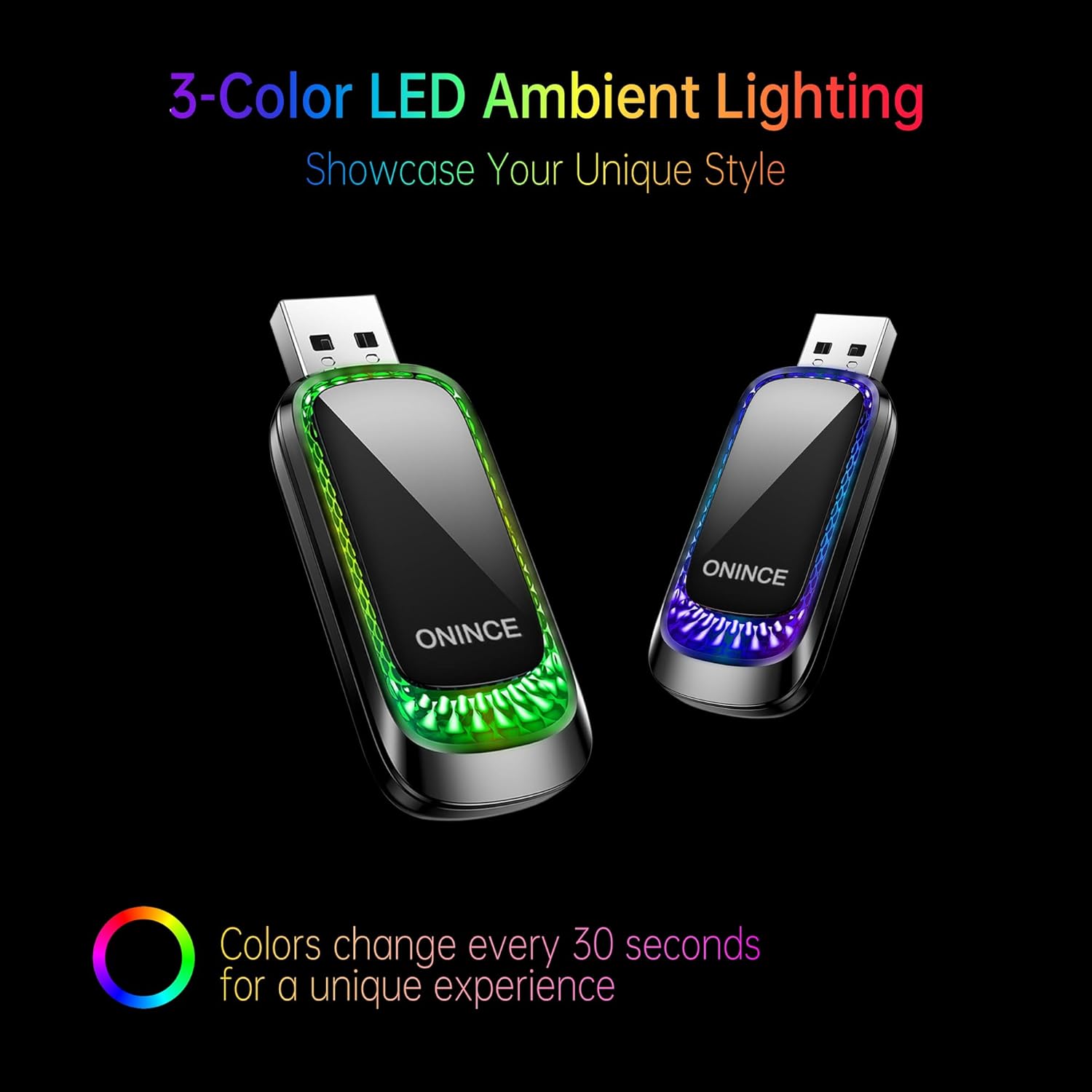
Figure 5.3: The ONINCE Wireless CarPlay Adapter with its dynamic RGB ambient lighting feature.
Video 5.2: A demonstration of the Wireless CarPlay Adapter's RGB lighting in a vehicle.
6. Maintenance
To ensure optimal performance and longevity of your ONINCE Wireless CarPlay Adapter, please observe the following:
- Temperature Management: If the adapter becomes excessively hot during use, disconnect it from the USB port and allow it to cool down completely before resuming use.
- Cleaning: Keep the adapter free from dust and debris. Use a soft, dry cloth for cleaning. Avoid liquid cleaners.
- Storage: When not in use for extended periods, store the adapter in a cool, dry place away from direct sunlight and extreme temperatures.
7. Troubleshooting
If you encounter issues with your ONINCE Wireless CarPlay Adapter, please refer to the following common solutions:
- Connection Issues (First Time Setup):
- Ensure your vehicle has factory-installed wired Apple CarPlay. The adapter will not work with vehicles that do not have this feature or only have native wireless CarPlay.
- Verify that your iPhone's Bluetooth and Wi-Fi are enabled.
- If your iPhone was previously paired directly with your car's Bluetooth for CarPlay, "forget" that connection in your iPhone's Bluetooth settings before pairing with the adapter.
- Try plugging the adapter into a different USB port in your vehicle, if available.
- Intermittent Connection or Audio Skipping:
- Ensure your iPhone is close to the adapter and there are no significant obstructions.
- Restart both your iPhone and your vehicle's infotainment system.
- Disconnect and reconnect the adapter.
- Check for firmware updates for the adapter (refer to the user manual for instructions on how to update firmware, typically via a web interface accessed through a specific IP address).
- Display Screen Goes Black or CarPlay Does Not Launch:
- This can sometimes occur if the phone is actively being used when the car is starting. Turn the car off and on again to reset the system.
- Ensure the adapter is securely plugged into the USB port.
- RGB Lighting Control:
- To turn off or adjust the RGB lighting, access the adapter's settings via a web browser on your phone. The user manual provides the specific IP address (e.g., 192.168.2.1) to enter into your browser when connected to the adapter's Wi-Fi.
8. Specifications
| Brand | ONINCE |
| Model Number | Z1 |
| Color | Black |
| Product Dimensions (L x W x H) | 1"L x 0.5"W x 2.5"H |
| Item Weight | 0.11 Kilograms |
| Hardware Interface | USB |
| Data Link Protocol | USB |
| Compatible Devices | iPhone, Cars with Wired Apple CarPlay |
9. Warranty and Support
ONINCE provides comprehensive support for your Wireless CarPlay Adapter (Model Z1):
- 30-Day Money Back Guarantee: If you are not satisfied with your purchase, you may return it within 30 days for a full refund.
- 12-Month Free Replacement: The product is covered by a 12-month free replacement warranty for manufacturing defects.
- Lifetime Free Technical Support: Access to technical assistance for the lifetime of the product.
For any questions, technical support, or warranty claims, please contact us:
- E-mail: support@uusant.com
- Facebook: ONINCE CarPlay (support@uusant.com)