
Rode Wireless Go II
RØDE Wireless Go II Dual Channel Wireless System User Manual
Model: Wireless Go II
Introduction
The RØDE Wireless GO II is an ultra-compact and versatile dual-channel wireless microphone system designed for a wide range of content creation applications. It features a dual-channel receiver and two transmitters, offering universal compatibility with cameras, mobile devices, and computers. This manual provides essential information for setting up, operating, maintaining, and troubleshooting your Wireless GO II system and the accompanying Deadcat Wind Muff.

Image: The RØDE Wireless Go II system, showing the two compact transmitters, the receiver, and the included Deadcat wind muff.
Package Contents
- 1 x Dual-channel Receiver
- 2 x Transmitters with built-in microphones
- 2 x Deadcat Wind Muffs (Gray)
- Connecting cables (specific types may vary, e.g., TRS to TRS for cameras, USB-C to USB-A/C for computers/mobile devices)
- Charging cables (USB-C)
Setup
1. Charging the Units
Before first use, fully charge the receiver and both transmitters using the provided USB-C cables. Connect them to a USB power source. The battery indicators on the units will show charging status.
2. Powering On/Off
Press and hold the power button on each unit (receiver and transmitters) for a few seconds to power them on or off.
3. Pairing
The Wireless GO II units are pre-paired from the factory. If re-pairing is needed, refer to the RØDE Central software or the device's on-screen instructions.

Image: A detailed view of the RØDE Wireless Go II receiver and two transmitters, highlighting their compact design and display screens.
4. Connecting to Your Device
The Wireless GO II offers universal compatibility:
- Cameras: Use the 3.5mm TRS output from the receiver to your camera's microphone input.
- Mobile Devices (iOS/Android): Connect the receiver via USB-C. Additional cables (e.g., USB-C to Lightning for iOS) may be required.
- Computers (Windows/macOS): Connect the receiver via USB-C to your computer.

Image: The RØDE Wireless Go II receiver mounted on a camera's hot shoe and connected via a 3.5mm TRS cable, ready for recording.
Operating Instructions
1. Wearing the Transmitters
The compact transmitters can be clipped directly onto clothing using their integrated clip, or used as a traditional belt pack with an external lavalier microphone (sold separately) connected to the 3.5mm input.
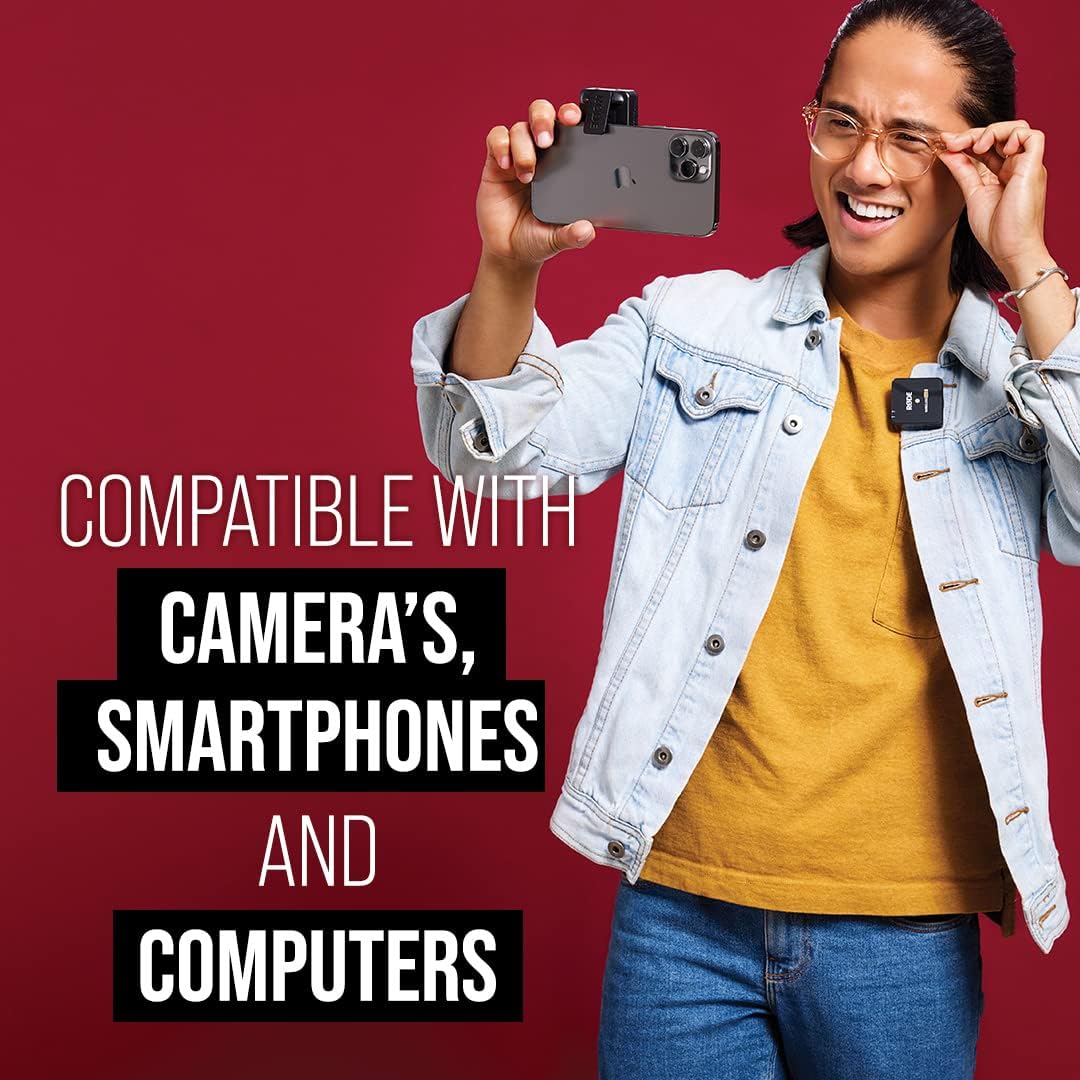
Image: A person speaking into a RØDE Wireless Go II transmitter clipped to their shirt, while operating a camera, demonstrating typical usage.

Image: A person recording audio with a RØDE Wireless Go II transmitter clipped to their shirt, while holding a smartphone, illustrating mobile device compatibility.
2. On-board Recording
Each transmitter features over 40 hours of internal recording capability. This provides a backup in case of wireless interference or dropouts, ensuring your audio is always captured. Recordings can be accessed and managed via the RØDE Central software.
3. Using the Deadcat Wind Muff
The included Deadcat Wind Muff is designed to reduce wind noise when recording outdoors. Simply attach it over the built-in microphone on the transmitter. Ensure it is securely fitted to prevent it from falling off during use.

Image: A close-up view of the RØDE Deadcat Wind Muff, showing its artificial fur texture designed to minimize wind noise.

Image: The RØDE Deadcat Wind Muff shown in its retail packaging, indicating it is a high-performance windshield for RØDE microphones.
4. RØDE Central Software
Download and install the RØDE Central software on your computer. This application allows you to:
- Update firmware
- Access and export on-board recordings
- Configure advanced settings (e.g., gain control, safety channel, merged/split recording modes)
Maintenance
To ensure the longevity and optimal performance of your RØDE Wireless GO II system:
- Cleaning: Use a soft, dry cloth to clean the units. Avoid using harsh chemicals or abrasive materials.
- Storage: Store the system in a cool, dry place away from direct sunlight and extreme temperatures.
- Battery Care: For long-term storage, ensure the batteries are charged to approximately 50%. Avoid fully discharging the batteries for extended periods.
- Firmware Updates: Regularly check for and install firmware updates via RØDE Central to benefit from new features and performance improvements.
Troubleshooting
| Issue | Possible Cause | Solution |
|---|---|---|
| No audio output | Units not powered on, not paired, low battery, incorrect cable connection, incorrect input selection on recording device. | Ensure all units are powered on and charged. Verify pairing. Check all cable connections. Confirm correct audio input is selected on your camera/device. |
| Audio dropouts or interference | Obstructions, excessive distance, strong Wi-Fi/RF interference. | Reduce distance between transmitter and receiver. Ensure line-of-sight. Move away from other wireless devices. Utilize on-board recording as a backup. |
| Poor audio quality (hiss, distortion) | Gain levels too high/low, wind noise, external noise. | Adjust gain levels on the receiver and/or RØDE Central. Use the Deadcat Wind Muff outdoors. Record in a quieter environment. |
| Units not charging | Faulty cable, power source issue. | Try a different USB-C cable and/or power adapter. Ensure the power source is active. |
For further assistance, please visit the official RØDE support website or contact their customer service.
Specifications
| Feature | Detail |
|---|---|
| Hardware Platform | Camera |
| Number of Channels | 2 |
| Connectivity Technology | Bluetooth, USB |
| Connector Type | USB |
| Special Feature | Bluetooth, USB, Wireless |
| Compatible Devices | Camera, Laptop, Personal Computer, Smartphone, Tablet |
| Color | Black |
| Included Components | Microphone |
| Polar Pattern | Bidirectional |
| Microphone Form Factor | Microphone System |
| Power Source | Battery Powered |
Warranty and Support
RØDE products are designed and manufactured to high standards. For information regarding warranty coverage, product registration, and technical support, please visit the official RØDE website. Keep your proof of purchase for warranty claims.
RØDE Official Website: rode.com
Related documentsWireless Go II


Ask a question about this manual
Ask about setup, troubleshooting, compatibility, parts, safety, or missing instructions. Manuals+ will review the question and use this page’s manual context to help answer it.