
1. Introduction
The OBABO E99 Drone is an easy-to-operate, foldable RC quadcopter designed for both beginners and experienced users. Featuring a high-quality camera, it allows for capturing stunning aerial footage and offers various intelligent flight modes. This manual provides essential information for safe operation, setup, and maintenance of your E99 drone.
2. Safety Information
Always prioritize safety when operating the drone. Read all instructions carefully before first use. Ensure you operate the drone in open, clear areas, away from people, animals, and obstacles. Do not fly near airports or restricted airspace. Adult supervision is recommended for younger users. Keep fingers and hair away from rotating propellers. Do not operate in strong winds or adverse weather conditions.
3. Package Contents
Verify that all components are present in your package:
- OBABO E99 Drone (Black, Dual Camera)
- Remote Control
- 3.7V 1800mAh Modular Battery
- Universal USB Charging Cable
- Spare Propellers
- Screwdriver
- Storage Case

Image showing the OBABO E99 drone, remote control, battery, charging cable, spare propellers, screwdriver, and storage case.
4. Product Overview
The OBABO E99 drone features a compact, foldable design for portability. It is equipped with a dual 4K camera system for high-resolution photo and video capture, and includes three-sided obstacle avoidance for enhanced safety during flight.
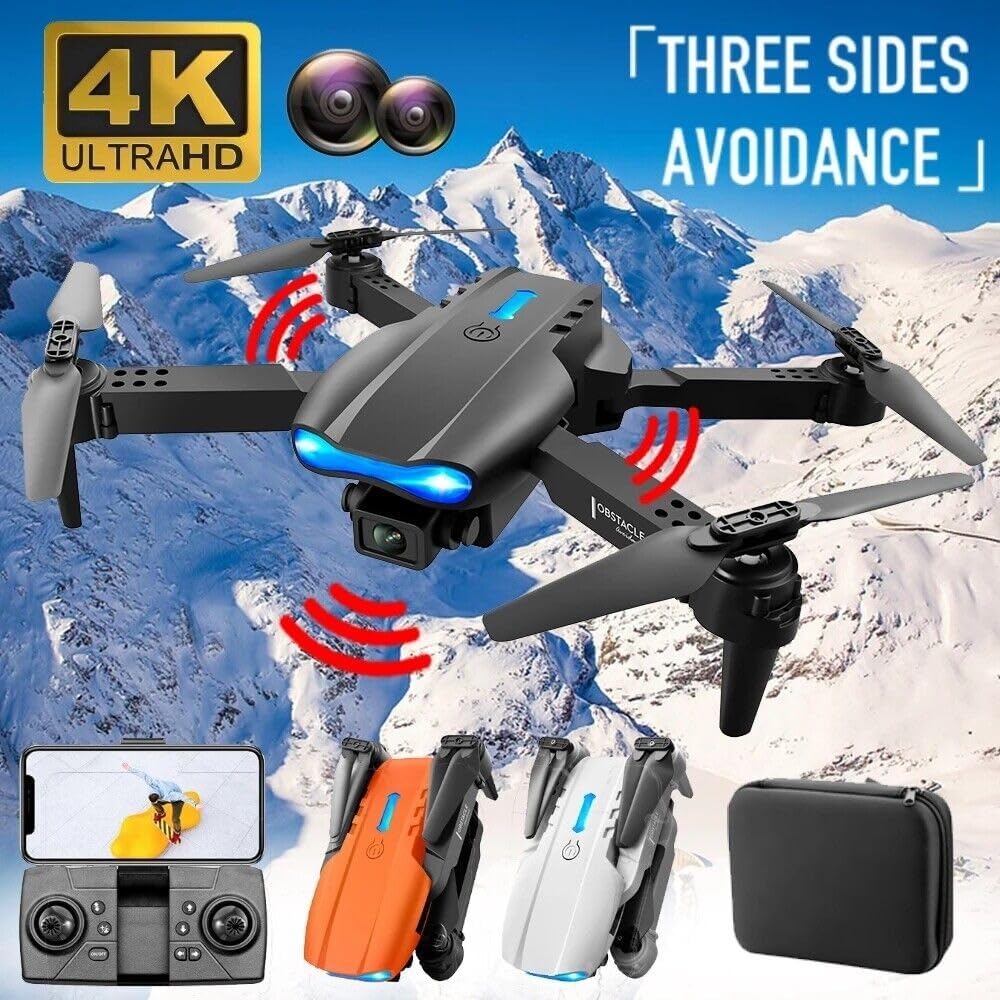
The drone features 4K Ultra HD video capabilities and three-sided obstacle avoidance technology.
Dimensions:

Detailed measurements of the drone in both unfolded and folded states, along with the dimensions of the carrying case.
5. Setup
5.1 Charging the Battery
Connect the 3.7V 1800mAh modular battery to the universal USB charging cable. Plug the USB cable into a suitable USB power source (e.g., computer USB port, USB wall adapter). The charging time is approximately 60 minutes. Ensure the battery is fully charged before each flight for optimal performance.
5.2 Battery Installation
Carefully insert the charged modular battery into the designated battery compartment on the drone until it clicks into place. Ensure it is securely fastened.
5.3 Remote Control Setup
Install 3x AA batteries (not included) into the remote control. Power on the remote control. Turn on the drone. The drone and remote control should automatically pair. If not, refer to the troubleshooting section.
5.4 Gyroscope Calibration
It is crucial to calibrate the gyroscope every time you turn on the drone, and especially after any crash, for better control and stability. Place the drone on a flat, level surface. Follow the specific calibration sequence outlined in the quick start guide (usually involves moving both joysticks to a specific position).
6. Operating the Drone
6.1 Basic Controls
The E99 drone features a simple control system for ease of use:
- One-key Take-off/Landing: Press the dedicated button on the remote control for automatic take-off or landing.
- Ascent/Descent: Use the left joystick to control altitude.
- Turn Left/Right: Use the left joystick to rotate the drone horizontally.
- Forward/Backward, Left/Right Flight: Use the right joystick for directional movement.
- 360° Roll: Execute impressive aerial flips with a dedicated button.
- Headless Mode: Simplifies flight by orienting controls relative to the pilot, regardless of the drone's front direction.
- Fast/Slow Gear: Switch between speed modes for different flying environments.

The drone supports one-key takeoff, landing, and return functions for simplified control.
6.2 Flight Modes
The E99 drone offers advanced flight modes for an enhanced experience:
- Trajectory Flight: Draw a path on your smartphone screen, and the drone will automatically follow the designated route.
- Gravity Sensing: Control the drone's movement by tilting your smartphone.
- Height-fixing Function: Maintains a stable altitude for easier control and clearer footage.
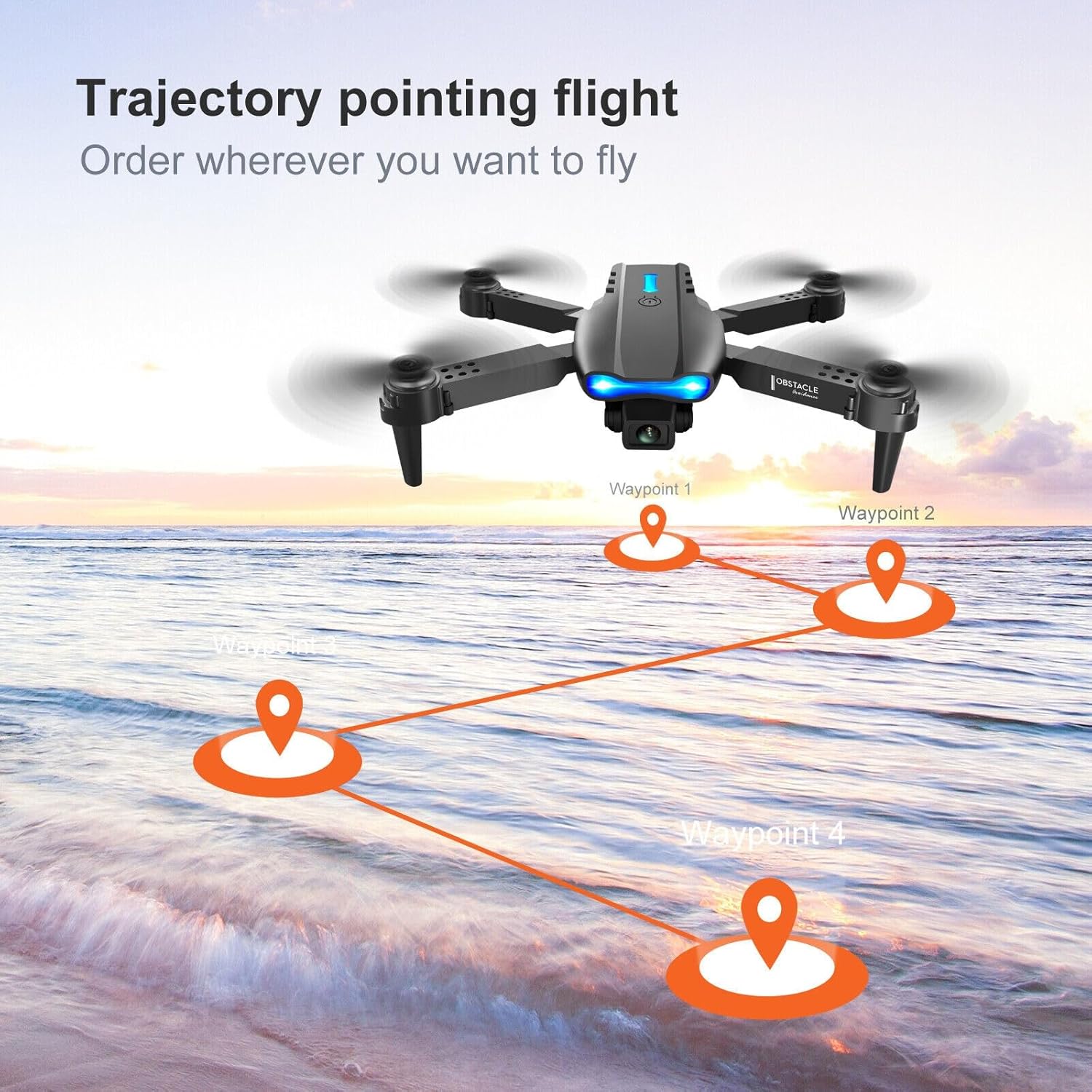
The trajectory pointing flight feature allows you to define a flight path for the drone.
6.3 Camera Operation
The drone is equipped with a 4K dual camera system for high-quality aerial photography and videography. Connect your smartphone via Wi-Fi to view the FPV (First Person View) feed in real-time and control camera functions through the dedicated app.
- Photo/Video: Capture photos or record videos directly from the remote control or the app.
- Switch Dual Camera: Toggle between the front and bottom cameras (if applicable to your model).
- Face Recognition Automatic Photo: The drone can automatically take photos when it detects a face.
- Gesture Photo/Video: Perform specific hand gestures to trigger photo or video recording.

Watch HD video in real-time on your smartphone via Wi-Fi connectivity.
6.4 Helpful Tips
The remote control range is approximately 150 meters (around 100ft mentioned in description, but 150m in specs), so ensure you stay within range for optimal performance and control. Always monitor battery levels of both the drone and the remote control.
7. Maintenance
To ensure the longevity and optimal performance of your OBABO E99 drone, follow these maintenance guidelines:
- Cleaning: Gently wipe the drone's body with a soft, dry cloth after each use to remove dust and debris. Avoid using harsh chemicals or solvents.
- Propellers: Regularly inspect propellers for any damage, cracks, or bends. Replace damaged propellers immediately using the provided spare parts and screwdriver.
- Motors: Keep the motors free from dust and foreign objects. Do not attempt to lubricate the motors.
- Battery Care: Store batteries in a cool, dry place. Do not overcharge or over-discharge batteries. If storing for extended periods, charge batteries to about 50% capacity.
- Storage: When not in use, fold the drone and store it in its original carrying case to protect it from impacts and dust.
8. Troubleshooting
If you encounter issues with your OBABO E99 drone, refer to the following common solutions:
- Drone not responding/unstable flight: Ensure the gyroscope is calibrated correctly. Power cycle both the drone and remote control. Check battery levels.
- No FPV feed/camera issues: Ensure your smartphone is correctly connected to the drone's Wi-Fi network. Restart the drone and the app.
- Short flight time: Ensure the battery is fully charged. Flight time can be affected by aggressive flying or strong winds.
- Drone drifts: Perform gyroscope calibration on a flat surface. Use the trim adjustments on the remote control to fine-tune stability.
- Propellers not spinning: Check for any obstructions around the propellers. Ensure propellers are installed correctly and not damaged.
9. Specifications
| Feature | Specification |
|---|---|
| Brand | OBABO |
| Model Name | E99 |
| Color | Black, Dual Camera |
| Video Capture Resolution | 4K |
| Connectivity Technology | Wi-Fi |
| Control Type | Remote Control |
| Battery Capacity | 3.7V 1800mAh |
| Flight Time | About 13-15 minutes |
| Charging Time | 60 Minutes |
| Remote Control Distance | About 150 meters |
| Gyroscope | 6-Axis |
| Product Dimensions | 11.4"L x 8.85"W x 1.96"H (unfolded) |
| Item Weight | 0.9 Pounds (14.4 ounces) |
10. Warranty and Support
For warranty information and customer support, please refer to the product packaging or contact OBABO customer service directly. Keep your purchase receipt as proof of purchase. For further assistance, visit the official OBABO website or contact their support team through the contact information provided with your product.