1. Introduction
The HP Color LaserJet Pro MFP M182nw is a versatile all-in-one color laser printer designed for efficient printing, scanning, and copying. This manual provides essential information to help you set up, operate, and maintain your device, ensuring optimal performance and longevity.
2. What's in the Box
Upon unboxing your HP Color LaserJet Pro MFP M182nw, verify that all the following items are included:
- HP Color LaserJet Pro MFP M182nw Printer
- Starter Black Toner Cartridge (800 pages)
- Starter Cyan Toner Cartridge (700 pages)
- Starter Magenta Toner Cartridge (700 pages)
- Starter Yellow Toner Cartridge (700 pages)
- USB Cord
- Power Cord
- Cat5e Ethernet Cable
- 6 Assorted Color Cable Ties
- Cleaning Kit
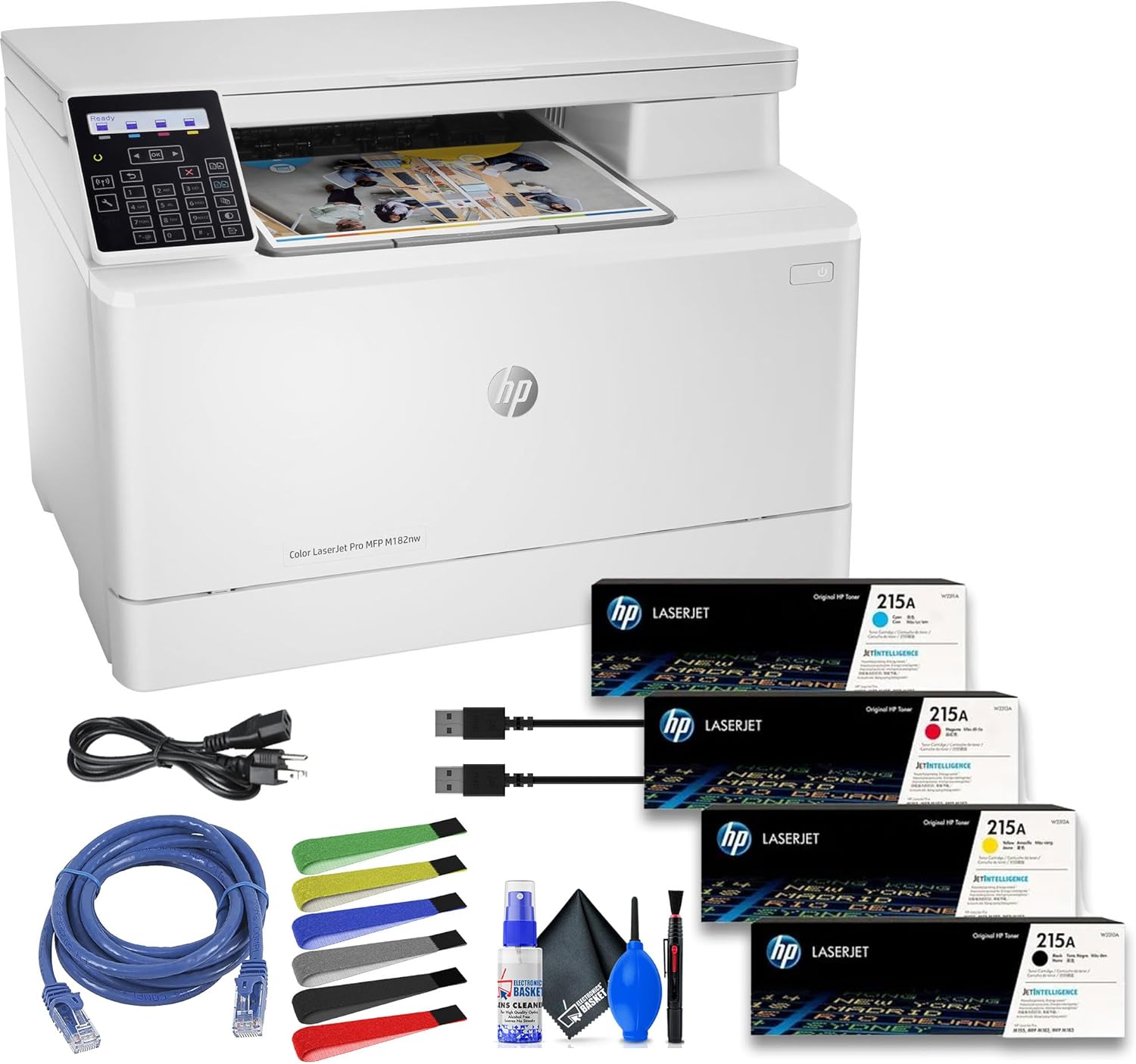
This image displays the HP Color LaserJet Pro MFP M182nw printer alongside its bundled accessories, including power and network cables, assorted cable ties, and a cleaning kit, as well as the starter toner cartridges.
3. Setup Guide
Follow these steps to set up your HP Color LaserJet Pro MFP M182nw printer:
- Unpack the Printer: Carefully remove the printer from its packaging. Remove all packing materials, tapes, and protective films from the exterior and interior of the printer.
- Install Toner Cartridges: Open the toner access door and insert the provided starter toner cartridges into their corresponding slots. Ensure they click into place.
- Load Paper: Open the paper tray and load plain paper. Adjust the paper guides to fit the paper size.
- Connect Power: Connect the power cord to the printer and then to a grounded electrical outlet.
- Power On: Press the power button to turn on the printer.
- Choose Connection Method:
- USB Connection: Connect the USB cable from the printer to your computer.
- Ethernet (Wired Network): Connect an Ethernet cable from the printer to your network router or switch.
- Wi-Fi (Wireless Network): Follow the on-screen prompts on the printer's control panel to connect to your wireless network. You may need your Wi-Fi network name (SSID) and password.
- Install Software/Drivers: Insert the installation CD (if provided) or visit the official HP support website to download and install the latest drivers and software for your operating system. Follow the on-screen instructions to complete the installation.

The rear panel of the HP Color LaserJet Pro MFP M182nw printer, clearly showing the USB 2.0 and Ethernet ports for wired connections.
4. Operating Instructions
The HP Color LaserJet Pro MFP M182nw offers print, scan, and copy functionalities. Use the two-Line LCD with numeric keypad on the control panel to navigate settings and initiate tasks.

A detailed close-up of the printer's two-line LCD control panel and numeric keypad, used for navigating menus and adjusting settings.
4.1. Printing
- From a Computer: Select 'Print' from your application, choose the HP Color LaserJet Pro MFP M182nw, and adjust settings as needed (e.g., color, paper size, number of copies). The printer delivers crisp text and vibrant color prints at speeds of up to 17 pages per minute (ppm).
- Mobile Printing: The printer supports various mobile printing solutions:
- Apple AirPrint: For iOS devices.
- Mopria: For Android devices.
- HP ePrint: Print from anywhere by sending an email to your printer's unique email address.
- HP Smart App: Download the HP Smart App for guided setup, mobile printing, scanning, and monitoring printer status.
4.2. Scanning
The flatbed scanner offers an optical scan resolution of 1200 dpi, enabling high-quality digital captures. Supported file formats include JPG, RAW (BMP), PNG, TIFF, and PDF.
- From the Printer: Place your document on the scanner glass. Use the control panel to select 'Scan' and choose your destination (e.g., computer, email, network folder).
- From a Computer: Open the HP scanning software on your computer, select the HP Color LaserJet Pro MFP M182nw, and initiate the scan.
4.3. Copying
Copy speeds match printing speeds at 17 ppm for both black and color documents. You can make up to 99 copies at a time.
- Place the document on the scanner glass or in the automatic document feeder (if available).
- On the control panel, select 'Copy'.
- Use the numeric keypad to enter the desired number of copies.
- Press the 'Start' button (usually a green button or 'OK') to begin copying.
5. Maintenance
Regular maintenance ensures the longevity and optimal performance of your printer.
- Cleaning: Regularly wipe the exterior of the printer with a soft, damp cloth. Clean the scanner glass with a lint-free cloth and glass cleaner.
- Toner Replacement: Replace toner cartridges when the printer indicates low toner levels. Refer to the printer's display for specific instructions on replacing cartridges.
- Paper Handling: Use recommended paper types and sizes. Ensure paper is loaded correctly to prevent jams.
- Firmware Updates: Periodically check the HP support website for firmware updates to ensure your printer has the latest features and bug fixes.
The printer boasts a maximum monthly duty cycle of 30,000 pages, with a recommended volume ranging between 150 and 1500 pages for consistent reliability.
6. Troubleshooting
This section addresses common issues you might encounter with your printer.
| Problem | Possible Cause / Solution |
|---|---|
| Printer not responding | Check power connection. Ensure USB/Ethernet cable is securely connected or Wi-Fi is active. Restart printer and computer. |
| Poor print quality | Check toner levels. Ensure correct paper type is used. Clean print heads (if applicable, though less common for laser). |
| Paper jams | Remove jammed paper carefully following printer instructions. Ensure paper is loaded correctly and not overfilled. |
| Cannot connect to Wi-Fi | Verify Wi-Fi password. Ensure printer is within range of the router. Restart router and printer. |
| Scanner not working | Ensure printer drivers are installed correctly. Check USB/network connection. Restart printer. |
For more detailed troubleshooting, refer to the HP support website or the HP Smart App.
7. Specifications
Key technical specifications for the HP Color LaserJet Pro MFP M182nw printer:
| Feature | Detail |
|---|---|
| Functions | Print, Scan, Copy |
| Print Technology | Laser (Color) |
| Print Speed (Black & Color) | Up to 17 ppm |
| Print Resolution | 600 x 600 dpi |
| Scan Resolution (Optical) | 1200 dpi |
| Copy Speed (Black & Color) | Up to 17 ppm |
| Maximum Copies | 99 copies |
| Connectivity | USB 2.0, Ethernet, Wi-Fi |
| Mobile Printing Support | Apple AirPrint, Mopria, HP ePrint, HP Smart App |
| Paper Tray Capacity | 150 sheets |
| Output Tray Capacity | 100 sheets |
| Media Sizes Supported | Up to 8.5 x 14 inches |
| Maximum Monthly Duty Cycle | 30,000 pages |
| Recommended Monthly Volume | 150 to 1500 pages |
| Product Dimensions (W x D x H) | 16.5 x 17.1 x 11.6 inches |
| Item Weight | 42.6 pounds |

This image illustrates the physical dimensions of the HP Color LaserJet Pro MFP M182nw printer, showing its height (11.5 inches), depth (15 inches), and width (16.5 inches).
8. Warranty and Support
For warranty information and technical support, please refer to the documentation included with your printer or visit the official HP support website. HP provides resources for driver downloads, troubleshooting guides, and contact options for customer service.
You can also visit the HP Store on Amazon for additional product information and accessories.