
Party Button INV-USB
Party Stick Wireless Music Sharing Adapter User Manual
Model: INV-USB
Brand: Party Button
1. Introduction
The Party Stick is a portable wireless music sharing adapter designed to seamlessly connect multiple audio systems for a synchronized listening experience. Featuring one-click Party Button pairing and versatile tri-mode functionality, it allows users to broadcast, receive, or privately listen to music. Powered by a standard USB port, it requires no batteries or recharging, making it ideal for various environments.
2. Safety Information
Please read and understand all safety instructions before using the Party Stick. Failure to follow these instructions may result in injury or damage to the device.
- Avoid pairing with other wireless devices within 150 feet to prevent interference.
- Keep the device out of reach of children and pets to prevent choking hazards from small parts.
- Do not expose the device to extreme temperatures, direct sunlight, or excessive moisture.
- Do not attempt to disassemble or modify the device. This will void the warranty and may cause damage.
3. Package Contents
Verify that all items are present in your package:
- Party Stick Wireless Music Sharing Adapter Unit
- Mounting Bracket
- Mounting Screws

Image: Party Stick unit, mounting bracket, and screws included in the package.
4. Setup
Follow these steps to set up your Party Stick:
- Power Connection: Connect the Party Stick's USB cable to a standard USB power source (e.g., car USB port, USB wall adapter). The unit will power on automatically, indicated by the illuminated power button.
- Audio Connection: Connect the Party Stick's mini jack audio output cable to the auxiliary input (AUX-in) of your audio system (e.g., car stereo, portable speaker, home theater system).
- Mounting (Optional): For permanent installation, use the provided mounting bracket and screws to secure the Party Stick in a desired location. Ensure the unit is accessible for operation and that cables are not strained.
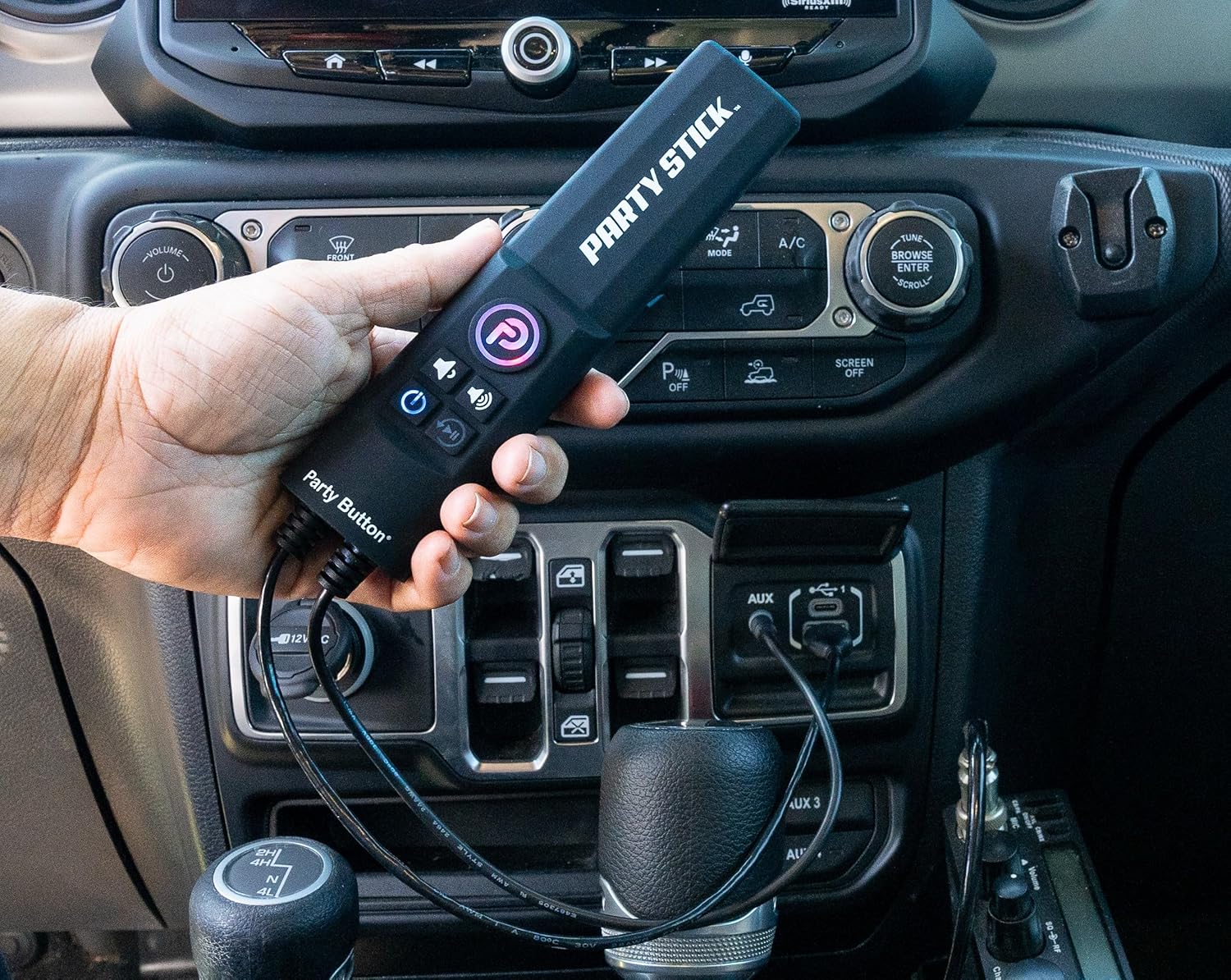
Image: Party Stick connected to a car's USB power and AUX input.
5. Operating Instructions
The Party Stick offers intuitive controls for music sharing and listening.
Power On/Off
The Party Stick powers on automatically when connected to a USB power source. To turn off, simply disconnect it from the USB power source.
One-Click Party Button Pairing
The core feature of the Party Stick is its effortless pairing:
- To initiate a Party session, press the large 'P' (Party Button) on the unit. The button will illuminate, indicating it is ready to pair and broadcast.
- Other Party Stick adapters or Party Button enabled products within range (up to 100 yards / 150ft radius) can join the session by pressing their respective Party Buttons.
- The system remembers your last Party connection for quick re-pairing in the future.
Tri-Mode Functionality
The Party Stick supports three distinct operating modes:
- DJ Broadcast (Send Music): When your Party Stick is connected to your music source and broadcasting, other paired devices will receive and play your audio.
- DJ Listening (Receive Music): When your Party Stick is paired and receiving music from another broadcasting Party Stick, your audio system will play the shared music.
- Single Listening (Listen to Your Own Music): When not actively paired or broadcasting, the Party Stick functions as a standard Bluetooth receiver, allowing you to listen to music from your connected device independently.
Dynamically Adding Devices
Additional Party Stick adapters or Party Button enabled products can be dynamically added to an ongoing Party session by simply pressing their Party Buttons, even after the Party has already started.

Image: Front view of the Party Stick, showing the Party Button and control buttons.
6. Maintenance
To ensure the longevity and optimal performance of your Party Stick, follow these maintenance guidelines:
- Cleaning: Keep the device clean by wiping it with a soft, dry cloth. Avoid using harsh chemicals, solvents, or abrasive cleaners, as these can damage the surface and internal components.
- Port Care: Ensure all USB and audio ports are free of dust, debris, and moisture.
- Storage: When not in use, store the Party Stick in a cool, dry place away from direct sunlight and extreme temperatures.
7. Troubleshooting
If you encounter issues with your Party Stick, refer to the following common problems and solutions:
No Power / Device Not Turning On
- Ensure the USB cable is securely connected to a powered USB port.
- Verify the USB power source is active and providing sufficient power. Try a different USB port or power adapter.
Cannot Pair with Other Devices
- Ensure all Party Stick units are within the 100-yard (150ft) operating range.
- Confirm that the Party Button is pressed and illuminated on all devices you wish to pair.
- Temporarily disconnect and reconnect the USB power to reset the unit and try pairing again.
No Audio Output
- Check that the mini jack audio cable is securely connected to both the Party Stick and your audio system's AUX input.
- Verify your audio system's input is set to AUX.
- Adjust the volume on both your audio source device (e.g., phone, tablet) and your audio system.
- Ensure the Party Stick is successfully paired and either broadcasting or receiving audio in the correct mode.
8. Specifications
| Feature | Detail |
|---|---|
| Model Number | INV-USB |
| Connectivity Technology | Bluetooth |
| Power Source | USB |
| Material | Plastic |
| Item Weight | 8.8 ounces |
| Package Dimensions | 11.5 x 6 x 2 inches |
| Manufacturer | Southern Audio Services, Inc |
| Special Feature | Waterproof |
| Date First Available | February 20, 2024 |
9. Warranty and Support
For warranty information, product registration, and technical support, please refer to the manufacturer's official website or contact their customer service directly. It is recommended to keep your purchase receipt as proof of purchase for any warranty claims.
Ask a question about this manual
Ask about setup, troubleshooting, compatibility, parts, safety, or missing instructions. Manuals+ will review the question and use this page’s manual context to help answer it.