
1. Introduction
This instruction manual provides important information regarding the SwarKing LCD Digital Display Replacement for the Samsung Galaxy Z Fold 4 5G. It covers product compatibility, installation considerations, and general care. Please read this manual thoroughly before attempting any installation or repair.
2. Product Overview
2.1 Compatibility
This LCD Digital Display Replacement is compatible with the following Samsung Galaxy Z Fold 4 5G models:
- SM-F936B
- SM-F936U
- SM-F936W
Please verify your device's model number before proceeding with the replacement.
2.2 Package Contents
The package includes the LCD Digital Display Touch Screen Digitizer Assembly and a set of repair tools necessary for installation.
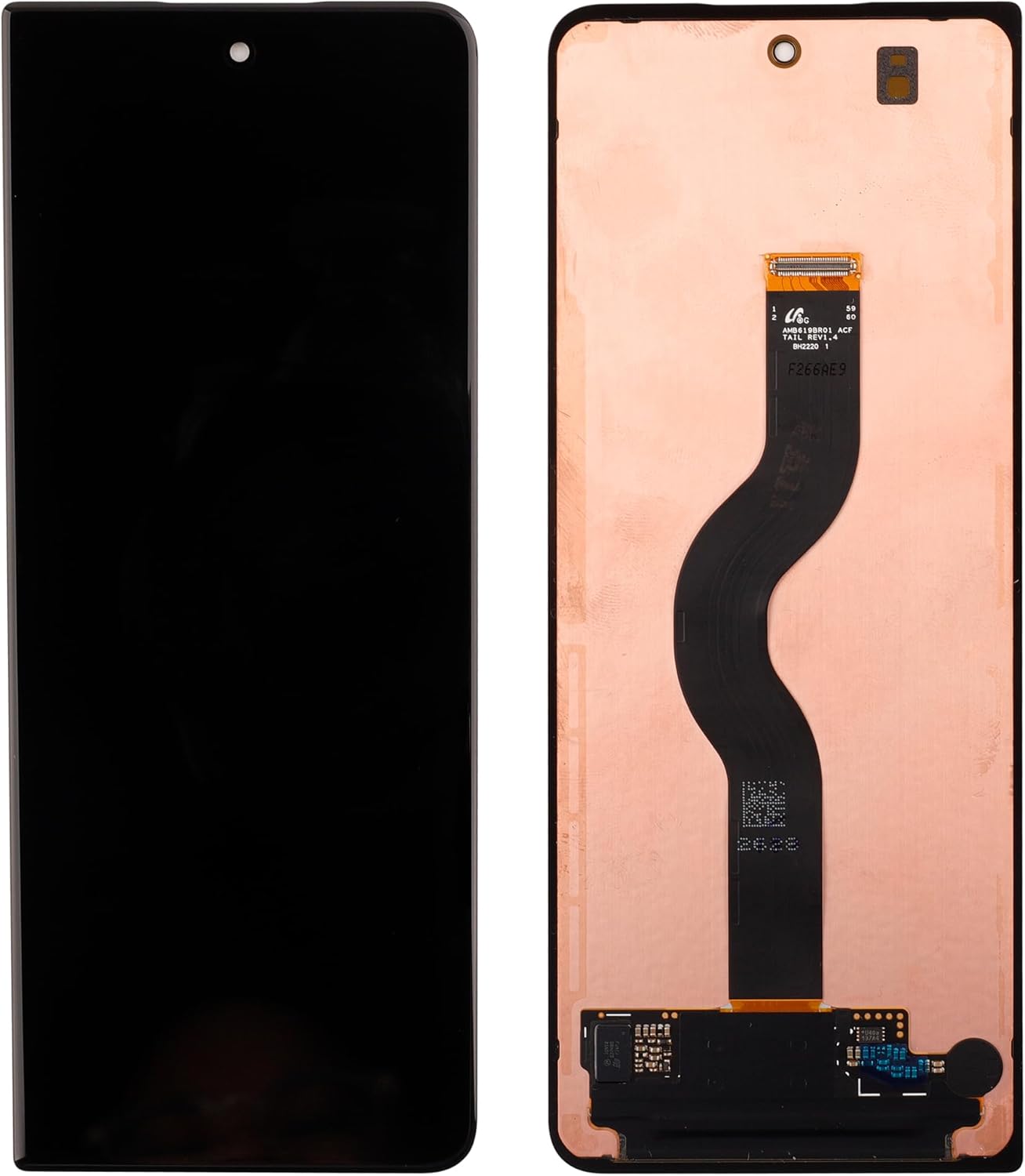
Image 2.2.1: Front and back view of the SwarKing LCD Digital Display Replacement for Samsung Galaxy Z Fold 4 5G.
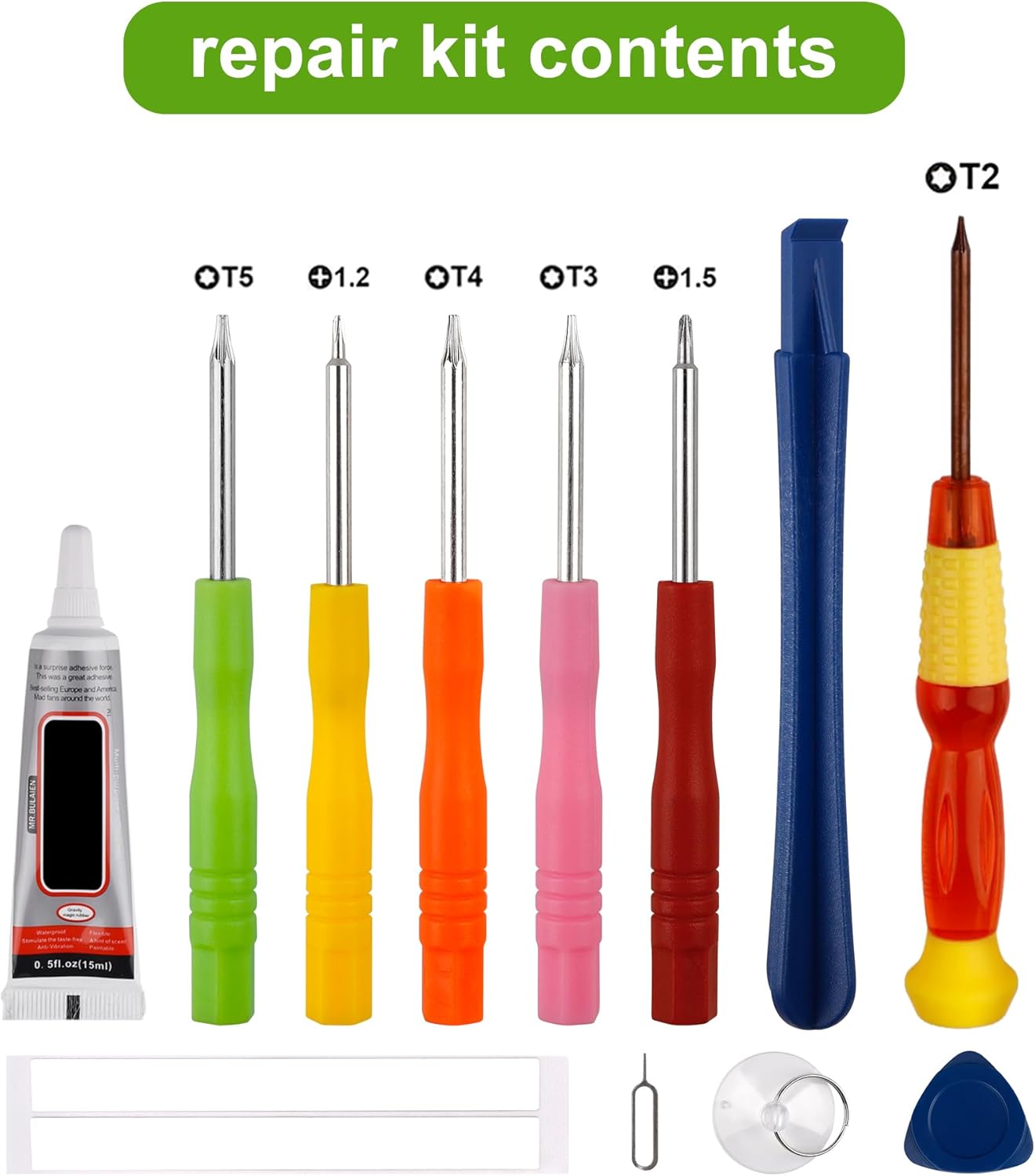
Image 2.2.2: Included repair kit with various screwdrivers, prying tools, and adhesive for screen replacement.
3. Important Safety Information and Installation Guidance
Replacing a smartphone display is a highly technical procedure. It requires precision and specialized knowledge. We strongly recommend that this procedure be performed by professional engineers or experienced technicians.
- Professional Installation Recommended: Attempting installation without proper experience can lead to damage to your device or the new display.
- Consult Online Resources: Before starting, it is highly recommended to watch detailed video tutorials on platforms like YouTube specific to Samsung Galaxy Z Fold 4 5G screen replacement. Search for videos demonstrating the process for models SM-F936B, SM-F936U, or SM-F936W.
- Power Off Device: Always ensure your device is completely powered off and disconnected from any power source before beginning the repair.
- Static Electricity: Take precautions against static electricity, which can damage electronic components. Use an anti-static wrist strap if available.
- Handle with Care: The display assembly is fragile. Handle it gently to avoid bending flex cables or damaging connectors.
- Test Before Final Assembly: Before fully adhering the new display, connect it to the motherboard and test its functionality (display, touch response) to ensure it is working correctly.

Image 3.1: Visual confirmation of compatibility, showing the replacement display alongside a Samsung Galaxy Z Fold 4 5G device.
4. Operating Instructions (Post-Installation)
After successful installation of the new LCD Digital Display, perform the following checks:
- Power On: Turn on your Samsung Galaxy Z Fold 4 5G.
- Display Check: Verify that the display powers on correctly and shows clear images without flickering, dead pixels, or discoloration.
- Touch Functionality: Test the entire screen for touch responsiveness. Drag an icon across the screen to ensure there are no dead spots.
- Brightness and Color: Adjust brightness settings and check for accurate color reproduction.
- Sensor Check: Ensure proximity sensor and ambient light sensor (if applicable) are functioning correctly.
- Flex Cable Integrity: Ensure all flex cables are securely connected and not pinched.
5. Maintenance
To ensure the longevity and optimal performance of your new display, follow these maintenance guidelines:
- Screen Protection: Use a screen protector and a protective case to guard against scratches and impacts.
- Cleaning: Clean the screen regularly with a soft, lint-free microfiber cloth. For stubborn smudges, slightly dampen the cloth with water or a screen-specific cleaning solution. Avoid harsh chemicals.
- Avoid Extreme Conditions: Protect your device from extreme temperatures, direct sunlight for prolonged periods, and high humidity.
- Gentle Handling: Avoid dropping the device or applying excessive pressure to the screen.
6. Troubleshooting
If you encounter issues after installing the new display, consider the following common problems and solutions:
- Display Not Working / Blank Screen:
- Ensure all flex cables are securely connected to the motherboard.
- Check for any visible damage to the flex cables or connectors.
- Perform a hard reset of the device.
- Touch Screen Not Responding:
- Verify the touch digitizer flex cable is properly seated.
- Restart the device.
- Ensure there is no debris or liquid under the screen protector (if applied).
- Lines or Discoloration on Screen:
- This could indicate a damaged display or a loose connection. Recheck flex cable connections.
- If the issue persists, the display itself might be faulty.
- Screen Blurred or White Screen:
- Similar to lines, this often points to a connection issue or a defective display.
- Ensure the display is fully seated and all connectors are clean.

Image 6.1: Visual representation of common display issues that may necessitate a screen replacement.
If troubleshooting steps do not resolve the issue, it is advisable to seek assistance from a professional repair service.
7. Specifications
| Product Name | LCD Digital Display Touch Screen Digitizer Assembly |
| Brand | SwarKing |
| Compatibility | Samsung Galaxy Z Fold 4 5G (SM-F936B, SM-F936U, SM-F936W) |
| Package Dimensions | 7.09 x 3.94 x 0.79 inches |
| Item Weight | 4.2 ounces |
| ASIN | B0CW18VDGN |
| Manufacturer | shenzhen baoran keji youxiangongsi |
| Date First Available | February 20, 2024 |
8. Support
For any questions or concerns regarding this product, please contact SwarKing customer service. We are committed to responding as soon as possible to assist you.