
1. Product Overview
The SAMSUNG 32" Odyssey G3 FHD Gaming Monitor is designed for an immersive gaming experience, featuring a 165Hz refresh rate, 1ms response time, and AMD FreeSync Premium technology. Its height-adjustable screen and Eye Saver Mode contribute to comfortable extended use.
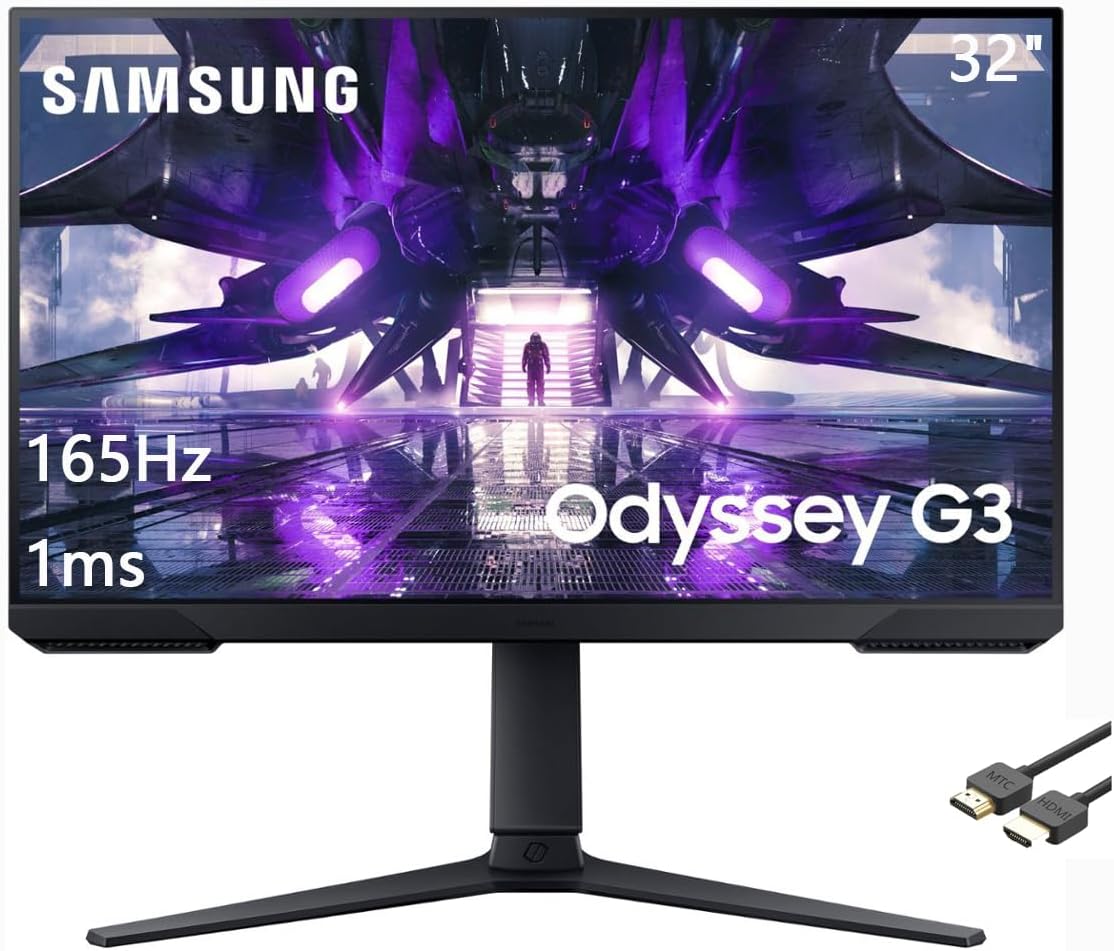
Figure 1.1: Front view of the SAMSUNG 32" Odyssey G3 Gaming Monitor, showcasing its display and key performance metrics.
2. Setup
2.1 Unpacking
Carefully remove all components from the packaging. Ensure the following items are present:
- Monitor Display Panel
- Monitor Stand Base
- Monitor Stand Neck
- Power Cable
- HDMI Cable
- User Manual (this document)
2.2 Stand Assembly
- Attach the stand neck to the monitor display panel. Ensure it clicks securely into place.
- Connect the stand base to the bottom of the stand neck. Tighten any screws if provided, typically by hand or with a coin.

Figure 2.1: Rear view of the monitor with the stand fully assembled.
2.3 Connecting Cables
Locate the input ports on the rear of the monitor.
- Power: Connect the power cable to the monitor's power input and then to a wall outlet.
- Video Input: Connect the supplied HDMI cable from your computer's graphics card to an HDMI port on the monitor. Alternatively, use a DisplayPort cable (not included) for optimal performance with 165Hz refresh rates.
- Audio Output: If desired, connect external speakers or headphones to the 3.5mm audio output jack.
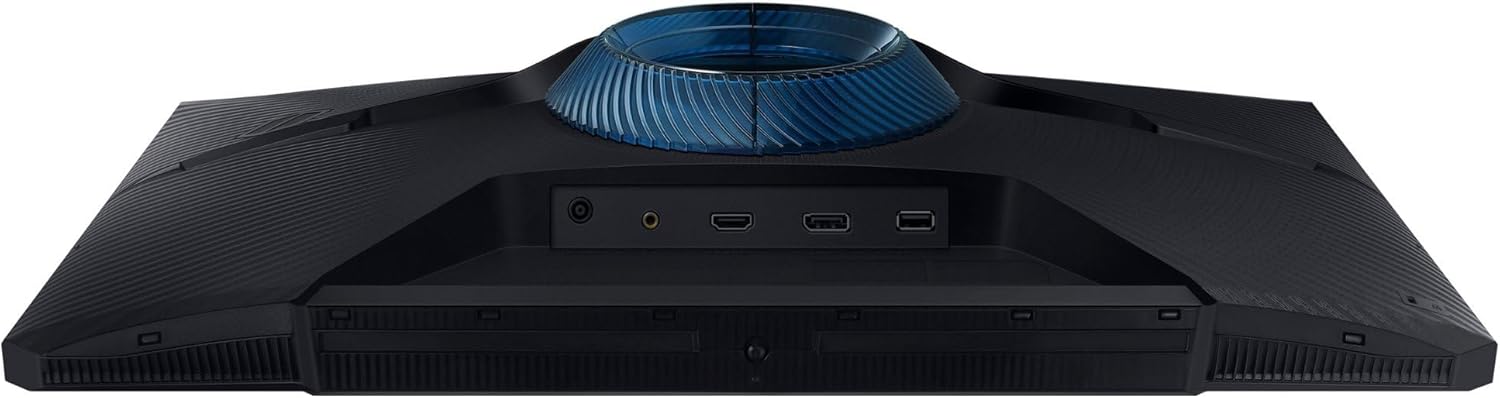
Figure 2.2: Rear view of the monitor displaying available input ports.
2.4 Initial Power-On
Press the power button, usually located on the bottom right or rear of the monitor, to turn it on. The monitor will automatically detect the active input source.
3. Operating the Monitor
3.1 On-Screen Display (OSD) Menu
The OSD menu allows you to adjust various monitor settings. Access it by pressing the joystick/button on the rear of the monitor. Use the joystick to navigate and select options.
3.2 Key Features and Settings
- Refresh Rate (165Hz): For optimal gaming performance, ensure your computer's display settings are configured to 165Hz. This setting is typically adjusted within your operating system's display settings or your graphics card control panel.
- Response Time (1ms): The monitor is factory-calibrated for a 1ms response time. This setting minimizes motion blur in fast-paced scenes.
- AMD FreeSync Premium: This technology synchronizes the monitor's refresh rate with your graphics card's frame rate, reducing screen tearing and stuttering. Enable FreeSync Premium in the OSD menu and ensure your AMD graphics card drivers are up to date.
- Eye Saver Mode: Reduces blue light emissions to minimize eye strain during prolonged use. Activate this mode via the OSD menu.
- Flicker Free: This technology continuously removes tiring and irritating screen flicker, allowing for longer, more comfortable viewing. This feature is always active.
3.3 Adjusting Monitor Position
The monitor stand allows for various adjustments to optimize your viewing experience:
- Height Adjustment: Gently push or pull the monitor panel up or down along the stand neck.
- Tilt Adjustment: Tilt the monitor panel forward or backward to find your preferred viewing angle.
- Pivot Function: The monitor can be rotated 90 degrees to a portrait orientation. Ensure sufficient clearance before pivoting.

Figure 3.1: Monitor in portrait mode, demonstrating the pivot function.
4. Maintenance
4.1 Cleaning the Screen
To clean the screen, gently wipe it with a soft, lint-free cloth. For stubborn marks, lightly dampen the cloth with water or a specialized screen cleaner. Avoid using harsh chemicals, alcohol, or abrasive materials.
4.2 Cleaning the Exterior
Wipe the monitor's exterior surfaces with a soft, dry cloth. Do not spray cleaning solutions directly onto the monitor.
4.3 General Care
- Avoid placing heavy objects on the monitor or its cables.
- Do not expose the monitor to direct sunlight, excessive heat, or extreme cold.
- Keep the monitor away from liquids and high humidity.
5. Troubleshooting
5.1 No Display / Black Screen
- Ensure the power cable is securely connected to both the monitor and the power outlet.
- Verify that the video cable (HDMI or DisplayPort) is firmly connected to both the monitor and your computer.
- Check if the correct input source is selected in the OSD menu.
- Restart your computer.
5.2 Screen Flickering or Distorted Image
- Ensure the video cable is not damaged and is securely connected.
- Update your graphics card drivers to the latest version.
- Disable AMD FreeSync Premium temporarily in the OSD menu to see if the issue persists.
- Adjust the refresh rate in your computer's display settings to a lower value (e.g., 60Hz) to test.
5.3 Color Inaccuracies
- Reset the monitor's color settings to factory defaults via the OSD menu.
- Adjust color temperature and contrast settings in the OSD menu.
- Ensure your graphics card color settings are correctly configured.
If issues persist after attempting these troubleshooting steps, please contact Samsung customer support.
6. Specifications
| Feature | Specification |
|---|---|
| Model Number | Odyssey G3 |
| Screen Size | 32 Inches |
| Display Resolution | FHD (1920 x 1080) |
| Aspect Ratio | 16:9 |
| Refresh Rate | 165Hz |
| Response Time | 1ms |
| Adaptive Sync Technology | AMD FreeSync Premium |
| Screen Surface Description | Glossy |
| Connectivity | HDMI, DisplayPort, Audio Out |
| Product Dimensions (L x W x H) | 28.3 x 23.5 x 9.8 inches |
| Item Weight | 21 pounds |

Figure 6.1: Product dimensions of the SAMSUNG 32" Odyssey G3 Gaming Monitor.
7. Warranty and Support
7.1 Warranty Information
Specific warranty details for your SAMSUNG 32" Odyssey G3 FHD Gaming Monitor are typically provided with your purchase documentation or can be found on the official Samsung website. Please retain your proof of purchase for warranty claims.
7.2 Customer Support
For further assistance, technical support, or service inquiries, please visit the official Samsung support website or contact their customer service directly. You can find contact information and support resources at www.samsung.com/us/support/.