1. Product Overview
The FOGARI Touch Keyboard Case is designed to enhance the functionality of your compatible iPad, transforming it into a versatile workstation. It features a multi-touch trackpad, rainbow backlit keyboard, and a 360-degree rotatable design for various viewing angles.
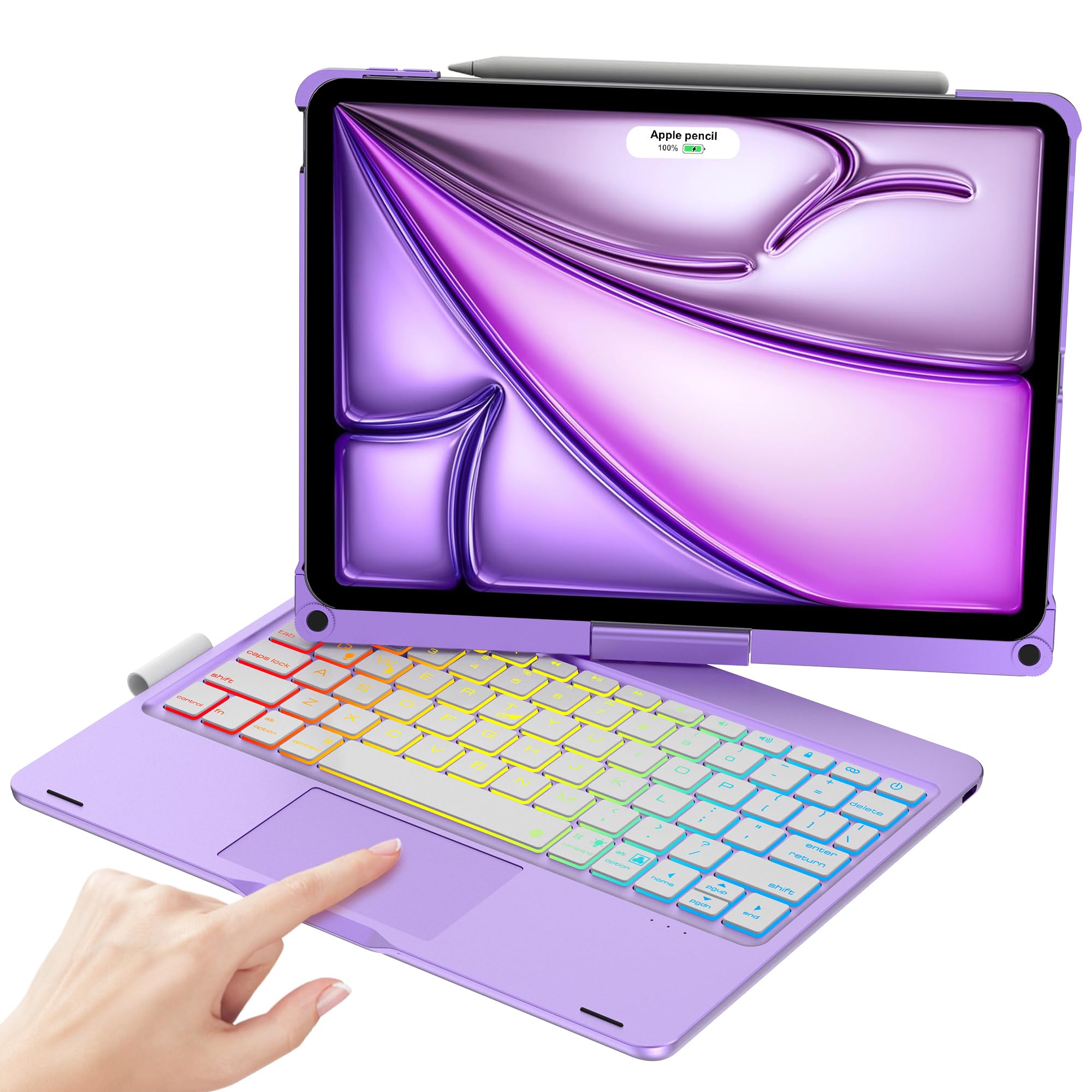
Image: The FOGARI Touch Keyboard Case shown in different configurations and uses, highlighting its adaptability for various tasks.
2. Compatibility
This keyboard case is compatible with the following iPad models:
- iPad Air 11-inch (M2) 2024
- iPad Pro 11 inch 4th generation (2022) (Models: A2435, A2759, A2761, A2762)
- iPad Pro 11 inch 3rd generation (2021) (Models: A2301, A2459, A2460)
- iPad Pro 11 inch 2nd generation (2020) (Models: A2228, A2068, A2231)
- iPad Pro 11 inch 1st generation (2018) (Models: A1980, A2013, A1934, A1979)
- iPad Air 5th generation (2022) (Models: A2588, A2589, A2591)
- iPad Air 4th generation (2020) (Models: A2071, A2316, A2324, A2325)

Image: A visual guide detailing the specific iPad Air and iPad Pro 11-inch models compatible with this keyboard case, including their corresponding model numbers.
3. Package Contents
Verify that all items are present in the package:
- 1 x FOGARI Keyboard Case for iPad
- 1 x Charging Cable (Type-C)
- 1 x User Manual
4. Setup Instructions
4.1. Installing Your iPad
- Open the keyboard case.
- Align your iPad with the protective shell of the case.
- Gently press the iPad into the case until it is securely seated. Ensure all edges are protected.
4.2. Charging the Keyboard
Before initial use, fully charge the keyboard.
- Locate the Type-C charging port on the keyboard.
- Connect the provided Type-C cable to the keyboard and a suitable USB power adapter (not included).
- The charging indicator light will illuminate. A full charge takes approximately 3 hours.
- Once fully charged, the indicator light will change or turn off. The keyboard offers approximately 75 hours of continuous use or 60 days of standby time on a full charge.
4.3. Bluetooth Pairing
To connect the keyboard to your iPad:
- Ensure the keyboard is charged.
- Turn on the keyboard using its power switch.
- On your iPad, go to Settings > Bluetooth and turn Bluetooth on.
- Press the Connect button (often indicated by a Bluetooth symbol) on the keyboard. The Bluetooth indicator light will flash.
- On your iPad, select "Bluetooth Keyboard" or a similar name from the list of available devices.
- Follow any on-screen prompts to complete the pairing process. The indicator light on the keyboard will stop flashing once connected.
5. Operating Instructions
5.1. Keyboard Functions
- The keyboard features a standard QWERTY layout.
- Dedicated hotkeys for iPadOS functions are included, such as volume control, music playback, and screen brightness adjustment.
5.2. Multi-Touch Trackpad
The integrated trackpad supports various multi-touch gestures for navigation and interaction with your iPad.
- Tap: Single tap for click, double tap for selection.
- Drag: Tap and hold, then drag to move items.
- Swipe: Use two or three fingers to swipe for various iPadOS gestures (e.g., switching apps, opening Control Center).

Image: A detailed view of the multi-touch trackpad, showing a finger performing a gesture, indicating its smooth and responsive operation.
5.3. Rainbow Backlit Keyboard
The keyboard features adjustable backlighting.
- Brightness Modes: Cycle through 3 brightness levels.
- Light Modes: Choose between steady rainbow light, ring breathing rainbow, or adjust breathing frequency.
- Use the dedicated backlight key (often a light bulb icon) to adjust settings.

Image: The keyboard with its keys illuminated by a rainbow backlight, demonstrating the customizable lighting feature.
5.4. 360° Rotation and 180° Flip
The case allows for flexible viewing and usage modes.
- 360° Rotation: Rotate the iPad screen horizontally to achieve various landscape orientations.
- 180° Flip: Flip the iPad screen backward to convert the setup into a tablet mode or a viewing stand.

Image: Illustrations demonstrating the 360-degree rotation and 180-degree flip capabilities of the case, allowing for diverse viewing angles.
5.5. Side-Position Pencil Holder
The case includes a dedicated holder for your Apple Pencil.
- The side-position holder securely stores your Apple Pencil.
- It supports Apple Pencil charging when placed in the holder (Apple Pencil not included).
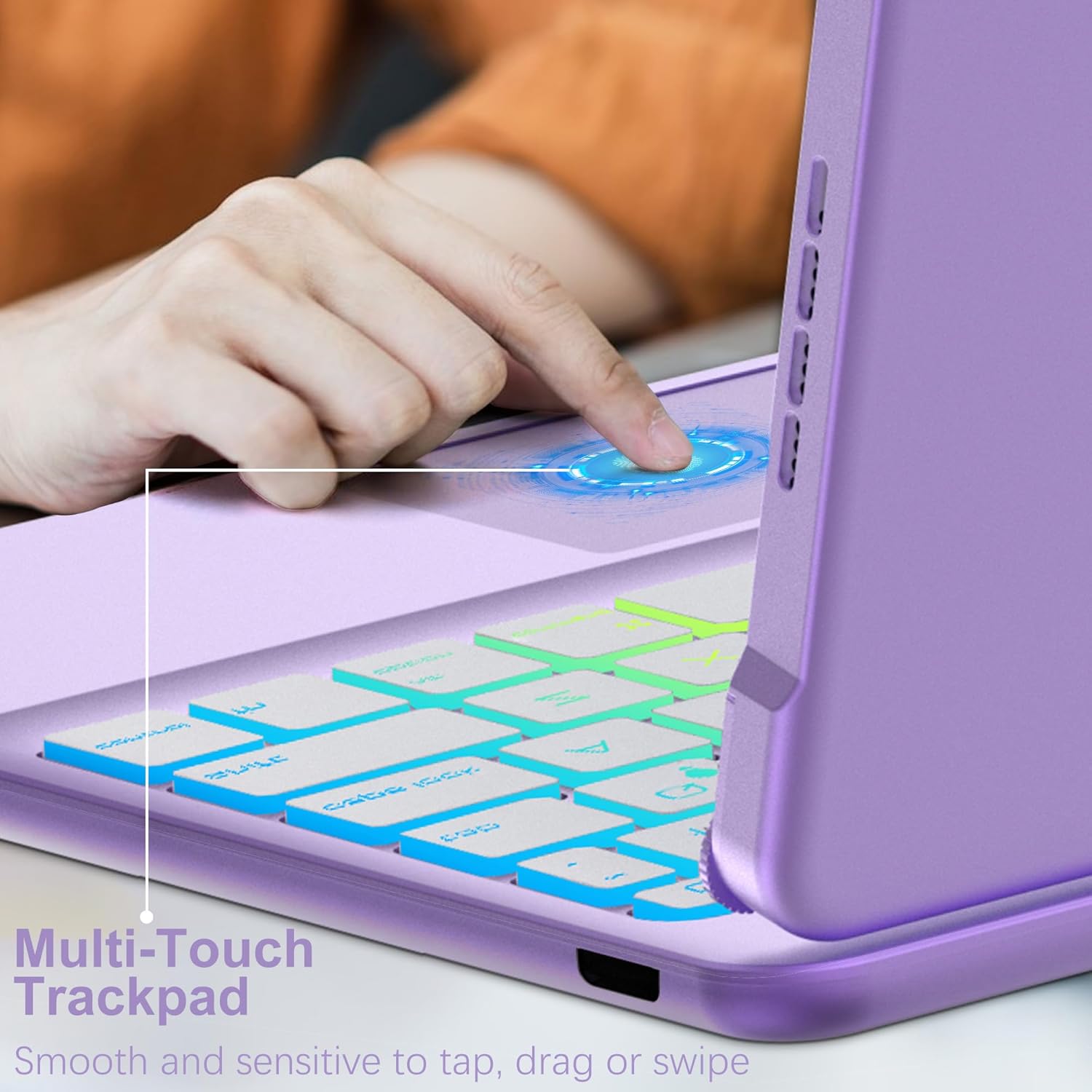
Image: The keyboard case with an Apple Pencil docked in its side holder, illustrating the charging functionality and secure storage.
5.6. Automatic Sleep and Wake Function
The case supports your iPad's auto-wake/sleep feature.
- Closing the case will automatically put your iPad to sleep.
- Opening the case will automatically wake your iPad.
- This feature helps conserve iPad battery power.
6. Maintenance
To ensure the longevity and optimal performance of your keyboard case:
- Cleaning: Use a soft, dry, lint-free cloth to wipe the exterior of the case and keyboard. For stubborn marks, slightly dampen the cloth with water. Avoid harsh chemicals or abrasive cleaners.
- Storage: When not in use for extended periods, store the case in a cool, dry place away from direct sunlight and extreme temperatures.
- Liquid Exposure: While the case is water-resistant, avoid submerging it in water or exposing it to excessive moisture. If liquid spills occur, power off the keyboard immediately and allow it to dry completely before reuse.
7. Troubleshooting
If you encounter issues with your FOGARI Touch Keyboard Case, refer to the following common solutions:
- Keyboard Not Connecting via Bluetooth:
- Ensure the keyboard is powered on and fully charged.
- Turn off and then on your iPad's Bluetooth.
- Forget the device in your iPad's Bluetooth settings and re-pair the keyboard following the "Bluetooth Pairing" steps in Section 4.3.
- Ensure the keyboard is within the effective Bluetooth range (typically 10 meters).
- Keys or Trackpad Not Responding:
- Check the keyboard's battery level and charge if necessary.
- Restart the keyboard and your iPad.
- If the issue persists, try re-pairing the Bluetooth connection.
- Backlight Not Working or Adjusting:
- Ensure the keyboard is powered on.
- Press the backlight key repeatedly to cycle through brightness and color modes.
- If the keyboard battery is very low, backlighting may be disabled to conserve power. Charge the keyboard.
- iPad Not Entering/Exiting Sleep Mode Automatically:
- Ensure your iPad is correctly seated in the case.
- Check your iPad's settings for "Lock/Unlock" or "Cover Lock/Unlock" under Display & Brightness, and ensure it is enabled.
8. Specifications
| Feature | Detail |
|---|---|
| Brand | FOGARI |
| Compatible Devices | iPad Air 11-inch (M2) 2024, iPad Pro 11 (4th/3rd/2nd/1st Gen), iPad Air 5th/4th Gen |
| Connectivity Technology | Bluetooth |
| Keyboard Description | Integrated Keyboard |
| Recommended Uses | Business, Education, Everyday Use, Multimedia, Personal |
| Special Features | Backlit, Ergonomic, Rechargeable, Multi-Touch Trackpad, Water Resistant |
| Color | Purple |
| Keyboard Backlighting Color Support | RGB (Rainbow) |
| Product Dimensions (L x W x H) | 11"L x 7.5"W x 1"H |
| Battery Capacity | 450mAh |
| Battery Life (Continuous Use) | Up to 75 hours |
| Standby Time | Up to 60 days |
| Charging Time | Approx. 3 hours |
| Number of Keys | 64 |
| Keyboard Layout | QWERTY |
| Water Resistance Level | Water Resistant |
9. Warranty and Support
FOGARI provides a 12-month warranty and a 30-day money-back guarantee from the date of purchase for this product.
For any questions, technical assistance, or warranty claims, please contact FOGARI customer support. Refer to the contact information provided with your purchase or visit the official FOGARI website for support details.