
1. Introduction
This manual provides detailed instructions for the installation, operation, and maintenance of your Inefala Android 15 Car Stereo. Please read this manual thoroughly before using the product to ensure proper functionality and safety.
2. Product Overview
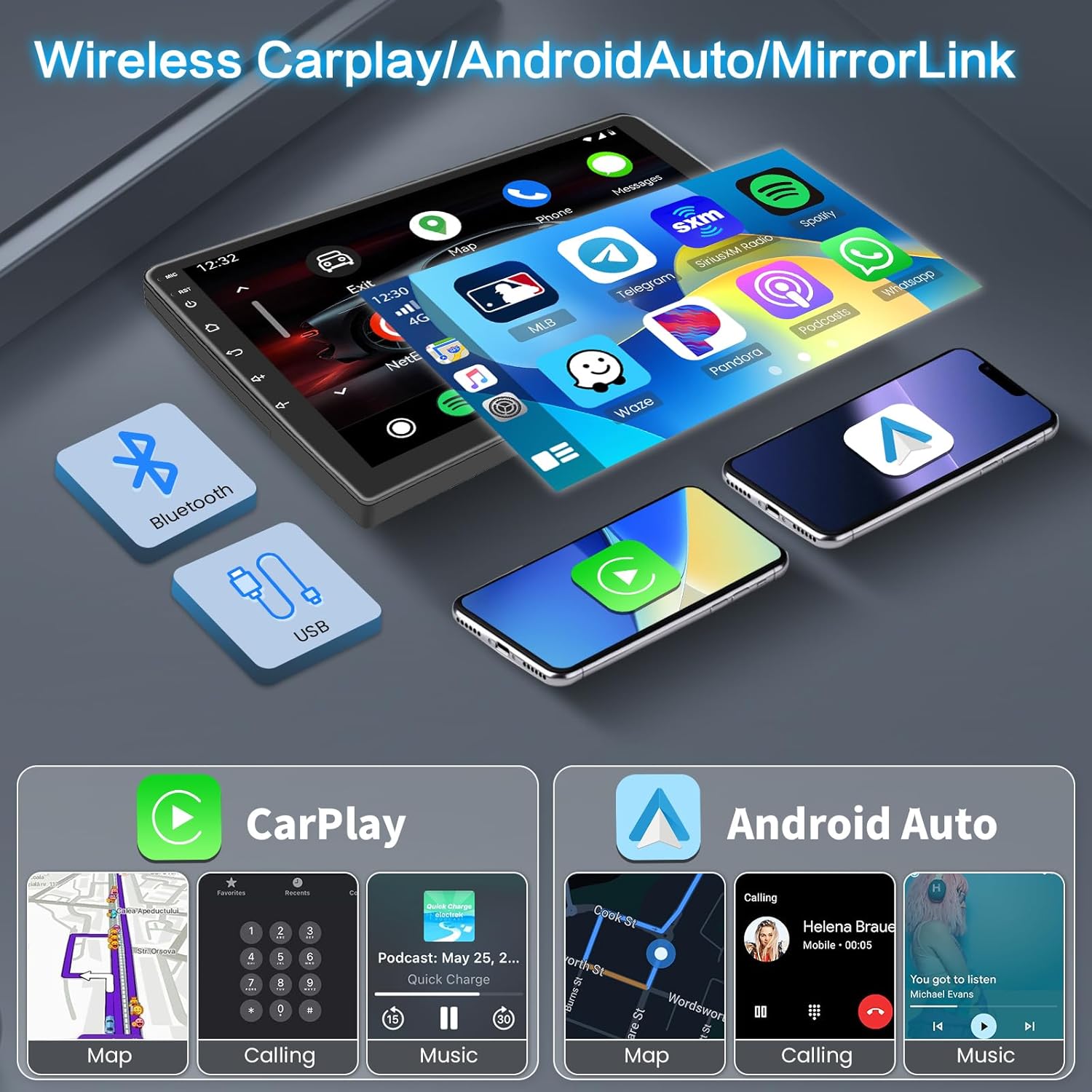
The Inefala Android 15 Car Stereo is designed for Kia Optima K5 models from 2011 to 2013. It features a 9-inch HD capacitive touchscreen, Android 15 operating system, 2GB RAM, and an Octa 4-core CPU with 64GB ROM. Key features include Wireless/Wired CarPlay, Android Auto, Mirror Link, GPS navigation, WiFi connectivity, Bluetooth, FM/RDS radio, Steering Wheel Control (SWC) support, and a backup camera input.

3. What's in the Box
The package includes the following components:
- 1 x Android Car Stereo
- 2 x Power Cable
- 1 x GPS Antenna
- 1 x Backup Camera Input Cable
- 1 x RCA Cable
- 2 x USB Cable
- 1 x USB Adapter Cable
- 1 x Radio Antenna
- 2 x Mounting Bracket
- 1 x Installation Tool
- 1 x Instruction Manual (this document)
- 1 x External Microphone
- 1 x Backup Camera
- 1 x Canbus

4. Installation Guide
Professional installation is recommended. Ensure the vehicle's power is disconnected before starting installation.
4.1 Wiring Connections
Refer to the following video for a general wiring reference. For specific installation steps, consult this manual or contact customer support.
Radio Adapter Cable: Connect the radio adapter cable to the corresponding port on the car stereo unit. This cable ensures proper reception for FM/RDS radio functions.
GPS Antenna: Connect the GPS antenna to the designated GPS port. Position the antenna in a location with a clear view of the sky for optimal signal reception.
Camera Input: Connect the camera input cable to the rear camera port. This cable is used for the backup camera functionality.
USB Cable: Connect the USB cables to the USB ports on the car stereo. These ports can be used for media playback, phone charging, or connecting external devices.
RCA Input/Output: Connect the RCA cables for audio and video input/output as needed. These are typically used for external amplifiers, subwoofers, or additional video screens.
Power Cable: Connect the main power cable harness to the car stereo. Ensure all connections are secure and match the vehicle's wiring diagram.
Reversing Light Wire: Connect the red wire from the reversing video input cable to the vehicle's reversing light wire. This enables automatic display of the backup camera when the vehicle is in reverse.
4.2 Steering Wheel Control (SWC) Configuration
Upon connecting the Canbus, it is essential to configure the Canbus settings correctly to enable functionality of your steering wheel controls. Follow these steps:
- Go to Settings.
- Navigate to Factory Setup and enter the password 1234.
- Select Car settings, then choose Hiworld + your car's year and model.
- Proceed to "Steering Learning" under Factory Setting to finalize the steering wheel button learning process.

5. Operating Instructions
5.1 Wireless CarPlay & Android Auto
This car stereo supports both wireless and wired CarPlay/Android Auto. To connect:
- Ensure your phone's Bluetooth is enabled.
- On the car stereo, open the CarPlay/Android Auto application (e.g., Tlink5).
- Follow the on-screen prompts to pair your phone via Bluetooth or connect via USB.
- Once connected, you can access navigation, make calls, send messages, and listen to music directly from the car stereo display.
5.2 GPS Navigation
The unit comes with built-in GPS and supports various mapping applications like Google Maps and Waze. Connect to WiFi to download maps and receive real-time traffic updates.
5.3 WiFi Connectivity
Connect the car stereo to a WiFi hotspot (e.g., from your mobile phone) to access online content, download apps, and update software.
5.4 Bluetooth Functions
Pair your smartphone via Bluetooth for hands-free calling, phonebook synchronization, and audio streaming.
5.5 FM/RDS Radio
Access FM radio stations with RDS (Radio Data System) for station information and traffic updates. The unit supports 30 preset stations.
5.6 Backup Camera
The included backup camera automatically displays the rear view when the vehicle is shifted into reverse, enhancing safety during parking and maneuvering.
6. Specifications
| Feature | Specification |
|---|---|
| Operating System | Android 15 |
| RAM | 2GB |
| ROM | 64GB |
| CPU | Octa 4-core |
| Screen Size | 9 Inches |
| Display Type | HD Capacitive Touchscreen |
| Resolution | 1024 x 600 |
| Connectivity | Bluetooth, USB, Wi-Fi |
| Special Features | Wireless/Wired CarPlay, Android Auto, Mirror Link, GPS Navigation, FM/RDS Radio, SWC, Backup Camera Input |
| Vehicle Service Type | For Kia Optima K5 2011-2013 |
| Item Weight | 2.66 pounds |
| Product Dimensions | 14.37 x 7.09 x 1.57 inches |
7. Troubleshooting
If you encounter any issues with your Inefala Android 15 Car Stereo, please refer to the following common solutions:
- No Power: Check all power cable connections. Ensure the vehicle's ignition is on. Verify the fuse is intact.
- No Sound: Check speaker connections. Ensure volume is not muted or set too low. Verify audio output settings.
- GPS Signal Loss: Ensure the GPS antenna is properly connected and placed in an unobstructed location. Check GPS settings in the system.
- Bluetooth Connection Issues: Ensure Bluetooth is enabled on both the stereo and your phone. Forget previous pairings and try reconnecting.
- CarPlay/Android Auto Not Connecting: Verify the phone is compatible. Ensure the app is updated. Try both wired and wireless connections. Check phone permissions for the app.
- Backup Camera Not Displaying: Check the camera input cable connection. Ensure the reversing light wire is correctly connected to trigger the camera.
- Steering Wheel Controls Not Working: Re-perform the SWC learning process as described in Section 4.2. Ensure the Canbus is correctly installed.
For persistent issues, please contact Inefala customer support.
8. Warranty and Support
Inefala provides a 24-month quality assurance for this product from the date of purchase. We are responsible for handling all quality issues within this period.
For any questions or assistance, please contact Inefala-US customer support directly at inefalatech@163.com. Please provide photos or videos if possible for quicker resolution.
This product is eligible for a 30-day refund/replacement policy through Amazon.