
Introduction
The DATAFY Remote Control Page Turner (Model FYQ-K2) is designed to enhance your digital reading and media control experience. This device allows for hands-free page turning on compatible capacitive touch screens and functions as a wireless remote for camera and video applications on smartphones.
Package Contents
Please verify that all items are present in your package:
- Screen Sensor Clip (x1)
- RF Remote (x1)
- Type-C Cable (x1)
- User's Manual (x1)
- Storage Bag (x1)
- Hand Strap (x1)

Figure 1: All components included in the DATAFY Remote Control Page Turner package.
Setup Instructions
Pairing the Device
- Single-click the button on the back of the Screen Sensor Clip. The blue light will turn on, indicating it is active.
- Press any button on the RF Remote. The blue light on the Screen Sensor Clip will flash three times, confirming successful pairing.

Figure 2: Visual guide for one-touch pairing of the page turner components.
Attaching the Screen Sensor Clip to Your Device
The Screen Sensor Clip is designed for capacitive touch screens. Ensure the smaller side of the clip is positioned to make contact with the screen.
- Clip the Screen Sensor Clip onto the correct position of your eReader, tablet, or smartphone. The silicone pad on the clip must touch the screen for proper function.
- Avoid clipping on areas that might block text or activate menu bars. Adjust the margins on your reading device or app if necessary.

Figure 3: Proper placement of the screen sensor clip for optimal functionality.
Operating Instructions
Page Turning for eReaders and Tablets
Once the Screen Sensor Clip is correctly attached and paired, simply press the button on the RF Remote to turn pages.
- The device supports page forward functionality.
- For some reading apps on iPad or cell phones, you may need to turn off the scrolling function within the app for the page turner to work correctly.

Figure 4: Hands-free page turning with the DATAFY Remote Control Page Turner.
Wireless Camera/Video Remote Control
The RF Remote can also function as a remote shutter for your smartphone's default camera app, allowing you to take photos or start/stop video recording hands-free.
- Ensure the Screen Sensor Clip is not attached to your phone when using it as a camera remote.
- When using this function, the remote sends a signal to your phone to trigger the camera.

Figure 5: Using the RF Remote as a camera shutter for smartphones.
Charging and Battery Life
Both the Screen Sensor Clip and the RF Remote are rechargeable via the included Type-C cable.
- A full charge takes approximately 1.5 hours.
- The Screen Sensor Clip can standby for up to one month on a single charge.
- The RF Remote can standby for up to three months on a single charge.

Figure 6: Charging ports and dimensions of the page turner components.
Compatibility
The DATAFY Remote Control Page Turner is compatible with a wide range of capacitive screen devices, including:
- Kindle (Paperwhite, Oasis, Kids Edition, Voyage)
- Kobo eReaders
- Android Tablets and Smartphones
- iPhones and iPads
- Microsoft Surface devices
Incompatible Devices: Kindle 8th Generation, Amazon Fire HD 10th/11th generation.
Important Note: If your phone or tablet thickness is more than 0.45 inches, this product may not be suitable.

Figure 7: The page turner is compatible with a wide range of capacitive touch devices.
Troubleshooting
What if the clips of the page turner cover the text?
You can adjust the left and right margins directly from your Kindle device settings. Refer to your Kindle's user guide for specific margin adjustment instructions.
What if the product doesn't work?
Ensure proper pairing and clip placement:
- Press the button on the back of the Screen Sensor Clip; the blue light should be on.
- Press any button on the RF Remote; the blue light on the clip should flash three times to indicate successful pairing.
- Ensure the Screen Sensor Clip is firmly attached to your device with the silicone pad touching the screen.
- Remember, the page turner only supports page forward.
- If left unused for a long time, the page turner will automatically turn off. Re-pair the device when you use it again.
Specifications
| Feature | Detail |
|---|---|
| Model Number | FYQ-K2 |
| Product Dimensions | 2.83 x 1.14 x 0.7 inches |
| Item Weight | 3.07 ounces |
| Batteries | 1 Lithium Polymer batteries required (included) |
| Special Features | Page turner, Remote Control Video Shooting, Remote photo shoot |
| Max Supported Devices | 1 |
| Manufacturer | DATAFY |
| Date First Available | December 1, 2023 |
Warranty and Support
The DATAFY Remote Control Page Turner is backed by a thirty-six month Term of Service. If you experience any quality issues with your page turner, please contact customer support.
24/7 Customer Service Support is available.
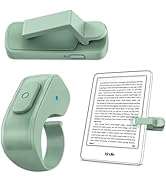
Figure 8: Product warranty information.

Figure 9: Customer service support is available for assistance.
Official Product Video
Video 1: An official overview of the DATAFY page turner, demonstrating its functionality and ease of use.