1. Introduction
This manual provides comprehensive instructions for the setup, operation, and maintenance of your LG 65-Inch Class QNED80T Series LED Smart TV (Model: 65QNED80TUC). This television combines Quantum Dot and NanoCell color technologies for vivid imagery, powered by the α5 AI Processor Gen7 for enhanced picture and sound. It features the webOS 24 smart platform for easy access to streaming services and includes a Magic Remote for intuitive control. Please read this manual thoroughly before using your television to ensure proper and safe operation.

Figure 1.1: Front view of the LG 65-Inch QNED80T Series Smart TV.
2. What's in the Box
Verify that all components listed below are included in your product packaging. If any items are missing or damaged, please contact your retailer or LG customer support.
- LG 65-Inch Class QNED80T Series LED Smart TV
- Magic Remote MR24
- Remote Control Batteries (AA x 2EA)
- Power Cable (attached)
- Quick Start Guide
- E-Manual (pre-installed on TV)

Figure 2.1: Package contents and TV dimensions with stand.
3. Setup
3.1. TV Placement and Stand Installation
Ensure the TV is placed on a stable, level surface or securely mounted to a wall. For stand installation, carefully attach the provided stands to the designated slots at the bottom of the TV, securing them with the appropriate screws. Refer to the Quick Start Guide for detailed visual instructions.
- Dimensions (W x H x D):
- Without stand: 57.3 x 33.1 x 1.2 inches
- With stand: 57.3 x 35.6 x 11.6 inches
- Weight: 50.5 pounds

Figure 3.1: Slim design of the LG QNED TV.
3.2. Connecting External Devices
Connect your external devices such as Blu-ray players, game consoles, soundbars, or set-top boxes to the appropriate ports on the rear of the TV. The TV features multiple HDMI and USB ports, along with Ethernet and Wi-Fi connectivity.

Figure 3.2: Rear view of the TV with port locations.

Figure 3.3: Close-up of Optical Digital Audio Out and LAN ports.
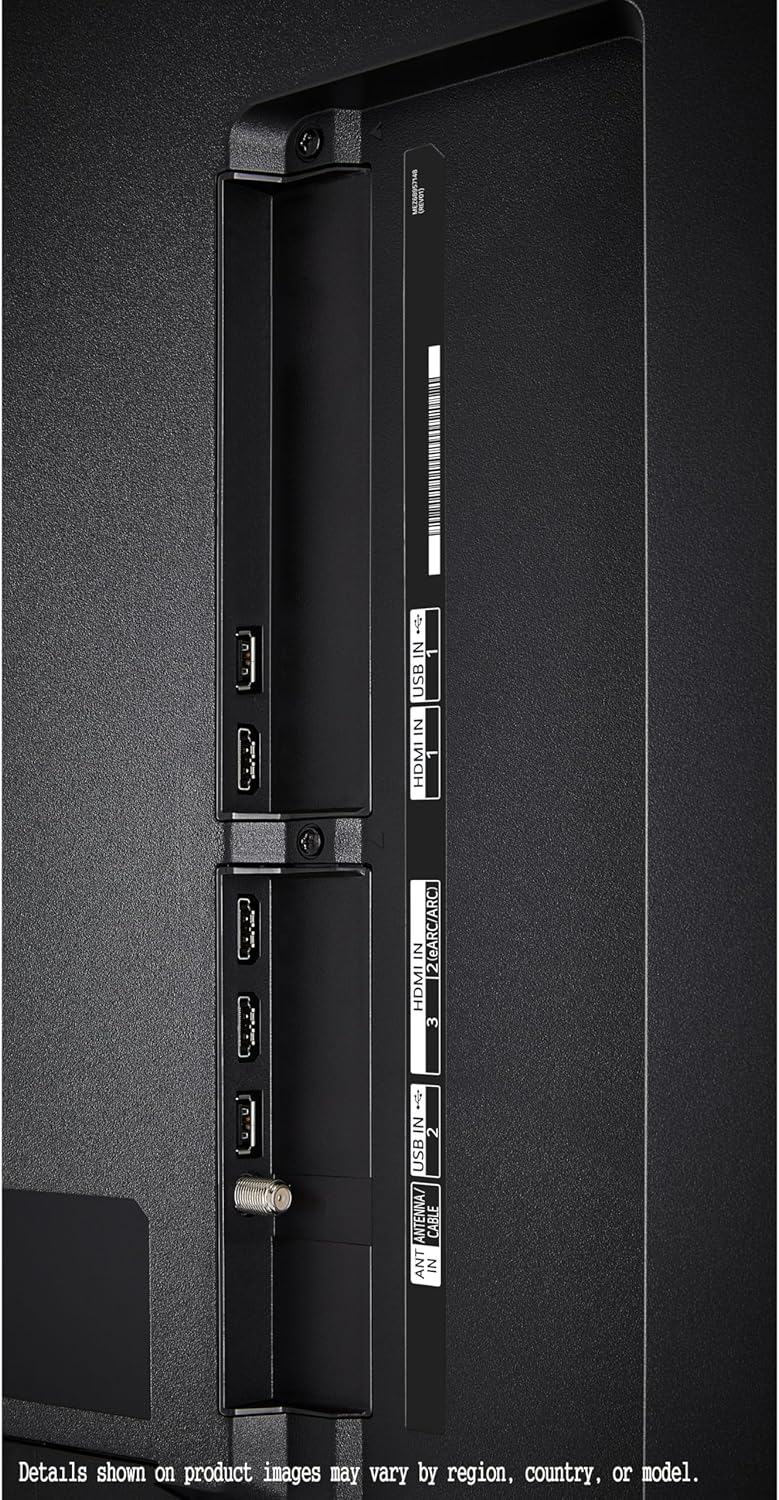
Figure 3.4: Close-up of HDMI, USB, and Antenna ports.
3.3. Initial Power On and Setup Wizard
After connecting the power cable, press the power button on the Magic Remote or the TV. The TV will guide you through an initial setup wizard, including language selection, network connection (Wi-Fi or Ethernet), channel tuning, and agreement to terms and conditions. Follow the on-screen prompts to complete the setup.
4. Operating Instructions
4.1. Magic Remote Usage
The Magic Remote provides intuitive control with its point, click, scroll, and voice recognition features. Point the remote at the TV to move the cursor, click to select, and use the scroll wheel for navigation. The built-in microphone allows for voice commands, including searching for content or controlling smart home devices.

Figure 4.1: LG Magic Remote.
4.2. webOS Smart Platform
Your LG QNED TV runs on webOS 24, offering a user-friendly interface for accessing streaming apps, live TV, and connected devices. Use Quick Cards to organize your favorite apps into categories for quick access. Explore LG Channels for over 300 free channels (internet connection required).
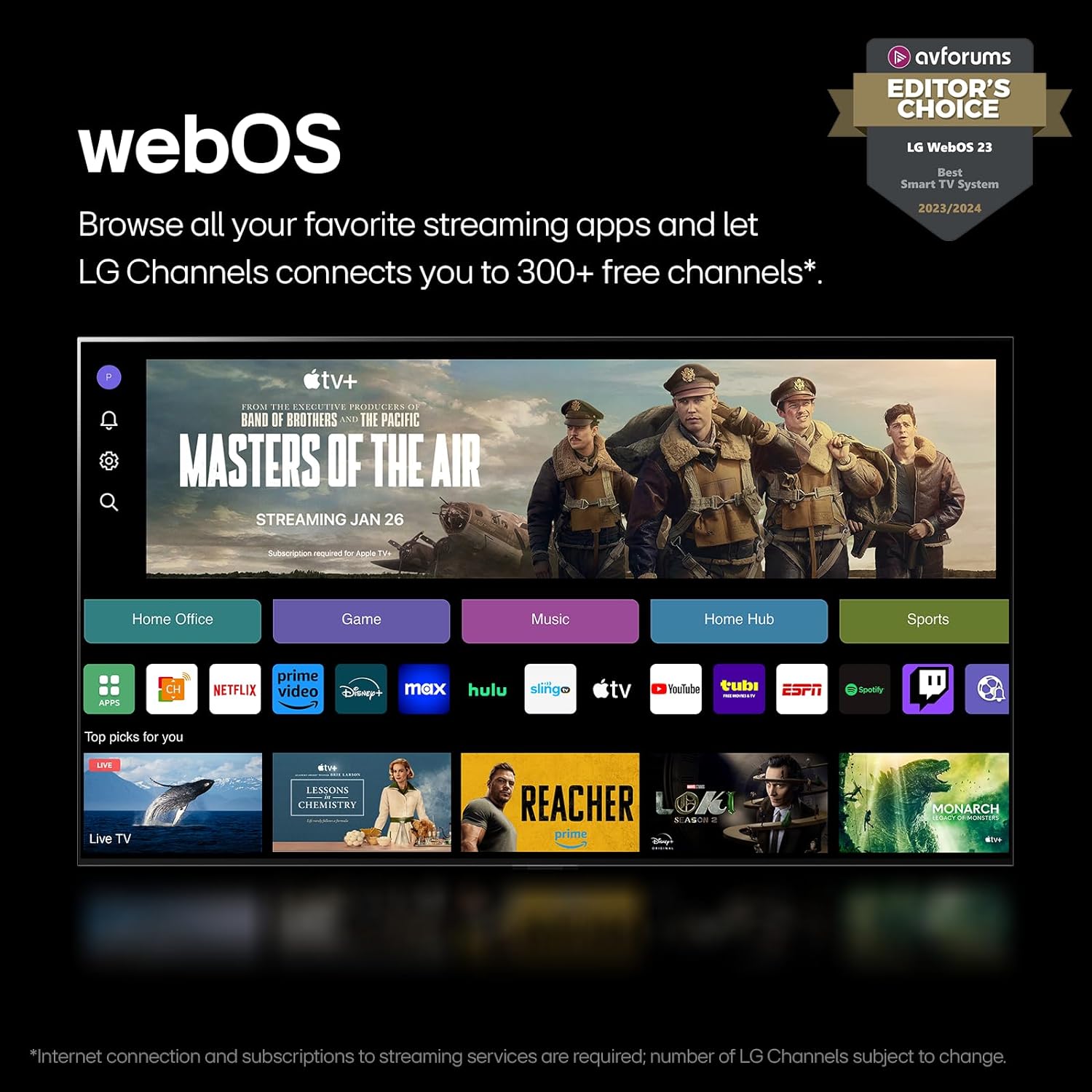
Figure 4.2: webOS Smart TV interface.
The webOS Re:New Program ensures your TV receives software updates and feature refreshes for up to 5 years, keeping your smart TV experience current.

Figure 4.3: webOS Re:New Program.
4.3. Picture and Sound Enhancement
The α5 AI Processor Gen7 enhances picture detail and sound quality by upscaling content to 4K and adjusting settings based on room lighting. Dimming Pro dynamically adjusts backlights for deep black levels. HDR10 Pro further elevates picture quality with enhanced color.
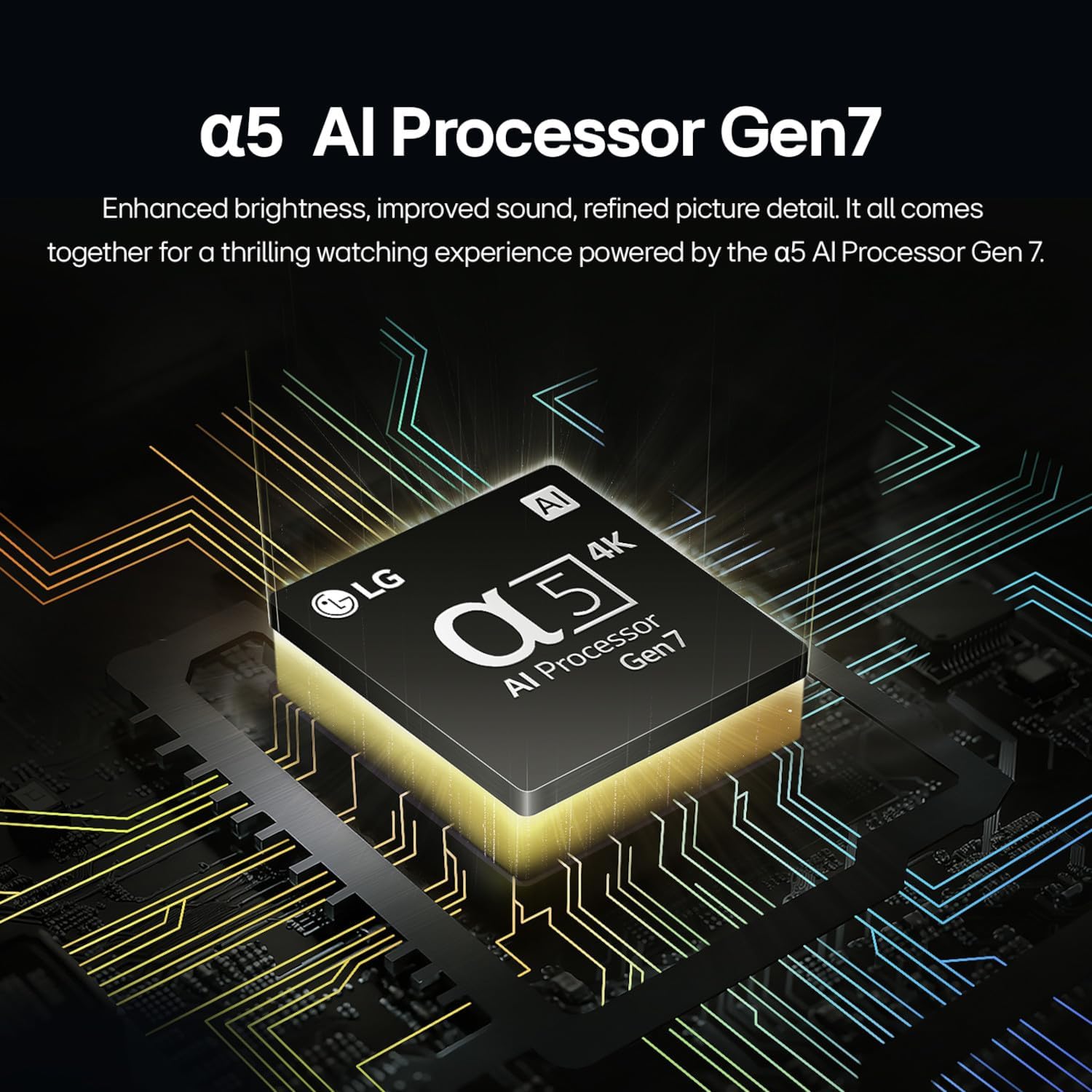
Figure 4.4: α5 AI Processor Gen7.
Activate FILMMAKER MODE to experience movies as intended by directors, with original aspect ratios, colors, and frame rates. The TV also provides virtual 5.1 surround sound for an immersive audio experience.
4.4. Gaming Features
For gamers, the LG Game Optimizer allows quick customization of gaming settings. With GeForce NOW integration, you can stream games directly to your TV (subscription and compatible controller required).
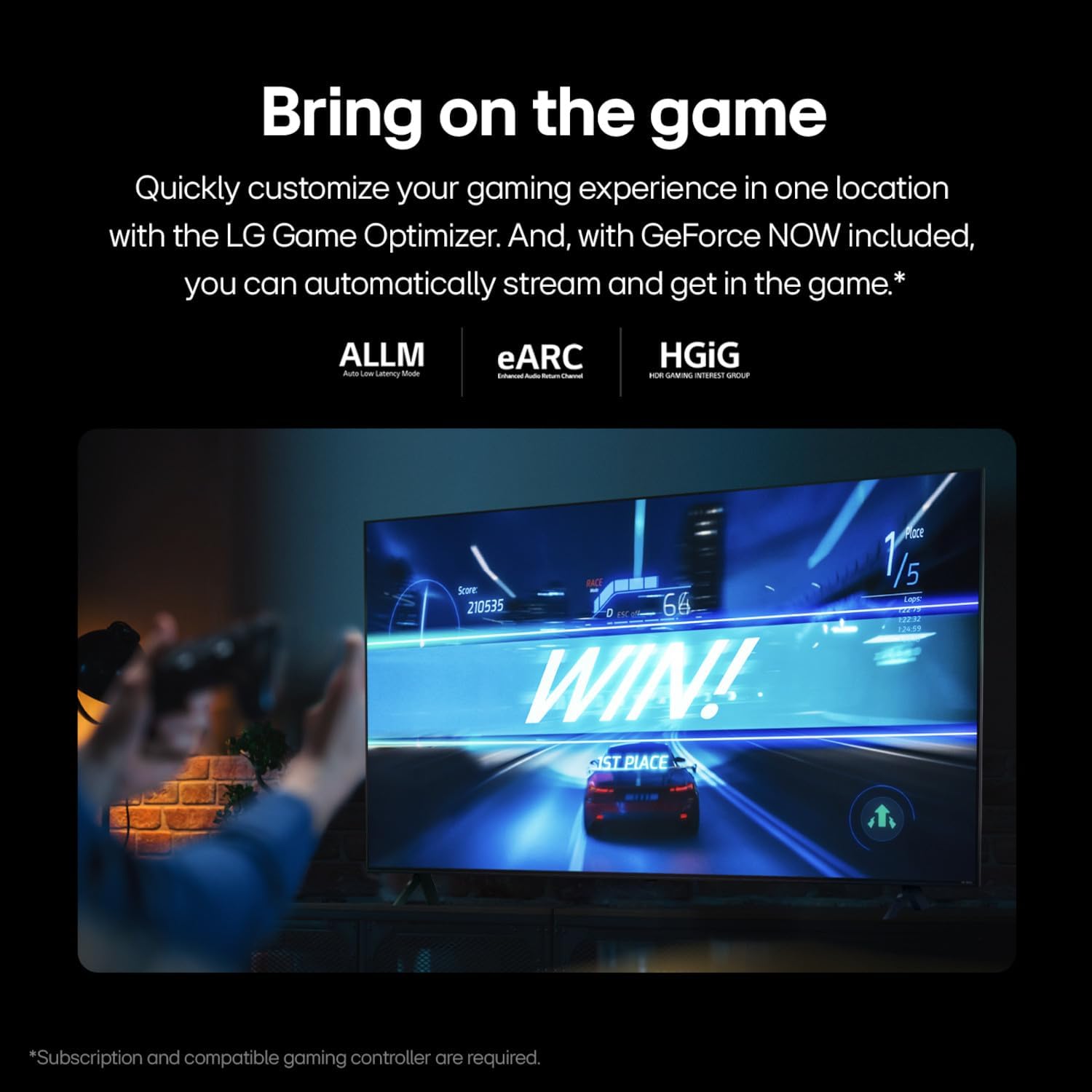
Figure 4.5: Gaming on LG QNED TV.
5. Maintenance
5.1. Screen Cleaning
To clean the screen, gently wipe it with a soft, dry microfiber cloth. For stubborn smudges, lightly dampen the cloth with distilled water or a screen-specific cleaning solution. Never spray liquid directly onto the screen. Avoid using harsh chemicals, abrasive materials, or paper towels, as these can damage the display.
5.2. TV Body Cleaning
Wipe the TV body, stand, and remote control with a soft, dry cloth. If necessary, a slightly damp cloth can be used, followed by a dry cloth to remove any moisture. Ensure the TV is unplugged before cleaning.
6. Troubleshooting
This section addresses common issues you might encounter. For more detailed troubleshooting, refer to the E-Manual on your TV or visit the LG support website.
| Problem | Possible Cause | Solution |
|---|---|---|
| No Power | Power cable disconnected; outlet issue. | Ensure power cable is securely plugged into TV and wall outlet. Test outlet with another device. |
| No Picture / No Sound | Incorrect input source; external device issue; cable connection. | Check input source (HDMI 1, 2, etc.). Verify external device is powered on. Check HDMI/audio cables. |
| Remote Control Not Working | Dead batteries; remote not paired. | Replace batteries (AA x 2EA). Re-pair Magic Remote by pointing it at the TV and pressing the Wheel (OK) button. |
| No Internet Connection | Wi-Fi signal weak; router issue; incorrect password. | Check Wi-Fi signal strength. Restart router. Verify Wi-Fi password. Try Ethernet connection. |
7. Specifications
| Feature | Detail |
|---|---|
| Model Number | 65QNED80TUC |
| Screen Size | 65 Inches (65.1" Diagonal) |
| Display Technology | LED with Quantum Dot and NanoCell Color |
| Resolution | 4K (3840 x 2160) |
| Refresh Rate | 60 Hz |
| Processor | α5 AI Processor Gen7 |
| Operating System | webOS 24 |
| Connectivity | Bluetooth, Ethernet, HDMI, USB, Wi-Fi |
| Special Features | Built-In Speaker, Flat Screen, Game Mode, Local Dimming, Multiple Voice Assistance (Alexa Built-in) |
| Speaker Type | 2.0 Channel |
| Product Dimensions (W x D x H) | 11.6"D x 57.3"W x 35.6"H (with stand) |
| Item Weight | 50.5 Pounds |
| On-mode Power Consumption | 119 watts |
| Estimated Yearly Energy Consumption | 220 Kilowatt Hours Per Year |

Figure 7.1: Energy Guide for LG 65QNED80TUC.
8. Warranty and Support
For warranty information, please refer to the warranty card included with your product or visit the official LG website. For technical support, troubleshooting assistance beyond this manual, or service requests, please contact LG Customer Support. Contact details can typically be found on the LG website or in the Quick Start Guide.
Online Support: Visit LG Support Website for FAQs, downloads, and service information.