
1. Introduction
This manual provides essential information for setting up, operating, and maintaining your Samsung 43-Inch Class 4K Crystal UHD DU8000 Series Smart TV. Please read these instructions carefully to ensure proper use and to maximize your viewing experience. Keep this manual for future reference.

Image: Front view of the Samsung DU8000 Series TV.
2. What's in the Box
Verify that all components are present before proceeding with the setup. The package should contain the following items:
- Samsung 43-Inch Class 4K Crystal UHD DU8000 Series Smart TV
- Power Cable
- User Manual (this document)
- SolarCell Remote (Model: TM2360E)
- TV Stand Components (legs and screws)
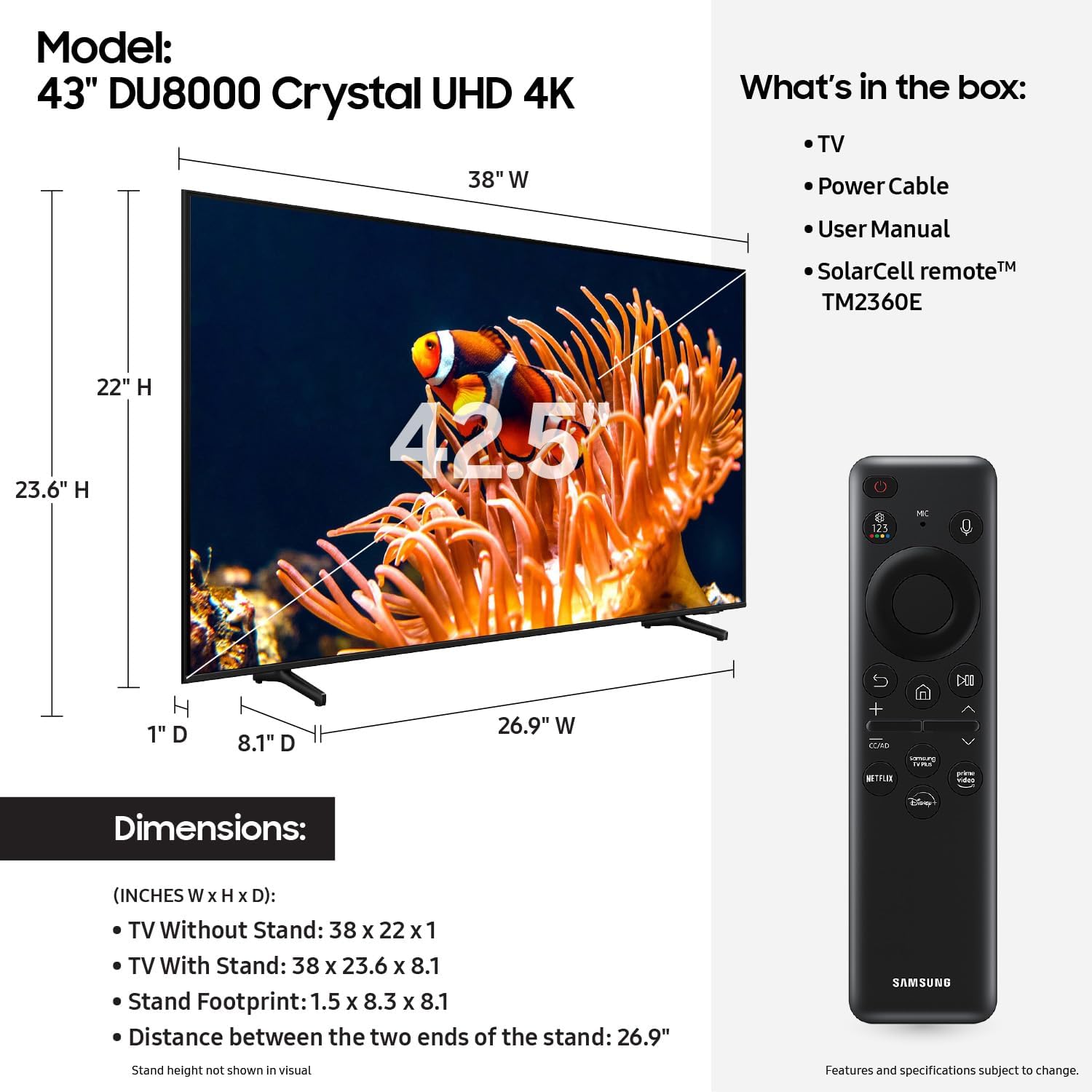
Image: Contents of the TV package and TV dimensions.
3. Setup
3.1 Unpacking
Carefully remove the TV from its packaging. It is recommended to have at least two people for this process to prevent damage to the screen or the TV body.
3.2 Stand Installation
- Place the TV screen-down on a soft, flat surface to prevent scratches.
- Align the TV stand legs with the designated slots on the bottom of the TV.
- Secure the legs using the provided screws. Ensure they are firmly attached.
3.3 Wall Mounting (Optional)
If you plan to wall-mount your TV, refer to the wall mount kit's instructions. The Samsung DU8000 Series TV is VESA compatible. Ensure proper ventilation around the TV when wall-mounted.
3.4 Connecting Peripherals
Connect your external devices to the TV's ports. Refer to the image below for port locations.

Image: Rear view of the TV with port labels.
- HDMI Ports: Connect Blu-ray players, game consoles, soundbars, and other HDMI-enabled devices. HDMI 2 supports eARC for enhanced audio return.
- USB Ports: Connect USB storage devices for media playback.
- LAN Port: Connect an Ethernet cable for a wired internet connection.
- Digital Audio Output (Optical): Connect to a sound system or soundbar for digital audio.
- Cable/Antenna: Connect an antenna or cable TV source.
3.5 Power On and Initial Setup
- Connect the power cable to the TV and then to a power outlet.
- Press the Power button on the remote control or the TV.
- Follow the on-screen instructions to complete the initial setup, including language selection, network connection (Wi-Fi or wired), and channel scanning.
- You may be prompted to create or log in to a Samsung Account to access all smart features and streaming apps.
4. Operating the TV
4.1 SolarCell Remote Control
The TV comes with a SolarCell Remote (Model: TM2360E) that can be charged via solar energy or USB-C. It features a minimalist design with essential buttons for navigation and smart features.
- Power Button: Turns the TV on or off.
- Directional Pad: Navigates menus and content.
- Select Button: Confirms selections.
- Back Button: Returns to the previous screen.
- Home Button: Accesses the Smart Hub.
- Volume/Channel Buttons: Adjusts volume and changes channels.
- Voice Assistant Button: Activates the built-in voice assistant (e.g., Alexa).
4.2 Smart Hub and Tizen OS
The Samsung Tizen OS provides access to a wide range of streaming services, apps, and smart features. Press the Home button on your remote to open the Smart Hub.

Image: Samsung Tizen OS Smart Hub interface.
- Navigation: Use the directional pad to browse apps and content.
- App Store: Download additional applications from the Samsung App Store.
- Universal Guide: Discover recommended content across various streaming services.
4.3 Picture Settings
To adjust picture settings, navigate to Settings > Picture. Common settings include:
- Picture Mode: Choose from Standard, Dynamic, Movie, or Filmmaker Mode.
- Brightness: Adjust the overall luminance of the screen.
- Contrast: Control the difference between light and dark areas.
- Color: Adjust color saturation.
- Sharpness: Enhance edge detail.
4.4 Sound Settings
To adjust sound settings, navigate to Settings > Sound. Key features include:
- Sound Mode: Select from Standard, Adaptive Sound, or Amplify.
- Object Tracking Sound Lite: Experience 3D surround sound that follows on-screen movement.
- Equalizer: Fine-tune audio frequencies.
- Digital Audio Output Format: Configure for external audio devices.
4.5 Gaming Hub
The Gaming Hub provides a centralized location for cloud gaming services and connected consoles. Access it from the Smart Hub to stream games without a console or manage your gaming devices.
5. Key Features
5.1 AirSlim Design
The TV features an AirSlim design, allowing it to blend seamlessly into your living space. Its thin profile minimizes visual distraction and offers a modern aesthetic.

Image: AirSlim TV mounted on a wall.
5.2 4K Upscaling
The 4K Upscaling feature enhances lower-resolution content to near-4K quality, providing a clearer and more detailed picture even for non-4K sources.

Image: 4K Upscaling demonstration.
5.3 Motion Xcelerator
Motion Xcelerator technology improves motion clarity between frames, reducing lag and blur in fast-paced scenes, such as sports or action movies, for a smoother viewing experience.

Image: Motion Xcelerator in action.
5.4 Mega Contrast
Mega Contrast automatically adjusts brightness and contrast levels to enhance the depth and detail of images. This feature reduces the difference between light and dark areas, making objects on screen more prominent.

Image: Mega Contrast effect on a city scene.
5.5 Dynamic Crystal Color
Dynamic Crystal Color delivers a wide spectrum of colors, producing over one billion shades. This results in more nuanced and lifelike colors, enhancing the overall picture quality.

Image: Dynamic Crystal Color rendering.
5.6 HDR (High Dynamic Range)
HDR technology expands the range of light and dark in a scene, revealing more detail and a broader spectrum of colors. Brightness and contrast are optimized in every frame for a more immersive viewing experience.

Image: HDR effect on a landscape.
5.7 Crystal Processor 4K
The Crystal Processor 4K is the TV's intelligent engine that optimizes picture quality. It automatically transforms movies and shows with 3D color mapping and Adaptive Sound, upgrading content to dazzling 4K resolution.

Image: Crystal Processor 4K enhancement.
6. Maintenance
6.1 Cleaning the TV
- Screen: Gently wipe the screen with a soft, dry microfiber cloth. For stubborn smudges, slightly dampen the cloth with water or a specialized screen cleaner (do not spray directly onto the screen).
- Body: Wipe the TV frame and stand with a soft, dry cloth. Avoid using abrasive cleaners or solvents.
6.2 Software Updates
To ensure optimal performance and access to the latest features, regularly check for and install software updates. Navigate to Settings > Support > Software Update to check for available updates or enable automatic updates.
7. Troubleshooting
If you encounter issues with your TV, refer to the following common problems and solutions:
| Problem | Possible Solution |
|---|---|
| TV does not turn on. | Check if the power cable is securely connected to the TV and the power outlet. Ensure the outlet is functional. Try a different power outlet. |
| No picture or distorted picture. | Check cable connections to external devices (HDMI, antenna). Ensure the correct input source is selected. Try restarting the TV and connected devices. |
| No sound or low sound. | Check the volume level. Ensure external audio devices are properly connected and powered on. Check sound output settings in the TV menu. |
| Remote control not working. | Ensure the remote is charged (SolarCell remote). Point the remote directly at the TV. Try pairing the remote again if it's a Bluetooth remote. |
| Cannot connect to Wi-Fi. | Check if your router is on and functioning. Restart your router and modem. Re-enter the Wi-Fi password carefully. Try a wired (LAN) connection if possible. |
8. Specifications
| Feature | Detail |
|---|---|
| Brand | Samsung |
| Model Number | UN43DU8000FXZA |
| Screen Size | 43 Inches |
| Display Technology | UHD (Crystal Display) |
| Resolution | 4K (3840 x 2160) |
| Refresh Rate | 60 Hz |
| Processor | Crystal Processor 4K |
| Operating System | Samsung Tizen OS |
| Special Features | AirSlim Design, 4K Upscaling, Motion Xcelerator, Dynamic Crystal Color, HDR10+, Contrast Enhancer, Filmmaker Mode, Object Tracking Sound Lite, Gaming Hub, Alexa Built-in |
| Connectivity | Bluetooth, Wi-Fi, HDMI (eARC), USB, LAN, Digital Audio Output (Optical) |
| Speaker Type | 2CH |
| Power Consumption (On-mode) | 75 watts |
| Product Dimensions (W x H x D) | 38" x 23.6" x 8.1" (with stand) |
| Item Weight | 19.2 Pounds |
9. Warranty and Support
For warranty information and technical support, please visit the official Samsung website or contact Samsung customer service. You can find detailed support resources, FAQs, and contact options at www.samsung.com/us/support/.
Please have your TV's model number (UN43DU8000FXZA) and serial number ready when contacting support.


