
1. Introduction
This manual provides essential information for the proper installation, operation, and maintenance of your Genuine Original 781581-005 300GB 12G SAS 10K RPM SFF SC Hard Drive. Please read this manual thoroughly before using the product to ensure optimal performance and longevity.
The 781581-005 is a high-performance Small Form Factor (SFF) Serial Attached SCSI (SAS) hard drive designed for enterprise-level storage solutions, offering a 300GB capacity and a 10,000 RPM spindle speed for fast data access. It features a 12Gb/s SAS interface for high-speed data transfer.
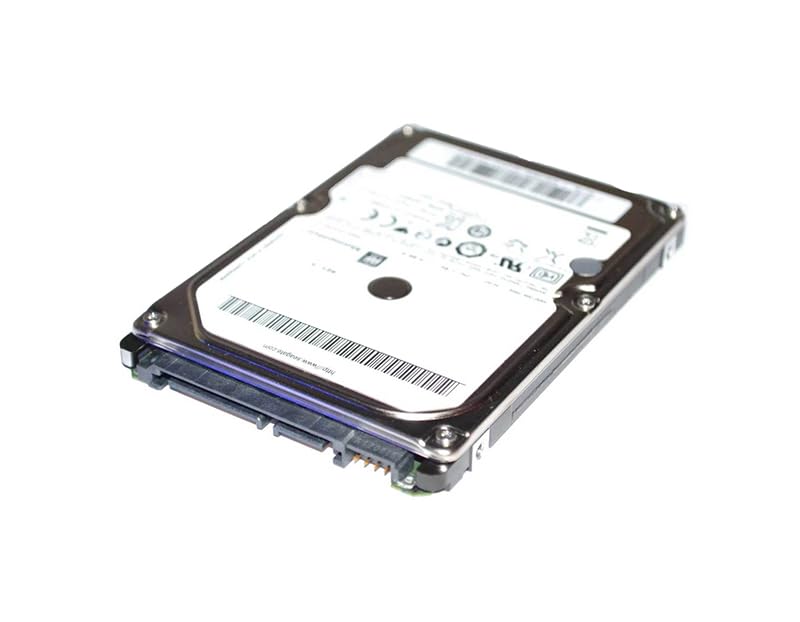
Image: Genuine Original 781581-005 300GB 12G SAS Hard Drive. This image displays the compact form factor of the hard drive, typically used in server or workstation environments.
2. Safety Information
Observe the following safety precautions to prevent damage to the drive and ensure personal safety:
- Electrostatic Discharge (ESD) Protection: Always wear an anti-static wrist strap and work on an anti-static mat when handling the hard drive. ESD can severely damage electronic components.
- Power Off: Ensure the host system is completely powered off and disconnected from the power source before installing or removing the hard drive.
- Handle with Care: Hard drives are delicate. Avoid dropping or subjecting the drive to physical shock. Hold the drive by its edges.
- Ventilation: Ensure adequate airflow around the drive when installed to prevent overheating.
3. Package Contents
Verify that all items are present in the package:
- Genuine Original 781581-005 300GB 12G SAS 10K RPM SFF SC Hard Drive
- This User Manual (or link to digital version)
Note: Mounting screws or SAS cables are typically not included with the hard drive and must be sourced separately if required for your system.
4. Setup and Installation
4.1 Pre-installation Checks
- Confirm your system's compatibility with 2.5-inch SFF SAS drives and 12Gb/s SAS interface.
- Ensure your system has available drive bays and a compatible SAS controller.
- Back up any critical data on your existing storage devices before proceeding.
4.2 Physical Installation
- Power down your computer or server and disconnect all power cables.
- Open the computer or server case according to the manufacturer's instructions.
- Locate an available 2.5-inch drive bay. If using a 3.5-inch bay, an adapter bracket may be required.
- Carefully slide the 781581-005 hard drive into the drive bay until it is securely seated.
- Secure the drive with appropriate mounting screws, if applicable for your system's drive cage.
- Connect the SAS data and power cable from your system's SAS controller to the corresponding port on the hard drive. Ensure a firm connection.
- Close the computer or server case and reconnect all power cables.
4.3 Initial System Recognition
- Power on your computer or server.
- Access your system's BIOS/UEFI or SAS controller configuration utility to verify that the new hard drive is detected.
- If the drive is not detected, power off the system and recheck all cable connections.
5. Operating Instructions
5.1 Drive Initialization and Formatting
After physical installation and system recognition, the drive must be initialized and formatted before use.
- Boot into your operating system (e.g., Windows, Linux, VMware).
- Open the Disk Management utility (Windows) or a similar disk utility (Linux/VMware).
- Locate the newly installed 781581-005 drive, which will likely appear as 'Unallocated Space'.
- Initialize the disk (e.g., MBR or GPT partition style, depending on your system requirements).
- Create a new volume/partition on the drive and format it with your desired file system (e.g., NTFS, ext4, VMFS).
- Assign a drive letter or mount point.
5.2 Data Storage and Retrieval
Once formatted, the drive will be ready for data storage and retrieval like any other storage device. Its 10,000 RPM speed and 12Gb/s SAS interface are optimized for high-speed I/O operations, making it suitable for demanding applications, databases, and virtualized environments.
6. Maintenance
- Data Backup: Regularly back up critical data to prevent loss in case of drive failure or other unforeseen events.
- Firmware Updates: Check with your system or SAS controller manufacturer for any available firmware updates for the hard drive. Firmware updates can improve performance, stability, and compatibility.
- Physical Care: The drive is designed to be dust resistant. However, ensure the operating environment is clean and free from excessive dust to maintain optimal cooling and prevent component degradation.
- Monitoring: Utilize S.M.A.R.T. (Self-Monitoring, Analysis and Reporting Technology) tools to monitor the health status of the drive.
7. Troubleshooting
7.1 Drive Not Detected
- Check Connections: Ensure the SAS data and power cables are securely connected to both the drive and the SAS controller.
- BIOS/UEFI Settings: Verify that the SAS controller is enabled in the system's BIOS/UEFI settings.
- Controller Drivers: Ensure the correct and latest drivers for your SAS controller are installed.
- Try Another Port/Cable: If possible, test the drive with a different SAS port or cable to rule out faulty components.
7.2 Performance Issues
- System Load: High CPU or memory usage on the host system can impact drive performance.
- SAS Controller Bottleneck: Ensure your SAS controller is capable of handling 12Gb/s speeds and is not saturated by other devices.
- Drive Health: Check S.M.A.R.T. data for any indications of impending drive failure.
- Fragmentation: While less common with modern file systems, severe fragmentation can impact performance. Consider defragmentation if applicable.
8. Specifications
| Feature | Description |
|---|---|
| Model Number | 781581-005 |
| Digital Storage Capacity | 300 GB |
| Hard Disk Interface | SAS (Serial Attached SCSI) |
| Interface Speed | 12 Gb/s |
| Hard Disk Form Factor | 2.5 inches (SFF) |
| Spindle Speed | 10,000 RPM |
| Installation Type | Internal Hard Drive |
| Special Feature | Dust Resistant |
| Compatible Devices | Laptop (and Servers/Workstations with 2.5" SAS bays) |
9. Warranty and Support
For warranty information and technical support, please refer to the documentation provided by your reseller or the original equipment manufacturer (OEM) of your system. As this is a component part, warranty terms are typically handled through the point of purchase or the system integrator.
Ensure you retain your proof of purchase for any warranty claims.