
Introduction
This manual provides comprehensive instructions for the setup, operation, maintenance, and troubleshooting of your Generic Wireless Lavalier Microphone 2-in-1 for Type-C Devices. Designed for mobile content creators, vloggers, and podcasters, this microphone system enhances audio recording quality for Type-C compatible devices.
The package includes: 1 x Rechargeable Wireless Microphone, 1 x Receiver, 1 x English Manual, 1 x USB cable.
Setup Guide
1. Unpacking and Component Identification
Carefully remove all components from the packaging. Ensure you have the wireless microphone (transmitter), the Type-C receiver, and the USB charging cable.
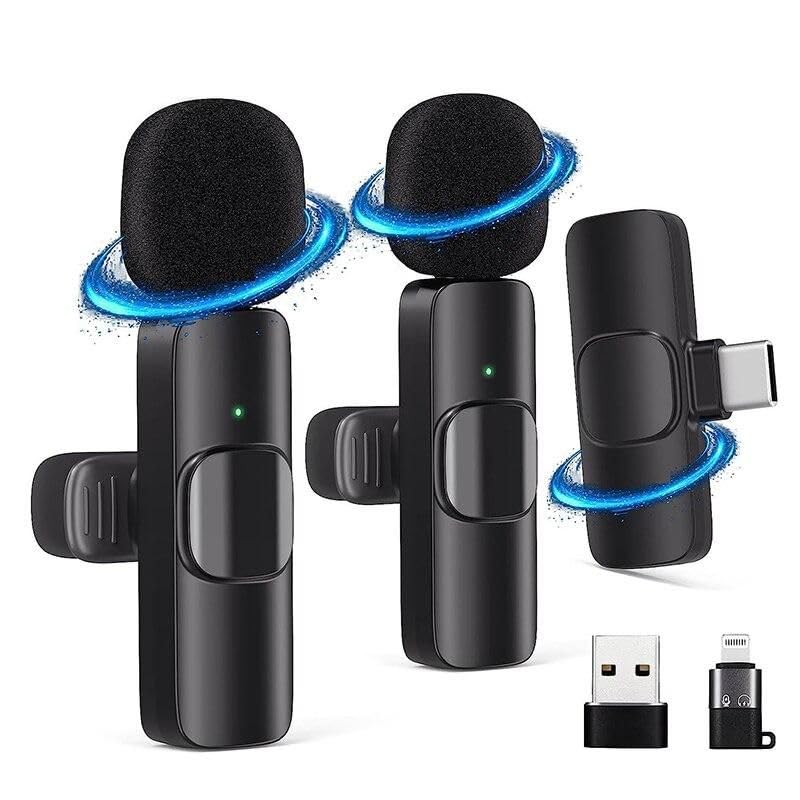
Image: The wireless lavalier microphone (transmitter) and its accompanying Type-C receiver. The microphone features a foam windscreen and a clip, while the receiver has a Type-C connector.
2. Charging the Microphone
Before first use, fully charge the wireless microphone. Connect the provided USB-C charging cable to the microphone's charging port and a suitable USB power source. The indicator light will show charging status (e.g., red for charging, green for fully charged).
3. Connecting the Receiver
The system is plug-and-play. Simply insert the Type-C receiver into the Type-C port of your smartphone, tablet, or other compatible recording device. No additional apps or Bluetooth pairing are required for initial connection.
4. Attaching the Microphone
Clip the wireless microphone onto your clothing, ideally near your mouth, for optimal sound capture. The clip can be rotated to adjust its orientation for comfort and best placement.

Image: A person wearing the wireless lavalier microphone while recording with a smartphone mounted on a tripod, demonstrating typical usage for vlogging or live streaming.
Operating Instructions
Power On/Off
Press and hold the power button on the microphone to turn it on or off. A green indicator light typically signifies that the microphone is powered on and connected. A red light may indicate charging or a connection issue.
Recording Audio
Once the receiver is plugged into your device and the microphone is powered on and connected (indicated by a steady green light), you can begin recording audio using your device's standard camera or audio recording application. The microphone features 360° omnidirectional pickup, capturing sound from all directions.
Intelligent Noise Reduction
The microphone is equipped with intelligent noise reduction technology to minimize background noise, ensuring clear audio capture even in environments with ambient sounds.
Ultra-Low Latency
This microphone system operates with ultra-low latency (approximately 9 ms), making it suitable for live broadcasts and real-time video recording where audio-video synchronization is critical.
Compatibility
The Type-C receiver ensures seamless compatibility with a wide range of devices including mobile phones, tablets, and notebooks that feature a Type-C port. Ensure your device supports external audio input via its Type-C port.
Maintenance
Cleaning
To clean the microphone and receiver, use a soft, dry cloth. Do not use liquid cleaners or solvents, as these can damage the electronic components. The foam windscreen can be gently removed and cleaned if necessary, or replaced if damaged.
Storage
When not in use, store the microphone and receiver in a cool, dry place, away from direct sunlight and extreme temperatures. Keeping them in their original packaging or a protective pouch can prevent damage.
Battery Care
To prolong battery life, avoid fully discharging the microphone frequently. Charge the microphone regularly, even if not in constant use, to maintain battery health. Do not expose the battery to excessive heat.
Troubleshooting
- No Sound Recording:
- Ensure the receiver is fully inserted into your device's Type-C port.
- Verify the microphone is powered on (green indicator light).
- Check your device's audio input settings to ensure the external microphone is selected.
- Confirm the microphone is charged.
- Intermittent Connection:
- Ensure there are no significant obstructions between the microphone and the receiver.
- Avoid using the microphone near strong electromagnetic interference sources.
- Check the microphone's battery level.
- Poor Audio Quality:
- Ensure the microphone is positioned correctly on your clothing, close to your mouth.
- Check if the foam windscreen is properly attached to reduce plosives and wind noise.
- Test in a quieter environment to assess the effectiveness of noise reduction.
- Microphone Not Charging:
- Verify the USB-C charging cable is securely connected to both the microphone and the power source.
- Try a different USB power adapter or port.
- Ensure the charging cable is not damaged.
Specifications
| Brand | Generic |
| Model | 2in1 For Type-C |
| Recommended Uses | Wireless Microphone for Vlogging, Podcasting, Live Streaming, Interviews |
| Connectivity Technology | Wireless |
| Connector Type | USB Type-C |
| Special Feature | Wireless, Intelligent Noise Reduction, Ultra-Low Latency (9 ms), 360° Omnidirectional Pickup |
| Compatible Devices | Mobile Phones, Tablets, Notebooks with Type-C port |
| Color | Black |
| Included Components | 1 x Wireless Microphone, 1 x Type-C Receiver, 1 x USB Charging Cable |
| Power Source | Battery Powered |
| Material | Plastic |
Warranty Information
Please note that this product is sold without an explicit warranty. For any issues, please refer to the troubleshooting section or contact your retailer for assistance regarding their return policy.
Customer Support
For further assistance or inquiries regarding your Wireless Lavalier Microphone, please refer to the retailer's customer service channels. Keep your purchase receipt handy for any support requests.