
Olympia 2289
Olympia Neo Mini Smartphone User Manual
Model: 2289
1. Introduction
The Olympia Neo Mini is a smartphone specifically designed to meet the needs of seniors, offering a simplified user experience with large icons, a clear display, and essential pre-installed applications. Its intuitive interface and dedicated physical buttons ensure ease of use for daily communication and safety.

The Olympia Neo Mini in its charging cradle, showcasing its user-friendly interface and integrated SOS button.
2. What's in the Box
Please check the contents of your package to ensure all items are present:
- Olympia Neo Mini Smartphone
- USB C Cable
- Charging Station
- User Manual (this document)

The Olympia Neo Mini with its included charging station and USB-C cable.
3. Setup
3.1. Inserting SIM Card and SD Card
- Carefully remove the back cover of the smartphone.
- Locate the SIM card slot(s) and the microSD card slot.
- Insert your Nano-SIM card(s) into the designated slot(s) with the gold contacts facing down.
- If desired, insert a microSD card (up to 128GB, not included) into its slot for expanded storage.
- Replace the back cover securely.
3.2. Charging the Device
Before first use, fully charge the Olympia Neo Mini. You can charge it using the included charging station or directly via the USB-C cable.
- Using the Charging Station: Connect the USB-C cable to the charging station and then to a power adapter (not included). Place the smartphone into the charging station, ensuring it sits correctly. The charging indicator on the screen will appear.
- Direct Charging: Connect the USB-C cable directly to the phone's charging port and then to a power adapter.
3.3. Powering On/Off
- To Power On: Press and hold the Power button (located on the side) until the Olympia logo appears.
- To Power Off: Press and hold the Power button until the power options menu appears. Select "Power off" and confirm.
3.4. Initial Setup Wizard
Upon first power-on, the device will guide you through an initial setup process. Follow the on-screen prompts to select your language, connect to Wi-Fi, and set up basic preferences.
4. Operating Instructions
4.1. Navigation
The Olympia Neo Mini features a simplified Android interface with large, easy-to-tap icons and dedicated physical navigation buttons at the bottom of the screen:
- Call Button: Initiates a call or answers an incoming call.
- Home Button: Returns to the main home screen from any application.
- Back Button: Returns to the previous screen or closes the current application.
4.2. Making and Receiving Calls
- To Make a Call: Tap the large "Telefon" (Phone) icon on the home screen. You can then dial a number using the large keypad or select a contact from your address book. Press the Call button to initiate.
- To Receive a Call: When a call comes in, press the Call button to answer.
- To End a Call: Press the End Call button (usually the same as the Call button, or an on-screen button).
4.3. Using Pre-installed Apps
- WhatsApp: Tap the "WhatsApp" icon to open the messaging application. You can send text messages, photos, and videos to your contacts. Ensure you have an active internet connection (Wi-Fi or mobile data).
- Mediteo: Tap the "Mediteo" icon to access the medication reminder app. Set up your medication schedule to receive timely reminders.
- Camera: Tap the "Kamera" (Camera) icon to open the camera application. You can switch between the front and rear cameras. Tap the shutter button to take photos or record videos.
4.4. Volume Adjustment
Use the Volume Up and Volume Down buttons located on the side of the phone to adjust call volume, media volume, and ringtone volume.
5. Key Features
5.1. SOS Emergency Button
The Olympia Neo Mini is equipped with a dedicated SOS emergency button on the back of the device. In case of an emergency, pressing and holding this button will:
- Trigger an alarm sound.
- Automatically send an emergency SMS message with your location to pre-set emergency contacts.
- Automatically dial pre-set emergency contacts one by one until a connection is established.
Important: Ensure emergency contacts are set up correctly in the phone's settings for this feature to function.

The dedicated SOS emergency button on the back of the Olympia Neo Mini.
5.2. Hearing Aid Compatibility (HAC)
The device is designed to be compatible with hearing aids, reducing interference and improving call clarity for users with hearing aids.
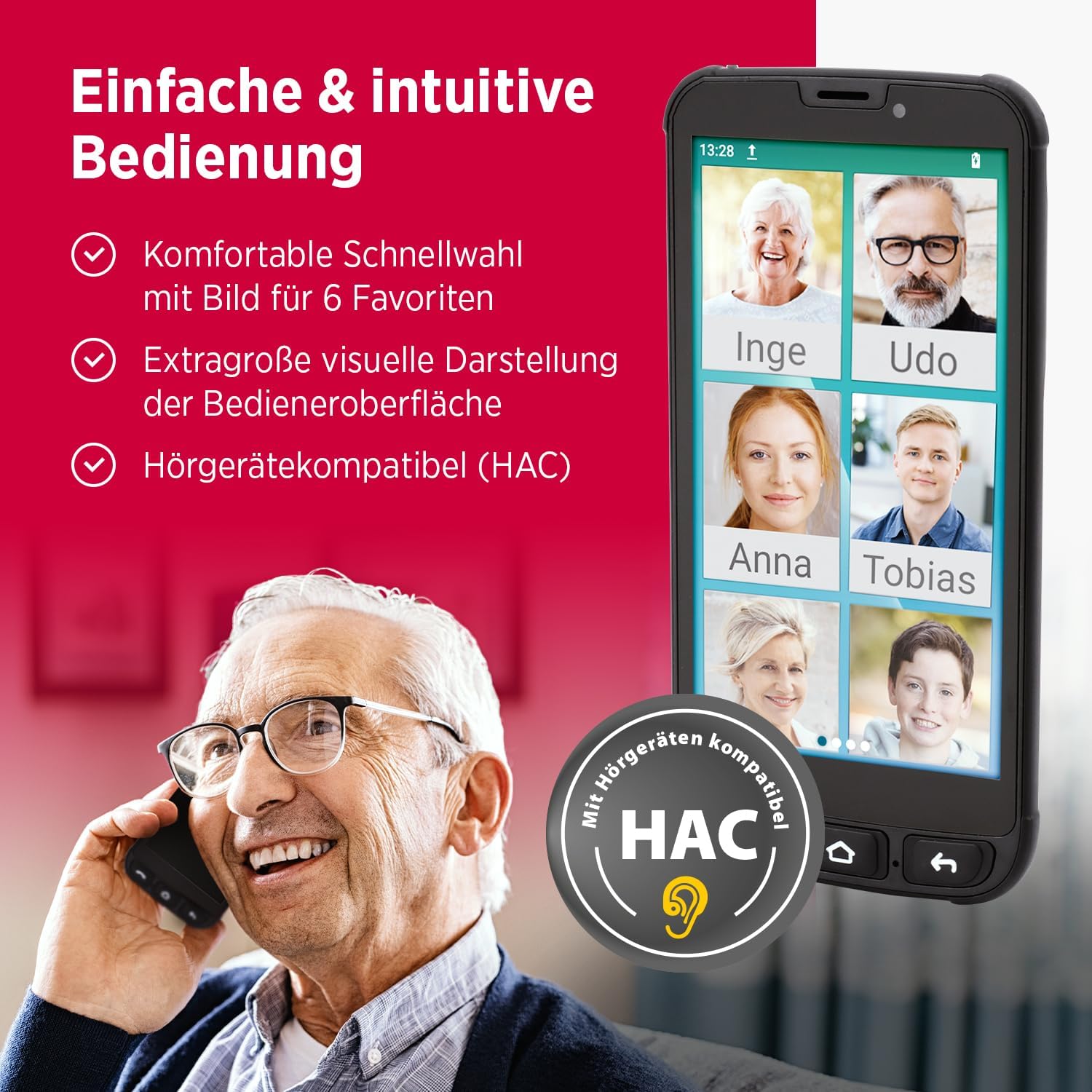
The Olympia Neo Mini features a simplified interface and is hearing aid compatible.
5.3. Mediteo Medication Reminder App
The pre-installed Mediteo app helps users manage their medication intake by providing timely reminders, ensuring adherence to prescribed schedules.

The Mediteo app provides useful medication reminders.
5.4. Integrated Flashlight
The smartphone includes a built-in flashlight for convenience. It can typically be activated from the quick settings panel by swiping down from the top of the screen.
6. Maintenance
- Cleaning: Use a soft, dry cloth to clean the screen and body of the phone. Avoid using harsh chemicals or abrasive materials.
- Battery Care: To prolong battery life, avoid extreme temperatures. Do not leave the phone fully charged or fully discharged for extended periods.
- Software Updates: Periodically check for software updates in the phone's settings to ensure optimal performance and security.
- Storage Management: Regularly clear unnecessary files and applications to maintain sufficient storage space and device speed.
7. Troubleshooting
| Problem | Possible Solution |
|---|---|
| Phone does not turn on | Ensure the battery is charged. Press and hold the Power button for at least 10 seconds. |
| Cannot make/receive calls | Check if the SIM card is properly inserted. Ensure you have network coverage. Restart the phone. |
| Apps are slow or crashing | Close background apps. Clear app cache. Restart the phone. Ensure sufficient storage space. |
| Charging issues | Check the USB-C cable and charging station for damage. Ensure the connection is secure. Try a different power adapter. |
| SOS button not working | Verify that emergency contacts are correctly configured in the phone's settings. Ensure the phone has network signal. |
If problems persist, please refer to the contact information in the Support section.
8. Specifications

Physical dimensions of the Olympia Neo Mini.
| Feature | Detail |
|---|---|
| Model Name | NEO MINI Black |
| Model Number | 2289 |
| Operating System | Android 13.0 |
| Display Size | 5 inches |
| Resolution | 720 x 1280 |
| Installed RAM Size | 16 GB |
| Storage Capacity | 16 GB |
| Mobile Technology | 4G |
| Connectivity Technology | USB |
| Color | Black |
| Product Dimensions | 14.83 x 7.42 x 1.04 cm |
| Item Weight | 121.1 Grams |
| Mobile Operator | Unlocked |
9. Warranty and Support
This product comes with a standard manufacturer's warranty. Please refer to the warranty card included in your package for specific terms and conditions.
For technical support, troubleshooting assistance, or warranty claims, please contact Olympia customer service. Contact details can typically be found on the manufacturer's official website or on the product packaging.
Manufacturer: GO Europe GmbH
Ask a question about this manual
Ask about setup, troubleshooting, compatibility, parts, safety, or missing instructions. Manuals+ will review the question and use this page’s manual context to help answer it.