
Hall Research GEM-EX-S
Hall Technologies GEM-EX-S Dual 4K HDMI, USB, Audio, and RS-232 Extender User Manual
Model: GEM-EX-S
1. Introduction
This manual provides comprehensive instructions for the installation, operation, and maintenance of the Hall Technologies GEM-EX-S Dual 4K HDMI, USB, Audio, and RS-232 Extender system. The GEM-EX system consists of a GEM-EX-S Sender and one or more GEM-EX-R Receivers (sold separately).
The system is designed to extend dual HDMI video (up to 4K UHD @ 30 Hz), USB 2.0, analog audio, and dual RS-232 signals over a single CAT6 cable up to 100 meters (328 feet). It supports various resolutions including 1080p @ 60 Hz and 4K UHD @ 30 Hz.
Key Features:
- Supports high resolution HDMI video: FHD (1920×1080), WQHD (2560×1440), and 4K UHD (3840×2160).
- Extends two video streams, one USB port, one audio signal, and two RS-232 ports over a single CAT6 cable up to 100 m/328 ft.
- Full plug-and-play support for USB keyboard, mouse, and connected peripherals.
- Operating system independent; no drivers or software required.
- Local HDMI and USB outputs on the Sender unit.
- Two Sender extension outputs and one Receiver daisy-chain output for multi-location distribution.
- No video calibration required; maintains video quality regardless of cable length or resolution.
- Locking power supply connector for secure connection.
- Sender includes mounting ears for 19-inch rack installation; Receiver includes mounting brackets for surface mounting.
2. Package Contents
Verify that all items are present and in good condition upon opening the package:
- 1x GEM-EX-S Sender Unit
- 2x Rack-Mount Ears and Screws
- 1x Power Supply
Note: The GEM-EX-R Receiver unit is sold separately and is required for a complete extension system.
3. Setup and Installation
3.1 Safety Precautions
- Ensure all devices are powered off before making any connections.
- Use only the provided power supply.
- Do not expose the unit to moisture or extreme temperatures.
- Avoid blocking ventilation openings.
3.2 Connection Diagram
The following diagram illustrates a typical setup for the GEM-EX system, including connections for the Sender and Receiver units.

Image Description: A block diagram illustrating the connection of the Hall Technologies GEM-EX-S Sender and GEM-EX-R Receiver units. On the left, a "LOCAL COMPUTER" section shows a dual-head PC connected to the GEM-EX Sender via HDMI, USB, Audio, and RS-232 cables. The GEM-EX Sender has two RJ45 outputs labeled "LINK 1" and "LINK 2". "LINK 1" connects to a "PRIMARY REMOTE STATION" which includes a GEM-EX Receiver, two monitors, a keyboard, mouse, and printer. "LINK 2" connects to an "OPTIONAL SECONDARY REMOTE STATION" with another GEM-EX Receiver. An additional "OPTIONAL VIDEO ONLY DISPLAY" shows a direct connection from the GEM-EX Receiver to an Ultra-V Receiver for a single HDMI monitor. All CAT6 cable runs are indicated as up to 100M.
3.3 Sender Unit (GEM-EX-S) Connections
Refer to the image below for a visual guide to the GEM-EX-S Sender unit's ports and indicators.
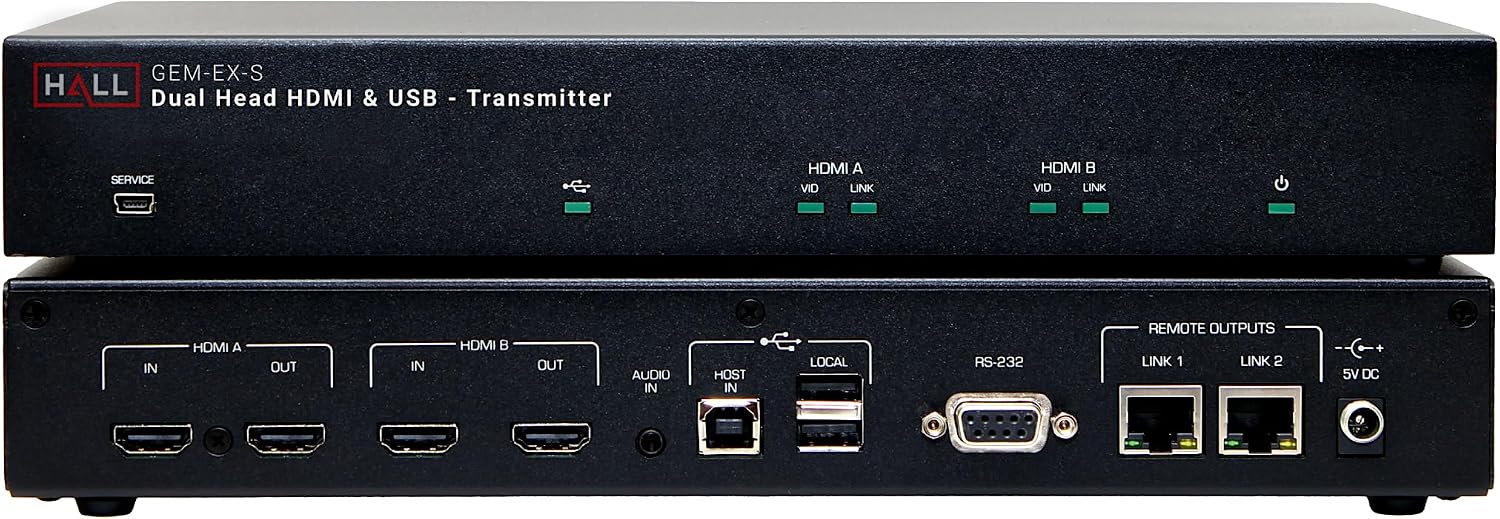
Image Description: A top-down view of the Hall Technologies GEM-EX-S Sender unit, showing both its front and rear panels. The front panel (top unit in image) displays LED indicators for HDMI A (VID, LINK), HDMI B (VID, LINK), and a power indicator. It also has a "SERVICE" micro-USB port. The rear panel (bottom unit in image) features: two HDMI inputs (HDMI A IN, HDMI B IN), two HDMI outputs (HDMI A OUT, HDMI B OUT), an Audio In port, a USB Host port, two local USB ports, an RS-232 port (DB9), two RJ45 "REMOTE OUTPUTS" (LINK 1, LINK 2), and a 5V DC power input with a locking connector.
- Power Off: Ensure the GEM-EX-S Sender, your computer, and all connected displays are powered off.
- HDMI Input: Connect the HDMI outputs from your dual-head PC or other video sources to the HDMI A IN and HDMI B IN ports on the GEM-EX-S Sender.
- Local HDMI Output (Optional): If local displays are required, connect them to the HDMI A OUT and HDMI B OUT ports. These mirror the respective inputs.
- USB Host: Connect a USB cable from your computer's USB port to the USB HOST port on the GEM-EX-S Sender.
- Local USB Output (Optional): Connect local USB peripherals (e.g., keyboard, mouse) to the two LOCAL USB ports.
- Audio Input: Connect an analog audio source to the AUDIO IN port. This audio will be embedded into HDMI A.
- RS-232: Connect your RS-232 control device to the RS-232 port.
- CAT6 Extension: Connect CAT6 cables from the LINK 1 and/or LINK 2 RJ45 outputs on the Sender to the corresponding RJ45 input ports on the GEM-EX-R Receiver(s). Use high-quality CAT6 cable for optimal performance up to 100 meters.
- Power: Connect the provided 5V DC power supply to the 5V DC input on the Sender. Secure the locking connector.
3.4 Receiver Unit (GEM-EX-R) Connections (Sold Separately)
Note: This section describes connections for the GEM-EX-R Receiver, which is a separate component of the system.
- Power Off: Ensure the GEM-EX-R Receiver and all connected displays/peripherals are powered off.
- CAT6 Input: Connect the CAT6 cable from the GEM-EX-S Sender's LINK 1 or LINK 2 output to the LINK IN port on the GEM-EX-R Receiver.
- HDMI Output: Connect your remote displays to the HDMI OUT A and HDMI OUT B ports on the Receiver.
- USB Peripherals: Connect your remote USB keyboard, mouse, and other peripherals to the USB ports on the Receiver.
- Audio Output: If required, connect an audio system to the AUDIO OUT port on the Receiver.
- RS-232: Connect your remote RS-232 controlled device to the RS-232 port on the Receiver.
- Daisy-Chain Output (Optional): If daisy-chaining multiple Receivers, connect a CAT6 cable from the LINK OUT port of the first Receiver to the LINK IN port of the next Receiver.
- Power: Connect the provided 5V DC power supply to the 5V DC input on the Receiver.
3.5 Mounting
- Sender (GEM-EX-S): Use the included rack-mount ears and screws to install the Sender unit into a standard 19-inch equipment rack.
- Receiver (GEM-EX-R): The Receiver unit includes mounting brackets for surface mounting (e.g., under a desk or on a wall).
4. Operating Instructions
4.1 Powering On the System
- Ensure all connections are secure.
- Power on the GEM-EX-S Sender unit.
- Power on the GEM-EX-R Receiver unit(s).
- Power on your displays and computer.
4.2 LED Indicators (Sender Unit)
- Power LED: Illuminates when the unit is powered on.
- HDMI A/B VID LED: Indicates an active video signal on the respective HDMI input.
- HDMI A/B LINK LED: Indicates a successful CAT6 link connection to a Receiver for the respective HDMI channel.
4.3 Video and Audio Transmission
Once powered on, the system will automatically detect and transmit video, audio, USB, and RS-232 signals. No manual configuration is typically required for basic operation.
- The audio connected to the AUDIO IN port on the Sender is embedded into the HDMI A stream.
- The system supports resolutions up to 4K UHD (3840x2160) at 30 Hz and 1080p at 60 Hz.
4.4 USB Functionality
The GEM-EX system provides full plug-and-play support for USB keyboard, mouse, and other USB 2.0 peripherals. Connect your USB devices to the available USB ports on the Sender (local) or Receiver (remote).
4.5 RS-232 Control
The RS-232 ports allow for serial control of connected devices. Ensure the baud rate and other serial communication settings are correctly configured on your control system and the connected devices.
5. Maintenance
- Cleaning: Use a soft, dry cloth to clean the unit. Do not use liquid or aerosol cleaners.
- Ventilation: Ensure the ventilation openings are clear and not obstructed to prevent overheating.
- Firmware Updates: Periodically check the Hall Technologies website for any available firmware updates for the GEM-EX-S and GEM-EX-R units. Firmware updates are typically performed via the "SERVICE" micro-USB port on the Sender.
6. Troubleshooting
If you encounter issues, refer to the following troubleshooting steps:
- No Video Output:
- Verify all HDMI and CAT6 cables are securely connected.
- Ensure the Sender and Receiver units are powered on and their respective power LEDs are illuminated.
- Check the HDMI A/B VID and LINK LEDs on the Sender. If VID is off, check the source. If LINK is off, check the CAT6 cable and Receiver power.
- Test with a different HDMI cable or display.
- Ensure the display is set to the correct input source.
- Reduce the video resolution on the source device to see if a lower resolution signal passes through.
- No USB Functionality:
- Ensure the USB HOST cable is connected from the computer to the Sender.
- Verify USB peripherals are connected to the correct ports on the Sender or Receiver.
- Test with different USB devices.
- No Audio:
- Confirm the audio source is connected to the AUDIO IN port on the Sender.
- Ensure the audio output device is connected to the Receiver and is powered on.
- Check volume levels on both the source and output devices.
- Remember that audio is embedded into HDMI A. If using HDMI B, separate audio connection is needed at the receiver.
- RS-232 Communication Issues:
- Verify the RS-232 cables are correctly wired (straight-through or null-modem as required by your devices).
- Check the baud rate and other serial settings on both the control system and the controlled device.
- Intermittent Signal:
- Ensure CAT6 cables are of high quality and meet specifications (e.g., solid core, not CCA).
- Check for excessive cable length (maximum 100 meters).
- Inspect cable terminations for proper crimping.
7. Specifications
| Feature | Detail |
|---|---|
| Model Number | GEM-EX-S (Sender) |
| Video Resolution Support | Up to 4K UHD (3840x2160) @ 30 Hz, WQHD (2560x1440), FHD (1920x1080) @ 60 Hz |
| Extension Distance | Up to 100 meters (328 feet) over a single CAT6 cable |
| Inputs (Sender) | 2x HDMI, 1x USB (Host), 1x Analog Audio, 1x RS-232 |
| Outputs (Sender) | 2x HDMI (Local), 2x USB (Local), 2x RJ45 (Extension) |
| USB Standard | USB 2.0 |
| Audio Support | Analog Audio In (embedded into HDMI A), Stereo, Surround |
| Control | RS-232 |
| Power Supply | 5V DC (locking connector) |
| Product Dimensions | 13 x 9.5 x 3 inches |
| Item Weight | 4.65 pounds |
| Mounting | Rack-mount ears (Sender), Surface-mount brackets (Receiver) |
8. Warranty Information
Hall Technologies products are designed for reliability and performance. For specific warranty terms and conditions, please refer to the official Hall Technologies website or contact their customer support. Typically, products come with a limited warranty covering defects in materials and workmanship under normal use.
Please retain your proof of purchase for warranty claims.
9. Technical Support
For technical assistance, product inquiries, or to report issues, please contact Hall Technologies customer support:
- Website: www.halltechav.com
- Contact Information: Refer to the "Contact Us" section on the official website for phone numbers, email addresses, and support hours.
When contacting support, please have your product model number (GEM-EX-S) and a detailed description of the issue ready.
Related documentsGEM-EX-S


Ask a question about this manual
Ask about setup, troubleshooting, compatibility, parts, safety, or missing instructions. Manuals+ will review the question and use this page’s manual context to help answer it.