
1. Introduction
Thank you for choosing the FineVu GX35 2-Channel Dashcam. This manual provides detailed instructions for the proper installation, operation, and maintenance of your device. Please read this manual thoroughly before using the product to ensure optimal performance and safety.
2. Product Overview
The FineVu GX35 is a high-performance 2-channel dashcam system designed to record both front and rear views of your vehicle. It features a 2K QHD front camera and a Full HD rear camera, both utilizing Starvis2 sensor technology for enhanced clarity. Key features include advanced parking surveillance modes, dual-band Wi-Fi connectivity, and driver safety warning systems.
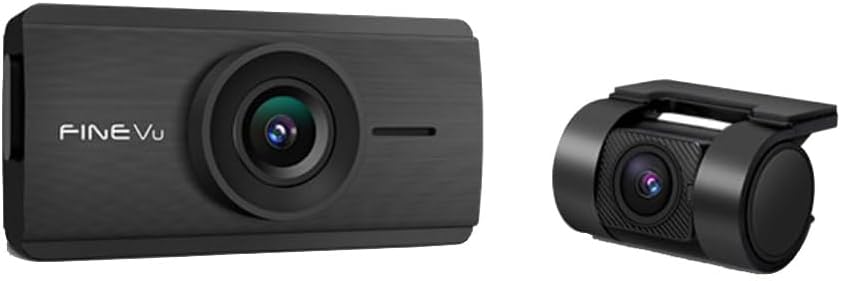
Image 2.1: FineVu GX35 Front and Rear Dashcam Units. The front unit is rectangular with a central lens, and the rear unit is cylindrical with a lens.
Key Features:
- Front 2K QHD & Rear Full HD Cameras
- Upgraded Starvis 2 Sensor for superior image quality
- Automated Night Vision and High Dynamic Range (HDR)
- Easy Wi-Fi Pairing with FineVu App
- Power Saving Parking Mode
- Smart AI Dashcam Heat Monitoring & Control
- Advanced Driver Safety Warning Systems (ADAS)
- Absolute Parking Mode: Records 20 seconds of accident scenes
- Format Free 2.0 for MicroSD card management

Image 2.2: Icons representing key features of the FineVu GX35, including Super Compact Size, QHD/FHD recording, Sony Starvis 2 Sensor, Auto Night Vision, HDR, FineVu Wi-Fi App, Power Saving Parking Mode, Smart Time Lapse, ADAS Plus, AI Heat Monitoring, Low Voltage Cut-Off, Memory Storage Allocation, Customizing OSD Phrases, Format Free 2.0, and Speed Camera Alert.
Product Dimensions:

Image 2.3: The FineVu GX35 front unit shown next to a credit card for size comparison, illustrating its compact design. Dimensions are indicated as 89mm length and 37mm height for the dashcam.
3. Setup
3.1 Package Contents
Please check that all the following items are included in your package:
- FineVu GX35 Front Dashcam Unit
- Rear Camera
- Mounting Bracket (Dashboard Mount)
- Power Cable (Charging Cable)
- Rear Camera Connection Cable
- MicroSD Card (32GB)
- User Manual
3.2 Component Identification
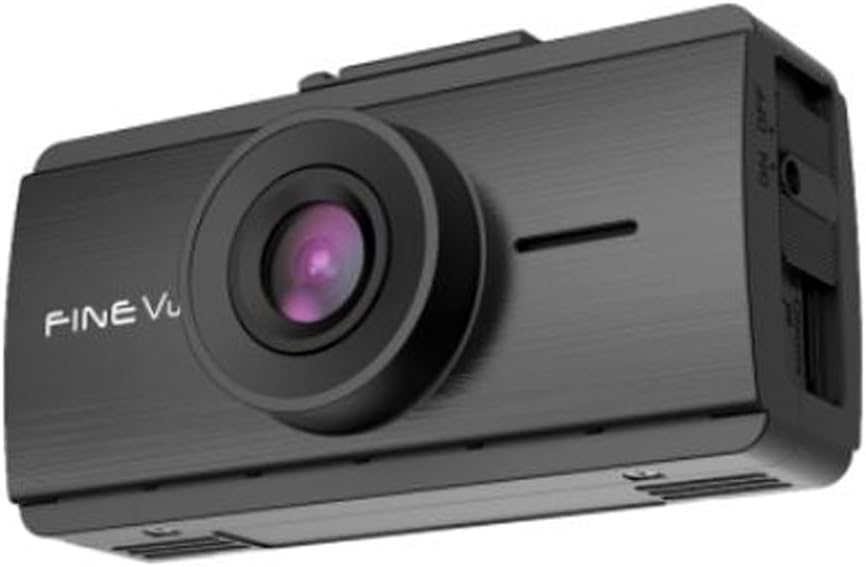
Image 3.1: Angled view of the FineVu GX35 front dashcam unit, highlighting its compact design and central lens.

Image 3.2: Top view of the FineVu GX35 front dashcam unit, showing the 'REC' button and 'Wi-Fi' button, along with indicator lights.
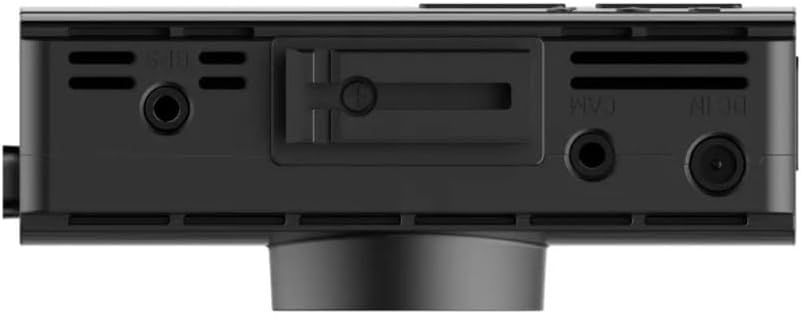
Image 3.3: Detailed view of the FineVu GX35 front dashcam's top edge, displaying ports for DC IN (power), CAM (rear camera), GPS, and the MicroSD card slot.
3.3 Installation Steps
- Prepare the Mounting Location: Clean the windshield area where the dashcam will be mounted. Ensure it is free from dust and grease for secure adhesion.
- Mount the Front Camera: Attach the mounting bracket to the front dashcam unit. Remove the protective film from the adhesive pad on the bracket and firmly press it onto the chosen spot on your windshield, ensuring a clear view of the road.
- Connect the Rear Camera: Connect the rear camera to the front unit using the provided rear camera connection cable. Route the cable neatly along the vehicle's headliner and pillars to the rear windshield. Mount the rear camera on the rear windshield, ensuring a clear view.
- Connect Power: Plug the power cable into the DC IN port on the front dashcam unit. Connect the other end of the power cable to your vehicle's 12V power outlet (cigarette lighter socket) or a dedicated hardwiring kit (sold separately for advanced parking mode features).
- Insert MicroSD Card: Gently insert the provided 32GB MicroSD card into the MicroSD card slot on the front dashcam unit until it clicks into place. Ensure the card is inserted in the correct orientation.
- Initial Power On: Start your vehicle. The dashcam should power on automatically and begin recording. Check the indicator lights to confirm operation.
4. Operating Instructions
4.1 Basic Operation
- Power On/Off: The dashcam automatically powers on when the vehicle's ignition is turned on and powers off when the ignition is turned off.
- Recording Modes: The dashcam continuously records in various modes, including continuous recording, event recording (triggered by impacts), and parking surveillance recording.
- Manual Recording: Press the 'REC' button on the front unit to manually initiate an event recording. This will save a protected video segment.
4.2 Wi-Fi Connectivity and App Usage
The FineVu GX35 features dual-band Wi-Fi for easy connection to your smartphone via the FineVu App. This allows you to view live footage, download recorded videos, and adjust settings.
- Download the App: Download the official FineVu App from your smartphone's app store.
- Activate Wi-Fi: Press the 'Wi-Fi' button on the dashcam unit to activate its Wi-Fi hotspot.
- Connect to Wi-Fi: On your smartphone, go to Wi-Fi settings and connect to the FineVu dashcam's Wi-Fi network. The default password can be found in the app or on the dashcam's packaging.
- Use the App: Open the FineVu App. You can now access live view, browse recorded files, download important footage, and configure dashcam settings.

Image 4.1: The FineVu GX35 dashcam displayed alongside a smartphone screen showing the FineVu application interface, indicating a successful connection and options for Live View, Dashcam File access, Downloaded Video, Settings, and Event Summary.
4.3 Parking Surveillance Mode
The GX35 offers advanced parking surveillance to protect your vehicle when parked.
- Power Saving Parking Mode: This mode minimizes power consumption while the vehicle is parked, extending surveillance time. The dashcam records only when an event (motion or impact) is detected.
- Absolute Parking Mode: In the event of an accident while parked, the dashcam records a 20-second video segment, capturing crucial moments before and after the incident.
- AI 2.0 Temperature Monitoring: This feature intelligently monitors the dashcam's temperature and adjusts operation to prevent overheating, especially during extended parking surveillance in hot conditions.
4.4 Night Vision and HDR
The dashcam is equipped with advanced imaging technologies for clear recordings in various lighting conditions.
- Automated Night Vision: The system automatically adjusts image settings to enhance visibility in low-light environments, ensuring clear recordings even at night.
- High Dynamic Range (HDR): HDR technology optimizes video quality by balancing bright and dark areas, providing clearer images in challenging lighting, such as tunnels or strong sunlight.

Image 4.2: A split image demonstrating the effect of Auto Night Vision during daytime. The left side shows the view with Auto Night Vision OFF, appearing overexposed in bright areas, while the right side with Auto Night Vision ON shows improved detail and balanced exposure.

Image 4.3: A split image demonstrating the effect of Auto Night Vision during nighttime. The left side shows the view with Auto Night Vision OFF, appearing dark and lacking detail, while the right side with Auto Night Vision ON shows significantly brighter and clearer details of the road and surrounding environment.
4.5 Advanced Driver Safety Warning Systems (ADAS)
The GX35 includes ADAS features designed to enhance driving safety by providing alerts for potential hazards. Specific ADAS functions and their activation can be configured via the FineVu App.
5. Maintenance
5.1 MicroSD Card Management
- Format Free 2.0: The FineVu GX35 utilizes Format Free 2.0 technology, which reduces the need for frequent manual formatting of the MicroSD card, improving card longevity and reliability.
- Memory Storage Allocation: You can customize the storage allocation for different recording types (e.g., continuous, event, parking) via the FineVu App to suit your preferences.
- Regular Checks: Although Format Free 2.0 minimizes maintenance, it is recommended to periodically check the MicroSD card for errors or degradation, especially if you experience recording issues. Replace the card if necessary.
5.2 Cleaning
- Exterior: Use a soft, dry cloth to wipe the exterior of the dashcam units. Do not use harsh chemicals or abrasive cleaners.
- Lenses: Gently clean the camera lenses with a lens cleaning cloth to ensure clear video recording. Avoid touching the lenses directly with your fingers.
6. Troubleshooting
If you encounter issues with your FineVu GX35, please refer to the following common troubleshooting steps:
- Dashcam Not Powering On:
- Check if the power cable is securely connected to both the dashcam and the vehicle's power outlet.
- Ensure the vehicle's power outlet is functioning correctly.
- If using a hardwiring kit, verify its installation and fuse connections.
- No Recording / Recording Errors:
- Ensure the MicroSD card is properly inserted.
- Try formatting the MicroSD card using the FineVu App or a computer.
- Test with a different, compatible MicroSD card to rule out card failure.
- Wi-Fi Connection Issues:
- Ensure the dashcam's Wi-Fi is activated (press the Wi-Fi button).
- Verify that you are connecting to the correct Wi-Fi network name.
- Restart both the dashcam and your smartphone.
- Poor Video Quality:
- Clean the camera lenses with a soft cloth.
- Ensure the protective film has been removed from the lenses.
- Check settings in the FineVu App to ensure desired resolution and quality are selected.
For further assistance, please contact FineVu customer support.
7. Specifications
| Feature | Specification |
|---|---|
| Product Dimensions | 1.3 x 3 x 1.45 inches |
| Item Weight | 1.98 pounds |
| Item Model Number | GX35 |
| Connectivity Technologies | Wi-Fi |
| Special Features | Built-In WiFi, Loop Recording, Night Vision |
| Color | Black |
| Manufacturer | FineVU |
| Model Name | GX35 |
| Vehicle Service Type | Car |
| Video Capture Resolution | 1944p (Front QHD) |
| Included Components | User Manual, Charging Cable, Mounting Bracket, MicroSD Card |
| Mounting Type | Dashboard Mount |
| Field Of View | 147.4 Degrees |
8. Warranty and Support
The FineVu GX35 dashcam comes with a manufacturer's warranty. Please refer to the warranty card included in your package or visit the official FineVu website for detailed warranty terms and conditions.
For technical support, troubleshooting assistance, or any product-related inquiries, please contact FineVu customer support through their official website or the contact information provided in your product documentation.