
Introduction
This manual provides essential instructions for the proper setup, operation, and maintenance of your LIWEARE OBD2 USB Adapter ELM327 V1.5 Car Diagnostic Device. Please read this guide thoroughly before using the device to ensure optimal performance and to avoid potential issues.
Package Contents
- 1 x LIWEARE OBD2 USB Adapter ELM327 V1.5
- 1 x Owner's Manual (this document)
- 1 x Software CD

Image: The LIWEARE OBD2 USB Adapter ELM327 V1.5, showing the OBD2 connector and USB cable.
Setup
Software Installation
- Insert the Software CD: Place the provided software CD into your computer's CD-ROM drive.
- Install Drivers: Follow the on-screen instructions to install the necessary drivers for the ELM327 device. It is crucial to install these drivers for proper communication between the adapter and your computer.
- Install Diagnostic Software: Install your preferred OBD-II diagnostic software from the CD or a compatible source. The device supports various programs such as Terry's GM Mode 22 Scan Tool, OBD Display, OBD Logger, OBD-II Scan Master, and others.
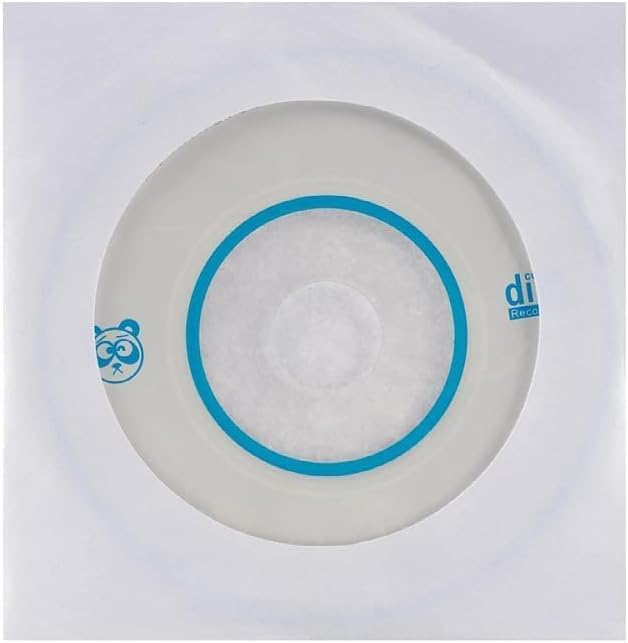
Image: The software CD included with the ELM327 adapter, containing drivers and compatible software.
Hardware Connection
- Locate OBD-II Port: Identify the OBD-II diagnostic port in your vehicle. This port is typically located under the dashboard on the driver's side.
- Connect Adapter: Plug the OBD2 connector of the LIWEARE adapter firmly into your vehicle's OBD-II port.
- Connect to Computer: Insert the USB end of the adapter cable into an available USB port on your computer.
- Vehicle Ignition: Turn your vehicle's ignition to the 'ON' position (do not start the engine unless required by specific diagnostic software).
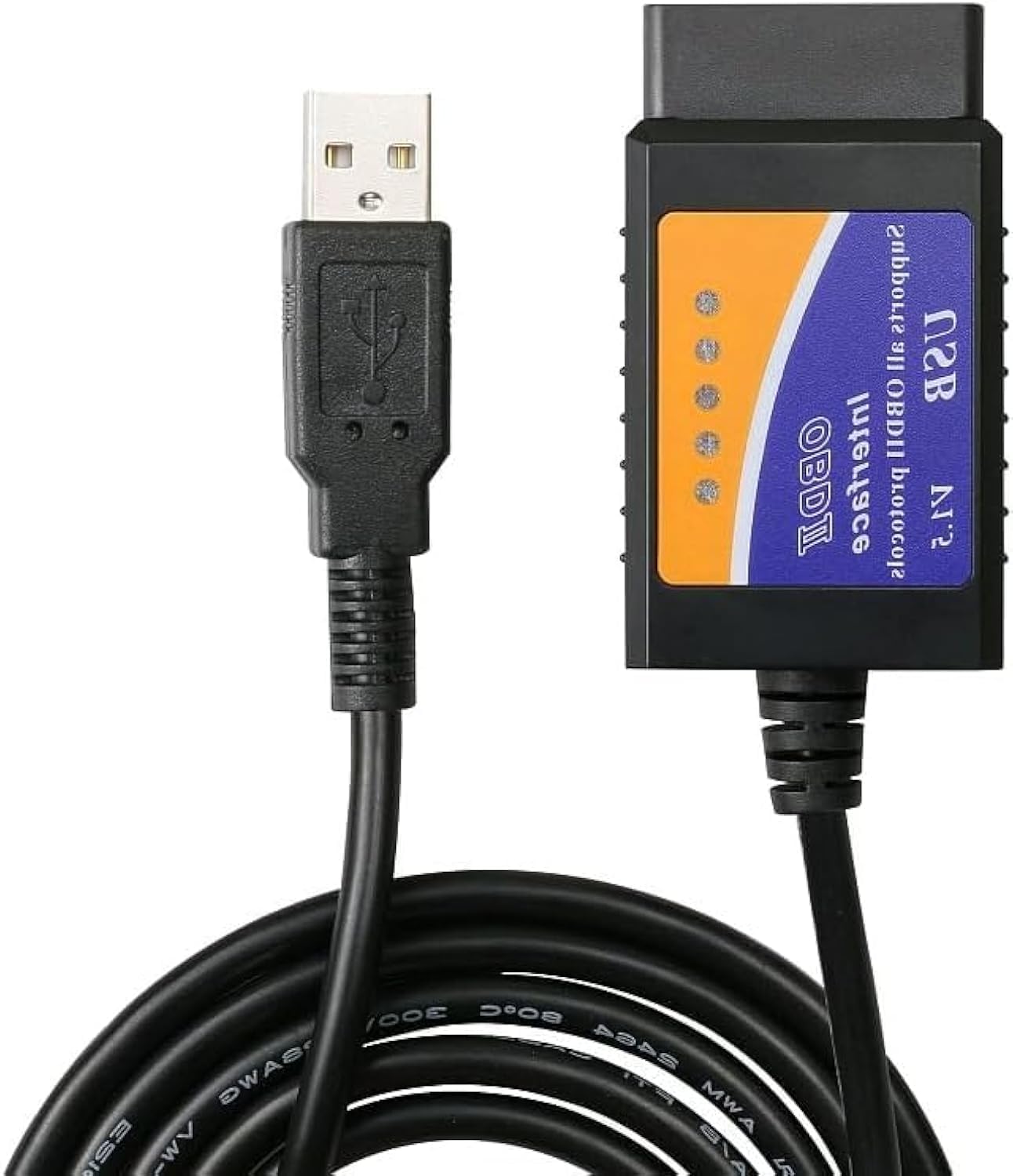
Image: The LIWEARE OBD2 USB Adapter with its USB and OBD2 connectors, ready for connection to a vehicle and computer.
Operating Instructions
Using Diagnostic Software
- Launch Software: Open the diagnostic software installed on your computer.
- Establish Connection: Within the software, select the correct COM port for the ELM327 adapter (this is usually assigned automatically during driver installation, but may need manual selection). Initiate the connection to the vehicle's ECU (Engine Control Unit).
- Read Diagnostic Trouble Codes (DTCs): Once connected, use the software to read diagnostic error codes. The device supports both generic and vendor-specific codes, with a database of over 3000 generic code definitions.
- View Data: Access live sensor data, freeze frame data, and other vehicle parameters as supported by your software and vehicle.
- Clear DTCs: After addressing any vehicle issues, use the software to clear the error codes and turn off the Malfunction Indicator Lamp (MIL), also known as the "Check Engine" light.
Supported Protocols
The LIWEARE OBD2 USB Adapter ELM327 V1.5 supports all OBD-II protocols, ensuring broad compatibility with various vehicles.
Maintenance
To ensure the longevity and reliable operation of your diagnostic device, follow these simple maintenance guidelines:
- Cleaning: Wipe the device with a soft, dry cloth. Do not use liquid cleaners or solvents.
- Storage: Store the adapter in a cool, dry place away from direct sunlight and extreme temperatures when not in use.
- Cable Care: Avoid bending or crimping the USB cable excessively. Always grasp the connector, not the cable, when plugging or unplugging.
Troubleshooting
If you encounter issues with your LIWEARE OBD2 USB Adapter, consider the following common solutions:
- Device Not Connecting:
- Ensure drivers are correctly installed from the provided CD.
- Verify the adapter is securely plugged into both the vehicle's OBD-II port and the computer's USB port.
- Check if the vehicle's ignition is in the 'ON' position.
- Confirm the correct COM port is selected in your diagnostic software.
- Try a different USB port on your computer.
- Software Compatibility Issues:
- Ensure your diagnostic software is compatible with ELM327 V1.5 adapters.
- Some software may require specific operating system versions (e.g., Windows 10).
- Intermittent Disconnections:
- Ensure the USB cable is not damaged and connections are stable.
- Avoid using USB hubs; connect directly to the computer if possible.
- Check for power saving settings on your computer's USB ports that might be causing disconnections.
Specifications
| Model | EB0439 |
| Brand | LIWEARE |
| Baud Rate | 9600 or 38400 |
| Operating Voltage | 12V |
| Design Running Current | 45mA |
| Dimensions (L*W*H) | 9.6 x 4.6 x 2.5 cm (3.8 x 1.8 x 1.0 inches) |
| Item Weight | 2.82 ounces |
| Power Source | Corded Electric |
| Operating System Compatibility | Windows 10 (and other compatible systems) |
| UPC | 768622845118 |
Vehicle Compatibility
The LIWEARE OBD2 USB Adapter ELM327 V1.5 is designed to be compatible with a wide range of vehicles that support OBD-II protocols. This includes, but is not limited to, models from:
- Daihatsu
- Fiat
- Ford (including 12V cars & F-Series Trucks)
- Honda
- Hyundai
- Kia
- Lincoln
- Mazda
- Mercury

Image: Diagram illustrating the compatibility of the OBD2 USB Adapter with various car brands, including Ford, Mazda, Lincoln, and Mercury.
Warranty and Support
For any questions, technical assistance, or warranty inquiries regarding your LIWEARE OBD2 USB Adapter, please contact the manufacturer directly. Refer to the packaging or the manufacturer's official website for contact information.