
Amazfit Balance-PL
Amazfit Balance 46 mm Smart Watch User Manual
Model: Balance-PL
1. Introduction
Welcome to the Amazfit Balance 46 mm Smart Watch user manual. This guide provides detailed instructions on how to set up, operate, and maintain your new smartwatch. The Amazfit Balance is designed to offer a comprehensive health and fitness tracking experience, alongside smart features for daily convenience.
For optimal performance and to ensure proper use, please read this manual thoroughly before using your device.
2. What's in the Box
- Amazfit Balance Smartwatch
- User Manual
- Charging Base
3. Setup
3.1 Initial Charging
Before first use, fully charge your Amazfit Balance. Connect the charging base to a USB power adapter (not included) and place the watch onto the magnetic charging pins. The watch display will indicate charging status.
3.2 Pairing with the Zepp App
- Download the Zepp app from the App Store (iOS) or Google Play Store (Android).
- Open the Zepp app and create an account or log in.
- On the watch, power it on. A QR code will appear.
- In the Zepp app, tap the '+' icon to add a device, then select 'Watch' and scan the QR code displayed on your watch.
- Follow the on-screen prompts in the app to complete the pairing process. Ensure Bluetooth is enabled on your smartphone.
3.3 Basic Watch Setup
Once paired, the watch will synchronize time and language settings from your phone. You can further customize settings such as watch faces, notifications, and health monitoring preferences directly through the Zepp app.

Image: The Amazfit Balance Smartwatch, showcasing its sleek design and digital display.
4. Operating Instructions
4.1 Display and Navigation
The Amazfit Balance features a large 1.5-inch AMOLED display with a high resolution of 480x480 pixels, offering clear visuals even in bright sunlight. Navigation is primarily done via the touchscreen and the two physical buttons, including a rotatable crown for easy scrolling through menus.

Image: A close-up of the Amazfit Balance, showing the side buttons and the rotatable crown for navigation.
4.2 AI-Powered Voice Control (Zepp Flow)
Utilize Zepp Flow, powered by GPT-4.0 technology, for complete voice control of your smartwatch. You can adjust watch settings, send text replies to Android apps like WhatsApp, and more, all using your voice.

Image: The Amazfit Balance screen showing the Zepp Flow AI assistant interface.
4.3 Health and Fitness Tracking
The Amazfit Balance offers extensive health and fitness monitoring features:
- Heart Rate, SpO2, Stress, and Sleep Monitoring: Continuous tracking of vital health metrics.
- Body Composition Analysis: Measures body fat, muscle mass, and more.
- AI-Powered Personalized Training Plans (Zepp Coach): Receive tailored workout plans and guidance for various distances (3K, 5K, 10K, Half Marathon, Full Marathon).
- Daily Readiness Score: Provides a real-time updated score summarizing your mental and physical recovery, with actionable recommendations.

Image: The Amazfit Balance displaying the Readiness score, indicating overall well-being.
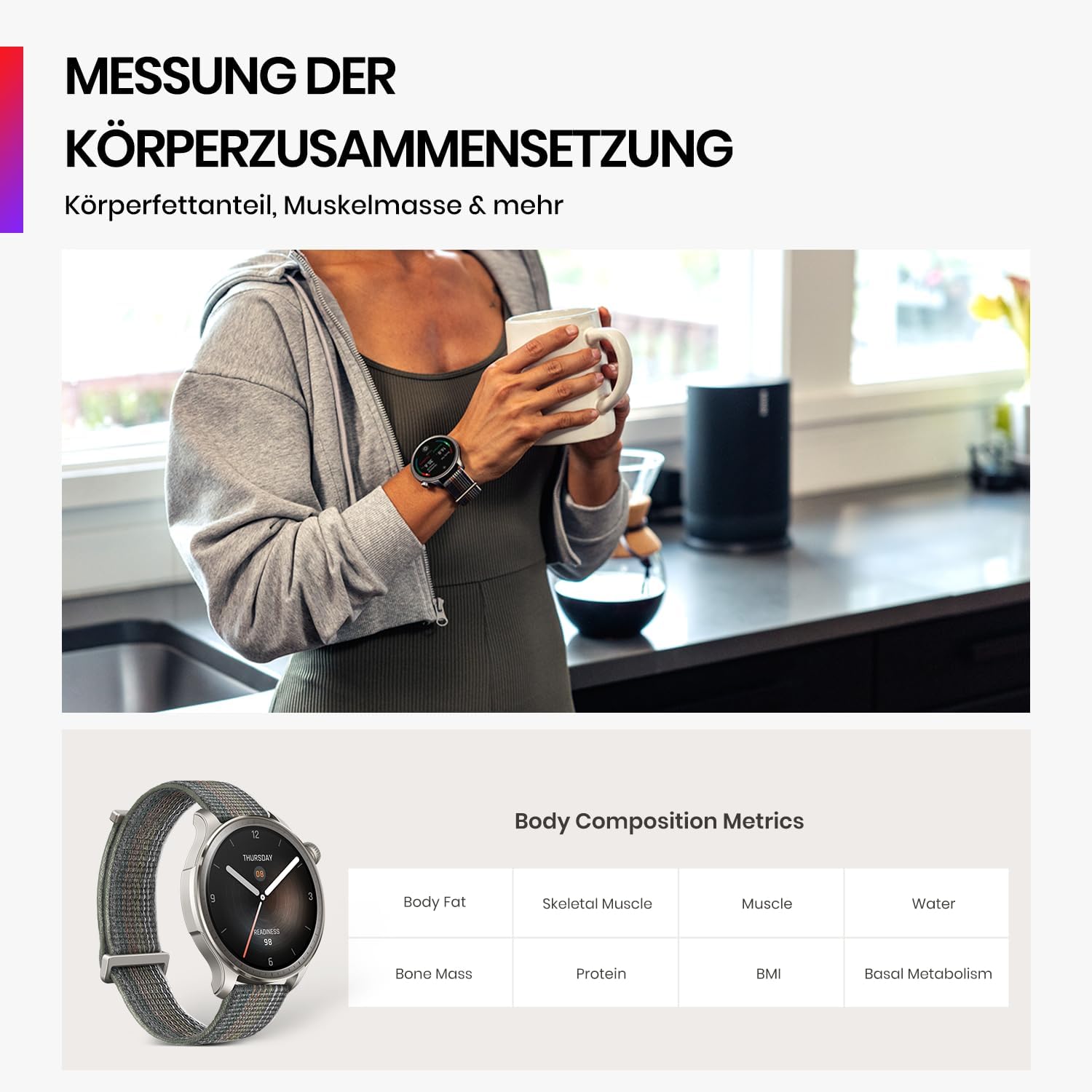
Image: The Amazfit Balance showing body composition metrics, including body fat and muscle mass.

Image: The Zepp Coach feature providing personalized running and training plans.
4.4 GPS and Offline Maps
Track your outdoor activities with industry-leading GPS accuracy, supporting 6 satellite systems for fast connection. Download free offline maps to easily understand your surroundings during walks, runs, or bike rides.
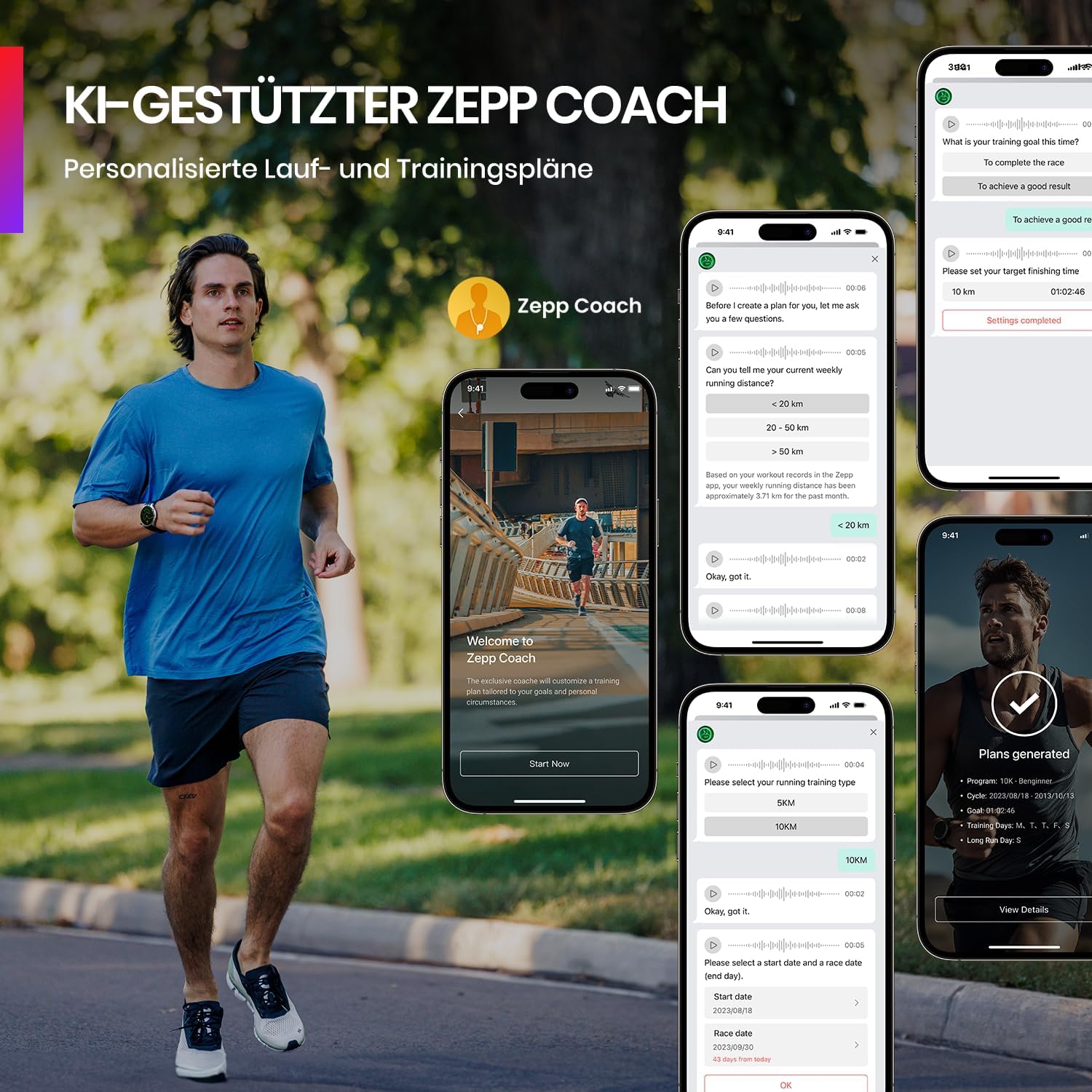
Image: The Amazfit Balance displaying precise GPS tracking and route navigation.
4.5 NFC Contactless Payment (Zepp Pay)
With Zepp Pay and integrated NFC technology, you can link up to eight bank cards to your Amazfit Balance for secure, password-protected contactless payments directly from your wrist. This feature is enabled through a partnership between Amazfit and Mastercard.

Image: Using Zepp Pay for contactless payments with the Amazfit Balance.
4.6 Bluetooth Calling
The Amazfit Balance supports Bluetooth calls, allowing you to answer or make calls directly from your wrist when connected to your smartphone.
4.7 Battery Life
The Amazfit Balance offers up to 14 days of battery life with typical usage, reducing the need for frequent charging. Battery life may vary based on usage patterns and enabled features (e.g., continuous GPS tracking, always-on display).
4.8 Watch Faces
Personalize your watch with a wide variety of watch faces available through the Zepp app. You can choose from numerous designs to match your style or display specific information.
Video: An official overview of the Amazfit Balance Smartwatch features and design.
5. Maintenance
5.1 Cleaning the Watch
Regularly clean your watch and strap to prevent skin irritation and maintain device longevity. Use a soft, lint-free cloth. For stubborn dirt, dampen the cloth slightly with water. Avoid using harsh chemicals or abrasive materials.
5.2 Charging Best Practices
Always use the original charging base provided with your Amazfit Balance. Avoid exposing the charging contacts to liquids or metal objects. Do not charge the watch in extremely hot or cold environments.
5.3 Water Resistance
The Amazfit Balance is water-resistant up to 5 ATM, meaning it can withstand pressures equivalent to a depth of 50 meters. It is suitable for shallow-water activities like swimming in a pool or ocean. However, it is not suitable for diving, waterskiing, or other activities involving high-velocity water or submersion below shallow depth.
6. Troubleshooting
6.1 Common Issues and Solutions
- Watch not turning on: Ensure the watch is fully charged. Connect it to the charging base for at least 10 minutes.
- Unable to pair with phone: Check if Bluetooth is enabled on your phone and the Zepp app has necessary permissions. Restart both the watch and your phone.
- Inaccurate health readings: Ensure the watch is worn snugly on your wrist, not too tight or too loose. Clean the sensor on the back of the watch.
- Short battery life: Review your settings in the Zepp app. Features like always-on display, continuous heart rate monitoring, and frequent GPS use can significantly impact battery life.
- NFC payment issues: Ensure Zepp Pay is set up correctly in the app and your bank cards are linked. Hold the watch close to the payment terminal.
6.2 Further Assistance
If you encounter issues not covered in this manual, please refer to the FAQ section within the Zepp app or visit the official Amazfit support website for more detailed troubleshooting guides and customer support.
7. Specifications
| Model Number | Balance-PL |
| Display Size | 1.5 inches |
| Display Type | AMOLED |
| Resolution | 480x480 pixels |
| Weight | Approx. 35g (without strap) |
| Battery Capacity | 475 mAh (Lithium-Polymer) |
| Connectivity | Bluetooth, NFC |
| Sensors | Optical Heart Rate Sensor, Accelerometer, BioTracker 5.0 PPG Sensor |
| GPS | Integrated GPS (6 satellite systems) |
| Operating System | Zepp OS |
| Water Resistance | 5 ATM |
8. Warranty and Support
Your Amazfit Balance Smart Watch comes with a manufacturer's warranty. Please refer to the warranty card included in the packaging or visit the official Amazfit website for detailed warranty terms and conditions specific to your region.
For technical support, product inquiries, or warranty claims, please contact Amazfit customer service through the Zepp app or their official website. Ensure you have your product model number and purchase information ready.