Introduction
This manual provides comprehensive instructions for the setup, operation, and maintenance of your Ceybo RC813 FMB1 Voice Remote Control. This remote is designed to work seamlessly with a wide range of TCL QLED Smart TVs, offering convenient control and voice assistant capabilities.

Figure 1: Front and back view of the Ceybo RC813 FMB1 Voice Remote Control. The front features various buttons including navigation, volume, channel, and dedicated app shortcuts. The back is smooth and ergonomic.
Setup
1. Battery Installation
The RC813 FMB1 remote control requires two (2) AAA batteries (not included) for operation. Follow these steps to install the batteries:
- Locate the battery compartment cover on the back of the remote control.
- Slide the cover downwards or press the latch to open the compartment.
- Insert two AAA batteries, ensuring the positive (+) and negative (-) terminals align correctly with the indicators inside the compartment.
- Replace the battery compartment cover by sliding it back into place until it clicks securely.

Figure 2: Illustration of the battery compartment and proper insertion of AAA batteries.
2. Pairing the Remote Control
To ensure full functionality, including voice control, the remote must be paired with your TCL Smart TV. Follow these steps:
- Ensure your TCL Smart TV is powered on.
- Point the remote control towards the TV.
- Simultaneously press and hold the "OK" button (center of the navigation pad) and the "Home" button (house icon) for approximately 2 seconds.
- A pairing confirmation message should appear on your TV screen, indicating successful pairing.
- If pairing fails, ensure the batteries are correctly installed and try again. Move closer to the TV if necessary.
Operating the Remote
Button Functions Overview
The RC813 FMB1 remote control features a variety of buttons for intuitive navigation and control of your TCL Smart TV. Refer to the image below for button layout.
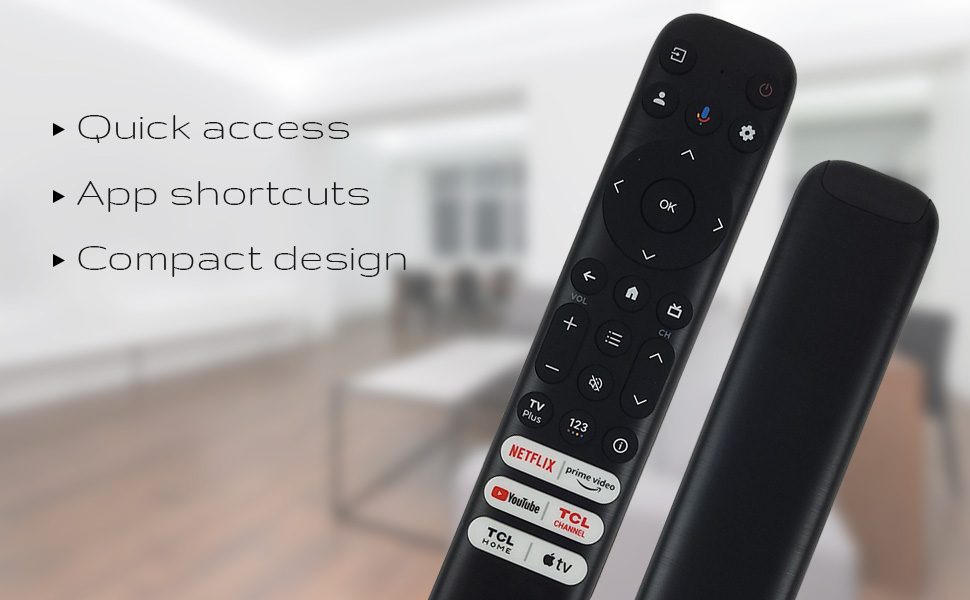
Figure 3: The remote's design emphasizes quick access, app shortcuts, and a compact form factor for ease of use.
- Power Button (⏻): Turns the TV on or off.
- Navigation Pad (Up, Down, Left, Right): Used to navigate menus and select options.
- OK Button: Confirms selections or opens items.
- Back Button: Returns to the previous screen or menu.
- Home Button (House Icon): Returns to the TV's home screen.
- Volume Up/Down: Adjusts the TV's volume level.
- Channel Up/Down: Changes TV channels.
- Settings Button (Gear Icon): Accesses TV settings.
- Input Button: Changes the TV's input source.
Voice Assistant Functionality
The remote features a dedicated button for Google Assistant, allowing you to control your TV and search for content using voice commands.
- Google Assistant Button (Microphone Icon): Press and hold this button, then speak your command clearly into the remote. Release the button when you are finished speaking.
- Examples of commands include: "Open Netflix," "Search for action movies," "What's the weather like?", "Turn up the volume."
Dedicated Shortcut Buttons
Quickly access your favorite streaming services and TCL features with the dedicated shortcut buttons located at the bottom of the remote.

Figure 4: Dedicated shortcut buttons for popular streaming services and TCL applications.
- Netflix: Direct access to the Netflix streaming service.
- Prime Video: Direct access to Amazon Prime Video.
- YouTube: Direct access to YouTube.
- TCL Channel: Direct access to the TCL Channel.
- TCL Home: Direct access to TCL Home features.
- Apple TV: Direct access to Apple TV.
Compatibility
The Ceybo RC813 FMB1 Voice Remote Control is compatible with a wide range of TCL QLED Smart TV models, including those with Google TV functionality. Below is a list of some compatible models:
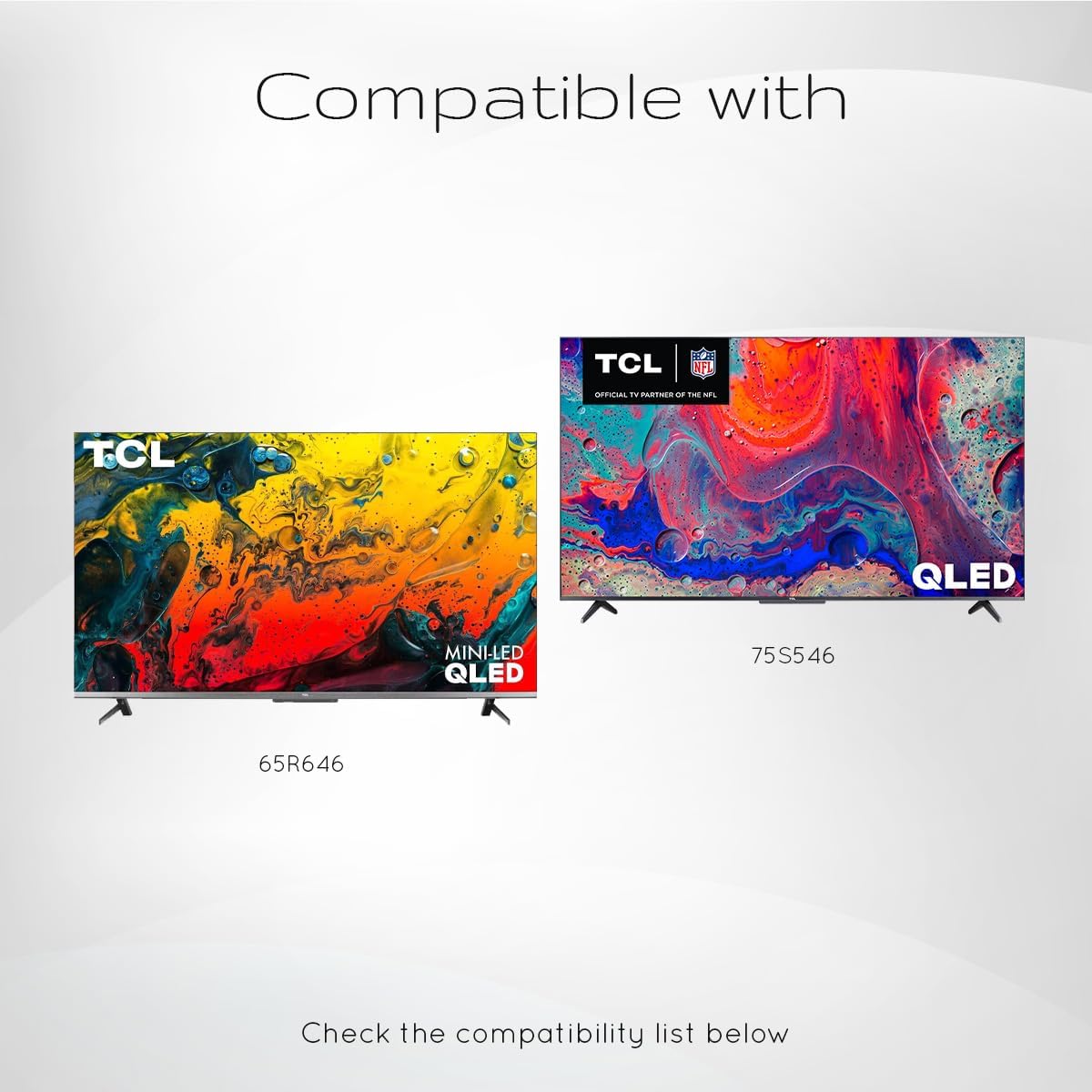
Figure 5: Examples of compatible TCL QLED TV models.
- Google TV 65Q750G
- Google TV 55Q750G
- Google TV 75Q750G
- Google TV 50Q750G
- Google TV 43Q750G
- Google TV 58Q750G
- 65QM850G
- 55QM850G
- 75QM850G
- 58QM850G
- And many more TCL QLED Smart TV models.
Note: Always verify compatibility with your specific TV model before use.
Maintenance
Battery Replacement
When the remote control's performance degrades or it stops responding, it is likely time to replace the batteries. Follow the battery installation steps outlined in the "Setup" section.
- Always replace both AAA batteries at the same time.
- Do not mix old and new batteries, or different types of batteries.
- Dispose of used batteries responsibly according to local regulations.
Cleaning the Remote
To maintain the remote control's appearance and functionality, clean it periodically.
- Use a soft, dry cloth to wipe the surface of the remote.
- For stubborn dirt, slightly dampen the cloth with water or a mild, non-abrasive cleaner. Avoid excessive moisture.
- Do not use harsh chemicals, solvents, or abrasive cleaning materials, as these can damage the remote's finish or internal components.
Troubleshooting
If you encounter issues with your Ceybo RC813 FMB1 remote control, refer to the following common problems and their solutions:
| Problem | Possible Cause / Solution |
|---|---|
| Remote is not responding. |
|
| Voice control is not working. |
|
| Shortcut buttons are not working. |
|
Specifications
| Feature | Detail |
|---|---|
| Model Number | RC813 FMB1 |
| Brand | Ceybo |
| Connectivity Technology | Bluetooth |
| Compatible Devices | TCL QLED Smart Televisions |
| Special Feature | Voice Search (Google Assistant) |
| Power Source | 2 x AAA Batteries (not included) |
| Item Weight | 3.2 ounces (approx. 90.7 grams) |
| Package Dimensions | 8 x 2 x 0.5 inches (approx. 20.3 x 5.1 x 1.3 cm) |


