
Introduction
Welcome to the user manual for your new Infinix Hot 40i smartphone. This guide provides essential information on setting up, operating, maintaining, and troubleshooting your device. The Infinix Hot 40i is designed for enhanced performance and user experience, featuring an Octa-Core Chipset with XBOOST Gaming Engine, ample storage, and advanced camera capabilities.

Figure 1: Infinix Hot 40i - Front and Back View
For optimal performance and longevity of your device, please read this manual thoroughly and retain it for future reference.
Setup
1. SIM Card and Storage Installation
The Infinix Hot 40i supports Dual Nano SIM cards. To install:
- Locate the SIM tray on the side of the device.
- Insert the SIM ejector pin into the small hole next to the tray to open it.
- Place your Nano SIM cards and/or microSD card (if applicable) into the designated slots on the tray. Ensure they are correctly oriented.
- Gently push the tray back into the device until it clicks into place.
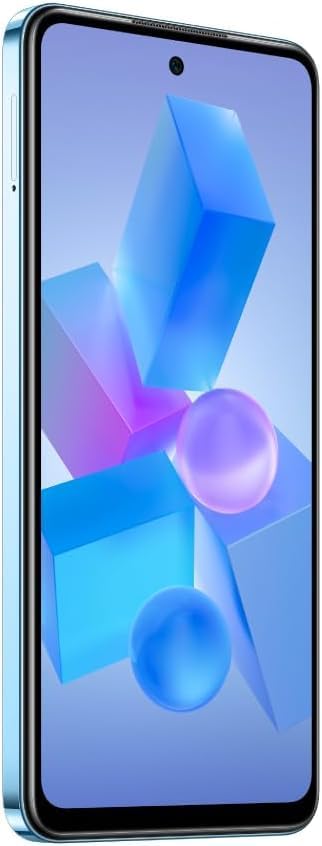
Figure 2: Side View with SIM Tray
2. Powering On Your Device
Press and hold the Power button located on the side of the phone until the Infinix logo appears on the screen. The device will boot up to the initial setup wizard.
3. Initial Setup Wizard
Follow the on-screen prompts to complete the initial setup:
- Select your preferred language.
- Connect to a Wi-Fi network for internet access.
- Sign in with your Google account or create a new one.
- Set up screen lock (PIN, pattern, password, or fingerprint).
- Review and accept the terms and conditions.
Operating Your Device
1. Basic Navigation
The Infinix Hot 40i operates on Android 13. Navigate using touch gestures:
- Tap: Select items, open apps.
- Swipe: Scroll through screens, lists.
- Pinch: Zoom in/out on photos and web pages.
- Long Press: Access contextual menus or move icons.
2. Calls and Messaging
Use the Phone app to make calls and the Messages app for SMS/MMS. The Dual Nano SIM support allows for managing two mobile numbers simultaneously.
3. Internet Connectivity
Connect to the internet via Wi-Fi or cellular data (4G). Manage connections through the Settings app under 'Network & internet'.
4. Camera Usage
Your device features a 50MP Dual AI Rear Camera and a 32MP Crystal-Clear Front Camera. Open the Camera app to capture photos and videos.
- Rear Camera: Ideal for high-resolution photos with AI enhancements.
- Front Camera: Perfect for clear selfies and video calls.

Figure 3: Infinix Hot 40i Front Display
5. Security Features
- Side-Mounted Fingerprint Unlock: Register your fingerprints in Settings > Security > Fingerprint to quickly unlock your device.
6. Display Features
- 90Hz Super Fluid Punch-Hole Screen: Enjoy smooth scrolling and responsive touch interactions on the 6.6-inch HD+ display.
- Magic Ring: This feature provides dynamic notifications and status updates around the punch-hole camera, enhancing user interaction.
Video 1: Official Infinix Hot 40i Product Overview. This video highlights key features and design aspects of the smartphone.
Maintenance
1. Battery Care
The device is equipped with a 5000 mAh battery and supports 18W Fast Charge. To maximize battery life:
- Avoid fully discharging the battery frequently.
- Do not expose the device to extreme temperatures.
- Use the original charger and cable provided.
2. Software Updates
Regularly check for and install system updates to ensure your device has the latest features, security patches, and performance improvements. Go to Settings > System > System update.
3. Cleaning Your Device
Use a soft, lint-free cloth to clean the screen and body of the phone. Avoid using harsh chemicals or abrasive materials. Keep ports free of dust and debris.
Troubleshooting
This section addresses common issues you might encounter with your Infinix Hot 40i.
1. Device Not Powering On
- Ensure the battery is charged. Connect the charger and wait a few minutes before attempting to power on.
- Press and hold the Power button for at least 10-15 seconds to force a restart.
2. Network Connectivity Issues
- Check if Airplane mode is off.
- Restart your device.
- Verify your SIM card is properly inserted.
- Reset network settings: Settings > System > Reset options > Reset Wi-Fi, mobile & Bluetooth.
3. Apps Crashing or Freezing
- Force close the app: Settings > Apps > [App Name] > Force stop.
- Clear app cache and data: Settings > Apps > [App Name] > Storage & cache > Clear cache/Clear storage.
- Ensure the app is updated to its latest version from the Google Play Store.
4. Slow Performance
- Close unused background apps.
- Clear cache of frequently used apps.
- Free up storage space by deleting unnecessary files or apps.
- Restart your device regularly.
If issues persist, consider performing a factory data reset (Settings > System > Reset options > Erase all data (factory reset)). Note: This will erase all data on your phone. Back up important data before proceeding.
Specifications
| Feature | Specification |
|---|---|
| Model Number | HOT 40I |
| Operating System | Android 13.0 |
| RAM | 8 GB (Up to 16GB Extended RAM) |
| Internal Storage | 256 GB |
| Display | 6.6-inch HD+ Punch-Hole Screen, 90Hz Refresh Rate, 720x1640 pixels |
| Processor | Octa-Core Chipset with XBOOST Gaming Engine |
| Rear Camera | 50MP Dual AI Camera |
| Front Camera | 32MP Crystal-Clear Selfie Camera |
| Battery Capacity | 5000 Milliamp Hours |
| Charging | 18W Fast Charge |
| SIM Support | Dual Nano SIM |
| Connectivity | 4G, Bluetooth, Wi-Fi, USB Type-C, GPS |
| Security | Side-Mounted Fingerprint Unlock |
| Color | Palm Blue |
| Item Weight | 175 g |
| Manufacturer | G-Mobile Devices Private Ltd |
What's in the Box
Upon unboxing your Infinix Hot 40i, you should find the following items:
- Handset
- Adaptor
- USB Type-C Cable
- TPU Case
- SIM Ejector Pin
- Quick Start Guide
- Warranty Card
- Xclub Card
Warranty and Support
Your Infinix Hot 40i comes with a manufacturer's warranty. Please refer to the included Warranty Card for detailed terms and conditions, including coverage period and service procedures.
For technical support, service inquiries, or further assistance, please visit the official Infinix support website or contact their customer service channels as provided in your Quick Start Guide or on the manufacturer's website.