
1. Introduction
This manual provides detailed instructions for the Ant Esports GP400 RGB Wireless Controller. It covers setup, operation, maintenance, and troubleshooting to ensure optimal performance and user experience across various platforms including PC, PlayStation 4, PlayStation 3, Nintendo Switch, Android, and iOS devices.
2. Product Overview
The Ant Esports GP400 is a versatile wireless controller designed for a wide range of gaming platforms. It features advanced functionalities such as dual vibration motors for haptic feedback, a six-axis gyro sensor for motion control, and programmable macro and turbo functions. The controller also boasts customizable RGB lighting and a long-lasting 1000mAh battery.
Key Features:
- Wide Compatibility: Supports PC, PS4, PS3, Switch, Android, and iOS.
- Dual Wireless Connectivity: Bluetooth and 2.4GHz wireless dongle for flexible connection options.
- Immersive Feedback: Built-in dual vibration motors for realistic haptic feedback.
- Motion Sensing: Six-axis gyro sensor for precise motion control in supported games.
- Customizable Functions: Turbo function for rapid button presses and macro programming for complex command sequences.
- Long Battery Life: Integrated 1000mAh battery providing up to 12 hours of playtime.
- RGB Lighting: Dynamic RGB lighting to enhance the gaming aesthetic.
- Non-Slip Joysticks: 360° non-slip joysticks for enhanced precision.
- Pressure Sensitive Triggers: Analog triggers for nuanced control.
- Integrated Touchpad: Functional touchpad for additional input.
Controller Layout:
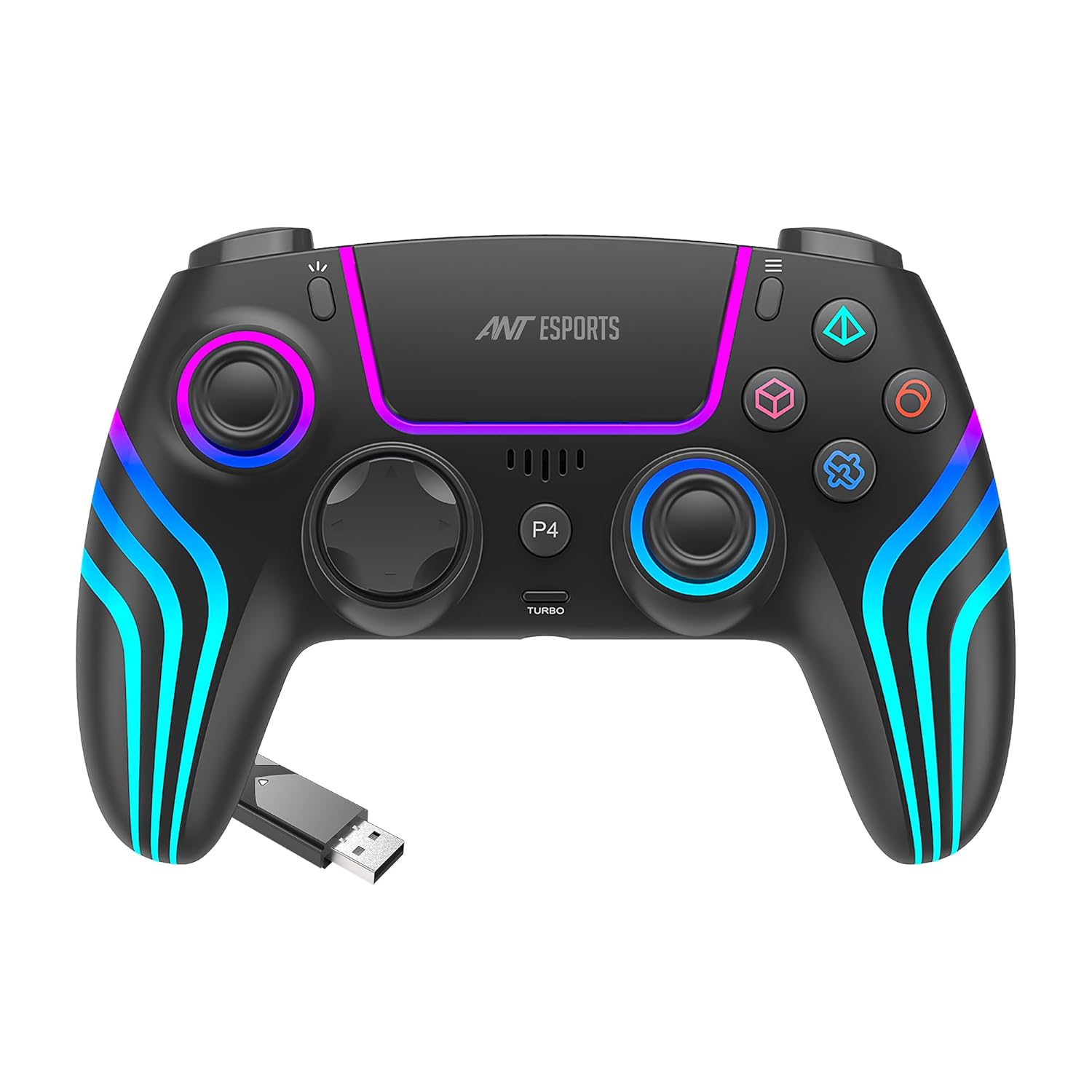
Image: Front view of the Ant Esports GP400 RGB Wireless Controller, showcasing the joysticks, action buttons, D-pad, touchpad, and RGB lighting accents.

Image: Rear view of the Ant Esports GP400 RGB Wireless Controller, highlighting the pressure-sensitive analog triggers and the Type-C fast charging port.
3. Setup and Connection
The GP400 controller offers multiple connection methods depending on your device.
3.1 Wireless Connectivity

Image: The Ant Esports GP400 controller shown with its 2.4GHz wireless USB dongle, illustrating wireless connectivity options.
A. 2.4GHz Wireless Dongle (PC, PS3, PS4)
- Insert the 2.4GHz USB dongle into an available USB port on your PC, PS3, or PS4 console.
- Press and hold the Home/PS button on the controller for 3 seconds until the indicator lights begin to flash rapidly.
- The controller will automatically pair with the dongle. Once connected, the indicator light will become solid.
B. Bluetooth (PS4, Switch, Android, iOS, PC)

Image: The Ant Esports GP400 controller with a Bluetooth 5.1 logo, indicating its Bluetooth connectivity feature.
- Ensure the controller is powered off.
- For PS4: Connect the controller to the PS4 via USB cable first. Press the Home/PS button. Once recognized, you can disconnect the cable for wireless play.
- For Switch: Go to 'Controllers' > 'Change Grip/Order' on your Nintendo Switch. Press and hold the Home/PS button and the 'Share' button simultaneously on the controller until the indicator lights flash. The Switch will detect the controller.
- For Android/iOS: Enable Bluetooth on your mobile device. Press and hold the Home/PS button and the 'Share' button simultaneously on the controller until the indicator lights flash. Select 'GP400 Controller' from the list of available Bluetooth devices.
- For PC (Bluetooth): Ensure your PC has Bluetooth capability. Go to Bluetooth settings, select 'Add Bluetooth or other device', then 'Bluetooth'. Press and hold the Home/PS button and the 'Share' button simultaneously on the controller until the indicator lights flash. Select 'GP400 Controller' from the list.
3.2 Wired Connection
Connect the controller to your PC, PS3, or PS4 using the provided USB Type-C cable. The controller will automatically be recognized and can be used for gameplay while charging.
4. Operating Instructions
4.1 Basic Button Functions
- Home/PS Button: Powers on/off the controller, accesses system menus.
- Action Buttons (X, O, Triangle, Square / A, B, X, Y): Primary game input buttons.
- D-Pad: Directional input.
- Left/Right Joysticks: Analog movement and camera control.
- L1/R1 (Shoulder Buttons): Secondary game input.
- L2/R2 (Analog Triggers): Pressure-sensitive input for acceleration, braking, or shooting.
- Share/Options Buttons: Access in-game menus or share features.
- Touchpad: Provides additional input, functions as a clickable button.
4.2 Advanced Functions
A. Turbo Function
The Turbo function allows for rapid, automatic pressing of a button. To activate:
- Press and hold the 'Turbo' button.
- While holding 'Turbo', press the desired action button (e.g., X, O, L1, R2). The button will now rapidly repeat its input when held down.
- To deactivate, repeat the process: hold 'Turbo' and press the same action button again.
B. Macro Programming
The controller supports macro programming to record and execute a sequence of button presses. Refer to the specific instructions in the included quick start guide for detailed steps on recording and assigning macros, as the process can vary.
C. Haptic Feedback (Dual Vibration)

Image: The Ant Esports GP400 controller with internal vibration motors highlighted, demonstrating the accurate haptic feedback feature.
The built-in dual vibration motors provide varying levels of feedback based on in-game events, enhancing immersion. This feature is automatically active in supported games.
D. Six-Axis Gyro Sensor
The integrated six-axis gyro sensor detects the controller's orientation and movement, allowing for motion-controlled gameplay in compatible titles, particularly on Nintendo Switch and PS4.
E. RGB Lighting
The controller features dynamic RGB lighting. Specific controls for changing lighting modes or colors may be available through button combinations. Consult the quick start guide for details.
5. Charging and Battery
The GP400 controller is equipped with a 1000mAh rechargeable battery.
- Battery Capacity: 1000mAh
- Play Time: Up to 10-12 hours on a full charge.
- Charging Time: Approximately 2-3 hours for a full charge.
- Charging Port: USB Type-C.

Image: Close-up of the Ant Esports GP400 controller's rear, highlighting the USB Type-C fast charging port.
To charge, connect the controller to a USB power source (e.g., console, PC, USB wall adapter) using the provided Type-C cable. The indicator lights will show charging status and turn off or change color when fully charged.
6. Compatibility

Image: The Ant Esports GP400 controller displayed alongside logos representing its wide compatibility with PS3, PS4, Android, Windows, Nintendo Switch, and iOS platforms.
The Ant Esports GP400 RGB Wireless Controller is compatible with the following platforms:
- PC: Windows operating systems (wired and wireless via 2.4GHz dongle or Bluetooth).
- PlayStation 4 (PS4, PS4 Pro, PS4 Slim): Wired and wireless (Bluetooth).
- PlayStation 3 (PS3): Wired and wireless (2.4GHz dongle).
- Nintendo Switch: Wireless (Bluetooth).
- Android Devices: Wireless (Bluetooth).
- iOS Devices: Wireless (Bluetooth).
7. Maintenance
Proper care and maintenance will extend the lifespan of your controller.
- Cleaning: Use a soft, dry cloth to wipe the controller. For stubborn dirt, slightly dampen the cloth with water or a mild cleaning solution. Avoid harsh chemicals.
- Storage: Store the controller in a cool, dry place away from direct sunlight and extreme temperatures.
- Avoid Drops: Protect the controller from physical impact and drops, which can damage internal components.
- Charging: Do not overcharge the battery. Disconnect the charger once the battery is full.
8. Troubleshooting
If you encounter issues with your GP400 controller, try the following troubleshooting steps:
- Controller Not Connecting:
- Ensure the controller is fully charged.
- Verify the correct connection mode (2.4GHz dongle or Bluetooth) for your platform.
- For Bluetooth, ensure your device's Bluetooth is enabled and the controller is in pairing mode.
- Try restarting both the controller and the connected device.
- If using the 2.4GHz dongle, try a different USB port.
- Buttons/Joysticks Unresponsive:
- Ensure the controller is properly connected.
- Test the controller with a wired connection to rule out wireless interference.
- Restart the controller and the game/system.
- Input Lag/Delay:
- Ensure there are no obstructions between the controller and the receiver/device.
- Minimize other wireless devices operating on the same frequency (2.4GHz).
- Try moving closer to the connected device.
- Battery Draining Quickly:
- Ensure the controller is fully charged before use.
- Reduce vibration intensity or turn off RGB lighting if possible, as these consume power.
- Ensure the controller is powered off when not in use.
9. Specifications
| Feature | Specification |
|---|---|
| Model | GP400 |
| Connectivity | Bluetooth 5.1, 2.4GHz Wireless, USB Type-C Wired |
| Compatibility | PC, PS4, PS3, Switch, Android, iOS |
| Battery Capacity | 1000mAh |
| Play Time | Up to 12 hours |
| Charging Time | 2-3 hours |
| Sensors | Dual Vibration Motors, Six-Axis Gyro Sensor |
| Dimensions (LxWxH) | 15.5 x 10.7 x 5.7 cm |
| Weight | 230 g |
| Charging Port | USB Type-C |
| Country of Origin | China |
| Release Date | 3 February 2024 |
10. Warranty and Support
The Ant Esports GP400 RGB Wireless Controller comes with a 1 Year International Warranty from the date of purchase.
For warranty claims, technical support, or any product-related inquiries, please contact Ant Esports customer service through their official website or the retailer where the product was purchased. Please retain your proof of purchase for warranty validation.


