
1. Introduction
Thank you for purchasing the Sehawei Haute42 U16 All-Button Arcade Stick. This device is designed to enhance your gaming experience with precise controls, customizable features, and broad compatibility. Please read this manual carefully to ensure proper setup and operation.
2. Package Contents
Verify that all items listed below are included in your package:
- 1x U16 Fight Stick Controller (Dimensions: 296mm x 196mm x 11mm; Weight: 580g)
- 1x Type-C Data Cable
- 1x Keycap Puller
- 1x Replacement Crystal Switches
- 1x Screwdriver
- 6x Anti-Slip Pads
- 4x DIY Panel Papers (2 illustrated, 2 blank)
- 1x Instruction Manual

Image: Contents of the Sehawei U16 Arcade Stick package, including the controller, cables, tools, and DIY panel papers.
Video: An unboxing video demonstrating the contents of the Sehawei U16 arcade controller package.
3. Product Overview
The Haute42 U16 is an all-button arcade controller featuring a transparent acrylic design and Kaihua crystal low-profile switches. Its thin and lightweight construction makes it portable, while the ringed buttons provide a classic arcade feel. The controller supports extensive customization, including RGB lighting and DIY panel art.

Image: Top-down view of the Sehawei U16 Arcade Stick, showcasing its button layout and transparent design.

Image: Side profile of the Sehawei U16 Arcade Stick, highlighting its thin and lightweight design.
4. Setup and Connection
4.1 System Compatibility
The U16 Arcade Stick is compatible with the following systems:
- Windows 10 or above
- Steam Deck
- PlayStation 3 (PS3)
- PlayStation 4 (PS4)
- Nintendo Switch
- Raspberry Pi (Lakka, RetroPie, Recalbox, Batocera)
- MiSTer
- Android, Linux, iPadOS, macOS (Keyboard mode only)

Image: Icons representing compatible systems including Android, Arcade, Steam, PC, Switch, PS3, and PS4.
4.2 Connecting to Consoles
Connect the U16 Arcade Stick to your device using the provided Type-C data cable. The controller operates in wired mode.
- For PS4/PS5: An external converter is required for connection. Please refer to the official website or the included manual for detailed setup instructions regarding PS4/PS5 connectivity.
- EXT Port: The EXT port on the controller is designed for extension functions only. Do not connect your game console directly through this port.

Image: Detailed view of the Type-C interface for connection and the EXT port for extension functions on the U16 controller.
5. Operating Modes and Functions
5.1 Controller Modes
The U16 Arcade Stick supports five distinct controller modes:
- X-input mode
- Switch mode
- PS3 / D-input mode
- PS4 mode
- Keyboard mode
Refer to the included manual for instructions on how to switch between these operating modes.
5.2 Advanced Functions
- SOCD Cleaning Modes: Multiple modes are available to prevent simultaneous opposite cardinal directions input, crucial for competitive play.
- Turbo Functions: Enable rapid input for specific buttons.
- Embedded Web Configuration: Access advanced settings and customization options via a built-in web interface.
- Button Layout Swap: Customize button assignments to suit your preferences.
- M1/M2 Custom Keys: Two dedicated custom keys (M1 and M2) are available for user-defined functions.

Image: Diagram illustrating the position and function of the M1 and M2 custom buttons on the U16 controller.

Image: A visual representation of the customizable button layout, allowing users to transform keys to suit their keyboard usage.
5.3 RGB Lighting Customization
The U16 features customizable RGB lighting effects. You can choose from:
- 5 Backlit Modes
- 14 Different Colors
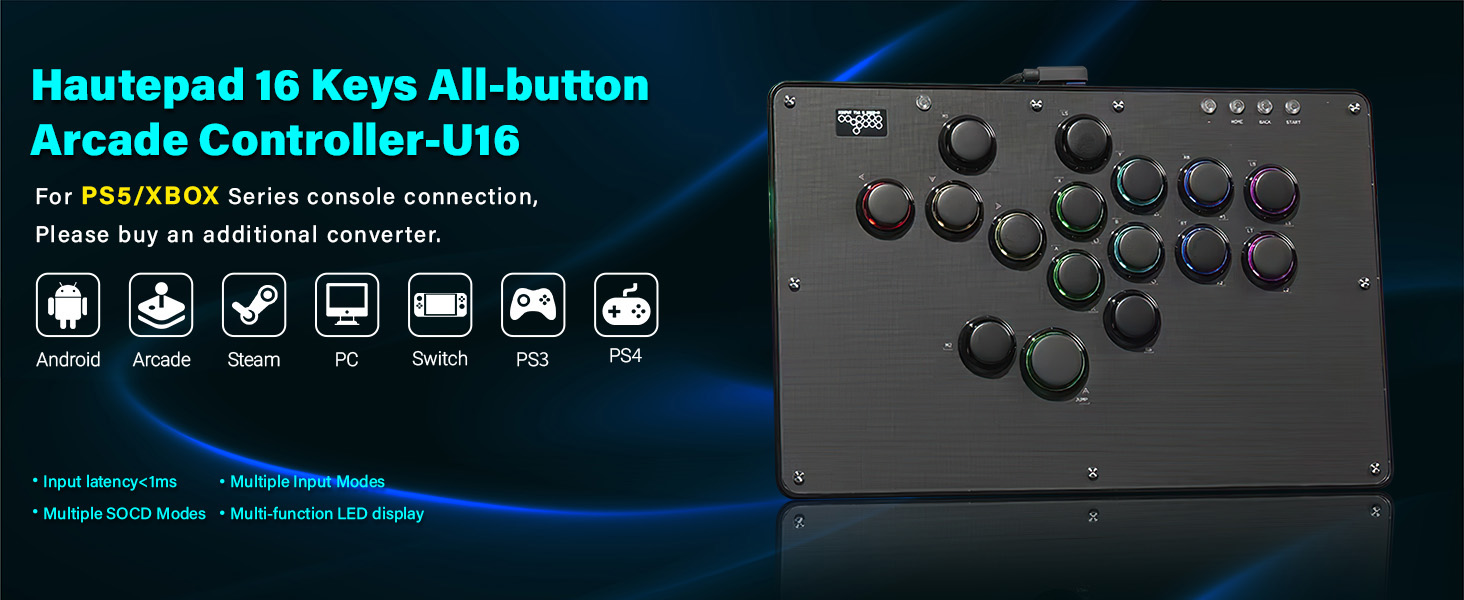
Image: Examples of various RGB lighting patterns and colors, including rainbow, multicolor breathing, monochrome, and flowing effects.
Video: A demonstration of the Sehawei U16 arcade stick in use for fighting games, showcasing its responsiveness and RGB lighting.
6. Customization and Maintenance
6.1 Hot-Swappable Switches
The U16 gamepad features hot-swappable technology, allowing you to easily replace the mechanical keys without soldering. The controller uses Kaihua crystal low-profile switches, known for their high transparency and durability.
- Mechanical Life: 50 million times
- Trigger Travel: 1.2 ± 0.3mm
- Total Travel: 3.2 ± 0.25mm
- Operating Force: 43 ± 10gf
- Axis Type: Crystal Switch / Low Profile
- Size: 15x15x11.9mm
Use the included keycap puller and screwdriver for switch replacement.

Image: Detailed view of the Kailh Crystal Low-profile Switches, highlighting their transparent design and specifications.
6.2 Customizable Panel Art
The U16 comes with four DIY panel papers (two illustrated, two blank) that allow you to personalize the controller's appearance. You can doodle on the blank panels or create your own skins to place under the transparent acrylic top.

Image: Examples of custom templates and DIY sheets that can be used to personalize the controller's appearance.
7. Specifications
| Model Name | U16 |
| Brand | Sehawei |
| Compatible Devices | Windows, Steam Deck, PS3, PS4, Switch, Raspberry Pi, MiSTer, Android, Linux, iPadOS, macOS |
| Controller Type | Arcade Stick / All-Button Controller |
| Connectivity Technology | USB (Type-C) |
| Button Quantity | 16 |
| Item Weight | 580 Grams |
| Item Dimensions (L x W x H) | 11.65 x 7.72 x 0.43 inches (296mm x 196mm x 11mm) |
| Additional Features | Custom RGB, Turbo Functions, Hot-Swappable Switches, SOCD Cleaning, Web Configuration, M1/M2 Custom Keys, DIY Panel Support |
8. Troubleshooting
- Controller Not Recognized on PS4/PS5: Ensure you are using a compatible external converter as the U16 does not natively support direct connection to PS4/PS5 without one.
- No Response After Connecting: Verify that the Type-C data cable is securely connected to both the controller and your gaming device. Try a different USB port or cable if issues persist.
- Incorrect Button Inputs: Check the current operating mode of the controller. Refer to the manual for instructions on switching modes. If using custom layouts, ensure they are correctly configured via the web interface.
- RGB Lights Not Working: Ensure the controller is powered on and connected. Check the RGB customization settings to confirm a mode and color are selected.
- Buttons Feeling Unresponsive: If you have recently replaced switches, ensure they are fully seated. If not, consider replacing switches using the hot-swappable feature.
9. Warranty and Support
For warranty information, technical support, or any inquiries not covered in this manual, please contact Sehawei customer service through the retailer where you purchased the product or visit the official Sehawei website for support resources.