1. Introduction
Thank you for choosing the Ecowitt WS3900 Weather Station Display Console. This device is designed to provide comprehensive indoor and outdoor weather data, offering a clear and intuitive display for easy monitoring. With its Wi-Fi connectivity, you can access your weather data from anywhere and share it with popular online weather services. This manual will guide you through the setup, operation, and maintenance of your WS3900 console.
2. Product Overview and Features
The Ecowitt WS3900 is a state-of-the-art 7.5-inch Wi-Fi LCD large-screen weather station receiver. It integrates essential sensors and offers extensive connectivity options.
Key Features:
- Integrated Sensors: Built-in sensors for indoor temperature, humidity, and barometric pressure.
- Expandable System: Connects with almost all Ecowitt external transmitters (sold separately) for additional data, including wind speed, wind direction, rainfall, UV index, solar radiation, outdoor temperature, outdoor humidity, dew point, feels like temperature, CO2, PM1.0, PM2.5, and PM10.
- IoT Device Support: Compatible with Ecowitt IoT devices such as WFC01 and AC1100 for smart control via the Ecowitt App.
- Wi-Fi Connectivity: Supports 2.4 GHz Wi-Fi networks for remote data viewing on smartphones, tablets, and computer browsers.
- Online Weather Services: Capable of sending sensor data to various internet-based weather services, including Ecowitt Weather, Weather Underground, Weather Cloud, Weather Observation Website (WOW), and customized websites supporting compatible protocols.

Figure 2.1: Front view of the Ecowitt WS3900 Display Console, showing current outdoor and indoor conditions, wind, rain, pressure, forecast, UVI, and solar data.

Figure 2.2: Angled view of the Ecowitt WS3900 Display Console, highlighting its slim profile and large screen.
3. Package Contents
Upon opening the package, please verify that all components are present and in good condition. The standard package for the WS3900 Display Console typically includes:
- Ecowitt WS3900 Display Console
- Power Adapter
- User Manual (this document)
Note: External sensors (e.g., wind, rain, UV, soil moisture, CO2) are sold separately and are not included with the display console.
4. Setup
4.1 Initial Power-Up
- Unpack the WS3900 Display Console from its packaging.
- Connect the provided power adapter to the DC 5V port on the back of the console.
- Plug the power adapter into a standard electrical outlet. The display will power on automatically.
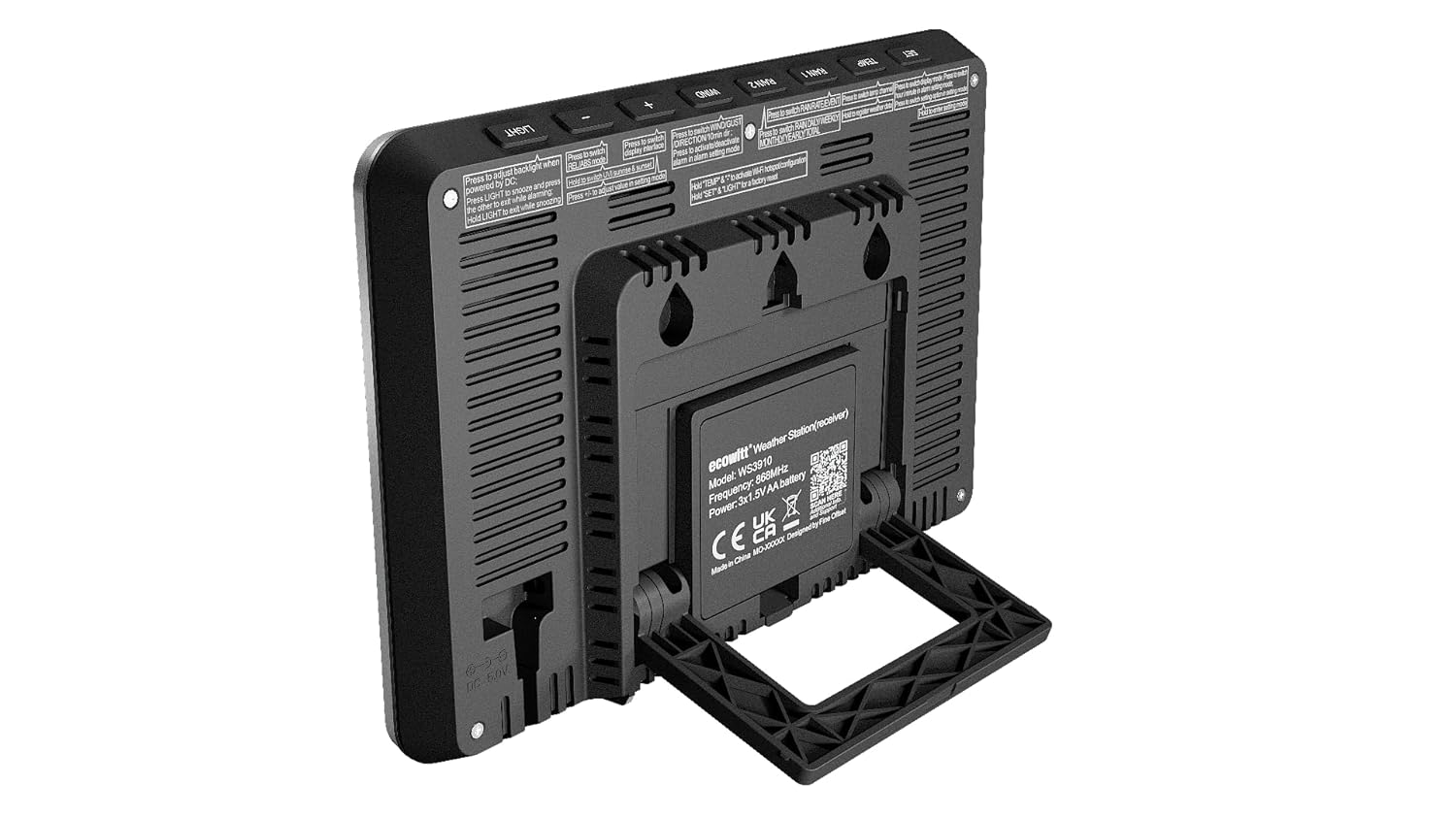
Figure 4.1: Rear view of the WS3900 console, showing the power input and foldable stand.
4.2 Sensor Pairing
The WS3900 console is designed to automatically detect and pair with compatible Ecowitt outdoor sensors (e.g., WH24, WH31, WH40, etc.) once they are powered on and within range. Ensure your external sensors are properly installed and have fresh batteries (if applicable) before powering on the console.
- Place external sensors in their recommended locations according to their respective manuals.
- The console will begin receiving data from paired sensors, which will then be displayed on the screen.
5. Operation
5.1 Display Layout
The 7.5-inch LCD provides a clear overview of all current weather parameters. The display is typically divided into sections for outdoor conditions, indoor conditions, wind, rain, barometric pressure, forecast, UV index, and solar radiation. Specific data points are updated regularly.
5.2 Button Functions
The console features several buttons, usually located on the top or side, for navigation and settings adjustments. Refer to the labels on your specific unit for exact functions. Common buttons include:
- LIGHT/SNOOZE: Activates backlight or snoozes alarm.
- ALARM: Sets or checks alarms.
- MAX/MIN: Displays maximum and minimum recorded values.
- HISTORY: Accesses historical data.
- SET: Enters settings menu.
- +/-: Navigates menus or adjusts values.
Press and hold the 'SET' button to enter the main settings menu for time, date, units, and Wi-Fi configuration.
6. Wi-Fi Connectivity and Data Upload
The WS3900 console's Wi-Fi capability allows for remote monitoring and data sharing. This section outlines the process for connecting to your network and online services.
6.1 Wi-Fi Configuration
To connect your console to a 2.4 GHz Wi-Fi network:
- Ensure your console is powered on.
- Download the Ecowitt App from your device's app store (available for iOS and Android).
- Open the Ecowitt App and follow the on-screen instructions to add a new device.
- The app will guide you through connecting the console to your home Wi-Fi network. This typically involves putting the console into Wi-Fi configuration mode (often by holding a specific button or sequence) and entering your Wi-Fi credentials in the app.
- Once connected, the Wi-Fi icon on the console display will indicate a successful connection.
6.2 Online Weather Services
After successful Wi-Fi configuration, you can configure the console to upload your weather data to various online platforms:
- Ecowitt Weather: Your data will automatically be available on the Ecowitt Weather platform via the app or website.
- Third-Party Services: The console supports uploading data to Weather Underground, Weather Cloud, and Weather Observation Website (WOW). You will need to obtain station IDs and keys from these services and enter them into the Ecowitt App's settings for your console.
- Customized Website: If you have a personal server or website that supports the same data upload protocols as Weather Underground or Ecowitt, you can configure the console to send data there.

Figure 6.1: Ecowitt supports various online weather platforms for data sharing and viewing.

Figure 6.2: The Ecowitt ecosystem illustrating how the WS3900 console integrates with various sensors and IoT devices.
7. Maintenance
Proper maintenance ensures the longevity and accuracy of your WS3900 console.
- Cleaning: Use a soft, damp cloth to clean the display and casing. Avoid abrasive cleaners or solvents that could damage the plastic.
- Placement: Place the console in a stable location, away from direct sunlight, extreme temperatures, and high humidity, which can affect the accuracy of the internal sensors.
- Power: Ensure a stable power supply. Although the unit is corded electric, power fluctuations can sometimes affect performance.
8. Troubleshooting
If you encounter issues with your WS3900 console, refer to the following common problems and solutions:
| Problem | Possible Cause | Solution |
|---|---|---|
| Display is blank or unresponsive. | No power, power adapter issue, or internal malfunction. | Check power adapter connection. Try a different power outlet. If still blank, contact customer support. |
| Outdoor sensor data not displayed. | Sensor out of range, low sensor battery, or sensor not paired. | Move sensor closer to console. Replace sensor batteries. Re-pair sensor if necessary (refer to sensor's manual). |
| Wi-Fi connection fails. | Incorrect Wi-Fi password, 5GHz network, or router issues. | Double-check Wi-Fi password. Ensure you are connecting to a 2.4 GHz network. Restart your router and console. |
| Data not uploading to online services. | Incorrect API keys/IDs, no internet connection, or service outage. | Verify API keys/IDs in the Ecowitt App. Check console's internet connection. Check status of the online weather service. |
9. Specifications
| Feature | Specification |
|---|---|
| Model Number | WS3900BU-Console |
| Display Type | 7.5-inch LCD |
| Connectivity Technology | Wi-Fi (2.4 GHz) |
| Power Source | Corded Electric |
| Built-in Sensors | Indoor Temperature, Humidity, Barometric Pressure |
| Material | Plastic |
| Manufacturer | ECOWITT |
| ASIN | B0CTTH4F1C |
| First Available Date | Feb. 8 2024 |
| Parcel Dimensions | 23 x 15 x 3.5 cm; 500 g |
10. Warranty and Support
For warranty information, please refer to the warranty card included with your product or visit the official Ecowitt website. If you require technical assistance or have questions not covered in this manual, please contact Ecowitt customer support through their official channels.

Figure 10.1: Information about Ecowitt as a manufacturer of weather products.


