
1. Introduction
This manual provides detailed instructions for the G-Wolves HTX ACE Wireless Gaming Mouse, Model HARI HTX. Please read this manual carefully to ensure proper setup, operation, and maintenance of your device. This ultra-lightweight gaming mouse is designed for high performance and comfort.
2. Product Overview
The G-Wolves HTX ACE is a high-performance wireless gaming mouse featuring an ultra-lightweight design and advanced optical sensor technology. It is equipped with programmable buttons and offers customizable settings for an optimized gaming experience.

Figure 2.1: Top view of the G-Wolves HTX ACE Wireless Gaming Mouse, showcasing its ergonomic shape and button layout.

Figure 2.2: Angled view of the G-Wolves HTX ACE Wireless Gaming Mouse, highlighting its sleek profile and side buttons.
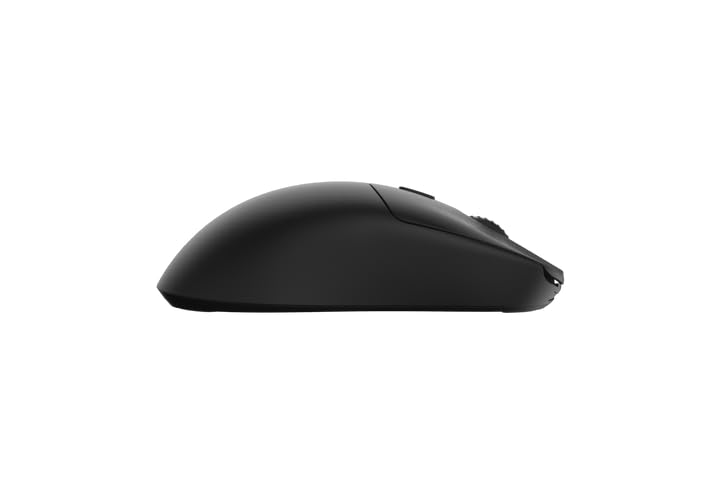
Figure 2.3: Side view of the G-Wolves HTX ACE Wireless Gaming Mouse, illustrating its low-profile design.

Figure 2.4: Physical dimensions (119mm length, 63.5mm width, 36mm height) and approximate weight (~38g) of the G-Wolves HTX ACE Wireless Gaming Mouse.
3. Setup Instructions
- Unboxing: Carefully remove the mouse, USB receiver, and charging cable from the packaging.
- Charge the Mouse: Connect the mouse to a USB port on your computer using the provided charging cable. Allow the mouse to charge fully before first use. The LED indicator will show charging status.
- Connect the USB Receiver: Insert the USB wireless receiver into an available USB port on your computer.
- Power On: Locate the power switch on the underside of the mouse and slide it to the 'ON' position. The mouse should automatically connect to the receiver.
- Driver Installation (Optional): Your operating system should automatically detect and install the necessary drivers. For advanced customization, refer to Section 5 for software details.
4. Operating Instructions
The G-Wolves HTX ACE mouse offers standard mouse functionality along with customizable features.
- Left/Right Click: Standard primary and secondary click functions.
- Scroll Wheel: Used for vertical scrolling and as a middle click button.
- Side Buttons: Typically configured as 'Forward' and 'Back' for web browsing, these can be reprogrammed via the software.
- DPI Button: A dedicated button, usually located behind the scroll wheel, allows for on-the-fly adjustment of the mouse's sensitivity (DPI). The default DPI stages can be customized using the software.
- Wireless Connectivity: The mouse operates wirelessly via a 2.4GHz USB receiver. Ensure the receiver is within range and unobstructed for optimal performance.
5. Software and Customization
The G-Wolves HTX ACE mouse features web-based software for advanced customization of its settings. This allows for personalized control over performance and aesthetics.

Figure 5.1: Example of the G-Wolves customization software interface, showing options for polling rate, click debounce, lift-off distance, DPI settings, and LED configuration.
Accessing the Software:
Visit the official G-Wolves website to access the web-based customization software. No installation is typically required, as it runs directly in your web browser.
Key Customization Options:
- Polling Rate: Adjust the report rate of the mouse to your computer (e.g., 500Hz, 1000Hz). Higher polling rates provide smoother tracking.
- Click Debounce: Configure the debounce time for mouse clicks.
- Lift-Off Distance (LOD): Set the distance at which the sensor stops tracking when the mouse is lifted from the surface (Low/High).
- DPI Settings: Customize multiple DPI levels and switch between them using the dedicated DPI button. The software allows setting specific DPI values (e.g., 400, 800, 1600, 3200, up to 26000).
- LED Settings: Control the LED lights, including status, effect (Static, Breath), and color.
- Programmable Buttons: Assign custom functions or macros to the mouse buttons.
- Battery Information: Monitor the current battery level of the mouse.
6. Maintenance
- Cleaning: Use a soft, dry cloth to clean the mouse surface. For optical sensor, use a cotton swab lightly dampened with isopropyl alcohol. Avoid harsh chemicals or abrasive materials.
- Battery Care: To prolong battery life, avoid fully discharging the mouse frequently. Charge the mouse when the battery indicator is low. Store the mouse in a cool, dry place if not used for extended periods.
- Storage: When not in use, store the mouse in a clean environment to prevent dust accumulation.
7. Troubleshooting
If you encounter issues with your G-Wolves HTX ACE mouse, refer to the following common solutions:
- Mouse Not Responding:
- Ensure the mouse is powered on.
- Check if the USB receiver is securely plugged into a working USB port.
- Verify the mouse battery has sufficient charge.
- Try plugging the USB receiver into a different USB port.
- Restart your computer.
- Intermittent Disconnections/Lag:
- Ensure the USB receiver is close to the mouse and not obstructed by metal objects.
- Avoid using the mouse near other wireless devices that may cause interference.
- Update mouse firmware if available through the G-Wolves software.
- Sensor Tracking Issues:
- Clean the optical sensor on the underside of the mouse.
- Ensure you are using the mouse on a suitable mouse pad or surface.
- Adjust Lift-Off Distance (LOD) settings in the software.
- Buttons Not Working:
- Check button assignments in the G-Wolves software.
- Perform a factory reset via the software if issues persist.
8. Specifications
| Feature | Specification |
|---|---|
| Model Number | HARI HTX |
| Product Dimensions | 4.7 x 2.5 x 0.1 inches (119 x 63.5 x 36 mm) |
| Item Weight | 1.34 ounces (~38g) |
| Connectivity Technology | Radio Frequency (2.4GHz Wireless), USB (for charging/wired mode) |
| Movement Detection Technology | Optical |
| Special Features | LED Lights, Portable, Programmable Buttons, Rechargeable, Wireless |
| Batteries | 1 Lithium Polymer battery required |
| Color | Black |
9. Warranty and Support
G-Wolves products are covered by a limited warranty. For specific warranty terms and conditions, please refer to the warranty information provided with your purchase or visit the official G-Wolves website. For technical support, troubleshooting assistance, or to inquire about replacement parts, please contact G-Wolves customer service through their official website or the retailer where the product was purchased.


