
Lloyd 32HS551F
Lloyd 32HS551F 32-inch HD Ready WebOS Hub Smart LED TV User Manual
Model: 32HS551F
1. Introduction
Thank you for purchasing the Lloyd 32HS551F 32-inch HD Ready WebOS Hub Smart LED TV. This manual provides essential information for the safe and efficient operation of your new television. Please read it thoroughly before use and retain it for future reference.
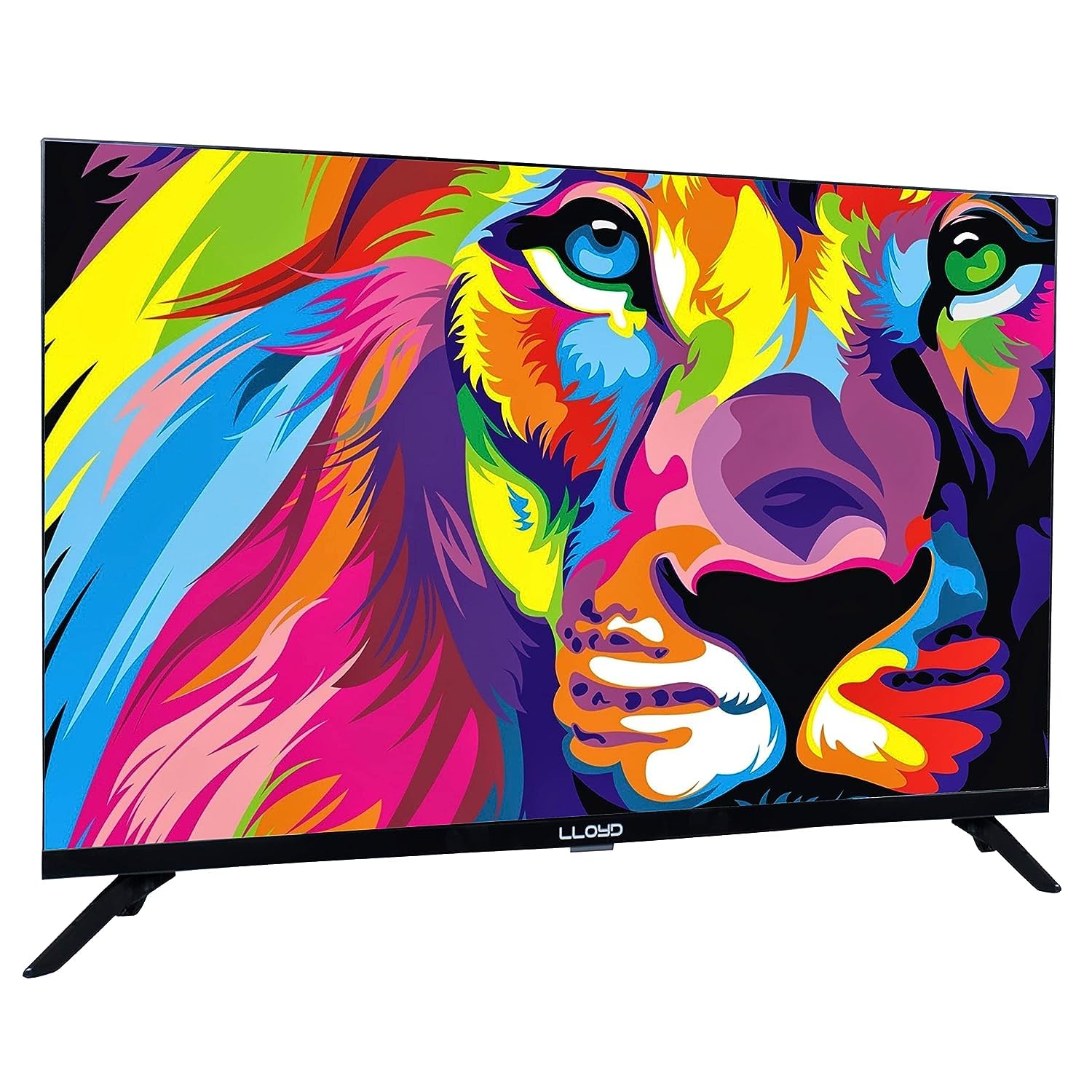
Image: Front view of the Lloyd 32HS551F 32-inch Smart LED TV, showcasing its slim bezels and stand.
2. Safety Information
To ensure safe operation and prevent damage, observe the following precautions:
- Power Supply: Connect the TV only to an AC 110-240V, 50/60Hz power source.
- Ventilation: Ensure adequate ventilation around the TV. Do not block ventilation openings.
- Water and Moisture: Do not expose the TV to rain or moisture. Do not place objects filled with liquids on the TV.
- Heat Sources: Keep the TV away from heat sources such as radiators, heat registers, stoves, or other apparatus that produce heat.
- Cleaning: Unplug the TV before cleaning. Use a soft, dry cloth. Do not use liquid cleaners or aerosol cleaners.
- Servicing: Do not attempt to service this product yourself. Refer all servicing to qualified service personnel.
- Mounting: When wall mounting, use a VESA compatible mount (75 x 75 mm) and ensure it is installed by a qualified professional.
3. Package Contents
Verify that all items are present in the package:
- Lloyd 32HS551F Smart LED TV
- Magic Universal Remote Control
- TV Stand (2 pieces)
- Screws for TV Stand
- Power Cord
- User Manual (this document)
4. Setup
4.1 Unpacking
Carefully remove the TV and all accessories from the packaging. Retain the packaging materials for future transport or servicing.
4.2 Stand Installation
If you are not wall-mounting the TV, attach the included stands:
- Place the TV face down on a soft, flat surface to prevent screen damage.
- Align each stand with the corresponding slots on the bottom of the TV.
- Secure each stand with the provided screws.
4.3 Wall Mounting
The TV supports VESA wall mounts with a 75 x 75 mm pattern. For wall mounting, it is highly recommended to seek professional installation to ensure safety and proper setup.

Image: Rear view of the TV, highlighting the VESA mounting holes and various input/output ports.
4.4 Connecting Devices
Your TV offers various connectivity options:
- HDMI: Connect Blu-ray players, gaming consoles, or set-top boxes to HDMI 1, HDMI 2, or HDMI 3 ports.
- USB: Connect USB storage devices for media playback to USB1 or USB2 ports.
- Antenna/Cable: Connect an antenna or cable TV feed to the RF input.
- Audio Out: Use the optical audio output for external sound systems or the earphone jack for headphones.
- Bluetooth: Connect Bluetooth-enabled devices like soundbars or headphones wirelessly.

Image: Close-up of the TV's side panel, displaying AV (RCA), USB, and HDMI ports.

Image: Close-up of another section of the TV's side panel, showing additional HDMI, USB, and an earphone jack.
4.5 Initial Power On and Setup
After connecting all necessary cables and the power cord, press the power button on the remote control. Follow the on-screen instructions to complete the initial setup, including language selection, network connection (Wi-Fi), and channel scanning.
5. Operating Instructions
5.1 Magic Universal Remote Control
The included Magic Universal Remote allows intuitive control of your TV and connected devices. It features a motion sensor for pointer control and dedicated buttons for popular streaming services.

Image: The Lloyd Magic Universal Remote Control, featuring a central scroll wheel, dedicated app buttons, and a microphone for voice commands.
- Power Button: Turns the TV on or off.
- Number Buttons: Direct channel selection.
- Volume Up/Down: Adjusts the volume.
- Channel Up/Down: Changes channels.
- Home Button: Accesses the WebOS Hub home screen.
- Microphone Button: Activates voice control.
- Navigation Wheel/Buttons: Navigate menus and select options.
- Quick Access Buttons: Direct access to Netflix, Prime Video, YouTube, etc.
5.2 WebOS Hub Smart Features
Your TV runs on the WebOS Hub operating system, providing a smart and user-friendly interface:
- Home Dashboard: Easily access all your apps, inputs, and connected devices from one central screen.
- App Store: Download and install additional applications from the WebOS content store.
- Content Sharing: Utilize features like Mobile to TV sharing to cast content from your smartphone or tablet to the TV.
- AI Quad Core Processor: This processor optimizes picture and sound quality, enhancing your viewing experience.
6. Key Features
The Lloyd 32HS551F TV is equipped with advanced technologies for an enhanced entertainment experience:
- AI Quad Core Processor: Delivers precise picture and sound, upscaling content for improved clarity.
- HDR 10 & HLG: Supports High Dynamic Range formats for extended color gamut and enhanced picture quality, improving cinematic and gaming experiences.
- MEMC (Motion Estimation, Motion Compensation): Provides smoother and more lively transitions, especially beneficial for fast-paced content like sports or games.
- ALLM (Auto-Low Latency Mode): Optimizes the gaming experience by reducing input lag and ensuring fast response times.
- Magic Universal Remote: Offers intuitive control with motion sensing and the ability to manage connected devices.
- DOLBY Audio: Delivers immersive 5.1 surround sound with a Dolby decoder, optimizing the TV's audio quality.
- One Stop Entertainment Hub: Provides easy access to major OTT platforms like Netflix, Prime Video, YouTube, and Disney+ Hotstar.
- A+ Grade Panel: Ensures vivid details, exceptional picture quality, and life-like colors with minimal imperfections, zero light leakage, and no dead pixels.
7. Specifications
| Feature | Specification |
|---|---|
| Screen Size | 32 Inches (80 cm) |
| Display Technology | LED |
| Resolution | HD Ready (1366 x 768) - Note: Product description mentions 4K upscaling, native resolution is HD Ready. |
| Aspect Ratio | 16:9 |
| Model Name | 32HS551F |
| Colour | Black |
| Mounting Type | Wall Mount / Table Top |
| HDR Format Supported | HDR10, HLG |
| Motion Enhancement Technology | MEMC |
| Display Backlight Technology | LED |
| Item Weight Without Stand | 7.5 Kilograms |
| Audio Output Mode | Surround |
| Speaker Description | Dolby Audio 5.1 Surround Sound |
| Integrated Surround Sound Format | Dolby Digital |
| VESA Mount Standard | 75 x 75 mm |
| Tuner Type | ATSC |
| Audio Input | Bluetooth |
| Signal Format | HDMI, USB, ATSC |
| Connector Type | HDMI, USB, Bluetooth |
| Content Sharing Direction | Mobile to TV |
| Line Voltage | 110 VAC 60 Hz |
| Operating Systems | WebOS Hub |
| Control Method | Remote |
| Remote Control Technology | Bluetooth |
8. Troubleshooting
If you encounter issues with your TV, refer to the following common problems and solutions:
- No Power:
- Ensure the power cord is securely plugged into both the TV and a working power outlet.
- Check if the power outlet is functioning by plugging in another device.
- Press the power button on the TV itself, not just the remote.
- No Picture, But Sound:
- Check the input source. Press the 'Input' button on your remote to cycle through sources (HDMI, AV, TV).
- Ensure all video cables (HDMI, AV) are securely connected.
- Try a different HDMI port or cable.
- No Sound, But Picture:
- Increase the volume using the remote control.
- Check if the TV is muted. Press the 'Mute' button on the remote.
- If using external audio devices, ensure they are properly connected and powered on.
- Check audio output settings in the TV menu.
- Remote Control Not Working:
- Replace the batteries in the remote control.
- Ensure there are no obstructions between the remote and the TV.
- For Magic Remote, ensure it is paired correctly (refer to the TV's on-screen guide for pairing instructions).
- Network Connection Issues:
- Restart your Wi-Fi router.
- Go to the TV's network settings and try reconnecting to your Wi-Fi network.
- Ensure the Wi-Fi password is entered correctly.
9. Maintenance
Proper care and maintenance will extend the life of your TV:
- Screen Cleaning: Gently wipe the screen with a soft, lint-free cloth. For stubborn marks, slightly dampen the cloth with water or a specialized screen cleaner (apply to cloth, not directly to screen).
- Cabinet Cleaning: Wipe the TV cabinet with a soft, dry cloth.
- Dusting: Regularly dust the ventilation openings to prevent overheating.
- Power Off: If the TV will not be used for an extended period, unplug it from the power outlet.
10. Warranty and Support
Your Lloyd 32HS551F Smart LED TV comes with a 1 + 1 Year Warranty. Please retain your purchase receipt as proof of purchase for warranty claims.
For technical support, service, or warranty inquiries, please contact Lloyd customer service through their official website or the contact information provided with your purchase documentation.
Related Documents - 32HS551F
 |
Lloyd Air Conditioners: Stellar, Stylus, and More - Product Catalog 2024 Discover the comprehensive 2024 product catalog from Lloyd, a Havells brand, featuring a wide array of advanced Air Conditioners. Explore innovative technologies like IAQ management, AI-driven features, voice control, and customizable mood lighting across series such as Stellar, Stylus, Intelli-Logic, Fresca, Grande HD, and more. This catalog details product specifications, energy efficiency ratings, and unique features designed for ultimate home comfort and health. Find the perfect AC solution for any need, from powerful cooling to air purification. |
 |
LLOYD 27980297/01 Table Assembly Instructions Step-by-step assembly guide for the LLOYD 27980297/01 table by XXXLutz KG. Includes parts list, required tools, and assembly time. |
 |
LLOYD Desk Assembly Instructions - BDS K Handels GmbH & Co.KG Step-by-step assembly guide for the LLOYD desk, including parts list, assembly diagrams, and required tools. Manufactured by BDS K Handels GmbH & Co.KG. |
 |
SmartLife-SmartHome App: Download, Install, Activate, and Control Your Air Conditioner A comprehensive guide to downloading, installing, activating, registering, and using the SmartLife-SmartHome app to control your LLOYD air conditioner. Learn how to set up your device and manage settings. |
 |
Lloyd Split Air Conditioner Owner's Manual Comprehensive owner's manual for Lloyd Split Air Conditioners, covering installation, operation, maintenance, safety precautions, and troubleshooting for R32 refrigerant models. |
 |
LLOYD Desk 27980297/01 Assembly Instructions | XXXLutz KG Comprehensive assembly guide for the LLOYD desk (model 27980297/01) by XXXLutz KG. Includes parts list, step-by-step instructions, and safety tips for easy setup. |
Ask a question about this manual
Ask about setup, troubleshooting, compatibility, parts, safety, or missing instructions. Manuals+ will review the question and use this page’s manual context to help answer it.