
Introduction
Thank you for choosing the UseeLink Zigbee Smart Power Strip. This device provides convenient control over your electronic appliances with its four independently controlled AC outlets and three USB ports, including a PD20W USB-C port. This manual will guide you through the setup, operation, and maintenance of your smart power strip.
Important Note: This is a Zigbee version smart power strip and requires a compatible Zigbee hub for smart functionalities such as app control and voice commands. It is not a standalone Wi-Fi device.
Safety Information
- Do not exceed the maximum load of 16A.
- Do not use in wet environments.
- Do not disassemble or modify the device.
- Keep out of reach of children.
- Ensure proper grounding.
- This device is certified CE REACH and RoHS.
Package Contents
- UseeLink Zigbee Smart Power Strip
- User Manual
Product Overview
The UseeLink Zigbee Smart Power Strip features four AC outlets and three USB ports (2x USB-A, 1x USB-C PD20W). Each AC outlet can be controlled independently. The power strip also includes a main power button and an LED indicator.

Image: Front view of the UseeLink Zigbee Smart Power Strip, highlighting the four AC outlets, two USB-A ports, and one USB-C port. The main power button is also visible.

Image: Diagram illustrating the key features of the UseeLink Zigbee Smart Power Strip, including compatibility with Alexa/Google Home, app control, schedule timer, device sharing, fire prevention, and overload protection. It also indicates the requirement for a Zigbee Hub.
Setup
1. Zigbee Hub Requirement
This smart power strip operates on the Zigbee 3.0 protocol and requires a compatible Zigbee hub to enable smart features. Compatible hubs include:
- Echo (4th Gen), Echo Plus (1st & 2nd Gen), Echo Studio
- Eero 6, Eero Pro 6
- Home Assistant
- SmartThings 2015/2018, Aeotec
- Hubitat
- Homey Bridge, Homey Pro
- Third Reality Hub, Smart Bridge MZ1
- Philips Hue Hub, Tuya Hub
Compatibility with other devices not listed is not confirmed. Please ensure your Zigbee hub is properly set up and connected to your home network.
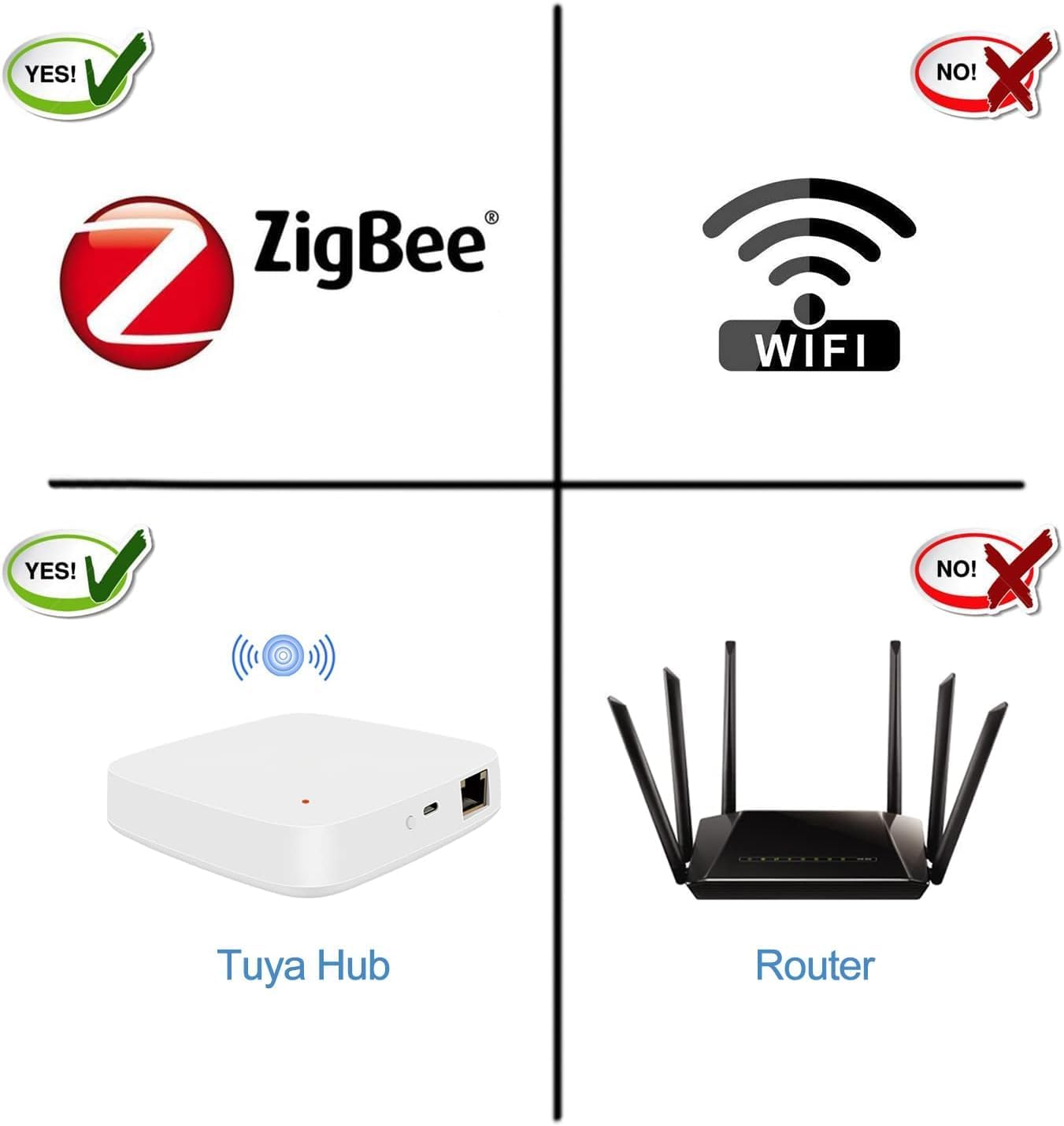
Image: Visual representation confirming Zigbee compatibility and the necessity of a Zigbee hub (like Tuya Hub), while indicating incompatibility with standard Wi-Fi routers for direct connection.
2. App Installation
Download the "Smart Life" or "Tuya Smart" application from your smartphone's app store (available on iOS and Android).
- Search for "Smart Life" or "Tuya Smart" in the App Store or Google Play Store.
- Install the application on your mobile device.
- Register or log in to your account.
3. Pairing the Power Strip with Your Zigbee Hub
- Plug the UseeLink Smart Power Strip into a standard wall outlet.
- Ensure your Zigbee hub is powered on and connected to your home network.
- Open your Zigbee hub's application (e.g., Smart Life, Tuya Smart, SmartThings, etc.).
- Follow the app's instructions to add a new device. This usually involves selecting "Add Device" or a similar option and then choosing the "Power Strip" or "Socket" category.
- The power strip's indicator light should blink rapidly, indicating it is in pairing mode. If not, press and hold the main power button on the power strip for 5-10 seconds until the indicator light blinks.
- Once detected, confirm the device in the app. You may be prompted to name the device and assign it to a room.
After successful pairing, the power strip's indicator light will stop blinking and remain solid, and the device will appear in your app.
Operating Instructions
1. Manual Control
- Main Power Button: Press the main power button on the power strip to turn all AC outlets ON or OFF simultaneously.
- USB Ports: The USB ports (USB-A and USB-C) are always active when the power strip is plugged in. They cannot be controlled independently via the app or manually.
2. App Control
Once paired with your Zigbee hub and app (e.g., Smart Life/Tuya Smart), you can control the power strip remotely.
- Individual Outlet Control: In the app, you will see separate controls for each of the four AC outlets. Tap to turn individual outlets ON or OFF.
- Timer and Countdown: Use the app to set schedules for your devices. You can program specific times for outlets to turn ON or OFF, or set a countdown timer for temporary operation.
- Device Sharing: Share control of the power strip with family members through the app. Each authorized user can control the outlets.
- Grouping: Create groups of smart devices within the app to control multiple devices with a single command.

Image: A smartphone screen displaying the timer scheduling feature within the smart home application, allowing users to set specific ON/OFF times for connected appliances.

Image: A visual demonstrating remote control capabilities, where a user can switch home appliances on or off from any location using the mobile application.
3. Voice Control (Alexa/Google Home)
To enable voice control, link your Smart Life or Tuya Smart account with your Amazon Alexa or Google Home account through their respective applications.
- Open the Alexa or Google Home app.
- Navigate to the "Skills & Games" (Alexa) or "Works with Google" (Google Home) section.
- Search for "Smart Life" or "Tuya Smart" skill/service.
- Enable the skill/service and link your account using your Smart Life/Tuya Smart credentials.
- Discover devices. Your power strip and its individual outlets should now be controllable by voice.
Example Voice Commands:
- "Alexa, turn on [Outlet Name]"
- "Hey Google, turn off [Outlet Name]"
- "Alexa, turn on the living room power strip"

Image: A user demonstrating voice control functionality with an Amazon Echo device, illustrating how to command connected appliances. The image also notes compatibility with Google Assistant and Alexa, and explicitly states that Apple Homekit is not supported.
Maintenance
- Cleaning: Disconnect the power strip from the wall outlet before cleaning. Use a dry, soft cloth to wipe the surface. Do not use liquid cleaners or sprays.
- Storage: Store the power strip in a cool, dry place away from direct sunlight and moisture when not in use for extended periods.
- Firmware Updates: Periodically check the Smart Life or Tuya Smart app for any available firmware updates for your device to ensure optimal performance and security.
Troubleshooting
| Problem | Possible Cause | Solution |
|---|---|---|
| Power strip does not turn on. | No power from wall outlet; power strip is faulty. | Check the wall outlet with another device. Ensure the power strip is firmly plugged in. |
| Cannot pair the power strip. | Not in pairing mode; Zigbee hub not connected; incorrect app. | Ensure the indicator light is blinking rapidly (press and hold main button for 5-10s). Verify your Zigbee hub is online. Confirm you are using Smart Life or Tuya Smart app. Ensure your hub is Zigbee 3.0 compatible. |
| App control not working. | Zigbee hub offline; power strip disconnected; app issue. | Check if your Zigbee hub is online and connected to the internet. Verify the power strip is powered on and connected to the hub. Restart the app or your phone. |
| Voice control not responding. | Alexa/Google Home not linked; device name not recognized. | Ensure your Smart Life/Tuya Smart account is correctly linked to Alexa/Google Home. Try rediscovering devices in the Alexa/Google Home app. Use the exact device names configured in the app. |
| USB ports not charging. | Device not compatible; cable issue; power strip off. | Ensure the power strip is powered on. Check the charging cable and the device being charged. Note that USB ports are always active when the power strip is powered. |
Specifications
- Model Number: SM-302-E-PA20
- Brand: UseeLink
- Connectivity: Zigbee 3.0 (requires Zigbee Hub)
- AC Outlets: 4 (individually controllable)
- USB Ports: 2x USB-A, 1x USB-C (PD20W QC3.0 18W)
- Max Current: 16 A
- Max Surge Protection: 3500 Joules
- Input Voltage: 230V AC, 50/60Hz (Standard European Type C/EF plug)
- Material: Plastic
- Certifications: CE, REACH, RoHS
- Compatible Devices: HUE, Echo, Tuya Hub, SmartThings, Home Assistant, etc.
Warranty and Support
UseeLink provides 7-hour customer service and 24-hour technical support. If you encounter any issues with your product, please contact the seller or UseeLink customer support for assistance.
Spare parts availability is listed as 10 years.


