
podofo 6280W (Type 4, 6.9-inch)
Podofo 1 DIN Car Radio User Manual
Model: 6280W (Type 4, 6.9-inch)
1. Introduction
Thank you for choosing the Podofo 1 DIN Car Radio. This manual provides detailed instructions for installation, operation, and maintenance of your new car stereo system. Please read this manual thoroughly before using the product to ensure proper functionality and safety.
This car radio features a 6.9-inch IPS touchscreen, offering wide viewing angles and a broad color range. It supports wired and wireless Apple CarPlay and Android Auto, allowing seamless integration with your smartphone for navigation, communication, and entertainment. Key features include Bluetooth 5.0 for hands-free calling and music streaming, FM/RDS radio, steering wheel control compatibility, USB fast charging, and mirror link functionality. A rear view camera is also included for enhanced safety during parking.
2. Product Features
- 6.9-inch IPS Touchscreen: Provides a clear display with wide viewing angles.
- Apple CarPlay & Android Auto: Supports wired and wireless connection for smartphone integration (iOS/Android).
- Bluetooth 5.0: For hands-free calls, phonebook access, and wireless music playback. Includes an external microphone.
- FM/RDS Radio: Access to FM radio stations with RDS for real-time traffic and weather updates.
- Steering Wheel Control (SWC): Compatible with original car steering wheel controls for convenient operation.
- Mirror Link: Project your smartphone screen (Android/iOS) onto the car stereo display via USB or Bluetooth.
- USB Fast Charging: Supports quick charging for mobile devices.
- Rear View Camera Input: Automatically displays the reverse image when backing up.
- Multi-band EQ Mode: Adjustable sound effects for customized audio experience.
- Multiple Media Playback: Supports TF/SD card, AUX input, U disk playback, and various video encoding formats (MKV, RMVB, AVI, MP4).
- 7-Color Button Light: Customizable button illumination to match your car's interior.
3. Package Contents
Please check the package contents upon unboxing to ensure all items are present and undamaged.
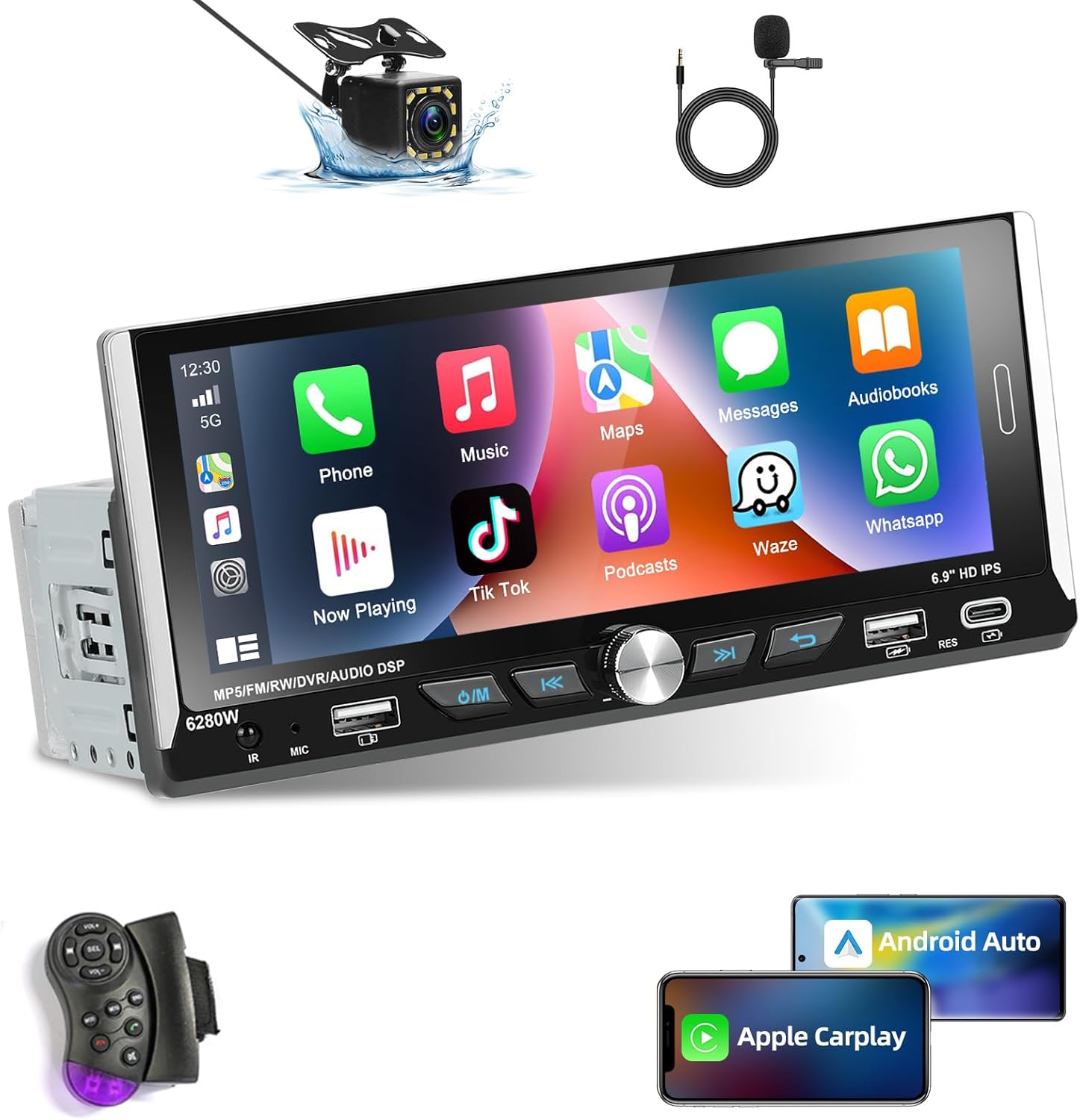
Podofo 1 DIN Car Radio Unit (6.9-inch IPS Screen)

Rear View Camera and External Microphone
Remote Control and Steering Wheel Control Remote

Power Harness, RCA Cables, USB Cables, and User Manual
Note: The exact appearance of accessories may vary slightly.
4. Specifications
| Feature | Specification |
|---|---|
| Screen Size | 6.9 inches |
| Display Type | IPS Touchscreen |
| Installation Size | 178 x 50 x 97 mm (7.01 x 1.97 x 3.82 inches) |
| Connectivity Technology | Bluetooth 5.0, USB, AUX, TF/SD Card |
| Compatible Devices | iOS and Android devices (for CarPlay/Android Auto) |
| Audio Output Mode | Stereo |
| Surround Sound Channel Configuration | 4.0 |
| Video Encoding Support | MKV, RMVB, AVI, MP4 |
| Button Illumination Colors | 7 colors |
5. Setup and Installation
5.1 Safety Precautions
- Disconnect the vehicle's battery negative terminal before installation to prevent electrical shorts.
- Ensure proper insulation of all wire connections to avoid short circuits.
- Do not install the unit where it might obstruct the driver's view or interfere with vehicle operation.
- Consult a professional if you are unsure about any installation steps.
5.2 Wiring Diagram
Refer to the following diagram for correct wiring connections. Incorrect wiring can damage the unit or your vehicle's electrical system.
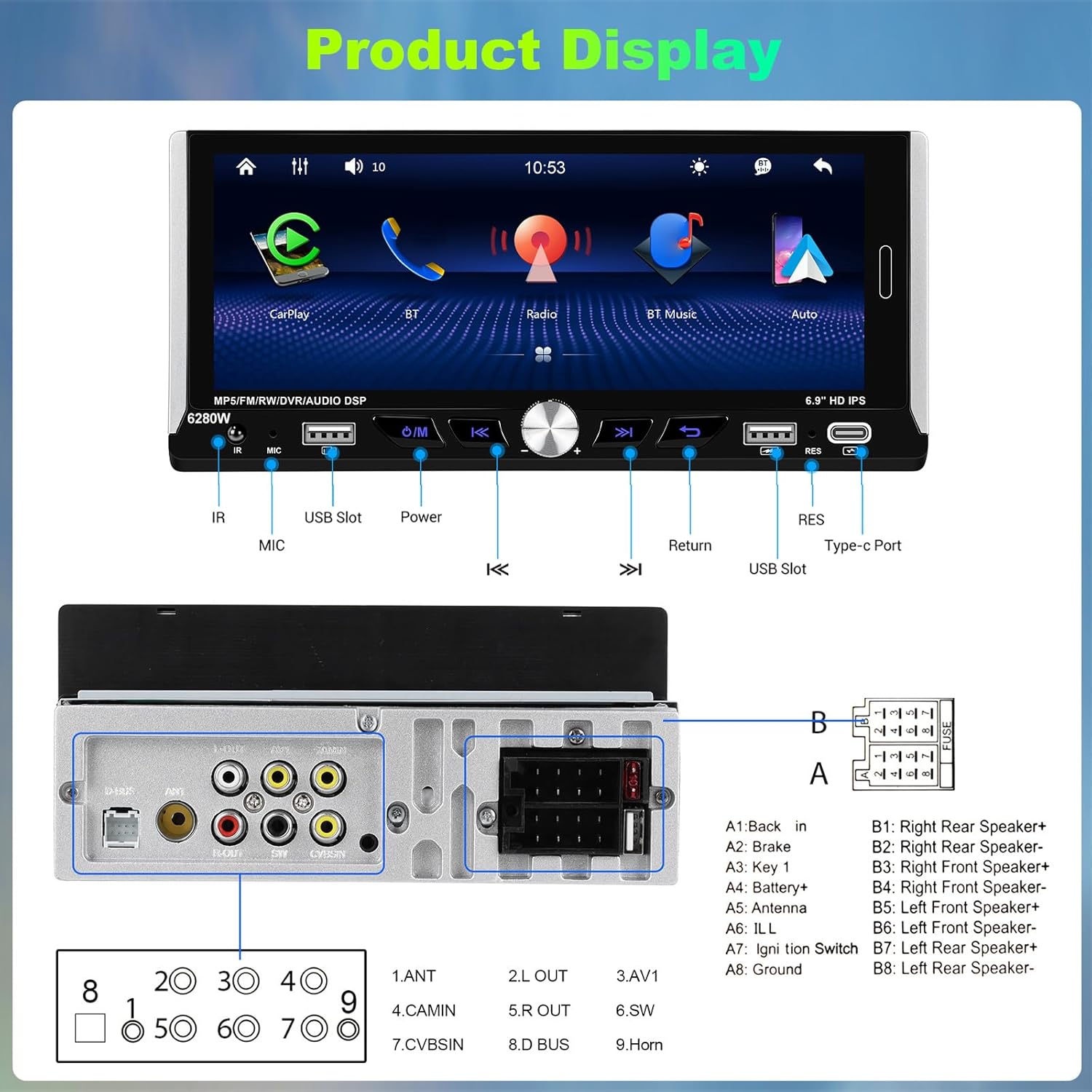
Detailed wiring connections for the car radio, showing power, speaker, and auxiliary inputs/outputs.
- Power Connections:
- Red Wire (ACC): Connect to the ignition switch (ACC).
- Yellow Wire (B+): Connect to the constant 12V power supply.
- Black Wire (GND): Connect to the vehicle's chassis ground.
- Speaker Connections: Connect the speaker wires according to the diagram (e.g., White/White-Black for Front Left, Gray/Gray-Black for Front Right, Green/Green-Black for Rear Left, Purple/Purple-Black for Rear Right). Ensure correct polarity.
- Rear View Camera: Connect the camera's video output to the "CAMIN" RCA input. Connect the camera's power to the reverse light circuit.
- Steering Wheel Control (SWC): Connect KEY1 and KEY2 wires to your vehicle's steering wheel control wires. Refer to your vehicle's manual for specific wiring.
- Antenna: Connect the car antenna to the "ANT" input.
- External Microphone: Plug the external microphone into the dedicated MIC input port.
5.3 Installation Steps
- Remove the existing car stereo (if any) and dashboard trim.
- Connect all necessary wiring harnesses to the new Podofo unit according to the wiring diagram.
- Mount the unit into the 1 DIN slot in your dashboard.
- Secure the unit using mounting brackets or screws.
- Reconnect the vehicle's battery.
- Test all functions (power, audio, radio, Bluetooth, CarPlay/Android Auto, camera) before reassembling the dashboard trim.
- Reinstall the dashboard trim.
6. Operating Instructions
6.1 Basic Operation
- Power On/Off: Press the power button (usually a knob or dedicated button) to turn the unit on or off.
- Volume Control: Rotate the knob or use the volume buttons to adjust the sound level.
- Source Selection: Press the "MODE" or "Source" button to switch between Radio, Bluetooth, USB, AUX, CarPlay, Android Auto, etc.
- Touchscreen Navigation: Tap icons on the 6.9-inch IPS screen to access different functions and settings.
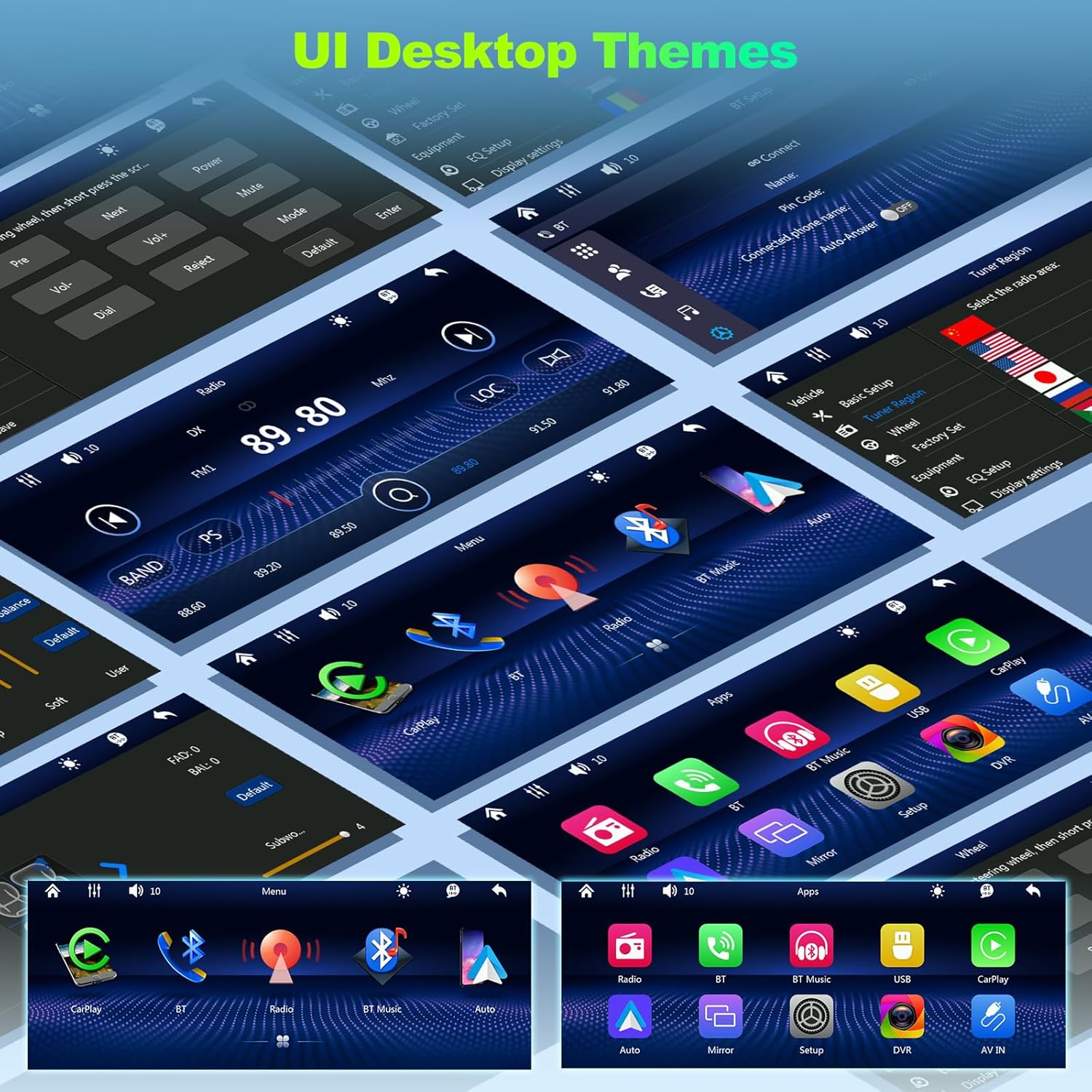
Front panel display with various controls and ports.
6.2 Apple CarPlay & Android Auto
This unit supports both wired and wireless Apple CarPlay and Android Auto. This allows you to integrate your smartphone's features directly onto the car radio's display.

Example of CarPlay and Android Auto interface on the car radio screen.
- Wired Connection: Connect your iPhone or Android phone to the unit's USB port using a high-quality USB data cable. The unit should automatically detect and launch CarPlay or Android Auto.
- Wireless Connection:
- Ensure Bluetooth is enabled on your phone and the car radio.
- Pair your phone with the car radio via Bluetooth.
- Once paired, the unit may prompt you to enable wireless CarPlay/Android Auto. Follow the on-screen instructions.
- Functions: Access navigation (Maps, Waze), make calls, send messages, play music, and use voice assistants (Siri, Google Assistant) directly from the car radio screen.
6.3 Bluetooth 5.0 Operation
Connect your mobile phone via Bluetooth for hands-free calling and audio streaming.
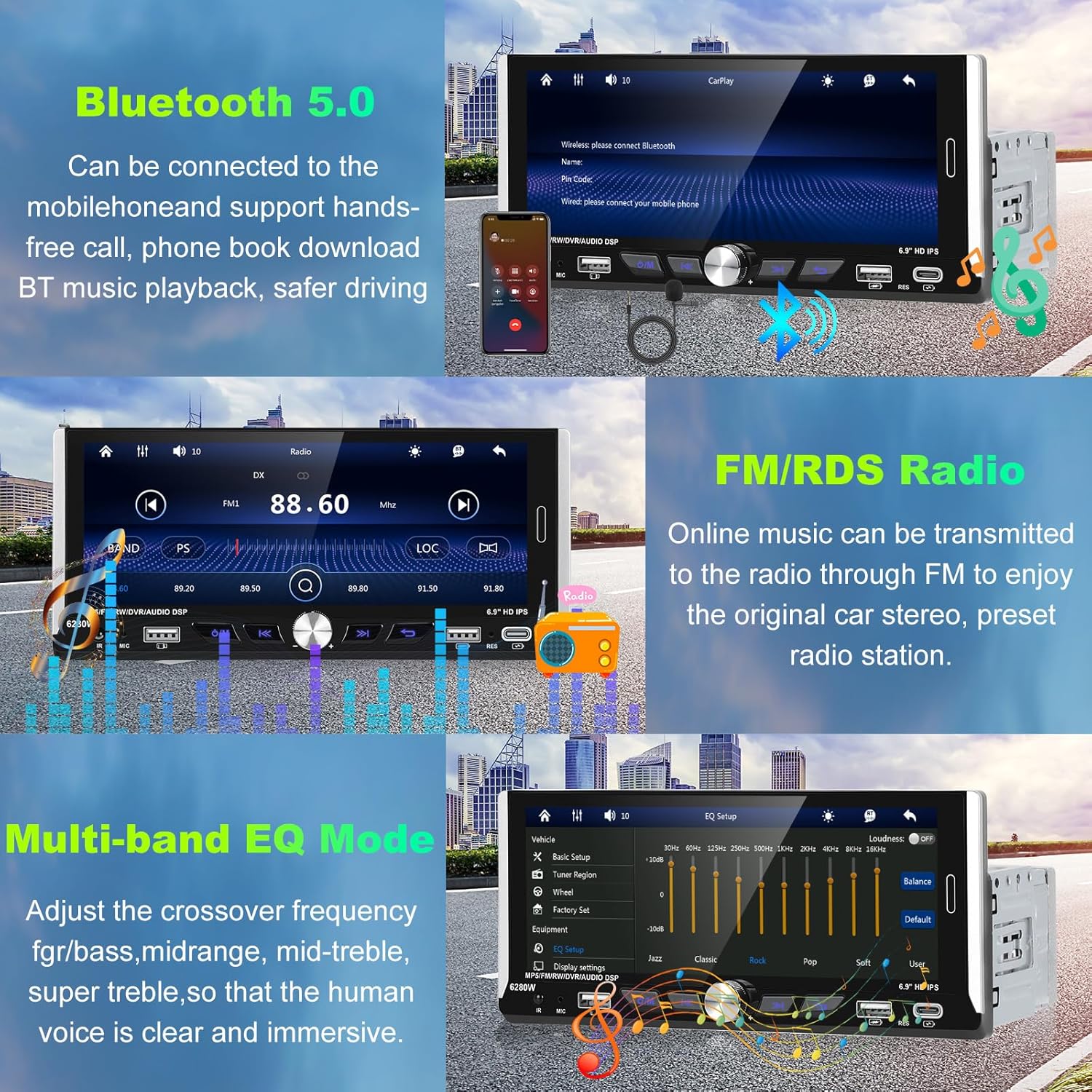
Bluetooth pairing interface on the car radio.
- Go to the "Bluetooth" menu on the car radio.
- Enable Bluetooth on your mobile phone and search for available devices.
- Select "Podofo" or a similar device name from your phone's Bluetooth list.
- Confirm the pairing code if prompted.
- Once connected, you can make/receive calls and play music wirelessly.
6.4 FM/RDS Radio
Enjoy your favorite radio stations with clear reception and RDS information.

FM radio tuning and preset interface.
- Select "Radio" from the main menu.
- Use the "Scan" or "Seek" function to find stations automatically.
- Manually tune by tapping the frequency up/down arrows.
- Press and hold a preset button to save the current station.
- RDS (Radio Data System) provides station name, song title, and traffic information where available.
6.5 Mirror Link Function
Project your smartphone screen onto the car radio display.
Illustration of smartphone screen mirroring to the car radio.
- Select "Mirror Link" from the main menu.
- Connect your phone via USB cable or Bluetooth.
- Follow the on-screen instructions to enable screen mirroring. This may require installing a specific app on your phone.
6.6 Steering Wheel Control (SWC)
Program your steering wheel buttons to control the car radio.
Diagram showing steering wheel control connections and setup menu.
- Ensure the SWC wires (KEY1, KEY2) are correctly connected during installation.
- Go to "Settings" > "Steering Wheel Control" on the car radio.
- Follow the on-screen prompts to assign functions (e.g., volume up/down, track next/previous, mode) to your steering wheel buttons.
6.7 USB Playback and Charging
The unit supports media playback from USB drives and fast charging for mobile devices.
- Insert a USB drive into the USB slot for music or video playback.
- Connect your mobile phone to the USB slot for fast charging.
6.8 Audio Settings (EQ Mode)
Customize your audio experience using the built-in equalizer.
Graphical interface for adjusting audio equalizer settings.
- Access the "EQ" or "Sound Settings" menu.
- Choose from preset equalizer modes (e.g., Pop, Rock, Classic) or customize individual frequency bands (bass, midrange, treble).
7. Maintenance
- Cleaning the Screen: Use a soft, lint-free cloth to wipe the touchscreen. For stubborn smudges, dampen the cloth slightly with water or a screen cleaner. Do not use abrasive cleaners or solvents.
- General Cleaning: Keep the unit free from dust and debris. Use a soft brush or compressed air to clean around buttons and ports.
- Temperature: Avoid exposing the unit to extreme temperatures, direct sunlight for prolonged periods, or high humidity.
- Software Updates: Check the manufacturer's website periodically for any available firmware updates to ensure optimal performance and compatibility.
8. Troubleshooting
If you encounter issues with your Podofo car radio, refer to the following common problems and solutions:
| Problem | Possible Cause | Solution |
|---|---|---|
| No power | Incorrect wiring; Blown fuse; Loose connection. | Check power (Red, Yellow, Black) wire connections. Inspect vehicle's fuse box and the unit's fuse. Ensure all connections are secure. |
| No sound | Volume too low; Mute activated; Incorrect speaker wiring; Damaged speakers. | Increase volume. Check if mute is on. Verify speaker wire connections and polarity. Test with different speakers if possible. |
| Bluetooth not connecting | Bluetooth off on phone/unit; Incorrect pairing; Interference. | Ensure Bluetooth is enabled on both devices. Delete previous pairings and re-pair. Move closer to the unit. |
| CarPlay/Android Auto not launching | Faulty USB cable; Phone not compatible; Software issue. | Use a high-quality, original USB data cable. Ensure your phone's OS is up to date. Restart both phone and unit. |
| Rear camera not displaying | Incorrect camera wiring; Camera faulty; Reverse trigger wire not connected. | Check CAMIN RCA connection. Ensure reverse trigger wire is connected to the vehicle's reverse light. Test camera power. |
| Unit freezes or crashes | Software glitch; Overheating; Too many apps running. | Perform a soft reset (press reset button if available, or disconnect battery for a minute). Ensure proper ventilation. Close unnecessary apps. |
If the problem persists after trying these solutions, please contact Podofo customer support for further assistance.
9. Warranty and Support
Podofo is committed to providing professional and friendly customer service and lifetime technical support.
- Warranty: Please refer to your purchase documentation or the product listing for specific warranty terms and duration.
- Technical Support: If you have any questions about the product, installation, or operation, you can contact us via email. We guarantee a satisfactory response within 24 hours.
- Contact Information: Refer to the contact details provided with your product packaging or on the official Podofo website.
Ask a question about this manual
Ask about setup, troubleshooting, compatibility, parts, safety, or missing instructions. Manuals+ will review the question and use this page’s manual context to help answer it.