
1. Product Overview
The YUNZII YZ87 is a Tenkeyless (TKL) gasket mechanical keyboard designed for enhanced typing experience and versatility. It features multi-mode connectivity, hot-swappable switches, customizable RGB backlighting, and a durable construction suitable for various operating environments.

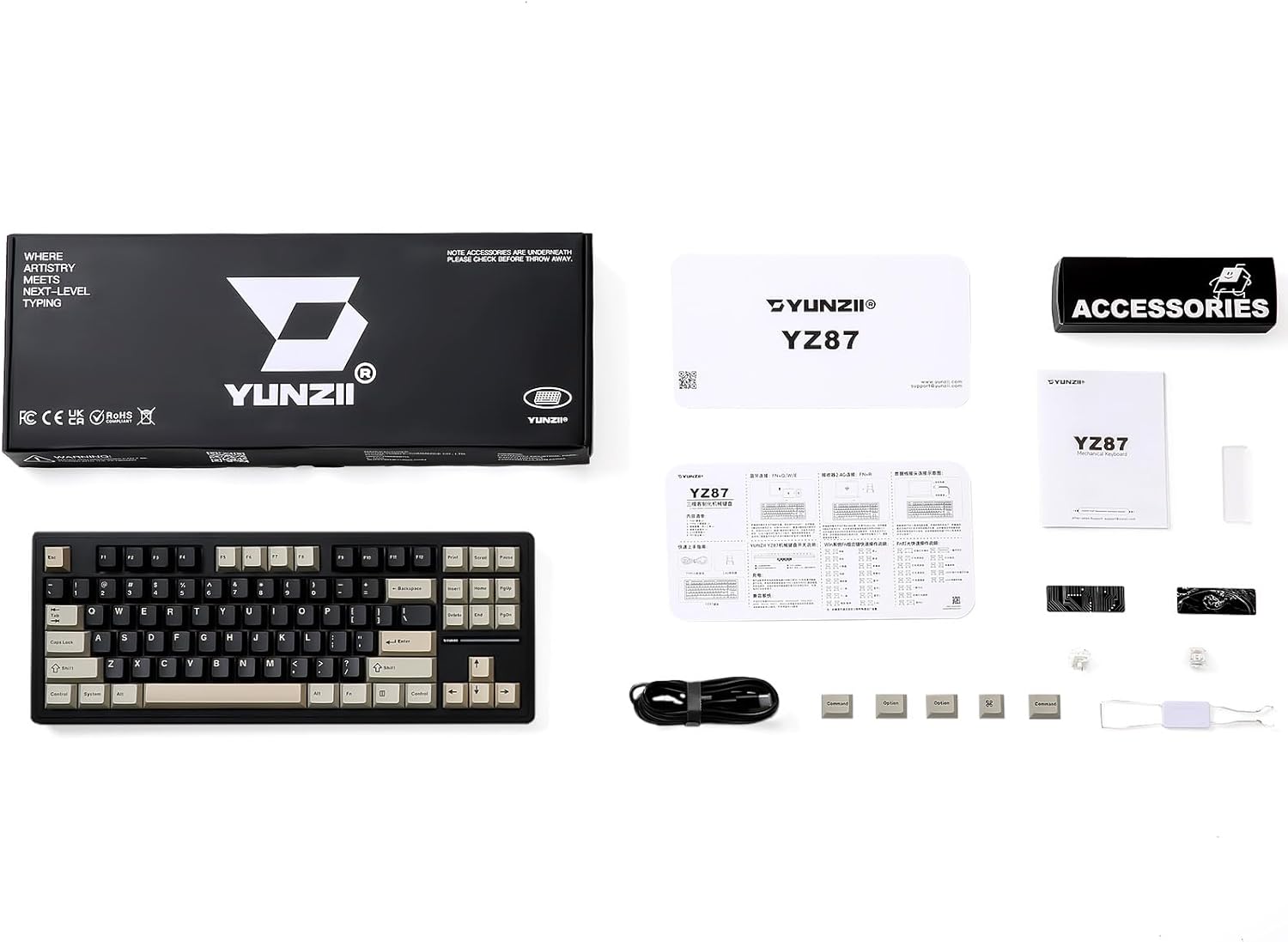
What's in the Box
- YUNZII YZ87 Mechanical Keyboard
- USB-C Cable
- Keycap Puller
- Switch Puller
- User Manual
- Extra Keycaps (for Mac compatibility)
- Extra Switches
2. Setup
Connectivity Modes
The YZ87 keyboard supports three connection modes: Wired (USB-C), 2.4GHz Wireless, and Bluetooth 5.0. A switch located on the top edge of the keyboard allows you to select your preferred mode.

Wired Connection (USB-C)
- Connect the provided USB-C cable to the keyboard's USB-C port.
- Connect the other end of the cable to your computer's USB port.
- Ensure the mode switch on the keyboard is set to "Line" or "Wired" mode. The keyboard will be automatically recognized by your computer.
2.4GHz Wireless Connection
- Locate the 2.4GHz USB dongle (usually stored in a compartment on the keyboard).
- Plug the dongle into an available USB port on your computer.
- Set the mode switch on the keyboard to "2.4G" mode. The keyboard will automatically connect.
Bluetooth Connection (BT5.0)
- Set the mode switch on the keyboard to "BT" mode.
- On your device (computer, tablet, smartphone), enable Bluetooth and search for new devices.
- Press Fn + Q, Fn + W, or Fn + E to select a Bluetooth channel (BT1, BT2, or BT3). The indicator light for the selected channel will blink rapidly.
- Select "YUNZII YZ87" from the list of available Bluetooth devices on your host device.
- Once paired, the indicator light will stop blinking, and the keyboard is ready for use.

Operating System Compatibility
The YZ87 keyboard is compatible with Windows and Mac operating systems. A dedicated switch on the keyboard allows you to toggle between Windows and Mac layouts for optimal key functionality.

3. Operating the Keyboard
RGB Backlighting Control
The YZ87 features 19 default RGB effects and 8 backlight colors with south-facing LEDs for enhanced illumination. All RGB settings can be customized using FN key combinations.
- Fn + ↑: Brightness Up
- Fn + ↓: Brightness Down
- Fn + ←: Backlight Speed Down
- Fn + →: Backlight Speed Up
- Fn + DEL: Change Backlight Effect
- Fn + BACKSPACE: Backlight Effects ON/OFF
- TAB: White Light ON/OFF

Advanced RGB and macro key customization is available via dedicated software for Windows systems. This software is not compatible with Mac OS.

Battery Information
The YZ87 is equipped with a large capacity 5000mAh Lithium Ion battery. To check the battery level, press Fn + Right Alt.
- With RGB off, the battery can last up to 30 days (within 1 month).
- With RGB on, the battery can last up to 22 hours (within 1 day).
- Full recharge takes approximately 8 hours.

4. Maintenance
Hot-Swappable Switches
The YZ87 features a full key hot-swappable PCB, supporting both 3-pin and 5-pin mechanical switches. This allows for easy customization and replacement of switches without soldering.

Replacing Switches and Keycaps
- Use the provided keycap puller to gently remove the desired keycap by pulling straight up.
- Use the provided switch puller to carefully grip the switch from its top and bottom clips, then pull it straight up to remove it from the PCB.
- To install a new switch, align its pins with the holes on the PCB and press down gently until it clicks into place. Ensure the pins are not bent.
- Place the keycap back onto the switch stem.
Video 1: Instructions on how to pull out and plug in switches on the YZ87 keyboard.
Cleaning
Regular cleaning helps maintain the keyboard's performance and appearance. Use a soft brush or compressed air to remove dust and debris from between the keycaps. For deeper cleaning, remove keycaps and gently wipe them with a damp cloth. Ensure the keyboard is disconnected and completely dry before reassembly and use.
5. Troubleshooting
Connectivity Issues
- Keyboard not connecting: Ensure the mode switch is set correctly (Wired, 2.4G, or BT). For wireless modes, check battery level. For Bluetooth, ensure the correct channel (Fn+Q/W/E) is selected and the device is discoverable.
- Lag or disconnections in wireless mode: Try moving the keyboard closer to the receiver/device. Ensure there are no major obstructions or sources of interference.
RGB and Key Functionality
- RGB not working or incorrect: Check FN key combinations for brightness and effects. If using customization software, ensure it's the correct version for your keyboard and that your system is Windows (Mac OS is not supported for software customization).
- Keys not responding: For hot-swappable switches, ensure the switch is properly seated in the PCB. If issues persist, try replacing the switch with an extra one provided.
- Ghosting or N-key rollover issues: The YZ87 features NKRO anti-ghosting technology, allowing simultaneous key presses to be registered accurately. If you experience issues, ensure the keyboard firmware is up to date (check YUNZII's official website for updates).
6. Specifications
| Feature | Detail |
|---|---|
| Model Number | YZ87 |
| Layout | 87-Key Tenkeyless (TKL) |
| Structure | Gasket Mount with 5-Layer Padding |
| Switches | Hot-Swappable (3/5-pin), Pre-lubed Linear Switches (Milk Switch) |
| Keycaps | Side-printed Topographic PBT, Cherry Profile |
| Connectivity | Bluetooth 5.0, 2.4GHz Wireless, USB-C Wired |
| Battery Capacity | 5000mAh Lithium Ion |
| Backlighting | RGB (19 default effects, 8 colors), South-facing LEDs |
| Anti-Ghosting | N-Key Rollover (NKRO) |
| Compatible OS | Windows, Mac, iOS, Android |
| Product Dimensions | 14.57 x 5.51 x 1.57 inches |
| Item Weight | 0.035 ounces |
| Material | Plastic |
7. Warranty and Support
For any product inquiries, technical support, or warranty claims, please contact YUNZII customer service. Refer to the official YUNZII website or the contact information provided in your product packaging for the most up-to-date support details.
YUNZII is dedicated to providing high-quality mechanical keyboards. Ensure to register your product if applicable to activate your warranty.


