
1. Introduction
This manual provides detailed instructions for the installation, operation, and maintenance of your Hikity Android 13 Car Stereo. This unit is specifically designed for Toyota Fortuner and Hilux models manufactured between 2005 and 2014, offering an upgraded in-car entertainment and navigation experience.
The system features a 9-inch HD touchscreen, 2GB RAM, and 64GB ROM, supporting wireless CarPlay, Android Auto, GPS navigation, Bluetooth connectivity, FM/RDS radio, and a HiFi audio experience. It also includes support for a backup camera and steering wheel controls.

Figure 1: Hikity Android 13 Car Stereo with its main features highlighted.
2. Product Features
- Upgraded Android 13 System: Features a 1080P HD touchscreen with 2GB RAM and 64GB ROM for smooth operation and quick responses, allowing for effortless installation of multiple applications.
- Vehicle Compatibility: Designed for Toyota Fortuner Hilux 2005-2014 models. No additional accessories are required for installation.
- Wireless/Wired CarPlay & Android Auto: Seamlessly integrates with iPhone and Android devices via the "Zlink5" application (Bluetooth or USB data cable). Supports phone calls, music access, navigation, and voice assistants (Siri/Google Assistant).
- Bluetooth & FM/RDS & HiFi Effect: Built-in and external microphones for hands-free calling. Supports Bluetooth music playback, phone book download, and call logs. FM radio with 18 preset stations. 16-band EQ with various default styles (Rock, Pop, Jazz, Classic) for audio customization.
- Backup Camera & Steering Wheel Control: Supports AHD backup cameras with wide-angle and waterproof design. The car screen automatically displays the rear view when reversing. Compatible with original car steering wheel controls after proper wiring and learning.
- Phone Mirror Link Function: Supports screen mirroring for both iOS and Android mobile phones via USB data cable or WiFi, displaying phone content on the 9-inch screen.

Figure 2: Wireless/Wired CarPlay, Android Auto, and Mirror Link via Zlink5.

Figure 3: Overview of the Android 13 User Interface.
3. Package Contents
Verify that all items listed below are included in your package. If any components are missing or damaged, please contact customer support.
- Hikity Android Stereo Unit for Toyota Fortuner Hilux
- Power Cable
- RCA Harness
- GPS Antenna
- AHD Backup Camera
- External Microphone
- Rear Camera Input Cable
- Dual USB Cable
- Installation Tool & Accessories

Figure 4: Package contents and unit dimensions.
4. Installation Guide
Professional installation is recommended. Ensure the vehicle's power is disconnected before beginning installation to prevent electrical damage or injury.
4.1 Pre-Installation Check
- Verify vehicle compatibility (Toyota Fortuner Hilux 2005-2014).
- Ensure all package contents are present and undamaged.
- Gather necessary tools (installation tool kit is included).
4.2 Wiring Diagram
Refer to the following diagram for proper wiring connections. Incorrect wiring can damage the unit or vehicle electronics.

Figure 5: Wiring diagram for the car stereo connections.
4.3 Installation Steps (General)
- Carefully remove the original car stereo and dashboard trim.
- Connect the power cable, RCA harness, GPS antenna, and other necessary cables to the new Hikity stereo unit as per the wiring diagram.
- Route the backup camera cable and external microphone cable to their respective locations.
- Secure the new stereo unit into the dashboard opening.
- Reconnect the vehicle's power and test all functions before reassembling the dashboard trim.

Figure 6: Before and After installation in a Toyota Fortuner Hilux.
5. Operating Instructions
5.1 Basic Operation
- Power On/Off: The unit typically powers on with the vehicle's ignition. Press and hold the power button (if available) for manual control.
- Touchscreen Interface: Navigate through menus and applications by tapping, swiping, and pinching on the 9-inch capacitive touchscreen.
- Volume Control: Adjust volume using the physical buttons on the unit or steering wheel controls.
5.2 Wireless/Wired CarPlay & Android Auto
- Ensure your phone's Bluetooth is on.
- On the car stereo, open the "Zlink5" application.
- For wireless connection, pair your phone via Bluetooth to the car stereo. For wired connection, connect your phone using a USB data cable.
- Follow on-screen prompts to complete the connection.
5.3 Bluetooth Connectivity
- Go to the Bluetooth settings on the car stereo.
- Enable Bluetooth and search for available devices.
- Select your phone from the list and pair.
- Once connected, you can make hands-free calls, play music, and access your phone book.
5.4 FM/RDS Radio
- Select the FM/RDS Radio application from the main menu.
- Use the scan function to find available stations or manually tune to a frequency.
- Save your favorite stations to the preset slots.
5.5 GPS Navigation
The unit supports online and offline navigation. Ensure the GPS antenna is properly installed.
- Open the Navigation application.
- For online maps, ensure the unit is connected to WiFi or a mobile hotspot.
- Enter your destination to receive turn-by-turn directions.
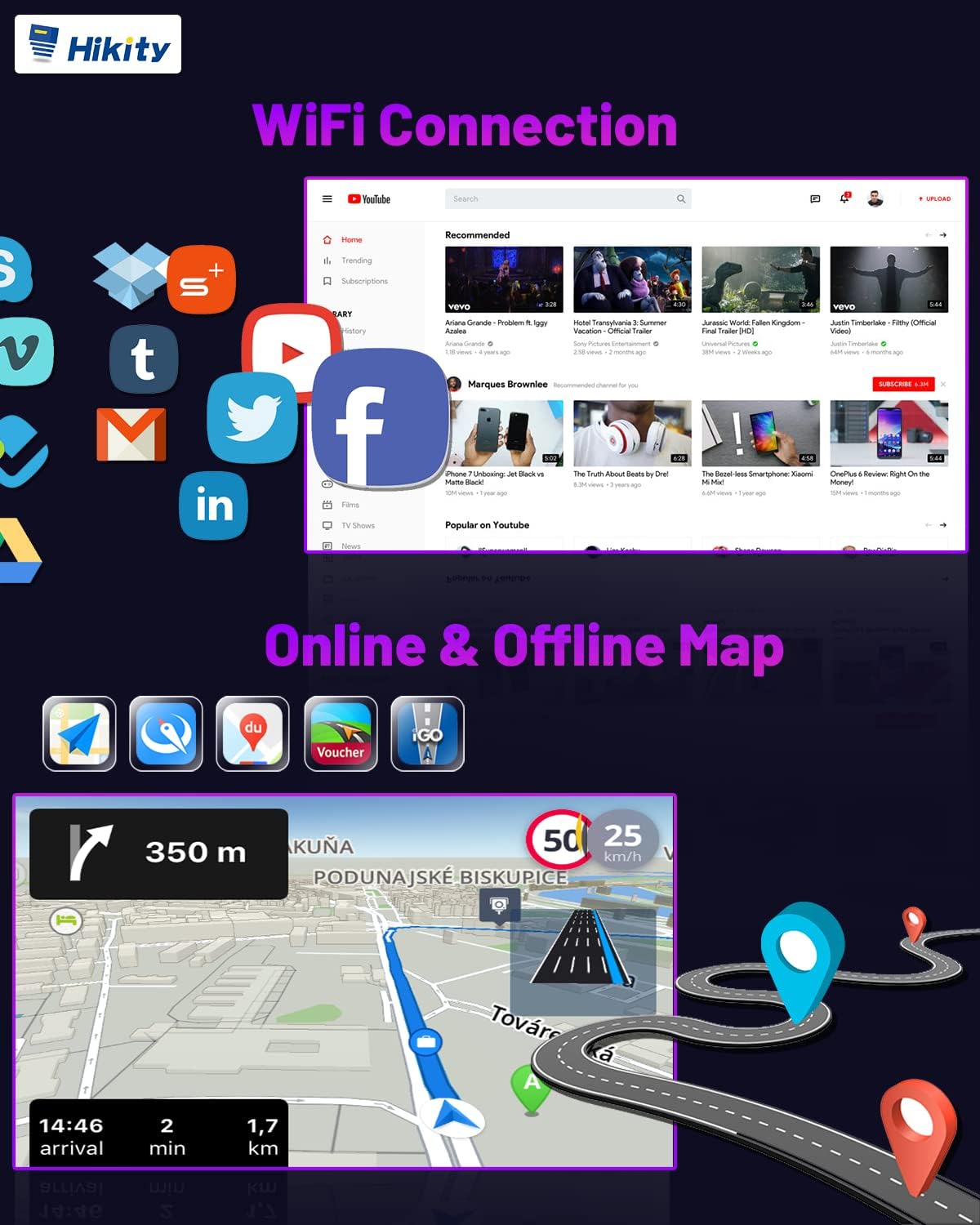
Figure 7: WiFi Connectivity and GPS Navigation.
5.6 Split Screen Function
To use two applications simultaneously:
- Open the first application.
- Press and hold the recent apps button or swipe up from the bottom (depending on UI) to enter split-screen mode.
- Select the second application to display alongside the first.

Figure 8: Split Screen functionality and HiFi audio settings.
5.7 Steering Wheel Control (SWC)
- After proper wiring, access the "Steering Learn" or "SWC Settings" menu in the unit's settings.
- Follow the on-screen instructions to assign functions to your vehicle's steering wheel buttons.
5.8 Backup Camera
When the vehicle is shifted into reverse gear, the car stereo screen will automatically display the rear view from the connected AHD backup camera.

Figure 9: Overview of additional functions including Reversing Video Input.
6. Maintenance
- Cleaning: Use a soft, dry cloth to clean the screen and unit. Avoid abrasive cleaners or solvents.
- Software Updates: Periodically check for software updates through the system settings or Hikity's official website to ensure optimal performance and access to new features.
- Temperature: Avoid exposing the unit to extreme temperatures, which can affect its performance and lifespan.
7. Troubleshooting
If you encounter issues, refer to the following common problems and solutions:
| Problem | Possible Cause | Solution |
|---|---|---|
| Unit does not power on | Incorrect wiring, blown fuse, vehicle power issue. | Check power connections and vehicle fuses. Ensure proper wiring as per diagram. |
| No sound | Volume too low, incorrect audio output settings, speaker wiring issues. | Increase volume. Check audio settings. Verify speaker connections. |
| GPS signal lost or inaccurate | GPS antenna not properly connected or obstructed. | Ensure GPS antenna is securely connected and has a clear view of the sky. |
| Bluetooth not connecting | Bluetooth not enabled, device not discoverable, pairing issues. | Ensure Bluetooth is enabled on both devices. Make sure the stereo is in pairing mode. Delete previous pairings and try again. |
| CarPlay/Android Auto not working | "Zlink5" app not running, incorrect USB cable, phone compatibility. | Open "Zlink5" app. Use original or certified USB cable. Ensure phone OS is compatible. |
| Backup camera not displaying | Camera not connected, incorrect input, camera power issue. | Check camera wiring and connections. Ensure the camera is receiving power. |
If the problem persists after attempting these solutions, please contact Hikity customer support.
8. Specifications
| Feature | Specification |
|---|---|
| Operating System | Android 13 |
| RAM | 2GB |
| ROM | 64GB |
| Display Size | 9 Inches |
| Display Resolution | 1024x600 (supports 1080p video playback) |
| Processor | 1.5GHz (as per image, though feature bullets mention Android 15, product title and specs indicate Android 13) |
| Connectivity | Bluetooth, WiFi/Hotspot, USB |
| Audio Output Mode | APE/FLAC/WAV/MP3/WMA etc. |
| Voice Command | Buttons, Microphone, Touchscreen |
| Item Weight | 4.14 pounds |
| Product Dimensions | 17.72 x 11.02 x 3.54 inches |

Figure 10: Processor and Display Specifications.
9. Warranty and Support
Hikity offers comprehensive support for its products:
- Money-Back Guarantee: 30-day money-back policy.
- Replacement Warranty: 12-month replacement warranty.
- Technical Support: Life-time technical support is provided.
For installation or usage issues, please contact the Hikity Flagship Store via the product page or email hikityoffice@163.com. Support inquiries are typically responded to within 24 hours.
10. Official Product Videos
No official product videos from the seller were provided in the product data for this manual.


