
Mosptnspg TKL 75% Wired Mechanical Keyboard ZH018 User Manual
Model: ZH018
1. Introduction
Thank you for choosing the Mosptnspg TKL 75% Wired Mechanical Keyboard. This keyboard is designed for an enhanced typing and gaming experience, featuring a compact 82-key layout, customizable RGB backlighting, hot-swappable switches, and a durable gasket-mounted structure. This manual provides detailed instructions for setup, operation, maintenance, and troubleshooting to ensure optimal performance.

Figure 1: Mosptnspg TKL 75% Wired Mechanical Keyboard Overview
2. Product Features
- 75% Compact Layout: 82 keys including arrow keys and a multifunction knob, optimizing desk space without sacrificing essential functions.
- Hot-Swappable Switches: Compatible with 3-pin and 5-pin mechanical switches, allowing for easy customization and replacement of switches without soldering.
- PBT Keycaps: Durable, anti-sweat, and non-sticky keycaps for a comfortable and long-lasting typing experience.
- RGB Backlighting: Over 16.8 million customizable RGB colors and 20 backlight effects via dedicated software.
- Gasket Mount Structure: Advanced internal design with two layers of padding and noise cancellation for a quiet and solid typing feel.
- Ergonomic Design: Features two-step adjustable feet to stabilize the keyboard position and reduce fatigue during prolonged use.
- Multifunction Knob: Convenient control for volume, play, and pause functions.
- Programmable Software: Customize lighting effects, key functions, and macros to suit personal preferences.
- NKRO (N-Key Rollover): Ensures all key presses are registered accurately, even during rapid typing or complex gaming commands.
3. Package Contents
Please check the package contents upon unboxing. If any items are missing or damaged, please contact customer support.
- Mosptnspg TKL 75% Wired Mechanical Keyboard
- USB-A to USB-C Cable
- Keycap Puller (may be included)
- Switch Puller (may be included)
- User Manual (this document)
4. Setup Guide
4.1 Connecting the Keyboard
- Locate the USB-C port on the back or side of the keyboard.
- Connect one end of the provided USB-A to USB-C cable to the keyboard's USB-C port.
- Connect the other end of the cable (USB-A) to an available USB port on your computer (PC or laptop).
- The keyboard will automatically be recognized by your operating system.
4.2 Software Installation (Optional)
To unlock full customization options for RGB lighting, key functions, and macros, download and install the official Mosptnspg keyboard software.
- Visit the official Mosptnspg website (refer to product packaging or manufacturer's information for the URL).
- Navigate to the support or downloads section and locate the software for model ZH018.
- Download and run the installer, following the on-screen instructions.
- Once installed, launch the software to configure your keyboard settings.

Figure 2: Programmable Software Interface for Customization
5. Operating Instructions
5.1 Basic Key Functions
The keyboard features a standard 75% layout with 82 keys. All keys function as labeled. For special functions, refer to the key combinations below.
5.2 Multifunction Knob
The knob located in the upper right corner provides quick access to media controls:
- Rotate Clockwise: Increase Volume
- Rotate Counter-clockwise: Decrease Volume
- Press Down: Play/Pause Media
5.3 RGB Backlighting Control
The keyboard's RGB backlighting can be customized using the dedicated software. The software allows you to:
- Select from over 16.8 million colors.
- Choose from 20 different lighting effects.
- Adjust brightness and speed of effects.
- Create custom lighting profiles.
Some basic lighting adjustments might be available via key combinations (e.g., Fn + specific keys). Refer to the software for a comprehensive list of controls.
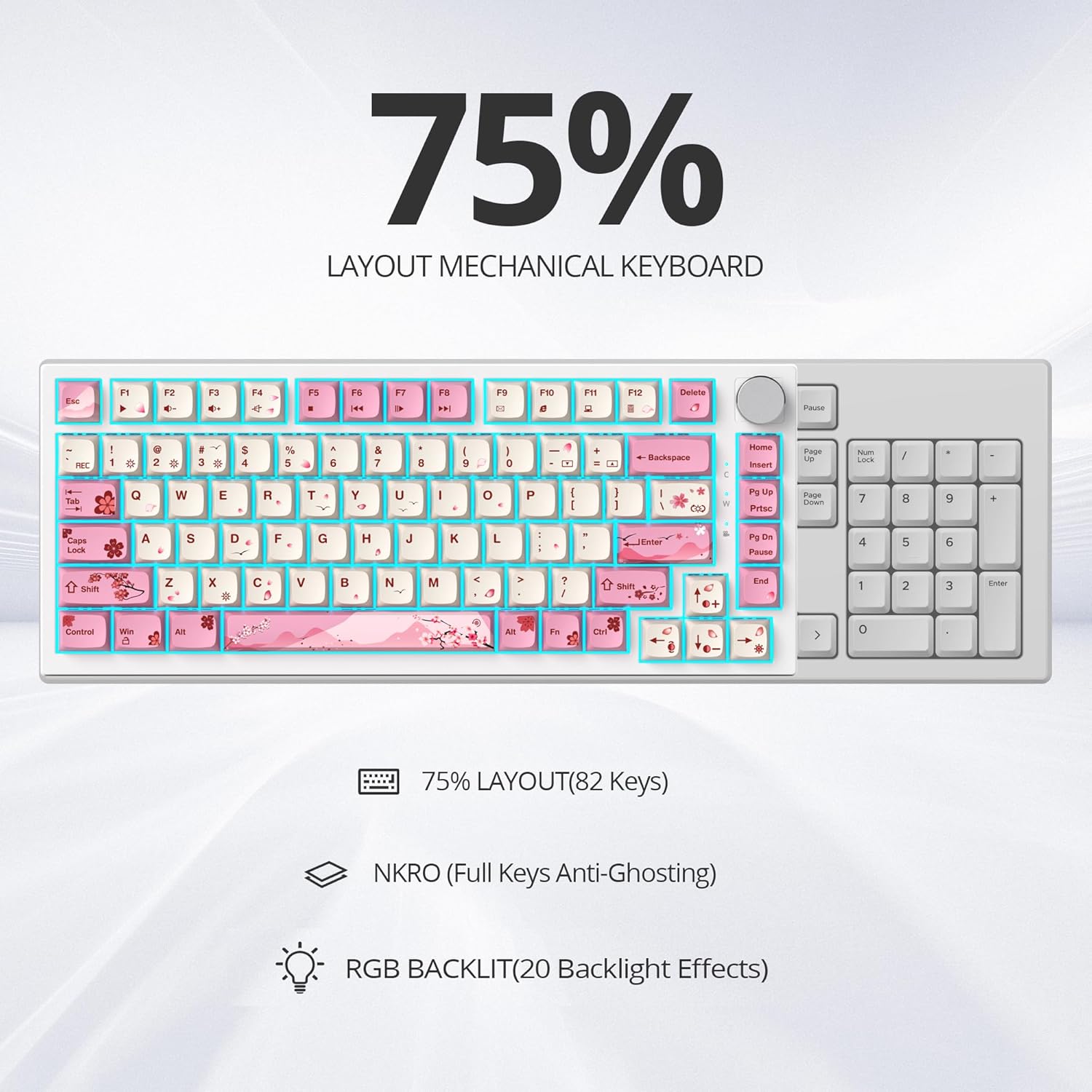
Figure 3: 75% Layout and RGB Backlight Effects
5.4 Macro Programming
The programmable software allows you to create and assign macros to specific keys. This is useful for automating complex sequences of key presses for gaming or productivity.
- Open the Mosptnspg keyboard software.
- Navigate to the 'Macro Management' section.
- Record your desired key sequence.
- Assign the recorded macro to a chosen key.
- Save your profile.
6. Maintenance
6.1 Cleaning the Keyboard
Regular cleaning helps maintain the keyboard's appearance and functionality.
- Disconnect the keyboard from your computer before cleaning.
- Use a soft, lint-free cloth slightly dampened with water or a mild cleaning solution to wipe down the keycaps and chassis.
- For dust and debris between keycaps, use compressed air.
- Avoid spraying liquids directly onto the keyboard.
6.2 Keycap and Switch Replacement
The hot-swappable design allows for easy replacement of keycaps and switches.
- Removing Keycaps: Use the provided keycap puller to gently grip the keycap and pull straight up.
- Removing Switches: After removing the keycap, use the switch puller to carefully grip the top and bottom clips of the switch and pull straight up.
- Installing Switches: Align the new 3-pin or 5-pin mechanical switch with the holes on the PCB. Ensure the pins are straight. Gently push the switch down until it clicks into place. Do not force it.
- Installing Keycaps: Align the keycap with the stem of the switch and press down firmly until it is seated.

Figure 4: Hot-Swappable Switch and Keycap Mechanism
7. Troubleshooting
If you encounter issues with your keyboard, please refer to the following common solutions:
- Keyboard Not Responding:
- Ensure the USB cable is securely connected to both the keyboard and the computer.
- Try connecting the keyboard to a different USB port on your computer.
- Test the keyboard on another computer to rule out system-specific issues.
- RGB Lighting Not Working/Incorrect:
- Ensure the keyboard software is installed and running.
- Check the lighting settings within the software.
- Verify that no conflicting software or drivers are interfering with the RGB control.
- Keys Not Registering:
- Carefully remove the keycap and switch for the affected key.
- Inspect the switch pins for any bends or damage. Straighten gently if bent.
- Reinsert the switch firmly. If the issue persists, try replacing the switch with a spare one (if available).
- Multifunction Knob Not Working:
- Ensure the keyboard software is not overriding the knob's default functions.
- Check for any physical obstructions around the knob.
If these steps do not resolve the issue, please contact Mosptnspg customer support for further assistance.
8. Specifications
| Feature | Detail |
|---|---|
| Brand | Mosptnspg |
| Model Number | ZH018 |
| Layout | 75% (82 Keys) |
| Connectivity | Wired (USB-A, USB-C) |
| Switch Type | Linear Red (Hot-swappable 3-pin/5-pin) |
| Keycap Material | PBT (Polybutylene Terephthalate) |
| Backlighting | RGB (16.8 Million Colors, 20 Effects) |
| Special Features | Ergonomic, Gasket Mount, Programmable, N-Key Rollover |
| Compatible Devices | PC, Laptop |
| Color | Pink |
9. Warranty and Support
Specific warranty information for the Mosptnspg TKL 75% Wired Mechanical Keyboard (Model ZH018) is not provided in this document. Please refer to the product packaging, the retailer's website, or the official Mosptnspg website for detailed warranty terms and conditions.
For technical support, troubleshooting assistance, or inquiries regarding your product, please contact Mosptnspg customer service through their official website or the contact information provided with your purchase.