
1. Introduction
This manual provides essential information for the safe and effective use of the YWBL-WH Flipsky ESC V4.12 50A Electronic Speed Controller. This ESC is based on the open-source VESC project and is compatible with VESC software, offering a highly modifiable solution for DIY electric conversions. Its compact size and lightweight design make it suitable for integration into various applications, including scooters and robots. It supports smooth startup for sensorless motors and delivers powerful, reliable, and progressive electric braking. The controller features a maximum continuous current of 50A, with built-in temperature and current limit protection, and supports multiple control modes.
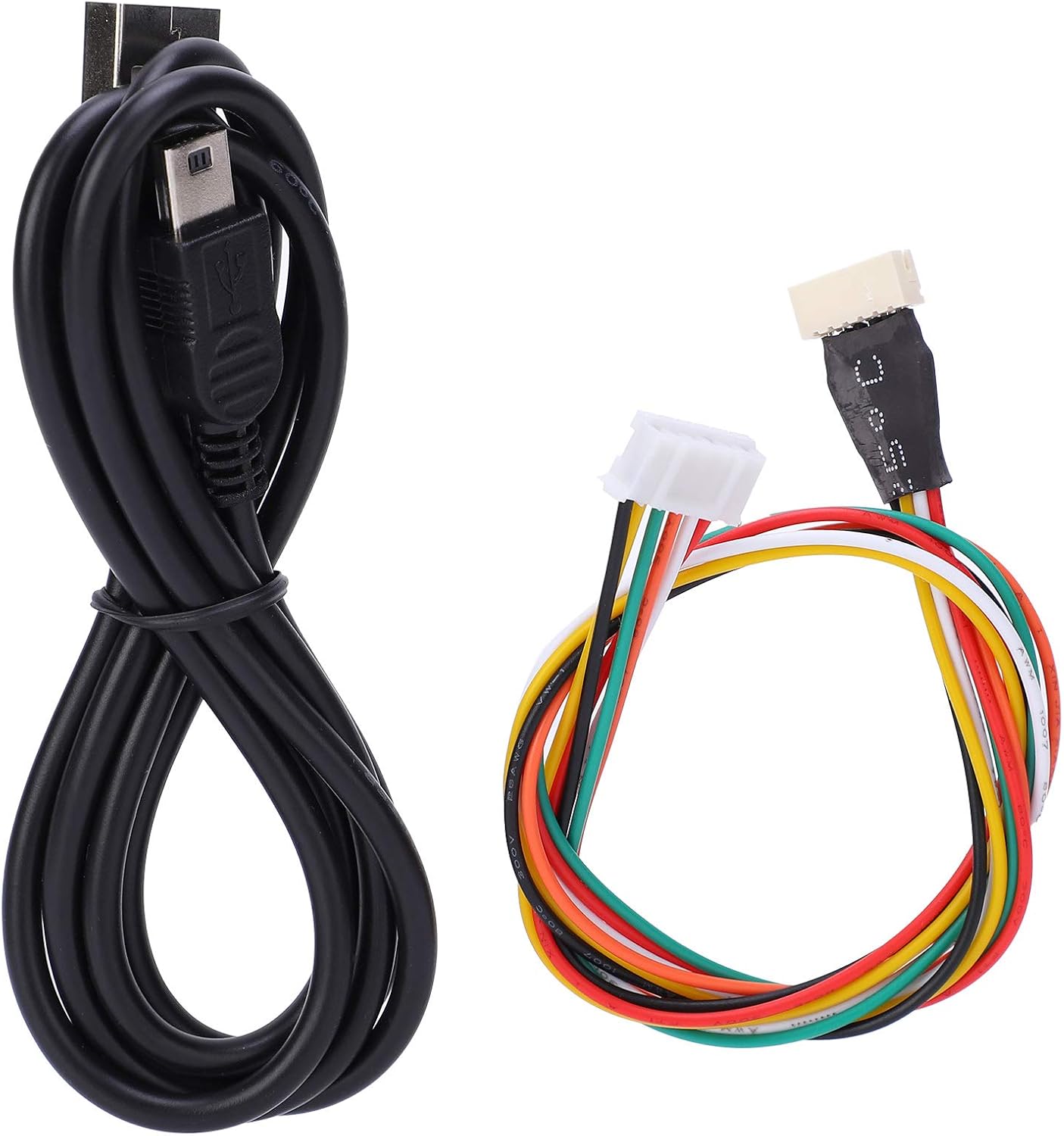
Image 1.1: YWBL-WH Flipsky ESC V4.12 50A Electronic Speed Controller, showing its compact design and various connectors.
2. Safety Information
Please read and understand all safety warnings before operating this device. Failure to follow these instructions may result in electric shock, fire, serious injury, or property damage.
- Always disconnect power before making any connections or disconnections.
- Ensure all connections are secure and properly insulated to prevent short circuits.
- Operate the ESC within its specified voltage and current limits. Exceeding these limits can cause permanent damage.
- Avoid exposing the ESC to moisture, extreme temperatures, or direct sunlight.
- Keep the device away from flammable materials.
- Do not attempt to modify or repair the ESC yourself. Refer to qualified personnel for service.
- Ensure proper ventilation to prevent overheating during operation.
3. Package Contents
Verify that all items listed below are present in your package:
- 1 x Electronic Speed Controller (ESC)
- 1 x USB Cable
- 1 x VESC Sensor Line

Image 3.1: Overview of the package contents, showing the ESC, USB cable, and VESC sensor line.

Image 3.2: Close-up of the included USB cable and VESC sensor line.
4. Specifications
| Feature | Specification |
|---|---|
| Condition | New |
| Item Type | Electronic Speed Control |
| Color | Black |
| Material | PCB Board + Aviation Aluminum Alloy Heat Sink + Thermal Silicone Gel + Mos Tube |
| Model | V4.12 Standard Configuration ESC |
| Hardware Version | V4.12 |
| EPRM | 60000 |
| Firmware | V3.40 (Keep the latest firmware version) |
| PCB Layers | 4 layers |
| PCB Size | Approx. 40 x 60 mm / 1.57 x 2.36 inches |
| Current | Continuous 50 A / Peak 240 A (depends on installation and ambient temperature) |
| Voltage | 8-60 V (3S to 12S Lipo compatible, peak voltage must not exceed 60 V) |
| Recommended Battery | 10S (not included) |
| BEC | 5 V at 1.5 A |
| BEC Type | Internal driver plug |
| Timing | Software calibration |
| Motor Control Interface | PPM (RC servo), Analog, UART, I2C, USB or CAN bus |
| Cut-off Voltage | Programmable |
| Frequency | PWM input |
| Governor | No |
| Weight | Approx. 80 g / 0.18 lb |
| Dimensions (L x W x H) | Approx. 110 x 40 x 20 mm / 4.3 x 1.6 x 0.8 inches |
| Programming Board | No |
| Reverse Function | Yes |
| Motor Wire Gauge | 12AWG |
| Power Cord Gauge | 12AWG |
5. Setup
Follow these steps to properly set up your Flipsky ESC V4.12:
- Inspection: Carefully unpack the ESC and inspect it for any visible damage.
- Motor Connection: Connect the three motor phase wires from your motor to the corresponding output terminals on the ESC. Ensure a secure connection.
- Battery Connection: Connect your battery (3S to 12S Lipo, not exceeding 60V peak) to the main power input wires of the ESC. Observe correct polarity (red to positive, black to negative).
- Control Signal Connection: Connect your control signal source (e.g., RC receiver via PPM, UART device) to the appropriate port on the ESC.
- Sensor Line Connection (Optional): If your motor has sensors, connect the VESC sensor line to the motor's sensor port and the ESC's sensor port. This enables sensored motor operation for smoother low-speed performance.
- USB Connection for Configuration: Connect the provided USB cable from the ESC to your computer. This is necessary for initial configuration and firmware updates using the VESC Tool software.
- LED Button Note: By default, the LED button has been inserted into the switch at the factory. Do not turn on the switch without the LED button connected.
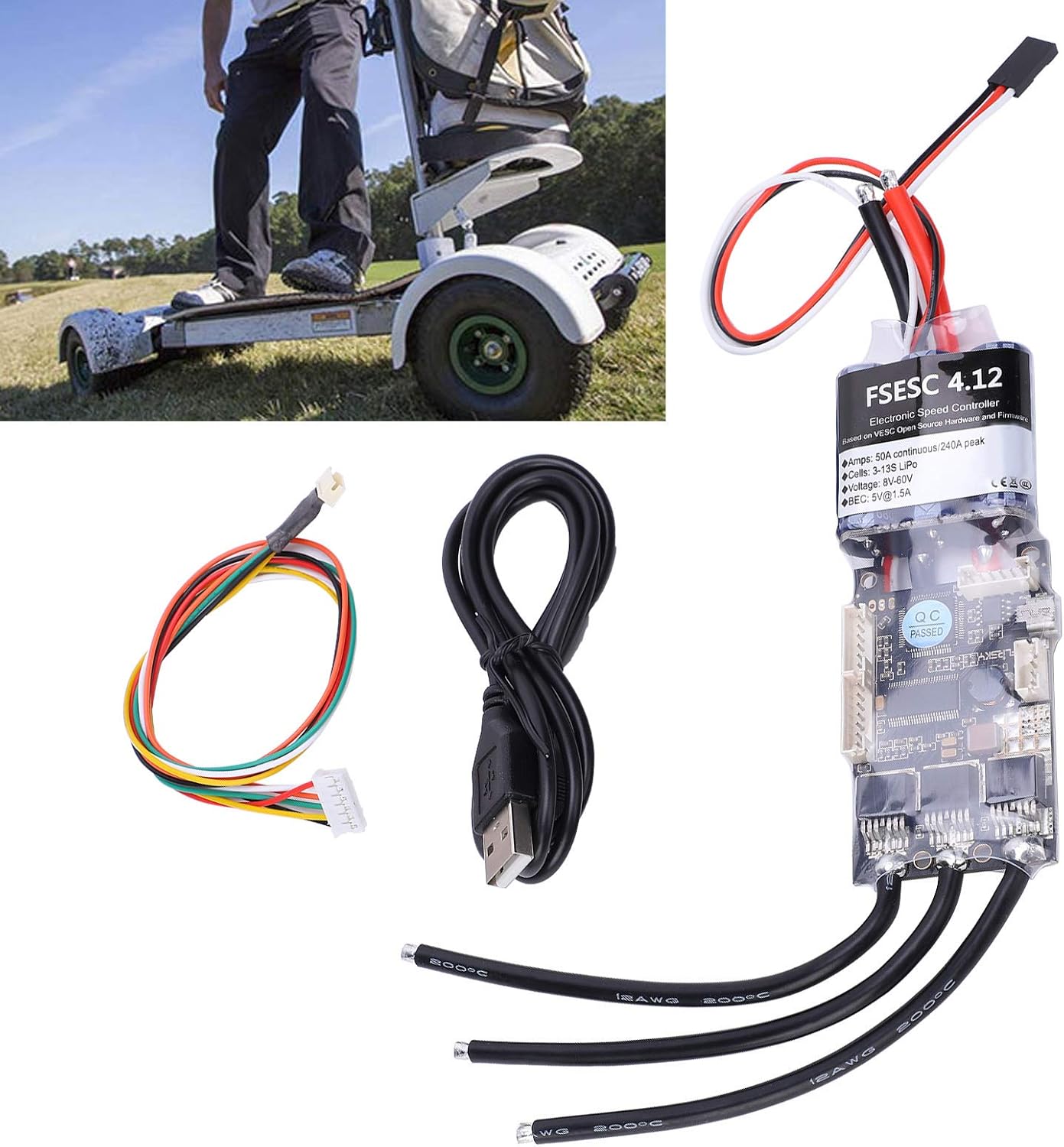
Image 5.1: The ESC connected with its USB cable for configuration and the VESC sensor line.

Image 5.2: Detailed view of the ESC's wiring terminals for motor, battery, and control signals.
6. Operating Instructions
The Flipsky ESC V4.12 is designed for advanced control and requires configuration via the VESC Tool software. This section outlines general operating principles.
6.1. VESC Tool Software Configuration
- Download the latest VESC Tool software from the official VESC project website.
- Connect the ESC to your computer via the USB cable.
- Launch the VESC Tool and establish a connection to the ESC.
- Perform the motor detection wizard to automatically configure motor parameters.
- Adjust control parameters such as current limits, voltage cut-offs, and input mapping (PPM, UART, etc.) according to your application's requirements.
- Save your configuration to the ESC.
6.2. Powering On/Off
Once configured, connect the battery. The ESC will power on. To power off, disconnect the battery. Always ensure the system is stable before applying full power.
6.3. Motor Control
Control the motor via your chosen interface (e.g., RC remote, microcontroller). The ESC provides smooth acceleration and powerful, regenerative braking capabilities, which can be fine-tuned in the VESC Tool.
7. Maintenance
Proper maintenance ensures the longevity and reliable performance of your ESC.
- Keep Clean: Regularly clean the ESC to prevent dust and debris buildup, which can affect heat dissipation. Use a soft brush or compressed air.
- Check Connections: Periodically inspect all wiring connections for looseness, corrosion, or damage. Secure any loose connections.
- Temperature Monitoring: Avoid operating the ESC in conditions that lead to excessive heat. Ensure adequate airflow around the unit.
- Firmware Updates: Check the official VESC project website for firmware updates. Keeping the firmware updated can improve performance and add new features.
- Storage: When not in use for extended periods, store the ESC in a dry, cool environment, disconnected from the battery.
8. Troubleshooting
If you encounter issues with your Flipsky ESC, refer to the following common problems and solutions:
- No Power:
- Check battery connections and ensure the battery is charged.
- Verify that the LED button is properly connected if your setup uses one.
- Inspect power wires for damage or short circuits.
- Motor Not Spinning / Erratic Behavior:
- Ensure motor phase wires are correctly connected.
- Reconnect to VESC Tool and re-run the motor detection wizard.
- Check sensor cable connection if using a sensored motor.
- Verify control signal input (PPM, UART) is correctly configured and receiving signals.
- Overheating:
- Reduce load on the motor or improve ventilation around the ESC.
- Check for short circuits in the motor or wiring.
- Ensure current limits in VESC Tool are set appropriately for your motor and application.
- USB Connection Issues:
- Try a different USB port or cable.
- Ensure VESC Tool is the correct version and drivers are installed (if required by your OS).
- Restart your computer and the ESC.
For more detailed troubleshooting, consult the VESC project community forums or the manufacturer's support resources.
9. Warranty and Support
This YWBL-WH Flipsky ESC V4.12 50A Electronic Speed Controller comes with a manufacturer's warranty against defects in materials and workmanship. The specific terms and duration of the warranty may vary by region and retailer. Please retain your proof of purchase for warranty claims.
For technical support, warranty inquiries, or service, please contact your retailer or the YWBL-WH customer support directly. Refer to the product packaging or the seller's information for contact details.