
1. Introduction
This manual provides comprehensive instructions for the installation, setup, and operation of your new METEESER 8Core 4+64G Car Stereo. Designed specifically for Toyota RAV4 models from 2006 to 2012, this unit enhances your driving experience with advanced features including a 9-inch IPS touch screen, wireless CarPlay and Android Auto, Bluetooth 5.1, DSP Hi-Res audio, GPS navigation, steering wheel control (SWC) compatibility, and support for a backup camera. Please read this manual thoroughly before use to ensure proper functionality and safety.
2. Product Overview
The METEESER 8Core 4+64G Car Stereo is an advanced in-dash navigation system featuring a Qualcomm Snapdragon 8-core processor, 4GB RAM, and 64GB ROM for smooth performance. Its 9-inch IPS touch screen offers a resolution of 1280x720 for clear visuals. Key features include:
- 9-inch HD IPS Touch Screen: 1280x720 resolution, scratch-resistant, anti-knock, high-temperature protection, wide color gamut (Display P3/SRGB).
- Wireless CarPlay & Android Auto: Seamless smartphone integration for navigation, calls, music, and apps.
- Bluetooth 5.1: Fast and stable wireless connections.
- DSP Hi-Res Audio: Enhanced audio quality for a superior listening experience.
- GPS Navigation: Built-in offline maps and support for online navigation.
- Steering Wheel Control (SWC): Retain original steering wheel button functionality.
- Backup Camera Support: Compatible with 1080P IP69 waterproof reversing cameras for enhanced safety.
- Customizable Interface: Personalize home page app displays and window designs.
- Cooling Fan: Integrated cooling fan for optimal performance and durability.
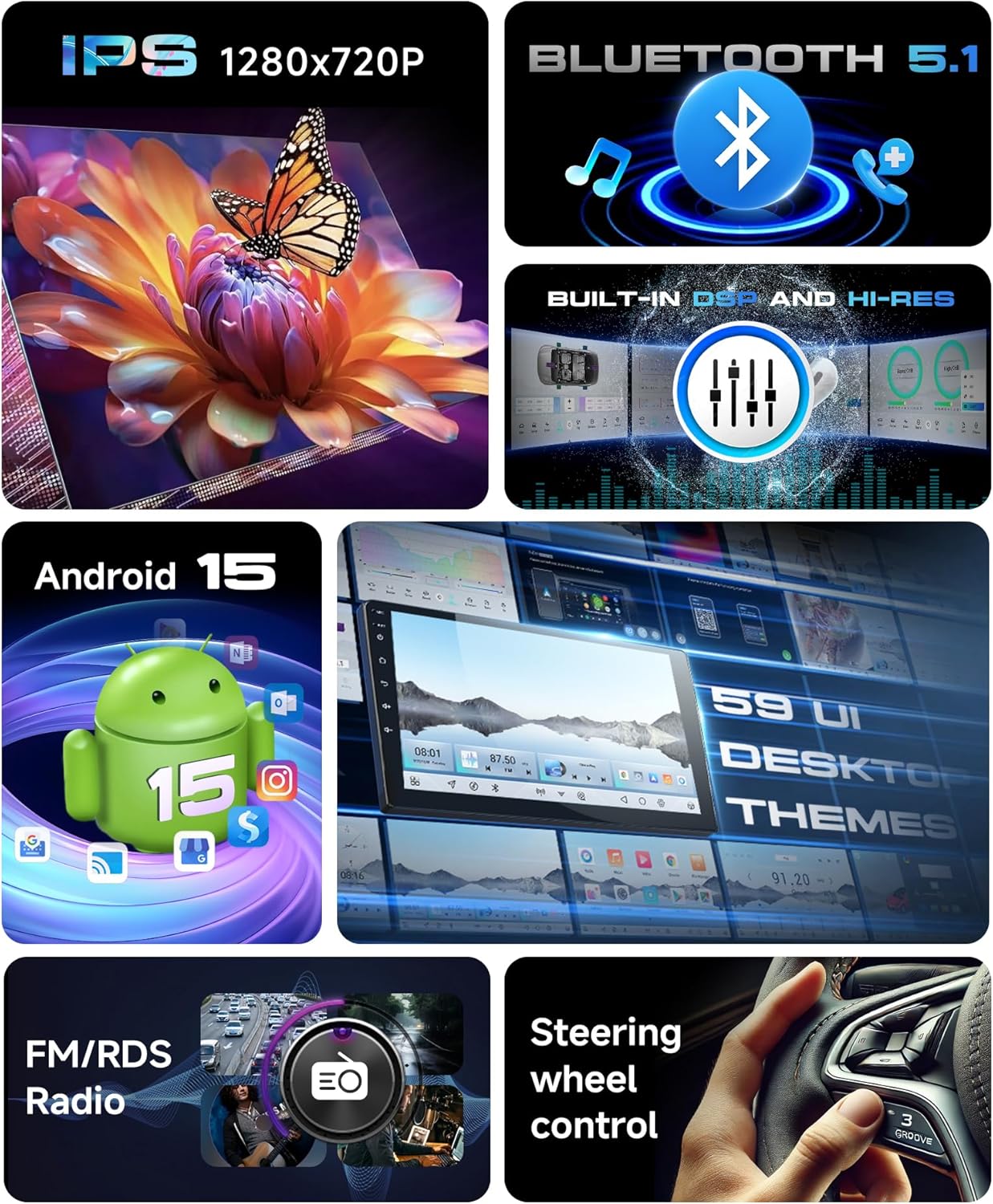
Overview of the METEESER Car Stereo's key features including display, connectivity, and audio enhancements.
3. Package Contents
Please verify that all items listed below are included in your package:
- METEESER 8Core 4+64G Car Stereo Unit
- Backup Camera
- GPS Antenna
- External Microphone
- USB Cable (x2)
- Power Cable
- RCA Cable
- Radio Adapter Cable
- Rear Camera Input Cable
- Installation Tool
- User Manual (this document)

Visual representation of the car stereo unit dimensions and all included accessories.
4. Compatibility
This car stereo is designed for Toyota RAV4 models manufactured between 2006 and 2012. It is important to note the following compatibility restrictions:
- This unit is not compatible with vehicles that have an original J-B-L or B-OSE audio system.
- This unit is not compatible with vehicles that have a large screen central control or factory navigation system.
Please ensure your vehicle's dashboard configuration matches the compatible setup shown in the images below before proceeding with installation.

Visual guide for Toyota RAV4 (2006-2012) dashboard compatibility.
5. Installation
Professional installation is recommended for this car stereo. Refer to the included wiring diagrams and consult a qualified technician if you are unsure about any steps. Ensure the vehicle's power is disconnected before beginning installation.
5.1. Wiring Diagram
The following diagram illustrates the connections for the car stereo. Match each wire to its corresponding function in your vehicle's wiring harness.

Comprehensive wiring diagram for the METEESER car stereo.
5.2. Steering Wheel Control Wiring Note
If your original car steering wheel controls are not functioning correctly after installation, you may need to adjust the wiring. Locate the two wires circled in the image below, cut them, and insulate them with electrical tape. Then, re-test the steering wheel controls. If issues persist, contact customer service.

Important note regarding steering wheel control wiring adjustment.
6. Setup
After successful installation, power on the unit. Follow the on-screen prompts for initial setup, including language selection, time zone, and basic network configuration. Ensure a stable Wi-Fi connection for optimal performance and access to online features.
7. Operating Instructions
7.1. Wireless CarPlay Connection
To connect your iPhone wirelessly via CarPlay:
- Open the CarPlay application on the car stereo.
- On your iPhone, go to Settings > Bluetooth and ensure Bluetooth is enabled.
- Select the car stereo's Bluetooth name from the list of available devices on your iPhone and pair them.
- Confirm the connection prompt on both devices.
Video demonstrating the wireless CarPlay connection process.
7.2. Wireless Android Auto Connection
To connect your Android phone wirelessly via Android Auto:
- Open the Android Auto application on the car stereo.
- On your Android phone, go to Settings > Bluetooth and ensure Bluetooth is enabled.
- Select the car stereo's Bluetooth name from the list of available devices on your phone and pair them.
- Confirm the connection prompt on both devices.
Video demonstrating the wireless Android Auto connection process.
7.3. Wireless iPhone Mirroring
To mirror your iPhone screen wirelessly:
- Open the Mirroring application on the car stereo and select 'iPhone'.
- On your iPhone, go to Settings > Personal Hotspot and enable it. Ensure 'Allow Others to Join' is active.
- Connect the car stereo to your iPhone's personal hotspot via Wi-Fi.
- On your iPhone, swipe down from the top-right corner (or up from the bottom for older models) to open Control Center. Tap 'Screen Mirroring' and select 'zj-airplay'.
Video demonstrating the wireless iPhone mirroring setup.
7.4. Wireless Android Mirroring
To mirror your Android phone screen wirelessly:
- Open the Mirroring application on the car stereo and select 'Android'.
- For the first connection, scan the QR code displayed on the stereo screen with your phone's browser to download the mirror software (zPlus app).
- On your Android phone, go to Settings > Personal Hotspot and enable it.
- Connect the car stereo to your Android phone's personal hotspot via Wi-Fi.
- Open the zPlus app on your phone and click the "Start Mirroring" button to initiate screen projection.
Video demonstrating the wireless Android mirroring setup.
7.5. GPS Navigation
The unit comes with built-in offline maps. You can also download additional navigation apps from the Play Store for online navigation. The system supports various map types globally.

GPS Navigation interface showing map details and route information.
7.6. FM/RDS Radio
Access local radio stations with the built-in FM/RDS tuner. The Radio Data System (RDS) provides additional information like station name and song title where available.

FM/RDS Radio interface.
7.7. DSP Audio
The integrated Digital Sound Processor (DSP) allows for precise audio tuning. Adjust equalizer settings, balance, fader, and other sound parameters to customize your audio experience.
7.8. Steering Wheel Control (SWC)
Once properly wired and configured (refer to Section 5.2), the steering wheel controls allow you to manage volume, tracks, and calls without taking your hands off the wheel.
7.9. Backup Camera
The system supports a reversing camera (1080P IP69 waterproof recommended). When the vehicle is put into reverse gear, the display automatically switches to the camera view, providing parking assistance with guidelines.

Backup camera view with parking assistance.
7.10. Split Screen
Utilize the split-screen feature to run two applications simultaneously, such as navigation and music, for enhanced multitasking.
7.11. Voice Control
The unit supports voice control, allowing you to operate various functions hands-free. Use voice commands for navigation, making calls, playing music, and more.

Voice control functionality for hands-free operation.
8. Maintenance
To ensure the longevity and optimal performance of your car stereo, follow these maintenance guidelines:
- Cleaning: Use a soft, dry cloth to clean the screen and unit. Avoid abrasive cleaners or solvents.
- Software Updates: Periodically check for software updates to ensure you have the latest features and bug fixes. Updates can typically be found on the manufacturer's website or through the unit's settings.
- Temperature: Avoid exposing the unit to extreme temperatures for extended periods.
9. Troubleshooting
If you encounter issues with your car stereo, refer to the following common troubleshooting steps:
| Problem | Possible Cause | Solution |
|---|---|---|
| Unit does not power on | Incorrect wiring, blown fuse, power supply issue. | Check power connections, inspect vehicle fuses, ensure proper grounding. |
| No sound | Speaker wiring issues, volume too low, incorrect audio source. | Verify speaker connections, increase volume, select correct audio input. |
| Steering wheel controls not working | Incorrect SWC wiring, incompatible vehicle. | Refer to Section 5.2 for SWC wiring adjustments. Confirm vehicle compatibility. |
| CarPlay/Android Auto not connecting | Bluetooth/Wi-Fi issues, phone settings. | Ensure Bluetooth/Wi-Fi is enabled on both devices. Re-pair devices. Check phone permissions. |
| Backup camera not displaying | Camera wiring, camera malfunction. | Check camera power and video signal connections. Ensure camera is functional. |
For persistent issues, please contact METEESER customer support.
10. Specifications
| Feature | Specification |
|---|---|
| Brand | METEESER |
| Vehicle Service Type | Car (Toyota RAV4 2006-2012) |
| Screen Size | 9 Inches |
| Display Type | IPS |
| Resolution | 1280 x 720 |
| Operating System | Android |
| Memory Storage Capacity | 64 GB |
| Connectivity Technology | Bluetooth, Wi-Fi, USB, FM/RDS |
| Bluetooth Version | 5.1 |
| Supported Navigation System | GPS |
| Audio Output Mode | APE/FLAC/WAV/MP3/WMA etc. |
| Item Dimensions L x W x H | 10.24"L x 5.79"W x 3.08"H |
| Model Number | A7269A3453H1MI2 |
11. Warranty and Support
Your METEESER car stereo comes with a 2-year warranty. For technical assistance, troubleshooting, or warranty claims, please contact METEESER Tech customer service. You can typically find contact information on the product packaging, the official METEESER website, or through your purchase platform.
When contacting support, please have your model number (A7269A3453H1MI2) and proof of purchase ready.


