
Roinvou B0CTH6X267
Roinvou 2+64G Android 15 Car Stereo User Manual for Nissan Juke (2011-2016)
Model: B0CTH6X267 | Brand: Roinvou
1. Introduction
This manual provides detailed instructions for the installation, operation, and maintenance of your Roinvou 2+64G Android 15 Car Stereo. Please read this manual thoroughly before using the product to ensure proper functionality and safety. This unit is designed specifically for Nissan Juke models from 2011 to 2016.


2. Important Installation Notes
Before proceeding with installation, please observe the following critical points:
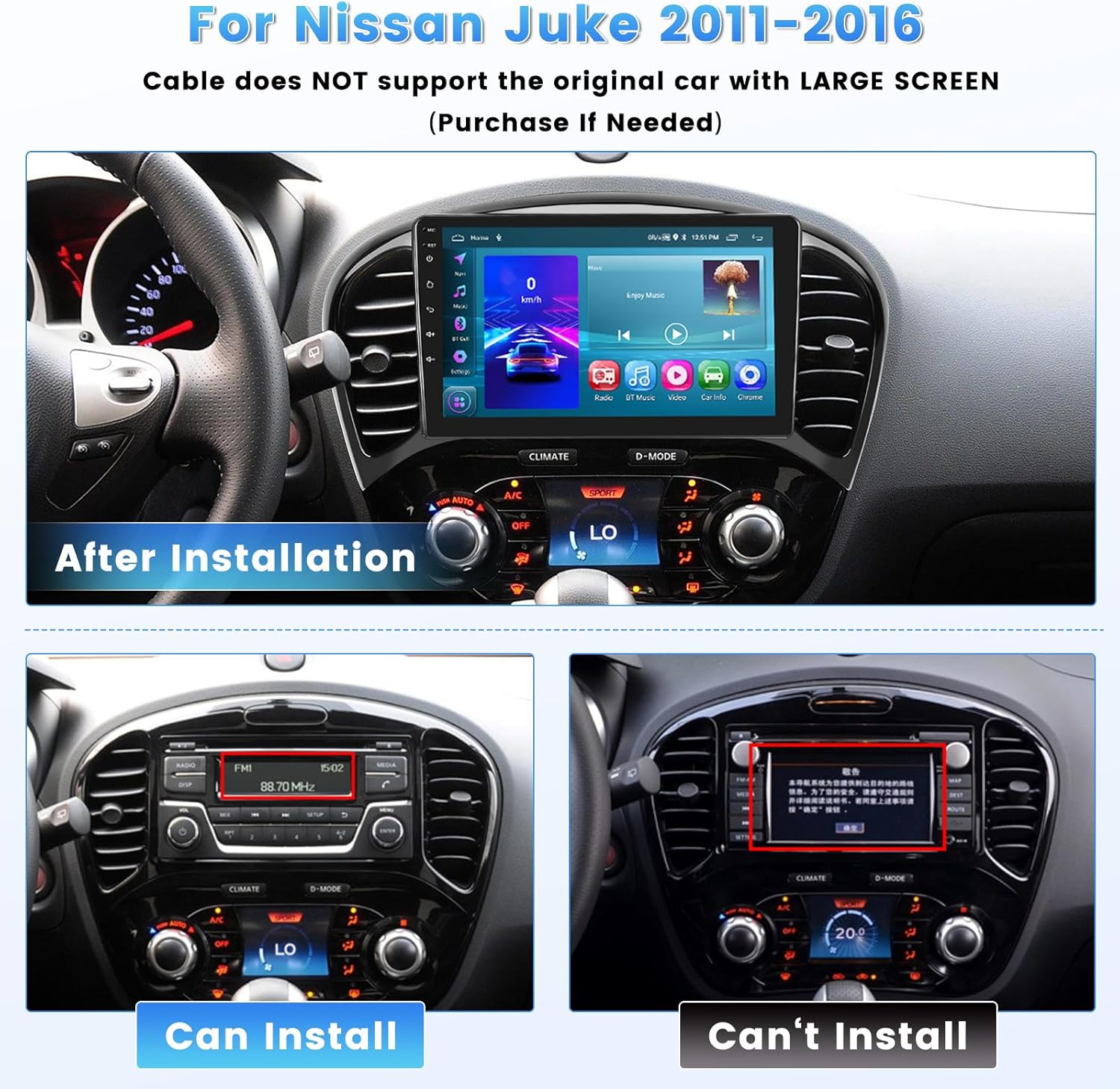
- This radio dash kit is compatible with Nissan Juke models from 2011 to 2016.
- The stereo package includes the in-dash head unit, wiring harness cables, and a frame panel.
- Important: The provided cable does NOT support original cars equipped with a large screen. If your vehicle has a large screen from the factory, you may need to purchase a compatible cable separately.
- Verify that the power cable port on the detail page matches your original car's port before purchasing or installing.
- Professional installation is recommended to avoid damage to the unit or your vehicle.
3. Package Contents
Upon opening the package, please ensure all the following components are present:
- Roinvou Car Stereo for Nissan Juke
- Power Cable
- Original USB Cable
- RCA Cable
- GPS Antenna
- AHD Backup Camera
- External Microphone
- Rear Camera Input Cable
- Dual USB Cable
- Installation Tool

4. Installation Guide
4.1 Wiring Connections
Refer to the wiring diagram below for proper connection of all cables. Ensure all connections are secure before powering on the unit.

4.2 Backup Camera Installation
The included AHD backup camera connects to the unit to provide a reverse image. Connect the camera's power cable (red wire to +12V, black wire to ground) and the video signal cable to the corresponding inputs on the main unit. The pink wire from the main unit should be connected to the reversing light positive for automatic switching.

5. Operating Instructions
5.1 User Interface and Themes
The Roinvou car stereo features a high-definition capacitive touch screen with a resolution of 1024x600. It offers 28 different UI themes, allowing for personalization of the display. Navigate through themes via the settings menu.


Watch this video for a demonstration of the UI functions, audio settings, radio, video playback, file manager, and various applications including Google Play Store and Maps:
Video 5.1: Demonstration of UI functions, audio settings, radio, video playback, file manager, and various applications including Google Play Store and Maps.
5.2 Wireless/Wired CarPlay & Android Auto
The unit supports both wireless and wired CarPlay and Android Auto. Connect your smartphone via Bluetooth (wireless) or the original USB data cable (wired) to access features like phone calls, music, and GPS navigation through Siri or Google Assistant.

The video above (Video 5.1) also demonstrates the connection process for both CarPlay and Android Auto.
5.3 Bluetooth & Mirror Link
The built-in Bluetooth module supports hands-free calls, phone book synchronization, and music streaming. Mirror Link functionality allows you to display your Android or iOS smartphone screen directly on the stereo for multimedia content viewing.

The video above (Video 5.1) also demonstrates Bluetooth connection for calls and music.
5.4 Wi-Fi & GPS Navigation
Connect the unit to Wi-Fi to download various applications from the Play Store, stream online music, and watch videos. The built-in GPS navigation supports both online and offline maps. You can download offline maps directly from the Play Store for use without an internet connection.


5.5 FM/RDS Radio
The unit includes an FM/RDS radio tuner. You can save your favorite stations and enjoy clear audio quality. RDS (Radio Data System) provides additional information such as station name and song title where available.

5.6 Steering Wheel Control (SWC)
The car stereo supports steering wheel controls, allowing you to manage functions without taking your hands off the wheel. The method of setup depends on whether your vehicle has a CANBUS decoder:
- Without CANBUS Decoder: Connect the Key1/Key2 wires from the power cable to the corresponding port or wire of your original car. Then, use the "SteeringWheelKey" app on the unit to manually match and activate button functions.
- With CANBUS Decoder: Connect the CANBUS before powering on. Navigate to Apps > Settings > Factory Settings (1234) > CAN Settings. Select the brand and model/year of your CANBUS decoder to ensure SWC works correctly.

5.7 Digital Sound Processor (DSP) and Equalizer (EQ)
The unit features a Digital Sound Processor (DSP) and a multi-band equalizer (EQ) to customize your audio experience. Adjust various sound effects and sound fields to achieve optimal sound quality for different music genres or personal preferences.
The video above (Video 5.1) demonstrates how to access and adjust the audio settings and equalizer.
6. Specifications
| Feature | Detail |
|---|---|
| Item Weight | 3.74 pounds |
| Package Dimensions | 15.16 x 7.68 x 3.74 inches |
| Display Size | 9 Inches |
| Screen Resolution | 1024 x 600 |
| Operating System | Android 15 |
| Memory (RAM) | 2GB |
| Storage (ROM) | 64GB |
| Voice Command | Microphone, Touchscreen |
| Connectivity Technology | Bluetooth, USB, Wi-Fi |
| Map Type | North America |
| Audio Output Mode | Stereo |
| Mounting Type | Dashboard Mount |
| Special Features | Wireless and Wired CarPlay & Android Auto, 5G Wi-Fi, Bluetooth, IPS Touchscreen, FM RDS Radio, EQ Settings, Mirror Link, GPS Navigation, DSP, Steering Wheel Control, 28 Desktop Themes |
7. Troubleshooting
If you encounter any issues with your Roinvou car stereo, please refer to the following common problems and solutions:
- Unit does not power on:
- Check all power cable connections to ensure they are secure.
- Verify that the vehicle's fuse for the stereo is not blown.
- Ensure the power cable port matches your original car's port (refer to Section 2).
- No sound:
- Check speaker wire connections.
- Verify volume settings on the unit and any connected devices.
- Ensure the audio output mode is correctly selected.
- Bluetooth connectivity issues:
- Ensure Bluetooth is enabled on both the stereo and your smartphone.
- Delete previous pairings and attempt to re-pair the devices.
- Check for any interference from other wireless devices.
- CarPlay/Android Auto not connecting:
- For wired connection, ensure you are using the original USB data cable.
- For wireless connection, ensure Bluetooth and Wi-Fi are enabled on your phone.
- Check phone settings for permissions related to CarPlay/Android Auto.
- Restart both the stereo and your smartphone.
- Steering Wheel Controls not working:
- Refer to Section 5.6 for correct wiring and software setup based on whether your vehicle has a CANBUS decoder.
- Ensure the "SteeringWheelKey" app is configured correctly.
- GPS signal weak or inaccurate:
- Ensure the GPS antenna is properly installed and has a clear view of the sky.
- Check GPS settings on the unit.
- Update map data if necessary.
8. Warranty and Customer Support
Your Roinvou car stereo comes with a 1-Year Warranty from the date of purchase, as specified in the product details.
For any questions, technical assistance, or warranty claims, please contact Roinvou customer support through the following channels:
- Amazon Platform: You can contact the seller "Roinvou" directly through your Amazon order page.
- Email Support: For direct inquiries, you may reach out to roinvouservices@163.com.
All messages are typically replied to within 24 hours, excluding holidays. Roinvou is committed to providing excellent customer service and support.

Ask a question about this manual
Ask about setup, troubleshooting, compatibility, parts, safety, or missing instructions. Manuals+ will review the question and use this page’s manual context to help answer it.