
PASLDA CAS02
PASLDA Wireless CarPlay Screen User Manual
Model: CAS02
Introduction
This manual provides comprehensive instructions for the installation, operation, maintenance, and troubleshooting of your PASLDA Wireless CarPlay Screen (Model CAS02). This portable 7-inch HD touchscreen unit is designed to enhance your in-car multimedia experience by integrating Apple CarPlay and Android Auto functionalities, along with navigation, mirror link, and Bluetooth capabilities for a wide range of vehicles.
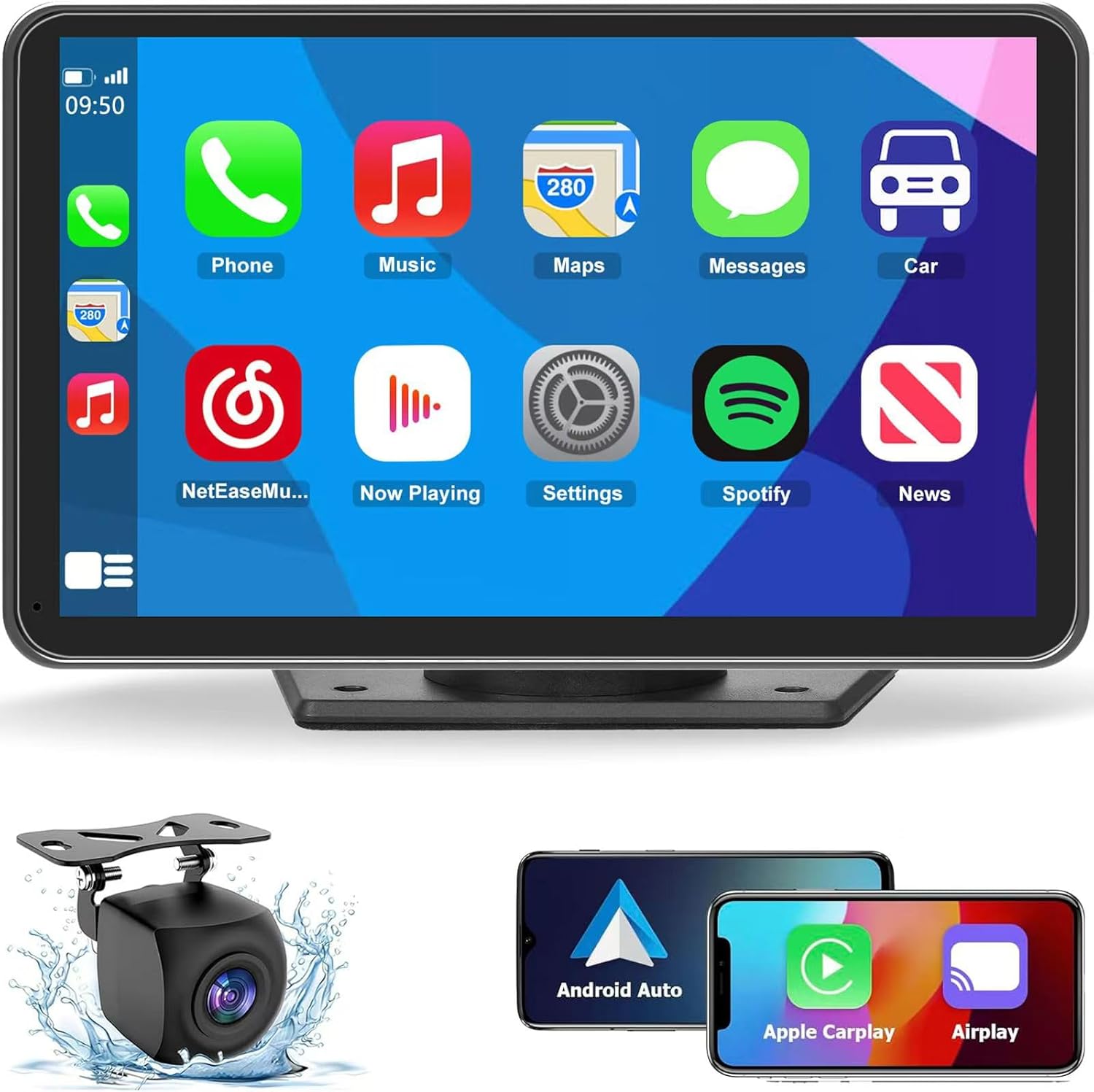
Image: The main unit of the PASLDA Wireless CarPlay Screen along with the backup camera and icons for Android Auto and Apple CarPlay.
What's in the Box
- Owner's Manual
- Portable car stereo (main unit)
- Power cable + AUX cable
- Backup camera
- Adhesive mount

Image: Visual representation of the main unit, adhesive mount, power cable, backup camera, AUX cable, and user manual.
Setup
1. Mounting the Unit
The CAS02 unit comes with a 90-degree rotatable self-adhesive bracket. This allows for flexible placement on your vehicle's dashboard console. Ensure the mounting surface is clean and dry before applying the adhesive. The unit is designed for easy installation and disassembly.
Note: Some users have reported that the stand may initially be oriented vertically. If this occurs, it can be unscrewed and re-positioned horizontally for optimal viewing. The adhesive mount is designed to hold very well, even over bumps.

Image: The portable CarPlay screen mounted on a dashboard, illustrating its multi-rotation bracket and wide viewing angle capabilities.
2. Power Connection
The working voltage for the CAS02 is DC 12V~24V, making it suitable for various vehicles including campers, RVs, trucks, pickups, and vans. Connect the provided power cable to the unit and your vehicle's power outlet.
This unit features a "Plug & Play" design, requiring no specialized installation skills. Simply connect the power, and the unit is ready for use.
3. Connecting to Your Phone (Wireless CarPlay/Android Auto)
To enable Wireless CarPlay or Android Auto, connect your smartphone to the CAS02 unit via Bluetooth or Wi-Fi. The unit is designed to instantly connect to your phone's Bluetooth when the vehicle is powered on.
4. Backup Camera Installation (Optional)
The CAS02 comes with a waterproof and HD rearview camera, offering a 180-degree ultra-wide angle and night vision. Installation of the backup camera involves wiring to your vehicle's reverse light. While the unit includes a camera, the wiring process can be complex for some users. Professional installation may be considered if you are unfamiliar with vehicle electrical systems.

Image: Features of the included backup camera, highlighting its high-definition, waterproof design, and wide viewing angle for safer reversing.
Operating Instructions
1. Wireless CarPlay & Android Auto
Once connected, you can access your phone's functionalities directly on the 7-inch touchscreen. This includes music playback, map navigation, video streaming, messaging, and hands-free phone calls. The unit supports voice control via Siri (for Apple CarPlay) or Google Assistant (for Android Auto), allowing for convenient command execution.
Image: The main interface of the CarPlay screen, displaying common application icons like Phone, Music, Maps, and Messages.
2. Navigation and GPS
The 7-inch wireless CarPlay screen provides precise real-time location and GPS navigation without delay. Utilize apps like Google Maps or Waze for real-time route recommendations, traffic congestion updates, and lane change guidance. The system uses your phone's latest GPS data, eliminating the need for frequent manual updates.
3. Mirror Link Function
The unit supports wireless mirroring for both iOS (Airplay) and Android (Android Cast) devices. To use Mirror Link with an iPhone, connect your iPhone and the CarPlay unit to the same Wi-Fi network, then select "SmartScreen" in your iPhone's screen mirroring settings. This allows you to display content from your phone, such as YouTube or TikTok videos, directly on the 7-inch screen.

Image: The Mirror Link function in action, displaying content from a smartphone onto the larger 7-inch HD touchscreen.
4. Audio Output Options
The CAS02 offers multiple ways to output audio, greatly improving sound quality:
- Built-in Speaker: For direct audio output from the unit.
- Bluetooth: Seamlessly connect to your car's factory stereo system via Bluetooth.
- FM Transmission: Transmit audio to your car's speakers via an FM frequency.
- AUX Input: Connect directly to your car's AUX port using the provided AUX cable.
Note: When using external audio output (Bluetooth, FM, AUX), the sound may initially come from the unit's built-in speakers. You may need to turn your car stereo off and on again to ensure audio routes through your car's speakers.

Image: Illustration of the four available audio output methods for the CarPlay screen: built-in speakers, Bluetooth, FM transmission, and AUX connection.
5. Display Settings
The unit features a 7-inch 1024x600 2.5D HD IPS screen. It supports Day/Night Mode for optimal visibility in varying light conditions. Brightness adjustments may need to be made manually from the main interface, as this setting might not be accessible within the CarPlay environment.
Maintenance
To ensure the longevity and optimal performance of your PASLDA Wireless CarPlay Screen, follow these general maintenance guidelines:
- Cleaning: Use a soft, lint-free cloth to clean the screen and exterior. Avoid abrasive cleaners or solvents that could damage the display or finish.
- Temperature: Avoid exposing the unit to extreme temperatures (very hot or very cold) for extended periods, as this can affect internal components and screen performance.
- Storage: If storing the unit for a long time, disconnect it from power and store it in a cool, dry place.
- Cables: Periodically check all cables for wear and tear. Replace any damaged cables to prevent electrical issues.
Troubleshooting
| Problem | Possible Cause / Solution |
|---|---|
| Unit remains on after vehicle is off. | Your vehicle's auxiliary power outlet may remain active even when the ignition is off. To power down the CarPlay screen, you will need to manually unplug it from the power source. |
| Mount is vertical instead of horizontal. | The adhesive mount can be unscrewed and re-positioned to achieve the desired horizontal orientation. |
| Unit falls off dashboard. | Ensure the dashboard surface is clean, dry, and flat before applying the adhesive mount. If the included adhesive is insufficient for your specific dashboard texture, consider purchasing a stronger adhesive or an alternative mounting solution. |
| Audio plays through unit's speakers instead of car stereo. | After connecting via Bluetooth, FM, or AUX, try turning your car stereo off and then back on. This often resolves the issue and routes audio to your car's speakers. |
| Backup camera not functioning or difficult to install. | The backup camera requires wiring to your vehicle's reverse light. If you are not comfortable with automotive electrical work, professional installation is recommended. Ensure all connections are secure. |
| Brightness adjustment not working within CarPlay. | Brightness settings may only be adjustable from the main interface of the CarPlay screen, outside of the Apple CarPlay or Android Auto environment. Exit the CarPlay/Android Auto mode to adjust brightness. |
Specifications
| Feature | Detail |
|---|---|
| Model Name | CAS02 |
| Brand | PASLDA |
| Screen Size | 7 Inches |
| Display Type | LCD |
| Display Resolution | 1024x600 |
| Product Dimensions | 7.4 x 4.3 x 0.9 inches |
| Item Weight | 1.6 pounds |
| Connectivity Technology | Bluetooth, USB, Wireless |
| Audio Output Mode | Stereo (Built-in Speaker, AUX, FM Transmission, Bluetooth) |
| Vehicle Service Type | Car, Truck, RV, Camper, Pickup, Van |
| Mounting Type | Adhesive mount (suction cup stand also mentioned in specs, but adhesive mount is primary from description) |
| Special Feature | Lightweight, Portable |
Warranty and Support
Your PASLDA Wireless CarPlay Screen (Model CAS02) comes with the following:
- Warranty: 1-year manufacturer warranty.
- Quality Guarantee: 24-month Quality Guarantee.
- Return Policy: 30 Days Voluntary 30-Day Return Guarantee.
- Customer Support: 24 Hours 7x24 Customer Support.
- Technical Support: Lifetime Customer & Technical Support.
For any inquiries or assistance, please refer to the contact information provided in your Owner's Manual or visit the official PASLDA store on Amazon.

Image: Icons representing 24/7 customer support, 30-day return, 24-month quality guarantee, and lifetime technical support.
Ask a question about this manual
Ask about setup, troubleshooting, compatibility, parts, safety, or missing instructions. Manuals+ will review the question and use this page’s manual context to help answer it.