
Introduction
The MT850 is a professional-grade pocket scanner designed for various applications. It features a high-resolution 1280 x 800 pixel image sensor, offering improved scanning performance compared to previous models. Its compact and lightweight design, weighing approximately 70g, makes it highly portable for use in diverse environments such as logistics, service, and medical fields. The device is built for durability with IP55 dustproof and splashproof characteristics, a wide operating temperature range, and impact resistance.
Key features include:
- High Resolution Imaging: Equipped with a 1280x800 pixel 2D imager for precise scanning.
- Advanced Bluetooth Connectivity: Bluetooth 5.0 for quick, PIN-less pairing and automatic reconnection. Supports HID (keyboard) and SPP (virtual serial COM) modes for compatibility with iOS, Android, and Windows devices.
- Extended Battery Life: A 1,000mAh lithium polymer battery provides approximately 10,000 scans on a full charge when scanning at 5-second intervals via Bluetooth.
- Robust Design: IP55 dustproof and splashproof rating, operational from -10°C to 50°C, and impact resistant to 1.5m drops onto concrete.
- Batch Data Collection: Includes 2MB of memory, allowing it to function as a batch data collector.
Setup
1. Package Contents
Before you begin, ensure all items are present in the package:
- MT850-USBC 2D Pocket Scanner
- USB Type-C Cable
- User Manual (this document)
2. Initial Charging
The scanner comes with a partial charge, but it is recommended to fully charge the device before first use. Connect the supplied USB Type-C cable to the scanner's charging port and plug the other end into a USB power adapter (not included) or a computer's USB port. The charging indicator light will show the charging status.

Figure 1: The MT850-USBC 2D Pocket Scanner. This image shows the compact, ergonomic design of the scanner, highlighting its white and dark gray casing with the scanning window at the front and control buttons on top.
3. Bluetooth Pairing
The MT850-USBC supports Bluetooth 5.0 for wireless connection to your host device (smartphone, tablet, PC). It supports both HID (Human Interface Device) and SPP (Serial Port Profile) modes.
- Power On: Press and hold the power button on the scanner until it powers on.
- Enter Pairing Mode: Refer to the quick start guide or the scanner's specific pairing barcode (usually found in the manual or on a setup card) to put the scanner into Bluetooth pairing mode. The indicator light will typically flash to show it's discoverable.
- Enable Bluetooth on Host Device: On your iOS, Android, or Windows device, go to Bluetooth settings and ensure Bluetooth is enabled.
- Select Scanner: Search for available devices. The scanner should appear as "MT850-USBC" or similar. Select it to pair. No PIN code is required for pairing.
- Confirmation: Once paired, the scanner's indicator light will change (e.g., solid blue) to confirm a successful connection.
For USB Type-C connection, simply connect the scanner to your computer using the provided cable. The scanner will function as a wired device, typically appearing as a keyboard input device (HID mode).
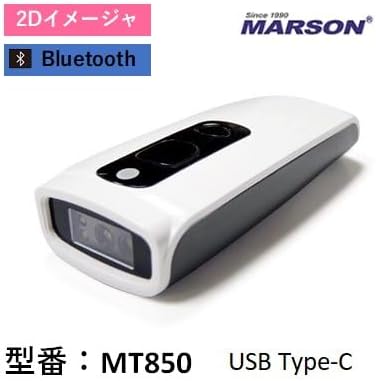
Figure 2: The MT850-USBC scanner displaying its model number and connectivity options. This image emphasizes the product's identity and its support for 2D imaging and Bluetooth.
Operating Instructions
1. Scanning Barcodes
To scan a barcode, point the scanning window of the MT850-USBC at the barcode you wish to read and press the trigger button. The scanner will emit a light beam to read the barcode. A successful scan is typically indicated by an audible beep and/or a vibration (if enabled).

Figure 3: The MT850-USBC scanner in use, reading a barcode on a wristband. This demonstrates the scanner's application in medical or service environments, showing its red scanning light active.
The MT850-USBC is capable of reading various 1D and 2D barcodes. Note that it cannot read "GS1 Composite" 2D symbols.

Figure 4: The MT850-USBC scanner being used to scan a barcode on a package. This illustrates its utility in logistics or retail settings, showing the scanner held comfortably for efficient data capture.
2. Operating Modes (HID/SPP)
- HID (Human Interface Device) Mode: In this mode, the scanner acts like a keyboard. Scanned data is directly input into any active text field on your connected device. This is the most common mode for general use.
- SPP (Serial Port Profile) Mode: This mode creates a virtual serial port connection. It requires specific software on the host device to receive and process the scanned data. SPP mode is typically used for custom applications or integration with existing systems.
To switch between HID and SPP modes, you may need to scan specific configuration barcodes provided in the full user manual or quick start guide.
3. Batch Data Collection
The MT850-USBC features 2MB of internal memory, allowing it to store scanned data when not connected to a host device (batch mode). To use this feature:
- Enter Batch Mode: Scan the designated barcode to switch the scanner into batch mode.
- Scan and Store: Scan barcodes as usual. The data will be stored in the scanner's memory.
- Upload Data: Connect the scanner to a host device (via USB or Bluetooth in SPP mode) and use the appropriate software to upload the stored data.
Maintenance
1. Cleaning
To maintain optimal performance, keep the scanning window clean. Use a soft, lint-free cloth lightly dampened with water or a mild, non-abrasive cleaning solution. Do not use harsh chemicals or abrasive materials, as they can damage the scanner's surface or scanning window.
2. Storage
Store the scanner in a cool, dry place away from direct sunlight and extreme temperatures. When storing for extended periods, ensure the battery is partially charged (around 50%) to prolong its lifespan.
Troubleshooting
| Problem | Possible Cause | Solution |
|---|---|---|
| Scanner does not power on. | Battery is depleted. | Charge the scanner using the USB Type-C cable. |
| Cannot pair via Bluetooth. | Scanner not in pairing mode; Bluetooth disabled on host device; interference. | Ensure scanner is in pairing mode. Enable Bluetooth on host device. Move closer to the host device or away from sources of interference. Restart both devices. |
| Scanner not reading barcodes. | Barcode damaged or poor quality; scanning window dirty; incorrect symbology enabled; scanner not aimed correctly. | Try scanning a different barcode. Clean the scanning window. Ensure the barcode type is supported and enabled. Aim the scanner directly at the barcode. |
| Scanned data not appearing on host device. | Not connected; incorrect operating mode (e.g., in batch mode instead of HID/SPP); no active text field. | Verify Bluetooth or USB connection. Ensure scanner is in HID or SPP mode. Click into a text field on your device. |
| Bluetooth connection drops frequently. | Out of range; interference; low battery. | Move closer to the host device. Reduce interference. Charge the scanner. The scanner supports automatic reconnection. |
Specifications
| Feature | Detail |
|---|---|
| Product Model Number | MT850-USBC |
| Brand | AINIX |
| Manufacturer | Marson |
| Connectivity Technology | USB Type-C Cable, Bluetooth 5.0 |
| Image Sensor Resolution | 1280 x 800 pixels |
| Battery | 1,000mAh Lithium Polymer |
| Memory | 2MB (for batch data collection) |
| Ingress Protection (IP) Rating | IP55 (Dustproof and Splashproof) |
| Operating Temperature | -10°C to 50°C (14°F to 122°F) |
| Drop Resistance | 1.5m (onto concrete) |
| Weight | Approx. 70g |
| ASIN | B0CTH4DR6L |
| Date First Available on Amazon.co.jp | June 21, 2023 |
| Amazon Sales Rank | No. 329,012 in Computers & Peripherals; No. 46 in Handheld Scanners |
Warranty and Support
For warranty information, please refer to the documentation included with your purchase or contact the seller directly. Specific warranty terms and conditions may vary by region and retailer.
For technical support or further assistance, please contact the manufacturer, Marson, or the retailer from whom you purchased the product. Contact details can typically be found on their official websites or on your purchase receipt.