
1. Introduction
Thank you for choosing the Mosptnspg ZH018 75% TKL Wired Mechanical Keyboard. This manual provides detailed instructions for setting up, operating, and maintaining your new keyboard. Please read this manual thoroughly to ensure proper usage and to maximize your experience.
2. Package Contents
- Mosptnspg ZH018 75% TKL Wired Mechanical Keyboard
- USB Type-C to USB-A Cable
- Keycap Puller
- Switch Puller
- User Manual (this document)
3. Product Overview
The Mosptnspg ZH018 is a compact 75% Tenkeyless (TKL) mechanical keyboard designed for both gaming and general use. It features a gasket-mounted structure, hot-swappable switches, customizable RGB backlighting, and a convenient multimedia knob.

Figure 1: Mosptnspg ZH018 Keyboard Overview
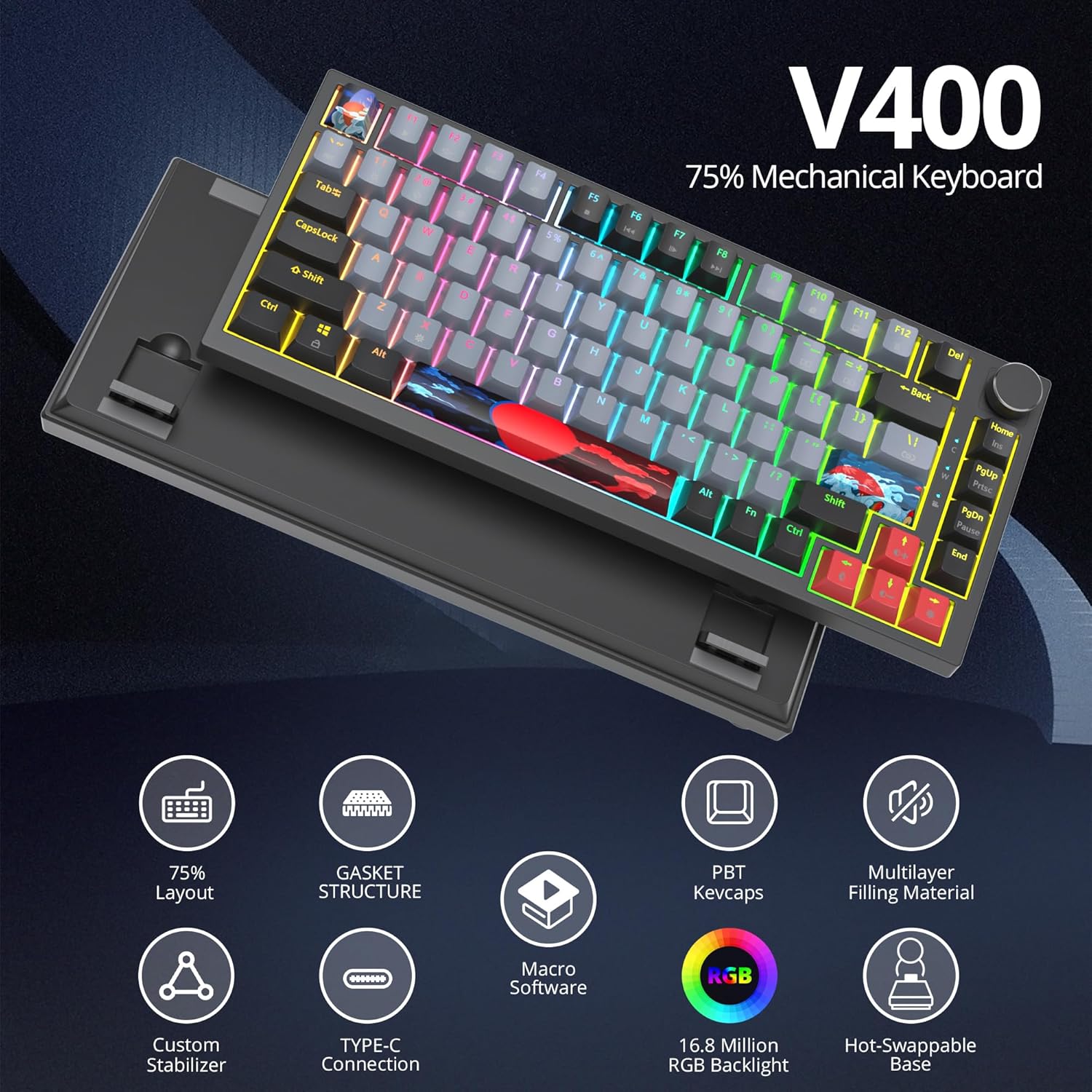
Figure 2: Key Features of the Mosptnspg ZH018 Keyboard
Key Features:
- 75% Layout (82 Keys): Compact design retaining essential function and arrow keys.
- Gasket Mount Structure: Provides a cushioned typing feel and reduces acoustic resonance.
- Hot-Swappable Switches: Compatible with 3-pin and 5-pin mechanical switches for easy customization.
- Linear Red Switches: Offers a smooth and consistent keystroke, ideal for fast typing and gaming.
- PBT Keycaps: Durable, anti-sweat, and resistant to shine.
- RGB Backlighting: Over 16.8 million colors with multiple customizable lighting effects.
- Multimedia Volume Knob: Convenient control for volume adjustment and play/pause functions.
- Ergonomic Design: Features double-ended adjustable feet for comfortable typing angles.
- N-Key Rollover (NKRO): Ensures all key presses are registered accurately, even during rapid input.

Figure 3: Gasket Mount Structure Diagram
4. Setup Instructions
4.1 Connecting the Keyboard
- Locate the USB Type-C port on the back of the keyboard.
- Connect the provided USB Type-C cable to the keyboard's port.
- Plug the USB-A end of the cable into an available USB port on your computer.
- The keyboard will automatically be recognized by your operating system (Windows, macOS, Linux). No additional drivers are typically required for basic functionality.

Figure 4: Keyboard Layout and Connectivity
4.2 Adjusting Keyboard Angle
The keyboard features two-step adjustable legs on the underside. Flip out the desired leg extensions to set your preferred typing angle for ergonomic comfort.

Figure 5: Adjustable Keyboard Legs for Ergonomic Comfort
5. Operating Instructions
5.1 Multimedia Knob Functions
- Rotate Clockwise: Increase volume.
- Rotate Counter-clockwise: Decrease volume.
- Press Down: Play/Pause media.

Figure 6: Multimedia Knob Controls
5.2 RGB Backlighting Control
The keyboard features customizable RGB backlighting. Use the following key combinations or the dedicated software to adjust lighting effects:
- Fn + F1-F12: Access various multimedia and system functions. Refer to the keycap legends for specific functions.
- Fn + \|: Cycle through different backlight modes.
- Fn + [{ or ]}: Adjust backlight brightness.
- Fn + ;: or '" : Adjust backlight speed.
- Fn + Arrow Keys: Adjust backlight direction or color (depending on mode).

Figure 7: RGB Backlighting and Multimedia Shortcuts
5.3 Programmable Software
For advanced customization of RGB lighting, macros, and key functions, download and install the dedicated software. The software allows you to:
- Set custom lighting effects with over 16.8 million colors.
- Create and manage macros for complex key sequences.
- Remap key functions to suit your preferences.

Figure 8: Keyboard Software Interface for Customization
5.4 Hot-Swapping Switches
The keyboard supports hot-swappable mechanical switches, allowing you to change switches without soldering. This feature is compatible with both 3-pin and 5-pin switches.
- Power off the keyboard or disconnect it from your computer.
- Use the included keycap puller to carefully remove the desired keycap.
- Use the included switch puller to gently grip the top and bottom clips of the switch and pull it straight up.
- Align the pins of the new switch with the holes on the PCB. Ensure the pins are straight to avoid bending.
- Press the new switch firmly into place until it clicks.
- Replace the keycap.
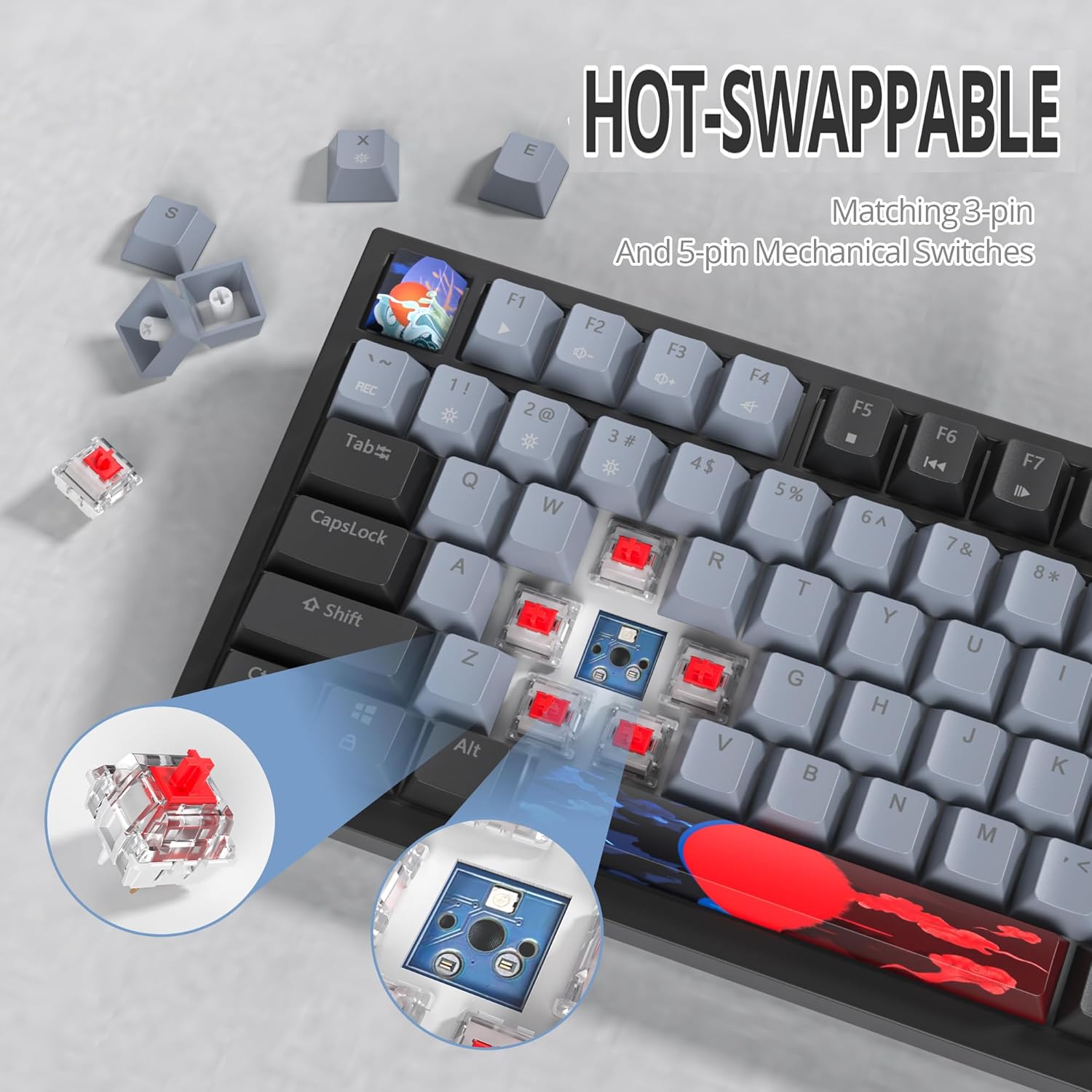
Figure 9: Hot-Swappable Switch Mechanism
6. Maintenance
- Cleaning Keycaps: Use a keycap puller to remove keycaps. Clean them with mild soap and water, then dry thoroughly before reattaching.
- Cleaning the Keyboard Body: Use a soft, damp cloth to wipe the keyboard surface. Avoid harsh chemicals.
- Dust Removal: Use compressed air to remove dust and debris from between keycaps and switches.
- Cable Care: Avoid bending or twisting the USB cable excessively to prevent damage.
7. Troubleshooting
- Keyboard not responding:
- Ensure the USB cable is securely connected to both the keyboard and the computer.
- Try connecting the keyboard to a different USB port on your computer.
- Test the keyboard on another computer to rule out system-specific issues.
- Restart your computer.
- Backlighting not working or incorrect:
- Ensure the keyboard is powered on.
- Use Fn key combinations to cycle through lighting modes and adjust brightness.
- Check the programmable software for lighting settings and ensure they are correctly applied.
- Keys not registering or double-typing:
- Remove the keycap and switch for the affected key. Inspect the switch pins for any bends or damage. Straighten bent pins carefully if possible.
- Clean any debris around the switch housing.
- If the issue persists, consider replacing the switch with a new one (due to hot-swappable design).
- Multimedia knob not functioning:
- Ensure the keyboard is properly connected.
- Check if any software settings are overriding the knob's default functions.
8. Specifications
| Feature | Specification |
|---|---|
| Brand | Mosptnspg |
| Model | ZH018 |
| Layout | 75% TKL (82 Keys) |
| Switch Type | Linear Red Mechanical Switches |
| Hot-Swappable | Yes (3-pin and 5-pin compatible) |
| Keycaps | PBT |
| Backlighting | RGB (16.8 million colors) |
| Connectivity | Wired (USB Type-C) |
| Anti-Ghosting | N-Key Rollover (NKRO) |
| Compatible Devices | Laptop, PC, Smartphone, Tablet |
| Included Accessories | Keycap Puller, Switch Puller |
| Item Model Number | ZH018 |
| Parcel Dimensions | 36.7 x 18.8 x 5.41 cm |
| Item Weight | 921 g |
9. Warranty and Support
Mosptnspg products are designed for reliability and performance. For warranty information, technical support, or customer service inquiries, please refer to the contact information provided with your purchase or visit the official Mosptnspg website. Please retain your proof of purchase for warranty claims.