
Toeeklsa B0CTDGYS89
Toeeklsa Android 12.0 Car Multimedia Player User Manual
For Chevrolet Equinox / Explorer 2010-2017 (Model: B0CTDGYS89)
1. Introduction
This manual provides detailed instructions for the installation, operation, maintenance, and troubleshooting of your Toeeklsa Android 12.0 Car Multimedia Player. This unit is specifically designed for Chevrolet Equinox and Explorer models manufactured between 2010 and 2017. It features an upgraded Android 12 operating system, an 8-core CPU, 4GB RAM, and 32GB ROM, ensuring enhanced performance and compatibility. The 9.7-inch large touch screen offers intuitive control and a superior user experience.

Figure 1.1: Toeeklsa Android 12.0 Car Multimedia Player
This image displays the main unit of the Toeeklsa Android 12.0 Car Multimedia Player, featuring its large 9.7-inch touch screen and integrated controls, designed to fit seamlessly into the vehicle's dashboard.
2. Setup and Installation
The Toeeklsa Car Multimedia Player is designed for a standard fit in compatible Chevrolet Equinox and Explorer vehicles (2010-2017). No additional accessories are typically required beyond what is included in the package. Please follow these guidelines for proper installation.
2.1. Package Contents
Before installation, verify that all components are present:
- Main Head Unit (9.7-inch screen)
- Power Cable
- Radio Cable
- Microphone
- 4G Antenna
- GPS Antenna
- RCA Cable
- Chime Speaker
- USB Cables (x2)
- Reversing Camera Cable
- Crowbar (for panel removal)

Figure 2.1: Included Components
This image illustrates all the cables and accessories included with the Toeeklsa Car Multimedia Player, such as power cables, antennas, USB cables, and a crowbar for installation.
2.2. Compatibility Check
Ensure your vehicle's dashboard configuration matches the compatible design. Refer to the images below for visual guidance on compatible and incompatible dashboard types.

Figure 2.2: Dashboard Compatibility
This image shows two dashboard configurations for the Chevrolet Equinox 2010-2017. The left panel indicates a compatible dashboard for installation, while the right panel shows an incompatible dashboard, highlighted by a red 'X' over certain buttons.
Note: This unit does not support vehicles with the original seat heating function integrated into the factory radio controls.

Figure 2.3: Seat Heating Function Incompatibility
This image highlights that the multimedia player is not compatible with vehicles that have original seat heating controls integrated into the factory radio, showing examples of such controls.
2.3. Wiring Diagram
Refer to the wiring diagram for correct connection of all cables and components.

Figure 2.4: Wiring Diagram
This image provides a detailed wiring diagram for the Toeeklsa Car Multimedia Player, showing connections for power, radio antenna, GPS antenna, 4G antenna, USB, Canbus box, and reversing camera.
3. Operating Instructions
This section details the various functions and features of your multimedia player.
3.1. Android 12.0 System
The unit operates on Android 12.0, providing a familiar and intuitive interface. With an 8-core CPU, 4GB RAM, and 32GB ROM, it offers smooth performance for navigation, media playback, and application usage.
3.2. Wireless CarPlay and Android Auto
Connect your smartphone wirelessly to access navigation, phone contacts, email, notifications, and music through Apple CarPlay or Android Auto. Utilize voice control (Siri/Google Assistant) for hands-free operation, allowing you to focus on driving.
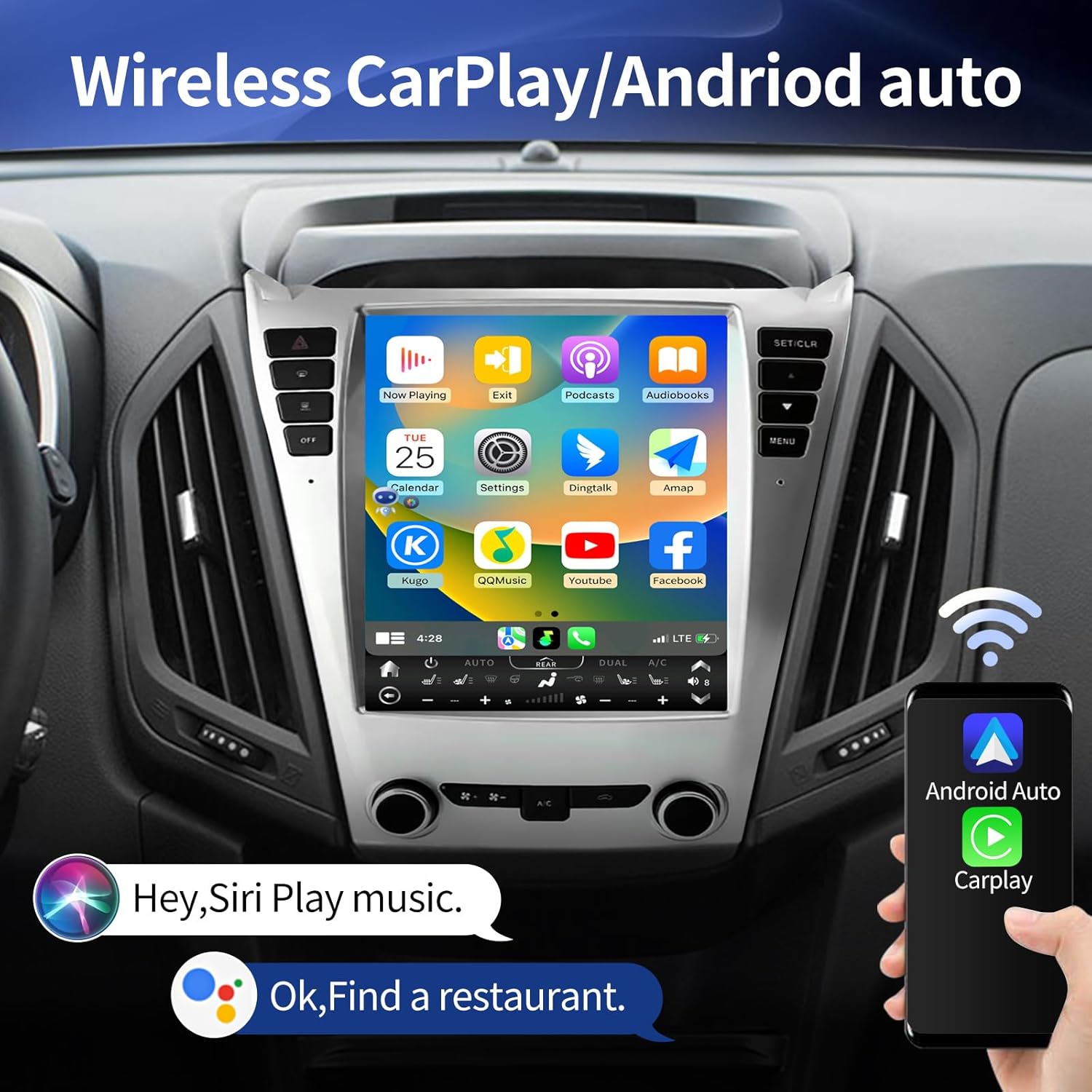
Figure 3.1: Wireless CarPlay/Android Auto
This image demonstrates the wireless CarPlay and Android Auto functionality, showing a smartphone connected to the head unit and displaying app icons like YouTube, Netflix, and Facebook on the screen.

Figure 3.2: CarPlay and Android Auto Connectivity
This image illustrates the options for connecting CarPlay and Android Auto, indicating support for both wireless (Bluetooth) and wired (USB) connections.
3.3. GPS Navigation
The unit features high-precision GPS + GLONASS navigation. It supports both online and offline maps, allowing you to use popular navigation applications like Apple Maps, Google Maps, and Waze. This ensures reliable guidance even in areas with limited network coverage.

Figure 3.3: GPS Navigation and Steering Wheel Control
This image shows the GPS navigation interface on the head unit, along with a depiction of how steering wheel controls can be used to manage the system.

Figure 3.4: GPS Navigation Apps
This image highlights the GPS navigation feature, showing various map applications that can be used on the multimedia player.
3.4. Bluetooth 5.0
The integrated Bluetooth 5.0 module allows for stable hands-free calling and wireless music streaming. Pair your smartphone to make and receive calls safely and enjoy your favorite audio content.
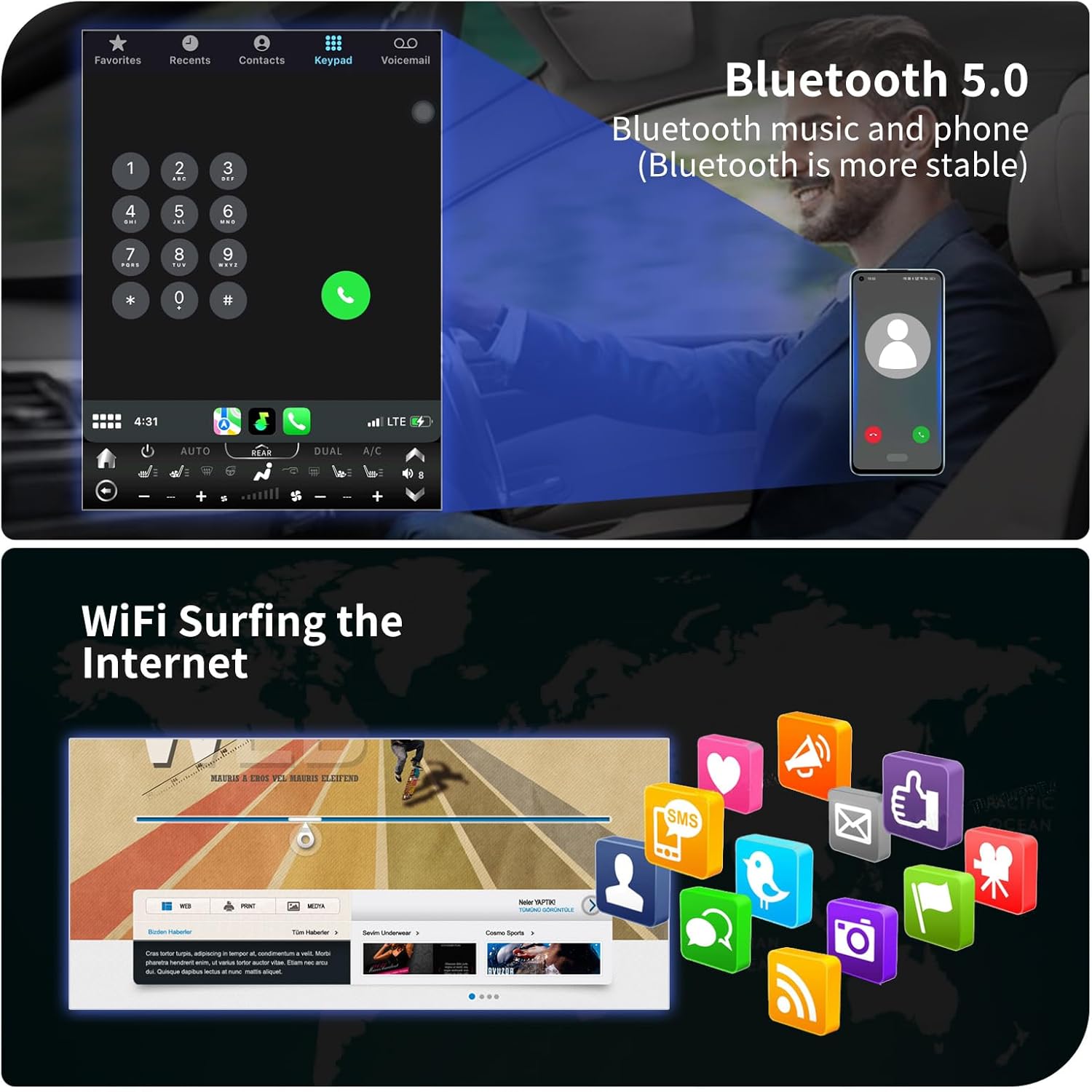
Figure 3.5: Bluetooth and Wi-Fi
This image illustrates the Bluetooth 5.0 functionality for phone calls and music, alongside the Wi-Fi feature for internet browsing and app downloads.

Figure 3.6: Bluetooth Features
This image details the Bluetooth capabilities, including hands-free phone calls and Bluetooth music streaming, with a visual representation of a phone call in progress.
3.5. FM Radio
Tune into your favorite FM radio stations. The unit allows you to save preferred stations for quick access, providing news, music, and programs on the go.

Figure 3.7: FM Radio Interface
This image displays the FM radio interface of the multimedia player, showing frequency tuning and saved station options.
3.6. Wi-Fi & 4G Network
Connect to the internet via Wi-Fi or a 4G network (requires a compatible SIM card and data plan). This enables online navigation, video streaming, and downloading various applications from the app store, such as YouTube, Netflix, and Facebook.
3.7. Steering Wheel Control
The unit supports learning from your original steering wheel buttons, allowing you to control media playback, volume, and calls without taking your hands off the wheel.

Figure 3.8: Steering Wheel Control
This image demonstrates the steering wheel control feature, showing how the multimedia player can be configured to respond to the vehicle's original steering wheel buttons.
3.8. Split Screen Functionality
Utilize the split-screen feature to run two applications simultaneously. For example, you can have navigation open on one side and a music player or web browser on the other, enhancing multitasking capabilities.

Figure 3.9: Split Screen
This image illustrates the split-screen functionality, allowing two applications, such as a music player and a web browser (Google), to run concurrently on the display.

Figure 3.10: Split Screen Example
This image provides another example of the split-screen feature, showing Google search on one side and a music player on the other, demonstrating simultaneous application usage.
3.9. HD Night Vision Backup Camera
The unit supports an HD backup camera with a 170° viewing angle and night vision capabilities. When reversing your vehicle, the image from the camera automatically displays on the unit's screen, enhancing safety and ease of parking.
4. Maintenance
To ensure the longevity and optimal performance of your multimedia player, follow these maintenance guidelines:
- Cleaning the Screen: Use a soft, lint-free cloth to gently wipe the touch screen. For stubborn smudges, slightly dampen the cloth with water or a screen-safe cleaner. Avoid harsh chemicals or abrasive materials.
- Software Updates: Periodically check for available software updates through the unit's settings menu. Updates can improve performance, add new features, and enhance security.
- Environmental Conditions: Avoid exposing the unit to extreme temperatures, direct sunlight for prolonged periods, or excessive moisture.
- Cable Connections: Ensure all cables are securely connected. Loose connections can lead to intermittent functionality.
5. Troubleshooting
This section addresses common issues you might encounter and provides potential solutions.
| Problem | Possible Cause | Solution |
|---|---|---|
| Unit does not power on. | Loose power connection, blown fuse, vehicle battery issue. | Check power cable connections. Inspect vehicle fuses. Ensure vehicle battery is charged. |
| No sound from speakers. | Volume too low, mute activated, incorrect wiring, speaker issues. | Increase volume. Check if mute is active. Verify speaker wiring. Test with different audio source. |
| GPS not acquiring signal or inaccurate. | GPS antenna obstructed or improperly installed, outdated maps, poor satellite visibility. | Ensure GPS antenna has a clear view of the sky. Check antenna connection. Update map data. |
| Bluetooth device not pairing. | Bluetooth off on unit or device, device not in pairing mode, interference. | Ensure Bluetooth is enabled on both devices. Put device in pairing mode. Move closer to the unit. |
| Screen unresponsive or frozen. | Software glitch, temporary system error. | Perform a soft reset (refer to unit's specific reset procedure, usually a small reset button). If persistent, disconnect power for a few minutes. |
| Language changed unexpectedly (e.g., to Chinese). | Accidental language setting change. | Navigate to the system settings menu (usually represented by a gear icon) and locate the language settings to revert to English. |
| Unit does not fit perfectly, slight gaps. | Minor manufacturing variance, installation alignment. | Carefully re-align the unit during installation. Ensure all mounting clips are properly engaged. |
6. Specifications
| Feature | Detail |
|---|---|
| Brand | Toeeklsa |
| Model | B0CTDGYS89 (High Version) |
| Operating System | Android 12.0 |
| CPU | 8 Core |
| RAM | 4GB |
| ROM | 32GB |
| Display Size | 9.7 Inches |
| Resolution | 1920 x 1200 |
| Connectivity Technology | Bluetooth 5.0, Wi-Fi, 4G Network |
| GPS | GPS + GLONASS, Satellite Map Type |
| Audio Output Mode | AUX, Stereo |
| Voice Command | Buttons, Touchscreen (via CarPlay/Android Auto) |
| Mounting Type | Dashboard Mount |
| Item Weight | 6.89 pounds |
| Package Dimensions | 16.18 x 14.84 x 5.35 inches |
7. Warranty Information
This Toeeklsa Car Multimedia Player comes with a 1-Year Warranty from the date of purchase. This warranty covers manufacturing defects and malfunctions under normal use. It does not cover damage caused by improper installation, misuse, accidents, unauthorized repairs, or normal wear and tear.
Please retain your proof of purchase for warranty claims.
8. Customer Support
For technical assistance, installation queries, or warranty claims, please contact Toeeklsa customer support through the platform where you purchased the product. Provide your model number (B0CTDGYS89) and a detailed description of your issue to receive prompt support.
Ask a question about this manual
Ask about setup, troubleshooting, compatibility, parts, safety, or missing instructions. Manuals+ will review the question and use this page’s manual context to help answer it.