
1. Product Overview
The DEHUKA USB Wired Game Controller is designed for precision, comfort, and an enhanced gaming experience across multiple platforms. It features an ergonomic design, dual vibration feedback, and a 2-meter long USB cable for flexible connectivity.
Key Features:
- Precise Control: Combines revolutionary functions with accuracy and comfort.
- Enhanced Comfort and Style: Designed for improved control and a more realistic gaming experience.
- Ergonomic Design: Grip parts made of ABS material with anti-slip treatment for easier handling.
- Plug and Play: Instant functionality upon connection.
- Dual Vibration: Built-in motors provide immersive haptic feedback.
- 3.5mm Audio Port: For connecting headphones directly to the controller.
- 2-Meter USB Cable: Provides ample reach for comfortable gaming.
- LED Indicator: For status indication.

Image 1: Overview of the DEHUKA controller's main features, including vibration, versatility, gyroscope, Steam support, 2-meter cable, 3.5mm audio jack, LED indicator, Plug & Play functionality, and USB connectivity.
2. Compatibility
The DEHUKA USB Wired Game Controller is compatible with a wide range of gaming platforms, ensuring a versatile gaming experience.
Supported Platforms:
- Xbox One
- Xbox One S
- Xbox Series X
- Xbox Series S
- PC (Windows operating systems)
- Steam (for PC gaming)
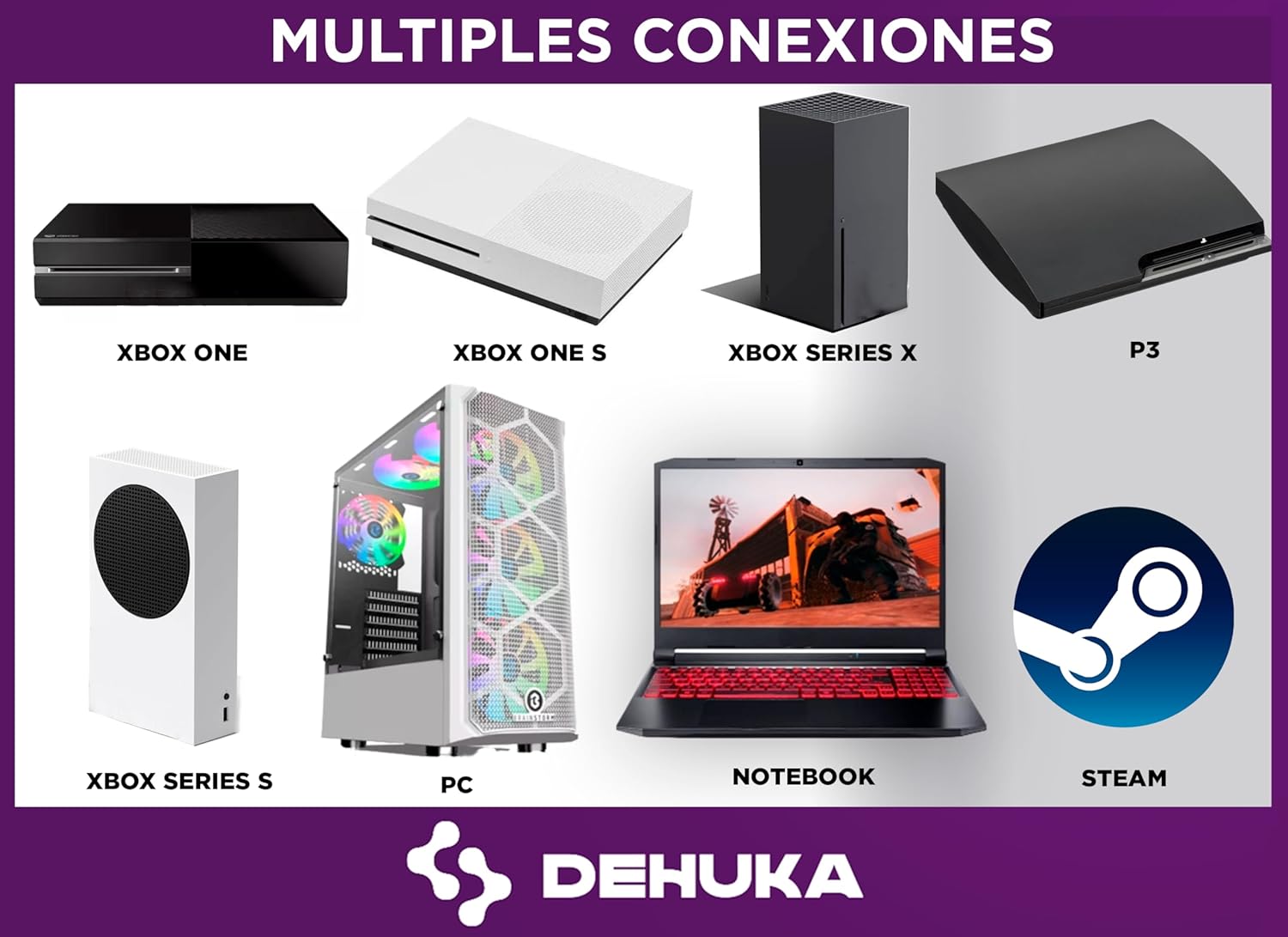
Image 2: Visual representation of the controller's compatibility with various consoles and platforms, including Xbox One, Xbox One S, Xbox Series X, Xbox Series S, PC, Notebooks, and Steam.
3. Setup Instructions
Setting up your DEHUKA USB Wired Game Controller is a straightforward process thanks to its Plug and Play functionality.
Connecting the Controller:
- Locate an available USB port on your Xbox console (Xbox One, Xbox Series X, Xbox Series S) or PC.
- Insert the USB connector of the DEHUKA controller into the USB port.
- The controller will automatically be recognized by your system. The LED indicator on the controller will illuminate, signifying a successful connection.
- You can now begin using your controller for gaming.

Image 3: Users engaged in gaming, illustrating the ease of Plug & Play setup for the DEHUKA controller.

Image 4: The controller's USB connection and its 2-meter cable length, providing extended reach for gaming.

Image 5: The DEHUKA controller connected to an Xbox console, demonstrating its compatibility.
4. Operating Instructions
Once connected, the DEHUKA controller provides intuitive controls and features for an immersive gaming experience.
Basic Operation:
- Buttons and Joysticks: Utilize the standard Xbox layout buttons (A, B, X, Y), directional pad, and analog joysticks for in-game actions and navigation.
- Triggers and Bumpers: Use the shoulder buttons and triggers for various game functions, such as shooting, accelerating, or aiming.
- Dual Vibration: The controller's built-in motors will provide haptic feedback during gameplay, enhancing realism for impacts, explosions, and other in-game events.
- 3.5mm Audio Jack: Connect your compatible headphones to the 3.5mm port on the controller for in-game audio and voice chat (if supported by the game and platform).
- LED Indicator: The LED lights on the controller typically indicate player number or connection status.

Image 6: Detailed view of the controller's ergonomic design, showcasing the layout of buttons, D-pad, and analog sticks for comfortable and precise operation.

Image 7: Illustration of the dual vibration feature, showing the placement of the vibration motors within the controller for enhanced haptic feedback.

Image 8: A user connecting headphones to the 3.5mm audio input on the controller, demonstrating the audio connectivity feature.
5. Maintenance and Care
Proper maintenance ensures the longevity and optimal performance of your DEHUKA Game Controller.
- Cleaning: Use a soft, dry cloth to wipe the controller. For stubborn dirt, slightly dampen the cloth with water. Avoid harsh chemicals or abrasive cleaners.
- Storage: Store the controller in a cool, dry place away from direct sunlight and extreme temperatures.
- Cable Care: Avoid sharply bending or twisting the USB cable. Do not pull the cable to disconnect the controller; always grasp the USB plug.
- Avoid Drops: Protect the controller from drops and impacts, which can damage internal components.
6. Troubleshooting
If you encounter issues with your DEHUKA Game Controller, refer to the following troubleshooting tips:
- Controller Not Responding:
- Ensure the USB cable is securely plugged into both the controller and the console/PC.
- Try connecting the controller to a different USB port.
- Restart your console or PC.
- Test the controller on another compatible device if possible to rule out a device-specific issue.
- Vibration Not Working:
- Check in-game settings to ensure vibration feedback is enabled.
- Verify that the game you are playing supports vibration functionality.
- Ensure the controller is properly connected.
- Audio Issues (3.5mm Jack):
- Ensure your headphones are fully plugged into the 3.5mm jack.
- Check your console/PC audio settings to ensure the controller's audio output is selected.
- Test your headphones with another device to confirm they are working correctly.
7. Specifications
| Feature | Description |
|---|---|
| Model Number (ASIN) | B0CTD6CSC2 |
| Connectivity | Wired USB |
| Cable Length | 2 meters |
| Compatibility | Xbox One, Xbox One S, Xbox Series X, Xbox Series S, PC (Windows), Steam |
| Vibration Feedback | Dual Vibration Motors |
| Audio Port | 3.5mm Headphone Jack |
| Material | ABS (grip parts with anti-slip treatment) |
| Features | Plug & Play, LED Indicator, Ergonomic Design |