
1. Product Overview
The AOHI 240W 4-in-1 USB4 Cable Set (Model A0C-C017) is a versatile connectivity solution designed for high-performance charging, data transfer, and video output. This innovative kit includes three modular cables that can be used independently or combined to meet various needs.
- Splicable Design: Consists of a USB-C to USB-C short cable (0.4ft/13cm, USB4), a USB-A to USB-C short cable (0.4ft/13cm, USB 3.2 Gen2), and a USB-C to USB-C extension cable (2.9ft/87cm, USB4).
- 240W PD3.1 Fast Charging: Supports Power Delivery 3.1 for ultra-fast charging up to 240W (48V 5A) with compatible USB-C to USB-C connections. The USB-A to USB-C short cable supports up to 60W.
- 40Gbps Data Transfer: Achieves data transfer speeds of up to 40Gbps via USB4.0 (USB-C to USB-C connections), enabling rapid file transfers. USB-A to USB-C connections support 10Gbps (USB 3.2 Gen 2).
- 8K HD Display Support: Facilitates video output up to 8K@60Hz resolution when connecting compatible devices to an external display using USB-C to USB-C cables.
- Intelligent E-Marker Chip: Features an E-Marker chip and 56KΩ resistors for intelligent current matching and protection against overcurrent, overheating, and short circuits, ensuring safe and stable operation.
2. Package Contents
Verify that all items are present in your package:
- 1 x USB-C to USB-C Short Cable (0.4ft/13cm)
- 1 x USB-A to USB-C Short Cable (0.4ft/13cm)
- 1 x USB-C to USB-C Extension Cable (2.9ft/87cm)
- 1 x Portable Storage Box
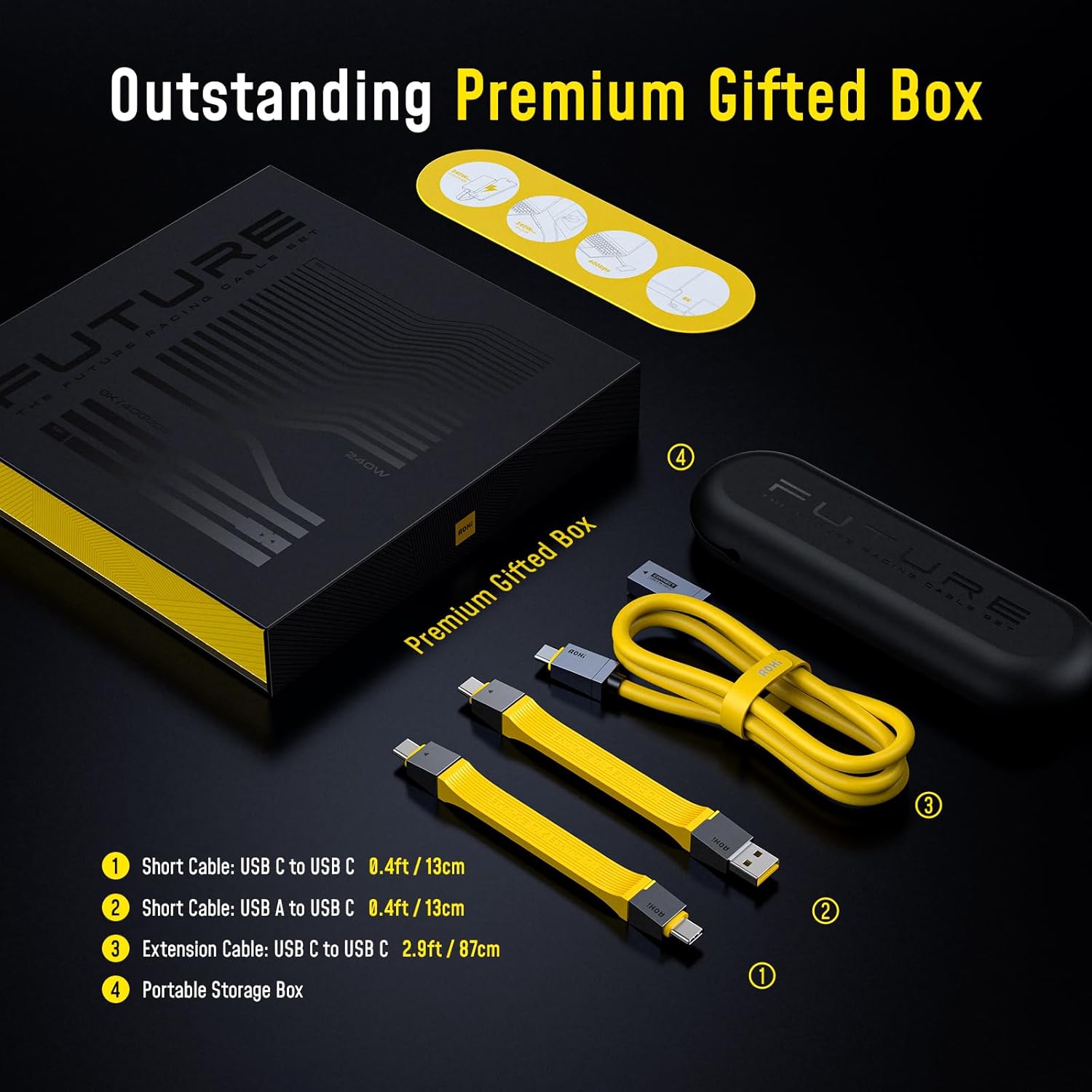
Image: Package contents of the AOHI 4-in-1 USB4 Cable Set, showing the individual cables and the portable storage box.
3. Setup and Connection
The AOHI 4-in-1 USB4 Cable Set features a modular design, allowing you to customize the cable length and type for various applications.
3.1 Assembling the Cables
- Independent Use: Each short cable (USB-C to USB-C or USB-A to USB-C) can be used on its own for compact connections.
- Extended Use: To create a longer USB-C to USB-C cable, connect the USB-C end of either short cable (USB-C to USB-C or USB-A to USB-C) to the female USB-C port of the extension cable. Ensure a firm connection.
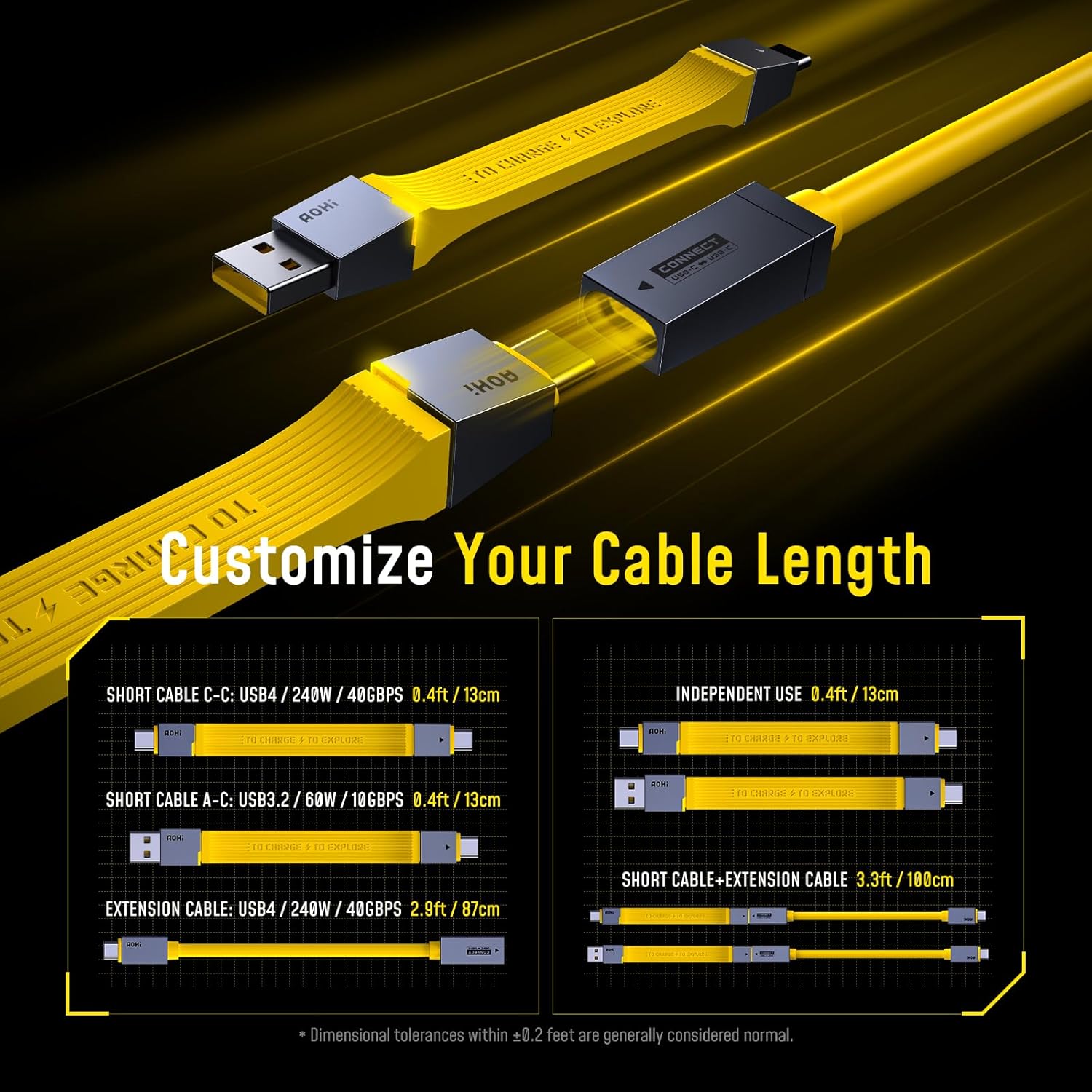
Image: Illustration demonstrating the modularity of the AOHI cable set, showing how short cables can be used independently or connected to the extension cable for increased length.
3.2 Connecting to Devices
Connect the appropriate cable configuration to your devices based on your needs:
- For USB-C to USB-C connections: Use the short USB-C to USB-C cable or the extended USB-C to USB-C cable for charging, data transfer, and video output.
- For USB-A to USB-C connections: Use the short USB-A to USB-C cable or connect it to the extension cable for charging and data transfer. Note that USB-A connections do not support video output.
4. Operating Instructions
4.1 Fast Charging (Up to 240W)
To achieve maximum charging speeds, ensure both your power adapter and device support PD3.1 (Power Delivery 3.1) and the required wattage. The USB-C to USB-C cables support up to 240W (48V 5A). The USB-A to USB-C cable supports up to 60W.
- Connect the USB-C end of the cable to your power adapter.
- Connect the other end (USB-C or USB-A, depending on the cable used) to your device.
- The cable's intelligent 3-stage charging indicators will provide visual feedback on the charging status.

Image: AOHI USB4 cable facilitating 240W fast charging for a mobile device, highlighting its high power delivery capabilities.
4.2 High-Speed Data Transfer (Up to 40Gbps)
The USB-C to USB-C cables support USB4.0, offering data transfer speeds up to 40Gbps. The USB-A to USB-C cable supports USB 3.2 Gen 2, with speeds up to 10Gbps.
- Connect the appropriate cable between your computer/host device and your external storage device (e.g., SSD, hard drive enclosure).
- Ensure both connected devices support the desired USB standard (USB4.0 for 40Gbps, USB 3.2 Gen 2 for 10Gbps) for optimal performance.
- No drivers are typically required; the connection is plug-and-play.

Image: A laptop connected to an external solid-state drive via the AOHI USB4 cable, illustrating its capability for 40Gbps data transfer.
4.3 8K Ultra-High Resolution Video Output
The USB-C to USB-C cables support video output up to 8K@60Hz. This feature is only available with USB-C to USB-C connections.
- Connect one end of the USB-C to USB-C cable to your laptop or video source.
- Connect the other end to a compatible 8K monitor or display.
- Ensure your source device and display both support 8K@60Hz resolution for the best visual experience. Maximum pixel output depends on your output device.

Image: A laptop connected to an 8K monitor for single display output and a setup with dual 4K monitors, showcasing the cable's high-resolution video capabilities.
4.4 Safety and Protection
The integrated E-Marker chip and 56KΩ resistors ensure safe and stable operation by intelligently matching current and providing protection against various electrical hazards.

Image: Detailed view of the AOHI cable's E-Marker chip, highlighting its role in ensuring battery protection, overheat protection, and stable charging performance.
4.5 Device Compatibility
The AOHI USB4 Cable Set is compatible with a wide range of USB-C devices.

Image: A compatibility chart illustrating various devices compatible with the AOHI USB4 cable, including laptops, tablets, phones, and monitors.
5. Maintenance
To ensure the longevity and optimal performance of your AOHI 4-in-1 USB4 Cable Set, follow these maintenance guidelines:
- Storage: When not in use, store the cables in the provided portable storage box to prevent tangling and damage.
- Cleaning: Gently wipe the cables with a soft, dry cloth to remove dust or dirt. Avoid using harsh chemicals or abrasive materials.
- Handling: Avoid sharp bends, twists, or excessive pulling on the cables, especially near the connectors, to prevent internal wire damage.
- Connection: Always grasp the connector head when plugging or unplugging the cable, rather than pulling on the cable itself.
- Environment: Keep the cables away from extreme temperatures, direct sunlight, and moisture.
6. Troubleshooting
If you encounter issues with your AOHI 4-in-1 USB4 Cable Set, refer to the following common troubleshooting steps:
6.1 Charging Issues
- No Charging/Slow Charging:
- Ensure both your power adapter and device support the required Power Delivery (PD) protocol and wattage.
- Verify that the cable is securely connected at both ends.
- Test with a different power adapter or device to isolate the issue.
- Note that the actual maximum charging speed depends on the power supported by your charging device and charger.
6.2 Data Transfer Issues
- Slow Data Transfer/No Data Transfer:
- Confirm that both connected devices (e.g., computer and external drive) support the desired USB standard (USB4.0 for 40Gbps, USB 3.2 Gen 2 for 10Gbps).
- Ensure the cable is fully inserted into both ports.
- Try connecting to a different port on your computer or using a different device.
6.3 Video Output Issues
- No Video/Low Resolution:
- Video output is only supported via USB-C to USB-C connections. Ensure you are using the correct cable type.
- Verify that your source device (laptop) and display both support the desired resolution (e.g., 8K@60Hz).
- Check display settings on your computer to ensure the external monitor is detected and configured correctly.
- The maximum pixel output depends on your output device's capabilities.
6.4 Thunderbolt 4 Compatibility
- Note: This USB4 cable is not fully compatible with Thunderbolt 4. If connected to a Thunderbolt 4 device, performance specifications may be downgraded to Thunderbolt 3. Intermittent connection issues may occur with Thunderbolt 3 devices.
7. Specifications
| Feature | Specification |
|---|---|
| Model Number | A0C-C017 |
| Cable Type | USB4 (USB-C to USB-C), USB 3.2 Gen 2 (USB-A to USB-C) |
| Power Delivery | Up to 240W (48V 5A) for USB-C to USB-C; Up to 60W for USB-A to USB-C |
| Data Transfer Speed | Up to 40Gbps (USB-C to USB-C); Up to 10Gbps (USB-A to USB-C) |
| Video Output | Up to 8K@60Hz (USB-C to USB-C only) |
| Cable Lengths | Short USB-C to USB-C: 0.4ft (13cm) Short USB-A to USB-C: 0.4ft (13cm) Extension Cable: 2.9ft (87cm) |
| Material | Copper |
| Special Features | PD3.1 Fast Charging, 8K Ultra-High Video Display, High Speed Data Transfer, E-Marker Chip, Short Circuit Protection |
| Certifications | FCC, USB-IF |
| Manufacturer | Shenzhen AODA Power Technology Co., Ltd |
8. Warranty and Support
AOHI products are manufactured with high-quality standards. For specific warranty information and customer support, please refer to the warranty card included with your purchase or visit the official AOHI website. If you experience any issues or have questions regarding your AOHI 240W 4-in-1 USB4 Cable Set, please contact AOHI customer service for assistance.
Contact Information: Please refer to your product packaging or the AOHI official website for the most up-to-date customer support contact details.