
1. Introduction
This manual provides instructions for the safe and effective use of your onn. 10.1" Kids Android Tablet. Please read this manual thoroughly before operating the device and retain it for future reference. This tablet is designed with a 10.1-inch IPS LCD display, runs on Android 12 Go Edition, and includes features like Google Kids Space and Family Link parental controls.
2. What's in the Box
Verify that all items are present upon unboxing:
- 1 x onn. 10.1" Kids Android Tablet
- 1 x Charging Cable (USB)
- 1 x Power Adapter
- 1 x Protective Case (pre-installed or separate)
- 1 x Quick Start Guide (if included)
3. Product Overview
Familiarize yourself with the tablet's components and interface.

Figure 3.1: Front view of the onn. 10.1" Kids Android Tablet showing the Google Kids Space interface. This interface is designed for children, featuring a personalized home screen with recommended apps and content.
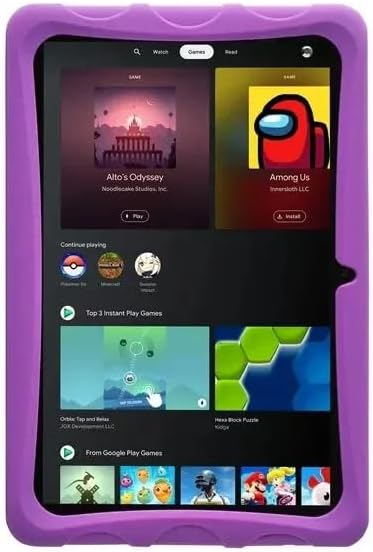
Figure 3.2: Front view of the tablet displaying the games section within the Google Kids Space or Entertainment Space. This screen highlights various games available for download or play, tailored for a younger audience.

Figure 3.3: Side view of the tablet, highlighting the integrated kickstand on the protective case. The kickstand allows for hands-free viewing, useful for watching videos or participating in video calls.

Figure 3.4: Rear view of the tablet, focusing on the circular rotating kickstand integrated into the protective case. This design provides stability and allows for various viewing angles.
3.1 Physical Features
- Display: 10.1-inch IPS LCD, 1280 x 800 resolution, scratch-resistant touchscreen.
- Cameras: 2 MP front-facing camera, 2 MP rear-facing camera.
- Ports: USB port for charging and data transfer, 3.5 mm headphone jack.
- Buttons: Power button, Volume up/down buttons.
- Memory Card Slot: For storage expansion.
- Protective Case: Durable case with an integrated kickstand for hands-free use.
4. Setup
4.1 Initial Charging
Before first use, fully charge the tablet. Connect the charging cable to the tablet's USB port and the power adapter to a wall outlet. The battery indicator will show charging status. A full charge provides approximately 17 hours of battery life.
4.2 Powering On/Off
- To Power On: Press and hold the Power button until the onn. logo appears.
- To Power Off: Press and hold the Power button, then select "Power off" from the options.
- To Restart: Press and hold the Power button, then select "Restart" from the options.
4.3 Initial Setup Wizard
Upon first power-on, the tablet will guide you through an initial setup process. This includes:
- Selecting your language.
- Connecting to a Wi-Fi network (802.11n supported).
- Signing in with a Google account or creating a new one. This is essential for accessing the Google Play Store and other Google services, including Google Kids Space and Family Link.
- Setting up date and time.
- Reviewing and accepting terms and conditions.
5. Operating Instructions
5.1 Navigation
- Touchscreen Gestures: Tap to select, swipe to scroll, pinch to zoom.
- Home Screen: Access apps, widgets, and settings.
- Notifications: Swipe down from the top of the screen to view notifications and quick settings.
- App Drawer: Swipe up from the bottom of the screen to access all installed applications.
5.2 Connecting to Wi-Fi
- Go to Settings > Network & internet > Wi-Fi.
- Toggle Wi-Fi On.
- Select your desired network from the list.
- Enter the password if prompted, then tap Connect.
5.3 Using Google Kids Space and Entertainment Space
The tablet comes pre-loaded with Google Kids Space and Entertainment Space. These environments offer curated content suitable for children and a centralized hub for entertainment, respectively.
- Google Kids Space: Provides apps, books, and videos tailored for children, managed through Family Link.
- Entertainment Space: A personalized hub for movies, TV shows, games, and books.
6. Parental Controls (Google Family Link)
The onn. Kids Android Tablet integrates with Google Family Link, allowing parents to manage their child's device usage from their own device.
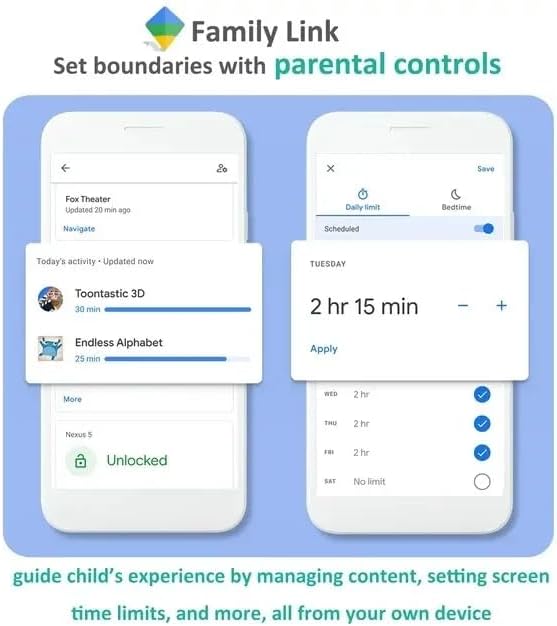
Figure 6.1: Illustration of Google Family Link parental controls. This image demonstrates how parents can set screen time limits and manage app access for their child's tablet directly from their smartphone.
6.1 Key Features of Family Link
- Manage Apps: Approve or block apps your child wants to download from the Google Play Store.
- Screen Time Limits: Set daily screen time limits and device bedtime schedules.
- Device Location: See your child's device location (when it's powered on and connected to the internet).
- Content Restrictions: Filter explicit content on Google Search and YouTube.
- App Activity: View your child's app activity reports.
To set up Family Link, download the Google Family Link app on your own device and follow the on-screen instructions to link it with your child's Google account on the tablet.
7. Maintenance
7.1 Cleaning
Use a soft, lint-free cloth to clean the tablet screen and body. For stubborn smudges, slightly dampen the cloth with water or a screen cleaner designed for electronics. Avoid harsh chemicals, abrasive materials, or excessive moisture.
7.2 Storage
When not in use for extended periods, store the tablet in a cool, dry place away from direct sunlight and extreme temperatures. Ensure the battery is partially charged (around 50%) before long-term storage to preserve battery health.
7.3 Software Updates
Periodically check for software updates to ensure optimal performance and security. Go to Settings > System > System update.
8. Troubleshooting
8.1 Tablet Does Not Turn On
- Ensure the tablet is fully charged. Connect it to the charger for at least 30 minutes.
- Try a forced restart: Press and hold the Power button for 10-15 seconds.
8.2 Screen Is Unresponsive
- Restart the tablet.
- Ensure the screen is clean and free of debris or moisture.
8.3 Wi-Fi Connection Issues
- Ensure Wi-Fi is enabled in Settings.
- Restart your Wi-Fi router.
- Forget the network and reconnect by re-entering the password.
- Ensure the tablet is within range of the Wi-Fi signal.
8.4 Apps Crashing or Freezing
- Close and reopen the app.
- Clear the app's cache: Go to Settings > Apps > select the app > Storage & cache > Clear cache.
- Ensure the tablet has sufficient free storage space.
- Update the app from the Google Play Store.
9. Specifications
| Feature | Specification |
|---|---|
| Model Number | TBPUR100092980 |
| Operating System | Android 12 Go Edition |
| Display Size | 10.1 inches |
| Screen Resolution | 1280 x 800 pixels (IPS LCD) |
| Processor | 2.0 GHz Quad-Core (ARM Cortex) |
| RAM | 2 GB |
| Internal Storage | 32 GB |
| Storage Expansion | Memory card slot (supports microSD) |
| Battery Capacity | 7500mAh |
| Battery Life | Up to 17 hours |
| Front Camera | 2 MP |
| Rear Camera | 2 MP |
| Wireless Connectivity | 802.11n Wi-Fi |
| Audio Jack | 3.5 mm headphone jack |
| Dimensions (LxWxH) | 10 x 6.75 x 1.25 inches |
| Item Weight | 1.75 pounds |
10. Warranty and Support
10.1 Product Warranty
This onn. 10.1" Kids Android Tablet comes with a 2-year warranty from the date of purchase. This warranty covers manufacturing defects and malfunctions under normal use. It does not cover damage caused by misuse, accidents, unauthorized modifications, or normal wear and tear. Please retain your proof of purchase for warranty claims.
10.2 Customer Support
For technical assistance, troubleshooting beyond this manual, or warranty inquiries, please contact onn. customer support. Refer to the contact information provided with your product packaging or visit the official onn. website for support details.
Note: Specific contact details are not provided in this manual. Please refer to your product's packaging or the manufacturer's official website for the most current support information.