Introduction
This user manual provides essential information for setting up, operating, maintaining, and troubleshooting your VIBOX I-45 Gaming PC. Please read this manual thoroughly before using your new computer to ensure optimal performance and longevity.
1. Setup
1.1 Unboxing and Package Contents
Carefully remove all components from the packaging. Ensure all items listed below are present. Retain the packaging for future transport or service needs.
- VIBOX I-45 Gaming PC (VTX-4 Black Tower)
- Power Cable
- Wi-Fi Network Adapter (300 Mbps)
- Documentation (this manual)
1.2 Connecting Peripherals
Before powering on your PC, connect all necessary peripherals.
- Monitor: Connect your monitor to the graphics output port (HDMI or DisplayPort) on the rear of the PC. Ensure the monitor is also connected to a power source.
- Keyboard and Mouse: Connect your keyboard and mouse to the available USB ports.
- Network: For wired internet, connect an Ethernet cable to the LAN port. For wireless internet, ensure the included Wi-Fi adapter is installed or connected.
- Audio: Connect speakers or a headset to the audio output jacks.
- Power: Connect the power cable to the PC's power input and then to a wall outlet.

Figure 1.2.1: Rear I/O Ports for connecting peripherals.
1.3 Initial Boot and Windows 11 Setup
After connecting all peripherals, press the power button on the front of the PC. The system will boot into Windows 11 Home. Follow the on-screen instructions to complete the initial setup, including language selection, network connection, and user account creation.

Figure 1.3.1: Windows 11 Home Operating System.
2. Operating Instructions
2.1 Power On/Off and Restart
- Power On: Press the power button located on the front panel.
- Shut Down: Click the Start button in Windows, then select Power > Shut down.
- Restart: Click the Start button in Windows, then select Power > Restart.
2.2 Windows 11 Home Features
Your VIBOX I-45 comes pre-installed with Windows 11 Home, offering several features designed to enhance your computing experience:
- DirectStorage: Enables faster game loading times.
- AutoHDR: Automatically enhances visuals for improved graphics.
- Xbox Game Pass Integration: Seamless access to a library of games.
- Optimized CPU Performance: Enhanced performance for various tasks.
2.3 RGB Lighting Control
The VTX-4 case features Hex RGB Infinity 120mm fans. You can customize the lighting effects and colors using the dedicated RGB change button on the top panel or through compatible software if available.

Figure 2.3.1: Customizable RGB Fans.
3. Maintenance
3.1 Cleaning Your PC
Regular cleaning helps maintain performance and extends the lifespan of your computer.
- Exterior: Use a soft, damp cloth to wipe down the exterior surfaces. Avoid harsh chemicals.
- Dust Removal: Periodically use compressed air to clear dust from fan vents and internal components. Ensure the PC is powered off and unplugged before cleaning.
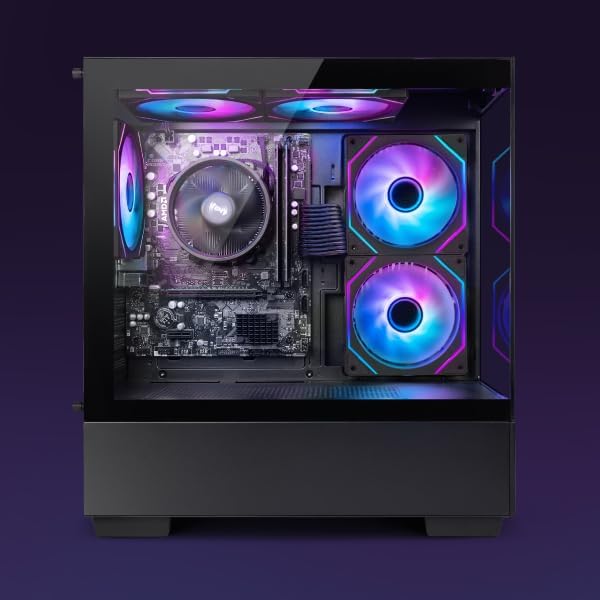
Figure 3.1.1: Internal components of the VIBOX I-45 PC.
3.2 Software Updates
Keep your operating system and drivers updated to ensure security, stability, and optimal performance.
- Windows Updates: Windows 11 automatically checks for updates. You can manually check by going to Settings > Windows Update.
- Driver Updates: Regularly check the VIBOX support website or component manufacturers' websites (AMD for CPU/GPU) for the latest drivers.
3.3 System Backup
Regularly back up your important data to an external drive or cloud storage to prevent data loss.
4. Troubleshooting
This section addresses common issues you might encounter. For more complex problems, please contact VIBOX support.
4.1 No Power
- Ensure the power cable is securely connected to both the PC and the wall outlet.
- Verify the wall outlet is functional by plugging in another device.
- Check the power supply switch on the rear of the PC (if present) is in the 'On' position.
4.2 No Display on Monitor
- Confirm the monitor is powered on and correctly connected to the PC's graphics output port.
- Ensure the correct input source is selected on your monitor.
- Try a different display cable if available.
4.3 Slow Performance
- Close unnecessary applications running in the background.
- Check for and install any pending Windows or driver updates.
- Run a disk cleanup and defragmentation (for HDD, not typically needed for SSD).
- Scan for malware or viruses.
4.4 Network Connectivity Issues
- Wi-Fi: Ensure the Wi-Fi adapter is properly installed and drivers are up to date. Check your router and internet connection.
- Ethernet: Verify the Ethernet cable is securely connected to both the PC and the router/modem. Check router status.
- Restart your router/modem and PC.
5. Specifications
| Feature | Specification |
|---|---|
| Brand | VIBOX |
| Model Number | I-45 |
| Color | VTX-4 Black |
| Operating System | Windows 11 Home |
| Processor | AMD Ryzen 3 3200G (4 Cores, 3.6 GHz Base, up to 4.0 GHz Max) |
| Graphics | Integrated Radeon Vega 8 Graphics (2GB Shared Memory) |
| RAM | 16 GB DDR4 (3200 MHz Dual Channel) |
| Storage | 480 GB SSD |
| Max Memory Support | 128 GB |
| Wi-Fi | 802.11n (300 Mbps adapter included) |
| HDMI Ports | 1 |
| USB 2.0 Ports | 3 |
| USB 3.0 Ports | 3 |
| Dimensions (L x W x H) | 36 x 20 x 41 cm |
| Compatible Devices | Headset, Keyboard, Printer, Monitor, Mouse |
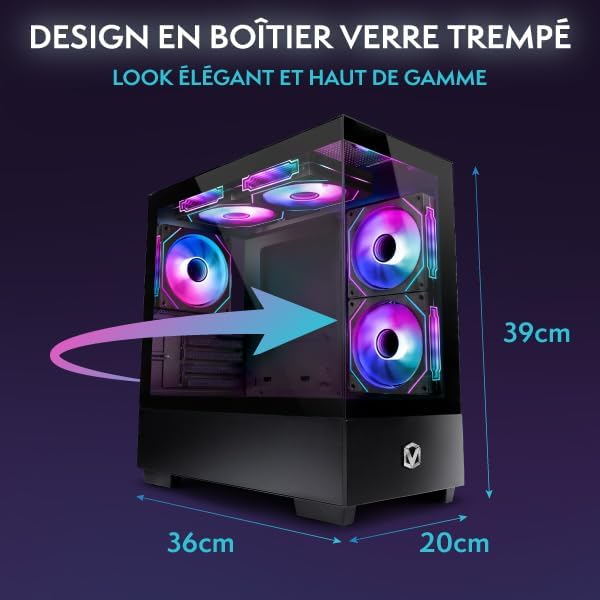
Figure 5.1.1: VIBOX I-45 PC Dimensions.
6. Warranty Information
Your VIBOX I-45 Gaming PC comes with a manufacturer's warranty covering:
- Parts: 2 Years
- Labor: Lifetime
Please retain your proof of purchase for warranty claims. For detailed terms and conditions, refer to the warranty card included with your product or visit the official VIBOX website.
7. Support
For technical assistance, troubleshooting beyond this manual, or warranty inquiries, please contact VIBOX customer support. You can find contact information on the official VIBOX Gaming website or through your retailer.
Online Resources:
- Visit the VIBOX Gaming Store on Amazon for product information and updates.


