
sfjhdfhuiedfvdnbfed Foldable Smartphone Gimbal Stabilizer
User Manual: 3-Axis Foldable Smartphone Gimbal Stabilizer
Brand: sfjhdfhuiedfvdnbfed
1. Introduction
Thank you for choosing the sfjhdfhuiedfvdnbfed 3-Axis Foldable Smartphone Gimbal Stabilizer. This device is designed to provide ultra-smooth, stable footage for your smartphone videos, enhancing your mobile videography experience. Its foldable design ensures portability, while advanced features like 3D Auto Inception and Face Tracking offer professional-grade capabilities. Please read this manual thoroughly before use to ensure proper operation and maintenance.
2. Safety Information
- Do not disassemble or modify the gimbal. Unauthorized modifications may cause damage and void the warranty.
- Keep the device away from water and other liquids. Do not operate in rain or humid environments.
- Avoid dropping or subjecting the gimbal to strong impacts.
- Store the gimbal in a cool, dry place, away from direct sunlight and high temperatures.
- Ensure the smartphone is securely mounted before powering on the gimbal to prevent damage to the motors.
- Use only the specified charging power (10W) to charge the battery.
3. Product Overview
Familiarize yourself with the components and features of your gimbal stabilizer.

Figure 3.1: The 3-Axis Foldable Smartphone Gimbal Stabilizer in its compact, folded state, showcasing its portability.
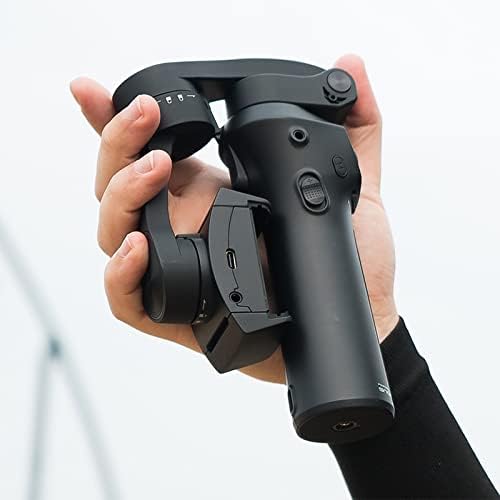
Figure 3.2: A hand holding the unfolded gimbal, demonstrating its ergonomic design and readiness for use.

Figure 3.3: Detailed view of key gimbal features. Top left shows a fixed buckle on each motor for secure storage. Top right illustrates a slot on the silicone phone holder pad to prevent accidental button presses. Bottom left highlights the concave design of the phone holder for easier stretching and hand protection. Bottom right displays the standard 1/4 inch screw on the handle for accessory attachment.
Key Features:
- Foldable Design: Compact for easy storage and transport. Features fixed buckles on each motor for secure folding.
- Vertical and Horizontal Shooting: Easily switch between portrait and landscape modes.
- Smooth Zoom Slider: Precise control over zoom for cinematic effects.
- Intelligent Tracking: Includes 3D Auto Inception and Face Tracking capabilities.
- Ergonomic Handle: Comfortable grip with custom multi-function button settings.
- Accessory Mount: Standard 1/4 inch screw thread on the bottom for tripods or extension poles.
- Phone Protection: Silicone pad with a slot to prevent accidental button presses, and a concave design to prevent hand clamping.
4. Setup
4.1 Charging the Gimbal
Before first use, fully charge the gimbal battery.
- Connect the charging cable to the gimbal's charging port.
- Connect the other end of the cable to a 10W power adapter (not included).
- The charging indicator light will show the charging status. A full charge takes approximately 3 hours.
4.2 Unfolding and Mounting Your Smartphone
- Gently unfold the gimbal from its compact state. Release any fixed buckles on the motors.
- Extend the phone holder. The concave design helps prevent hand clamping.
- Insert your smartphone into the phone holder. Ensure the phone is centered and securely gripped. The silicone pad has a slot to avoid pressing side buttons.
- Balance Adjustment: For optimal performance, ensure your smartphone is balanced on the gimbal. Slide the phone left or right in the holder until it remains level when the gimbal is powered off. This reduces motor strain and extends battery life.
5. Operating Instructions
5.1 Powering On/Off
- Power On: Press and hold the power button for 3 seconds until the indicator light illuminates and the gimbal initializes.
- Power Off: Press and hold the power button for 3 seconds until the indicator light turns off.
5.2 Connecting to Smartphone (Bluetooth)
- Ensure the gimbal is powered on.
- Enable Bluetooth on your smartphone.
- Open the dedicated gimbal app (if applicable, refer to product packaging or quick start guide for app name).
- Search for and connect to the gimbal's Bluetooth name (e.g., "Gimbal_XXXX").
5.3 Gimbal Modes and Controls
The gimbal features various modes and controls accessible via its buttons and joystick.
- Joystick: Controls pan and tilt movements of the smartphone.
- Mode Button: Cycles through different operating modes (e.g., Pan Follow, Lock Mode, All Follow).
- Shutter Button: Press once to take a photo, press and hold to start/stop video recording (requires app connection).
- Zoom Slider: Allows for smooth optical or digital zoom within the camera app.
- Custom Multi-function Button: Can be configured via the app for specific functions like switching between front/rear camera, or activating tracking.
5.4 Advanced Features
- Face Tracking: Activate this feature in the app. The gimbal will automatically follow a detected face, keeping it in the center of the frame.
- 3D Auto Inception: A cinematic mode that rotates the phone 360 degrees along the roll axis, creating a spinning effect. Refer to the app for activation and control.
- Vertical/Horizontal Switching: Manually rotate the phone holder or use a dedicated button/gesture (if available) to switch between portrait and landscape orientations.
6. Maintenance
- Cleaning: Use a soft, dry cloth to wipe the gimbal. Do not use liquid cleaners or solvents.
- Storage: When not in use, fold the gimbal into its compact form and store it in a protective case (if provided) or a clean, dry place.
- Battery Care: For long-term storage, charge the battery to about 50-60% every three months to maintain battery health.
- Firmware Updates: Periodically check the official app or website for firmware updates to ensure optimal performance and new features.
7. Troubleshooting
| Problem | Possible Cause | Solution |
|---|---|---|
| Gimbal not powering on. | Low battery; Power button not held long enough. | Charge the gimbal fully; Press and hold the power button for 3 seconds. |
| Gimbal vibrates or motors are noisy. | Smartphone not balanced; Overload; Obstruction. | Re-balance the smartphone; Ensure phone weight is within limits (max 310g); Check for obstructions. |
| Cannot connect via Bluetooth. | Bluetooth off on phone; Gimbal not in pairing mode; Interference. | Ensure phone Bluetooth is on; Restart gimbal and phone; Try connecting in a different location. |
| Gimbal not responding to controls. | App not connected; Firmware issue; Gimbal frozen. | Ensure app is connected; Restart gimbal; Check for firmware updates. |
8. Specifications
| Parameter | Value |
|---|---|
| Working Voltage | 7.4V |
| Working Current | 90mA (balanced state of center of gravity) |
| Working Temperature | -10°C ~ 45°C |
| Dimensions (Expanded W*D*H) | 123*73*297 mm |
| Dimensions (Storage W*D*H) | 50*106*178 mm |
| Body Weight | 440g (15.5 ounces) |
| Tilt Axis Mechanical Range | 330° |
| Roll Axis Mechanical Range | 330° |
| Horizontal Axis Mechanical Range | 360° (unlimited rotation) |
| Static Attitude Tracking Error | ±0.05° |
| Motion Attitude Tracking Error | ±0.2° |
| Applicable Mobile Phone Width | 55-90mm |
| Applicable Mobile Phone Thickness | ≤9mm |
| Ultimate Load Weight | 310g |
| Microphone Interface Type | 3.5mm TRRS |
| Battery Type | Lithium ion battery |
| Battery Capacity | 2000mAh |
| Charging Environment Temperature | 5-40°C |
| Charging Time | 3 hours (with 10W charging power) |
| Working Hours | 24 hours |
9. Support
For any questions, concerns, or technical assistance regarding your sfjhdfhuiedfvdnbfed 3-Axis Foldable Smartphone Gimbal Stabilizer, please contact our customer support. We are committed to providing quality products and support.
Please refer to the product packaging or the official brand website for specific contact information.
Ask a question about this manual
Ask about setup, troubleshooting, compatibility, parts, safety, or missing instructions. Manuals+ will review the question and use this page’s manual context to help answer it.