
1. Introduction
This manual provides detailed instructions for the installation, operation, and maintenance of your Rimoody 10.1 Inch Android Car Stereo. Please read this manual thoroughly before using the product to ensure proper function and safety. This device is designed to enhance your driving experience with advanced features such as GPS navigation, multimedia playback, and smartphone integration.

Image 1.1: Rimoody 10.1 Inch Android Car Stereo main unit.
2. Package Contents
Verify that all items listed below are included in your package. If any items are missing or damaged, please contact customer support.
- 10.1 Inch Android Car Stereo Unit
- Power Cable(s)
- USB Cable(s)
- GPS Antenna
- Radio Antenna
- Reversing Camera Input Cable
- RCA Cable
- Backup Camera
- Installation Tool
- User Manual
- Canbus (if applicable for your vehicle model)
- Antenna Adapter (if applicable for your vehicle model)

Image 2.1: Overview of the car stereo unit and included accessories.

Image 2.2: Detailed view of the car stereo components and various wiring harnesses.
3. Setup and Installation
Professional installation is recommended. Ensure the vehicle's battery is disconnected before beginning installation. Refer to your vehicle's specific wiring diagrams if necessary.
3.1 Compatibility Check
This car stereo is designed for Citroen C1, Peugeot 107, and Toyota Aygo models manufactured between 2004 and 2014.
3.2 Wiring Connections
- Power Cable: Connect the main power harness to the vehicle's power supply (ACC, B+, GND).
- Speaker Wires: Connect the speaker output wires to the corresponding vehicle speakers.
- GPS Antenna: Mount the GPS antenna in a location with a clear view of the sky, typically on the dashboard.
- Radio Antenna: Connect the vehicle's radio antenna to the stereo unit.
- USB Cables: Connect the provided USB cables for external devices or data transfer.
- Backup Camera: Connect the backup camera cable to the designated input on the stereo. Ensure the reverse trigger wire is connected to the vehicle's reverse light circuit.
- RCA Cables: Connect RCA cables for external amplifiers or video outputs/inputs as needed.
- Steering Wheel Control: Connect the steering wheel control wires (Key1, Key2, GND) to your vehicle's steering wheel control interface. Configuration may be required in the stereo settings.
3.3 Mounting the Unit
Carefully insert the stereo unit into the dashboard opening, ensuring all cables are properly routed and not pinched. Secure the unit using the provided mounting brackets and screws.
Image 3.1: Comparison of the dashboard before and after installing the Rimoody car stereo in a compatible vehicle.
4. Operating Instructions
The Rimoody Android Car Stereo features a 10.1-inch capacitive touchscreen for intuitive control. The user interface is designed for ease of use while driving.
4.1 Power On/Off
- The unit will power on automatically when the vehicle's ignition is turned on.
- To manually power off, press and hold the power button (if available) or turn off the vehicle's ignition.
4.2 Wireless Carplay & Android Auto
Connect your iOS or Android smartphone wirelessly or via USB to access navigation, music, calls, and messages directly on the stereo screen.
- Ensure Bluetooth and Wi-Fi are enabled on your smartphone.
- On the stereo, select the Carplay or Android Auto application.
- Follow the on-screen prompts to pair your device. For wireless connection, pair via Bluetooth first, then confirm the Wi-Fi connection. For wired connection, connect via USB.

Image 4.1: Wireless Carplay and Android Auto interfaces.
4.3 GPS Navigation & WiFi
The built-in GPS module allows for precise navigation. Connect to Wi-Fi to download offline maps or use online navigation services and other applications.
- To use GPS, ensure the GPS antenna is properly installed.
- To connect to Wi-Fi, go to Settings > Network > Wi-Fi, select your network, and enter the password.
- Download preferred navigation apps from the app store or use pre-installed options.

Image 4.2: GPS Navigation and Wi-Fi connection interface.
4.4 Bluetooth Functionality
Pair your smartphone via Bluetooth for hands-free calling and audio streaming.
- Enable Bluetooth on your smartphone and the car stereo.
- On the stereo, go to the Bluetooth application and search for available devices.
- Select your phone from the list and confirm the pairing code.
- Once connected, you can make/receive calls and play music through the stereo.

Image 4.3: Bluetooth interface for hands-free calling and music.
4.5 FM/RDS Radio
Tune into your favorite radio stations with FM and RDS (Radio Data System) support.
- Open the Radio application.
- Use the scan function to find available stations or manually tune to a frequency.
- Save your preferred stations to the preset buttons for quick access.
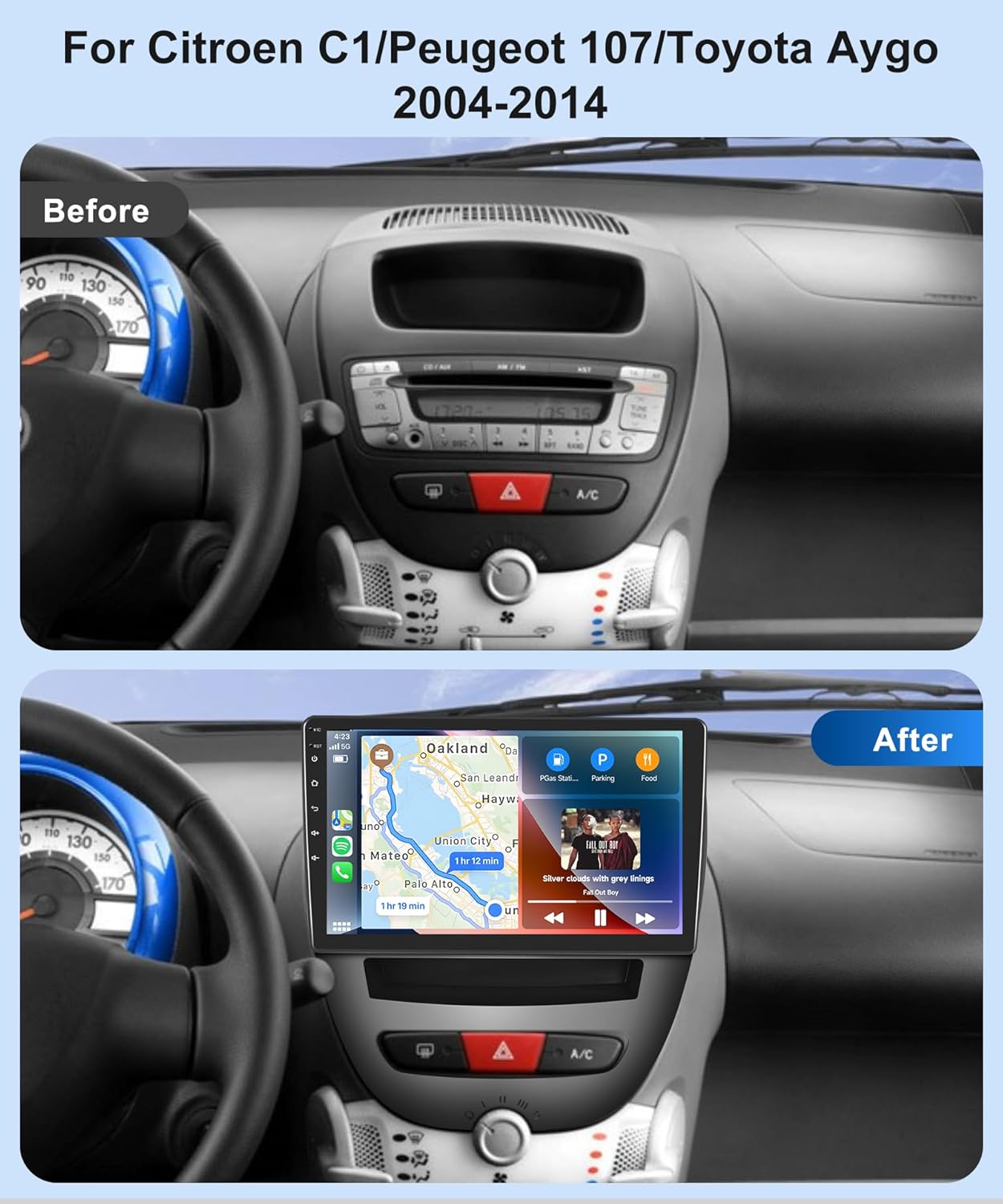
Image 4.4: FM/RDS Radio interface.
4.6 DSP Audio Settings
Utilize the built-in Digital Signal Processor (DSP) to customize your audio experience with various equalizer settings and sound effects.
- Access the DSP or Equalizer settings from the main menu.
- Adjust frequency bands, balance, fader, and other sound parameters to your preference.

Image 4.5: DSP Audio Equalizer settings.
4.7 Rear View Camera
The stereo supports a rear view camera, providing a clear image on the screen when reversing.
- When the vehicle is shifted into reverse gear, the stereo will automatically display the camera feed.
- Ensure the backup camera is correctly installed and connected to the reverse trigger wire.

Image 4.6: Rear View Camera display.
4.8 Steering Wheel Control
Configure your vehicle's steering wheel buttons to control the stereo functions for convenience and safety.
- Go to Settings > Steering Wheel Control.
- Follow the on-screen instructions to map each button to its desired function (e.g., volume up/down, track skip).

Image 4.7: Steering Wheel Control functionality.
4.9 Split Screen Functionality
Run two applications simultaneously on the screen, such as navigation and music playback.
- Open the first application.
- Press and hold the recent apps button or drag from the side to activate split-screen mode.
- Select the second application to display alongside the first.

Image 4.8: Split Screen, Wallpapers, and UI Themes options.
4.10 Mirror Link
Mirror your smartphone's screen directly onto the car stereo display, allowing you to use phone apps, music, and videos.
- Select the Mirror Link application on the stereo.
- Follow the instructions to connect your iOS or Android phone via Bluetooth or USB.

Image 4.9: iOS/Android Mirror Link functionality.
5. Maintenance
To ensure the longevity and optimal performance of your car stereo, follow these maintenance guidelines:
- Screen Cleaning: Use a soft, lint-free cloth to gently wipe the touchscreen. For stubborn smudges, slightly dampen the cloth with water or a screen-safe cleaner. Avoid abrasive materials or harsh chemicals.
- Software Updates: Periodically check for software updates through the system settings or the manufacturer's website to ensure you have the latest features and bug fixes.
- Cable Connections: Regularly inspect all cable connections to ensure they are secure and free from damage. Loose connections can lead to intermittent issues.
- Avoid Extreme Temperatures: Do not expose the unit to extreme temperatures for extended periods, as this can affect performance and lifespan.
6. Troubleshooting
If you encounter issues with your car stereo, refer to the following common troubleshooting steps:
| Problem | Possible Cause | Solution |
|---|---|---|
| No Power | Loose power connection, blown fuse, vehicle ignition off. | Check power cables, inspect vehicle fuses, ensure ignition is on. |
| No Sound | Volume too low, speaker wires disconnected, mute function active. | Increase volume, check speaker connections, disable mute. |
| GPS Not Working | GPS antenna not connected or improperly placed, no satellite signal. | Ensure GPS antenna is connected and has a clear view of the sky. |
| Bluetooth Pairing Failure | Bluetooth not enabled, incorrect pairing code, device out of range. | Enable Bluetooth on both devices, re-enter pairing code, ensure devices are close. |
| Touchscreen Unresponsive | Software glitch, screen dirty. | Restart the unit, clean the screen. If issue persists, contact support. |
| Backup Camera Not Displaying | Camera cable loose, reverse trigger wire not connected, camera faulty. | Check camera connections, verify reverse trigger wire, test camera. |
If these steps do not resolve the issue, please contact Rimoody customer support for further assistance.
7. Specifications
| Feature | Specification |
|---|---|
| Model Number | ab5c7f1e-9691-444b-87e8-51ae6a15acef |
| Screen Size | 10.1 inches |
| Display Type | 2.5D Tempered Glass, Full Capacitance Touch Screen |
| Operating System | Android |
| Processor | 8 Core |
| Memory (RAM) | 4GB |
| Storage (ROM) | 64GB |
| Resolution | 1080P High Definition |
| Connectivity | Bluetooth, Wi-Fi, USB, FM Antenna |
| Special Features | Wireless Carplay, Wireless Android Auto, GPS Navigation, DSP, RDS, Split Screen, Mirror Link, Backup Camera Support, Steering Wheel Control |
| Audio Output Mode | Stereo |
| Surround Sound | 7.1 Channel Configuration |
| Output Power | 180 Watts (4 Channels) |
| Video Encoding | H.264, H.265/HEVC |
| Supported Internet Services | YouTube, Spotify, Online Maps |
| Control Method | Touch |
Image 7.1: Dimensions and rear connection layout of the car stereo.
8. Warranty and Support
Rimoody is committed to providing high-quality products and customer satisfaction.
8.1 Product Warranty
This product comes with a 2-year manufacturer's warranty from the date of purchase. This warranty covers defects in materials and workmanship under normal use. Please retain your proof of purchase for warranty claims.
8.2 Customer Support
For any questions, technical assistance, or warranty claims, please contact Rimoody customer support:
- Quick Response: Expect a response within 24 hours.
- Installation Guidance: Professional installation guides and videos are available.
- Returns: 90 days free return for refund or exchange.
- Technical Support: Lifetime technical support is provided.

Image 8.1: Rimoody Customer Support details.